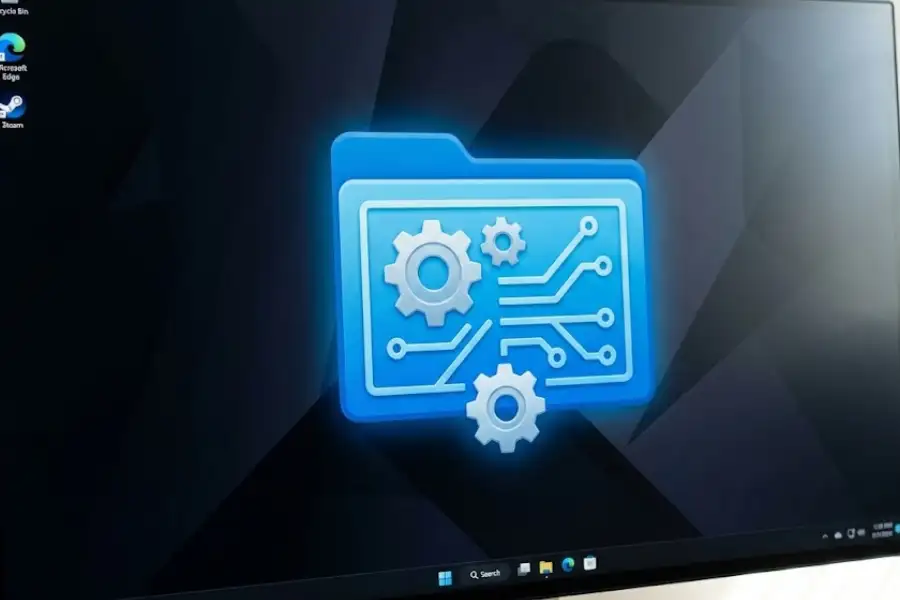
How to Enable God Mode in Windows 11? [30-Second Guide]
Short Answer: Right-click your desktop, create a new folder, and rename it to GodMode.{ED7BA470-8E54-465E-825C-99712043E01C}. Press Enter. Done! You now have one folder with 200+ Windows settings.
Time needed: 30 seconds | Cost: Free | Works on: Windows 11, 10, 8, 7
What is God Mode in Windows 11?
God Mode is a special Windows folder that displays more than 200 administrative settings in one place. Microsoft calls it the Windows Master Control Panel. It combines options from both the Control Panel and the modern Settings app into a single, searchable list. God Mode has been part of Windows since Windows Vista in 2007.
Think of God Mode like a master remote control for your computer. Instead of opening 10 different menus to find settings, you see everything in one window.
In fact, God Mode is the perfect example of a Software Egg (a hidden feature that packs everything in one place). It’s hidden, powerful, and incredibly useful.
Here is what you need to know:
- Official Name: Windows Master Control Panel
- Number of Settings: More than 200
- Available Since: Windows Vista (2007)
- Works On: Windows 11, Windows 10, Windows 8, Windows 7
- Cost: Free (comes with Windows)
What Does God Mode Show You?
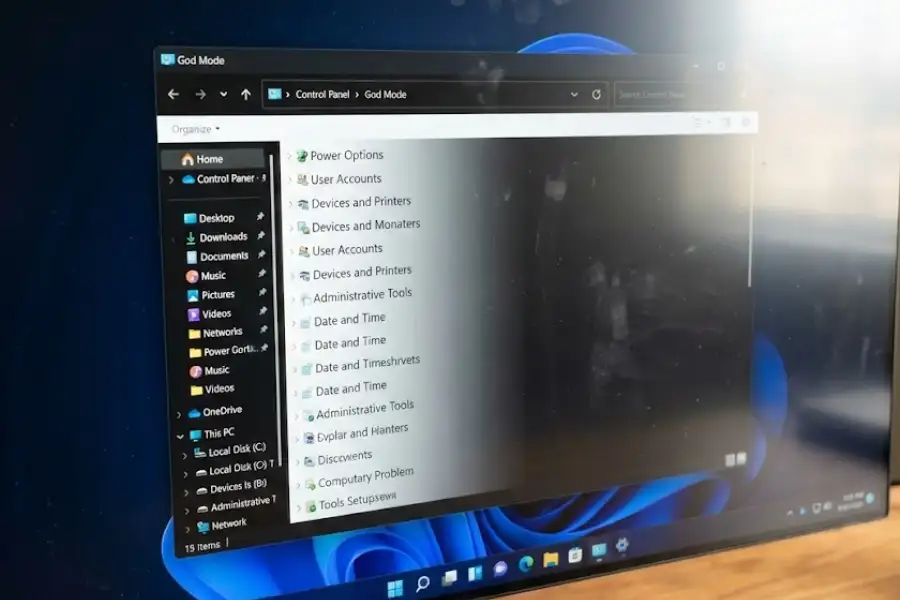
When you open God Mode, you see settings organized into groups. These include:
- Security and Maintenance
- Power Options
- User Accounts
- Programs and Features
- Devices and Printers
- File Explorer Options
- Network and Sharing
- Troubleshooting Tools
God Mode does not give you secret features. It simply puts all existing settings in one place. You are not installing anything new or changing system files.
How Do I Enable God Mode in Windows 11?
Answer: Create a new folder on your desktop. Rename it to GodMode.{ED7BA470-8E54-465E-825C-99712043E01C} and press Enter. The folder icon changes. Double-click it to open God Mode.
This takes about 30 seconds. You do not need to download anything. Just follow these 4 steps:
Step 1: Create a New Folder
Right-click on any empty space on your desktop. Click New, then click Folder.
Step 2: Rename the Folder
Right-click the new folder and choose Rename. Or select it and press F2 on your keyboard.
Step 3: Paste the God Mode Code
Delete the current name. Then copy and paste this exact code:
GodMode.{ED7BA470-8E54-465E-825C-99712043E01C}
Step 4: Press Enter and Open
Press Enter. The folder icon changes to a blue Control Panel icon. The name disappears. Double-click this icon to open God Mode.
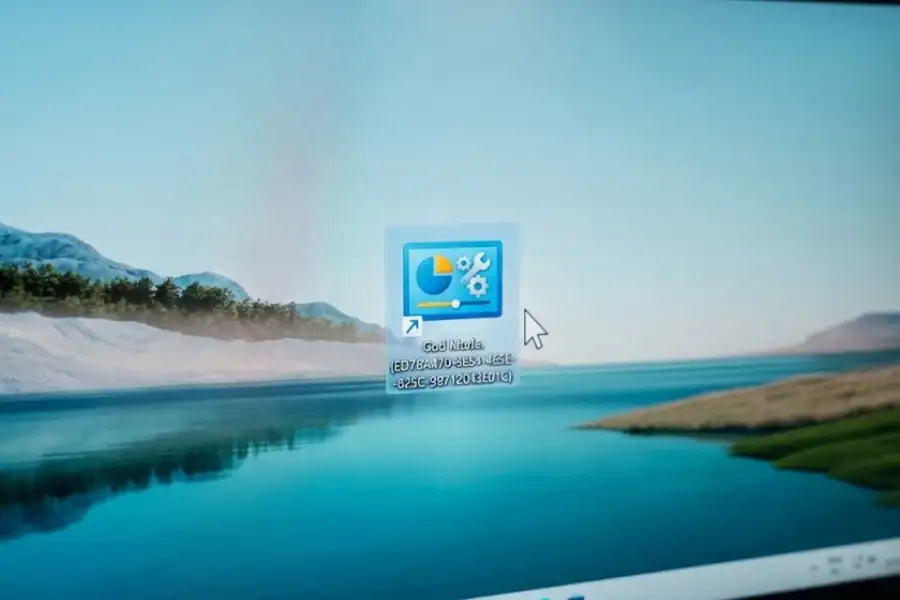
The code must be exact. One wrong letter or number and it will not work. Always copy and paste the code. Do not type it by hand.
What is the God Mode Folder Code?
The God Mode code is: GodMode.{ED7BA470-8E54-465E-825C-99712043E01C}
This code has two parts:
- GodMode – This is the name you see (you can change this)
- {ED7BA470-8E54-465E-825C-99712043E01C} – This is a CLSID (Class Identifier) that tells Windows to show the master control panel
Can I Change the Name?
Yes! You can change “GodMode” to any name you want. The important part is the code in the curly brackets. For example:
- MySettings.{ED7BA470-8E54-465E-825C-99712043E01C}
- AllSettings.{ED7BA470-8E54-465E-825C-99712043E01C}
- MasterPanel.{ED7BA470-8E54-465E-825C-99712043E01C}
The code in the curly brackets is a Windows CLSID. Microsoft uses these codes to identify special system folders. You cannot change this part or it will not work.
What Can I Do With God Mode?
Answer: God Mode lets you manage user accounts, change power settings, add printers, run troubleshooters, change file options, and access 200+ other Windows settings from one place.
Here are the most useful things you can do:
Backup Your Files
Set up automatic backups to keep your photos, documents, and videos safe.
Change Power Settings
Pick a power plan. Change when your screen turns off. Make your battery last longer.
Manage User Accounts
Add or remove users. Change passwords. Set up parental controls.
Add or Fix Printers
Add new printers. Remove old ones. Fix printer problems quickly.
Run Troubleshooters
Windows has tools that can find and fix problems automatically. God Mode shows all of them.
Network Settings
Change how your computer connects to WiFi. Fix internet problems. Share files on your network.
Why is My God Mode Folder Not Working?
Answer: The most common reason is a typo in the folder name. Copy and paste the exact code: GodMode.{ED7BA470-8E54-465E-825C-99712043E01C}. Also make sure you are using an Administrator account.
If God Mode does not work, try these fixes:
Problem 1: Folder Name Did Not Change
Why: You probably have a typo in the code.
Fix: Delete the folder. Create a new one. This time, copy the code from this page and paste it directly.
Problem 2: You See an Error Message
Why: You might not have administrator rights.
Fix: Check your account type:
- Click the Start button
- Type “Settings” and open it
- Click Accounts
- Look under your name – it should say “Administrator”
- If it does not say Administrator, you need to change your account type or ask someone with admin rights to help
Problem 3: Folder is Empty
Why: Windows system files might be damaged.
Fix: Run the System File Checker:
- Click Start
- Type “cmd”
- Right-click Command Prompt and choose “Run as administrator”
- Type: sfc /scannow and press Enter
- Wait 10-15 minutes for it to finish
- Restart your computer and try again
Problem 4: Folder Name is Blank
Why: This is normal! The name is supposed to disappear.
How to know it worked: Look at the icon. If it looks like a blue Control Panel icon (two small screens), you did it right. Double-click it to open God Mode.
Want to see the name? Put the God Mode folder inside another folder. Create a folder called “My Shortcuts” first. Then create God Mode inside it. You will see the name “GodMode” this way.
Is God Mode Safe to Use?
Answer: Yes, God Mode is 100% safe. It has been part of Windows since 2007. You are not downloading anything. You are just making a shortcut to settings that already exist on your PC.
Many people ask if God Mode can harm their computer. Here is what you need to know:
- No downloads: You are not installing software or downloading files
- Made by Microsoft: God Mode is a Windows feature, not a third-party tool
- No system changes: Creating the folder does not change any Windows settings
- Easy to remove: Just delete the folder if you do not want it anymore
- Been around since 2007: Windows Vista introduced this feature
God Mode is safe because it only creates a shortcut. It does not modify Windows files or change settings on its own. You control what changes you make from inside God Mode.
God Mode vs Settings App: Which Should I Use?
Answer: Use the Settings app for simple everyday changes. Use God Mode when you need to find something specific fast or want to see all options at once.
Windows 11 has two main places for settings:
- Settings App – The modern menu you open from Start
- Control Panel – The older settings menu from older Windows versions
God Mode combines both. That is what makes it special.
5 Tips to Get More From God Mode
Tip 1: Create Desktop Shortcuts
See a setting you use often? Drag it from the God Mode window to your desktop. Now you have a one-click shortcut to that specific setting.
Tip 2: Pin God Mode to Taskbar
Right-click the God Mode icon. Choose “Show more options” then “Pin to taskbar”. Now you can open it with one click anytime.
Tip 3: Use the Search Box
At the top right of the God Mode window, there is a search box. Type what you need (like “sound” or “mouse”) to find settings in seconds.
Tip 4: Change the View
Right-click inside the God Mode window. Click View and choose “Large icons” if you want bigger text. Or choose “Details” to see settings in a list format.
Tip 5: Make Multiple God Mode Folders
You can create more than one God Mode folder. Put one on your desktop, one in Documents, and one in a quick-access location. The code works in any folder location.
Frequently Asked Questions
What is God Mode in Windows 11?
God Mode is a special folder in Windows 11 that shows you 200+ settings in one place. Microsoft calls it the Windows Master Control Panel. It combines settings from Control Panel and the modern Settings app into one searchable list. It has been part of Windows since 2007.
How do I enable God Mode in Windows 11?
Create a new folder on your desktop. Rename it to: GodMode.{ED7BA470-8E54-465E-825C-99712043E01C} and press Enter. The folder icon changes to a Control Panel icon. Double-click it to open God Mode. This takes about 30 seconds.
Is God Mode safe to use?
Yes, God Mode is 100% safe. You are not downloading software or modifying Windows files. You are creating a shortcut to settings that already exist on your computer. Microsoft has included this feature in Windows since 2007.
What is the God Mode folder code?
The God Mode folder code is: GodMode.{ED7BA470-8E54-465E-825C-99712043E01C}. The part in curly brackets is a CLSID (Class Identifier) that Windows uses to identify the master control panel. You can change “GodMode” to any name you want, but the code in brackets must stay the same.
Does God Mode work on Windows 10?
Yes. God Mode works on Windows 11, Windows 10, Windows 8.1, Windows 8, Windows 7, and Windows Vista. Use the same folder code on any of these versions and it will work.
Why is my God Mode folder not working?
The most common reason is a typo in the folder name. Copy and paste the exact code: GodMode.{ED7BA470-8E54-465E-825C-99712043E01C}. Also check that you are using an Administrator account. If you are not an admin, you cannot create system shortcuts.
Can I delete the God Mode folder?
Yes, you can delete God Mode anytime. Right-click the folder and choose Delete. This only removes the shortcut. It does not delete settings or harm your computer in any way.
How many settings are in God Mode?
God Mode shows more than 200 settings and tools. The exact number depends on your Windows version and which features you have installed. Settings are organized into categories like Power Options, User Accounts, Security, Devices, and Troubleshooting.
Does God Mode give me new features?
No. God Mode does not add new features to Windows. It simply puts all existing settings in one easy-to-access folder. Think of it like a master remote control. It does not add new channels, it just makes it easier to find the ones you have.
Why is it called God Mode?
Windows fans gave it the name “God Mode” because it gives you “all-in-one” access to every setting. Microsoft calls it the Windows Master Control Panel. The name “God Mode” caught on because it sounds cool and describes how it gives you control over almost everything in Windows.
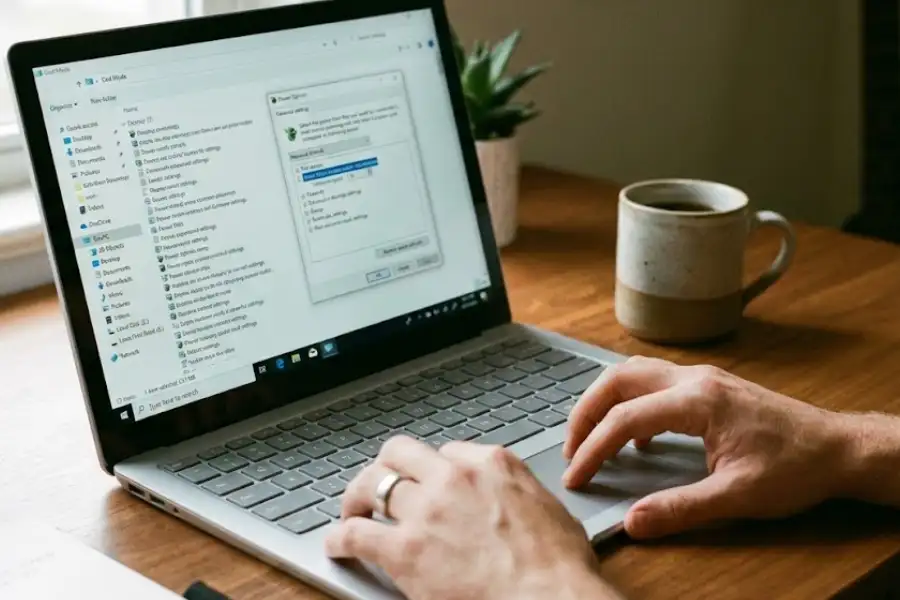
Quick Summary
Here is what we covered:
- What is God Mode? A special folder that shows 200+ Windows settings in one place
- How to enable it? Create a folder, rename it with the special code, press Enter
- The code: GodMode.{ED7BA470-8E54-465E-825C-99712043E01C}
- Is it safe? Yes, 100% safe – it has been part of Windows since 2007
- Which Windows versions? Works on Windows 11, 10, 8, 7, and Vista
God Mode is one of my favorite Windows tricks. Once you set it up, you will wonder how you lived without it. No more digging through menus to find that one setting you need. Good luck!