15 Photoshop Hidden Features Most Users Never Find (But Wish They Had Sooner)
Short answer: Adobe Photoshop, the professional image editing software developed by Adobe Inc., contains dozens of powerful features that never appear in the main toolbar. These include the Blend If sliders, spring-loaded tool switching, Face-Aware Liquefy, Layer Comps, and more. Most Photoshop users, even experienced ones, go years without finding them.
If you have been using Photoshop for a while, here is something worth knowing. The average user taps into only a small fraction of what this program can actually do. Adobe has quietly tucked hundreds of time-saving tools inside sub-menus, right-click options, and keyboard combinations that are easy to walk right past every single day.
The result? Slower editing. More frustration. And a lot of extra clicking that could be gone in seconds.
This article covers 15 real Photoshop hidden features that professional photo editors and graphic designers use regularly. Some of these will save you hours every week. Others will completely change how you think about working in Photoshop.
What Are Photoshop Hidden Features?
Photoshop hidden features are tools, shortcuts, and settings that exist inside Adobe Photoshop but are not visible in the standard toolbar or top-level menus. They include advanced masking tools, layer management shortcuts, transformation tricks, and workflow aids that require specific key combinations or sub-menu navigation to access. Because these features are not labeled clearly on the surface (acting much like a secret software egg), most users never find them without intentional research.
Professional retouchers, UI designers, and photo editors who work in Photoshop every day tend to know these features well. For everyone else, finding them is often a matter of luck or someone showing them directly.
1. What Is the Blend If Slider in Photoshop and How Does It Work?
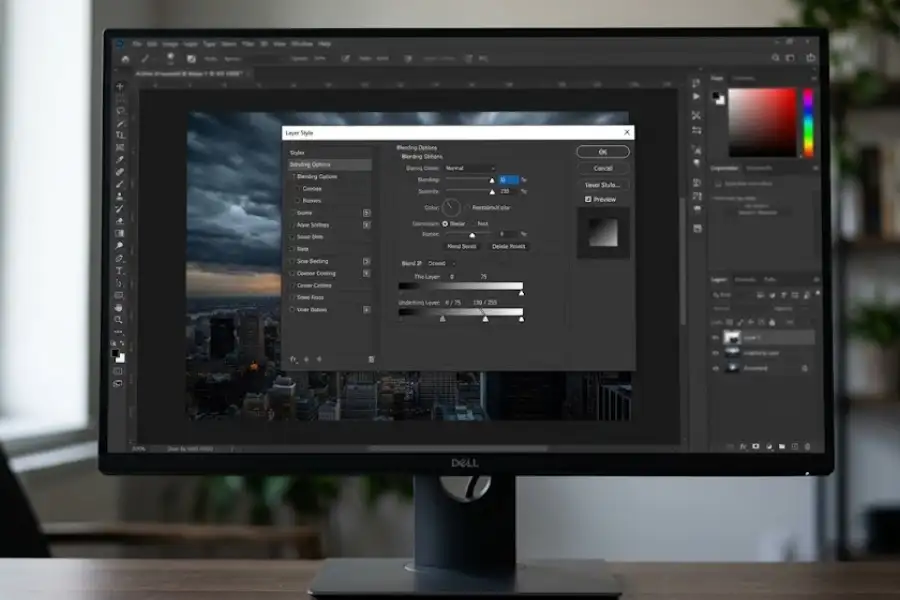
The Blend If slider is a masking tool inside Photoshop’s Layer Style dialog that automatically hides or reveals parts of a layer based on the brightness of pixels, without any manual painting. It is found by double-clicking any layer to open the Layer Style panel, then scrolling to the bottom where two sliders labeled “Blend If” appear.
Dragging the white or dark triangles on the slider tells Photoshop which brightness values should become transparent. Hold Alt (Windows) or Option (Mac) while dragging to split the triangle in two, which creates a soft and gradual transition rather than a hard cutoff.
Portrait photographers use Blend If to blend sky replacements naturally. Motion graphic designers use it to integrate light leaks and overlays without any layer masking at all. It is widely considered one of the most underused features in all of Photoshop, and once you use it, you will likely reach for it in nearly every project.
2. How Do You Solo a Layer in Photoshop Without Turning Off Every Other Layer Manually?
To solo a layer in Photoshop, hold Alt (Windows) or Option (Mac) and click the eye icon next to that layer. Every other layer in the document turns off instantly. Clicking the same eye icon again brings them all back.
Without this shortcut, isolating one layer in a complex file means clicking the eye icon on every other layer one by one, which is slow and easy to mess up. The Alt-click method handles all of that in a single action.
This is especially useful when reviewing individual elements in complex brand designs, UI mockups, or photo composites with many layers stacked together.
3. Can You Pick a Color in Photoshop from Outside the Program?
Yes. The Photoshop Eyedropper Tool can sample colors from anywhere on your screen, not just the canvas. Select the Eyedropper Tool by pressing E, click and hold inside the canvas, then drag the cursor outside Photoshop onto any other part of your screen. Release the mouse over the color you want to capture.
This works on websites, other apps, reference images, and anything else visible on your monitor at the time. The sampled color drops directly into your foreground swatch, ready to use immediately.
Web designers often use this to match brand colors from a live website without needing to copy hex codes manually. It is one of the smallest tricks in Photoshop and one of the most genuinely useful in daily work.
4. What Is a .PSDT File and Why Should You Use It Instead of .PSD for Templates?
A .PSDT file is a Photoshop template format. When you save a file with the .psdt extension instead of .psd, opening that file always creates a new untitled copy automatically. The original template file stays intact and is never overwritten by accident.
For anyone who creates recurring designs like YouTube thumbnails, Instagram posts, or presentation slides, this is a significant time saver. It removes the risk of accidentally saving over your base layout, which is a common and frustrating mistake with standard .psd files.
To create one, simply save your file as usual and rename the extension from .psd to .psdt in your file manager. No special settings needed inside Photoshop.
5. Is There a Reset Button Inside Photoshop Dialog Boxes?
Yes. While any Photoshop dialog box is open, hold Alt (Windows) or Option (Mac) and the Cancel button changes to a Reset button. Clicking Reset returns all settings in that dialog to how they were when you first opened it, without closing the window.
This works inside Curves, Levels, Hue and Saturation, Liquify, Camera Raw, and nearly every other dialog in Photoshop. Most users do not know it exists because the button only appears when you hold the modifier key. Without it, many people click Cancel and reopen the dialog from scratch, which adds unnecessary steps to every session.
6. Can You Do Math Inside Photoshop Input Fields?
Yes. Photoshop accepts basic arithmetic directly inside any number input field. Type a plus sign, minus sign, asterisk for multiplication, or forward slash for division after an existing value and press Enter. Photoshop calculates the result automatically.
For example, if a layer is 400 pixels wide and you want it at half that size, click the width field and type /2 after the number, then press Enter. The value updates to 200 automatically. This works for canvas size, layer dimensions, font sizes, rotation values, and many other numeric fields throughout Photoshop.
Graphic designers who work with grids and precise proportions use this constantly. It removes the need for any external calculator during file setup or resizing tasks.
7. What Is Spring-Loaded Tool Switching in Photoshop?
Spring-loaded tool switching is a Photoshop behavior where holding down a tool’s keyboard shortcut temporarily activates that tool, then automatically switches back to the previous tool the moment you release the key.
For example, if you are using the Brush tool and need to erase something quickly, hold the E key. The Eraser activates while you hold it. Release the key and Photoshop returns to the Brush instantly. There is no need to click back to the original tool.
This shortcut works with any tool that has a keyboard shortcut assigned. Once you get into the habit of using it, your overall editing pace speeds up considerably because you are never breaking your attention to click through the toolbar.
8. How Do You Paste an Image Inside a Shape or Selection in Photoshop?
To paste an image inside a specific area in Photoshop, make your selection first using any selection tool, then go to Edit, select Paste Special, and choose Paste Into. The pasted image will appear inside your selection with a layer mask already applied automatically.
This is the correct approach for placing photos inside text, geometric shapes, circular frames, or any outlined area. What used to require multiple masking steps is handled in a single menu action. The result is a masked layer with full flexibility to move and reposition the image inside the shape afterward.
9. What Is Face-Aware Liquefy in Photoshop and How Accurate Is It?
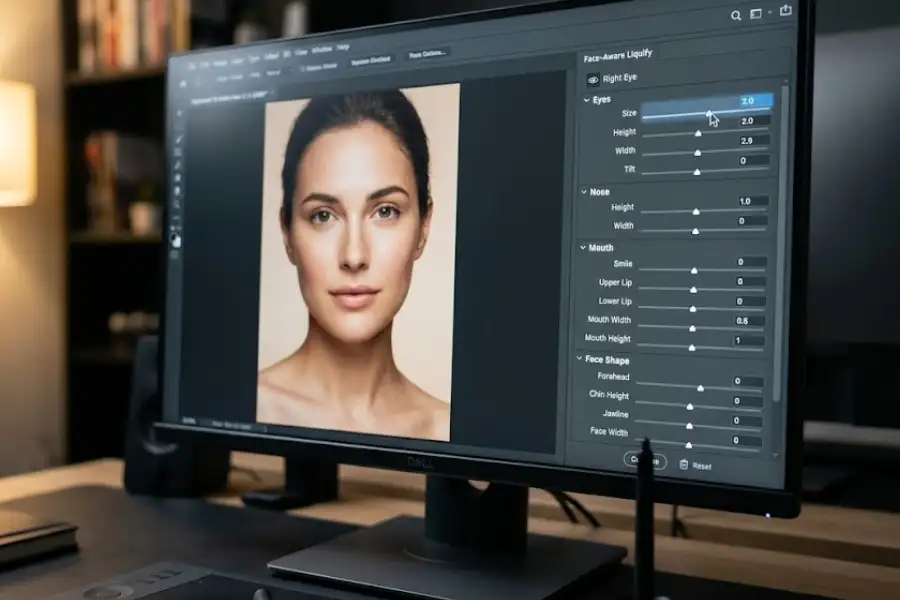
Face-Aware Liquefy is a Photoshop feature inside the Liquify filter that uses artificial intelligence to detect faces in a photo and adjust specific facial features using sliders. It can modify eye size, nose width, mouth shape, jawline, and overall face shape without manual brushwork.
To access it, go to Filter, then Liquify. On the right-hand panel, click the arrow next to Face-Aware Liquefy to expand the controls. Photoshop will detect any faces in the image and assign individual slider controls for each one.
Beauty and portrait retouchers have relied on this feature since Adobe introduced it in Photoshop CC 2016. It is significantly faster and more controlled than traditional Liquify brushing for facial adjustments, and it tends to produce cleaner, more natural-looking results on well-lit portrait photographs. For a full breakdown of every option inside this filter, Adobe’s full Liquify filter reference covers each tool and setting in detail.
10. What Are Layer Comps in Photoshop and When Should You Use Them?
Layer Comps are saved states of your Photoshop layer panel, including which layers are visible, their positions, and their appearance settings. They let you store multiple design versions inside a single PSD file and switch between them instantly with one click.
Access Layer Comps through Window, then Layer Comps. Create a comp by clicking the new icon inside the panel. Arrange your layers for one version of your design, save a comp, rearrange for version two, save another comp, and continue from there.
Designers presenting multiple layout options to clients find this feature particularly useful. Instead of sending five separate files, everything lives in one organized document. Layer Comps have existed in Photoshop since CS1, released in 2003, yet a large percentage of working designers have never used the panel once. If you want to see exactly how the panel works step by step, Adobe’s Layer Comps page walks through every option with clear instructions.
11. How Do You Repeat the Same Transformation on Multiple Layers in Photoshop?
After applying a transformation (such as rotation, scaling, or skewing) to a layer, press Ctrl+Shift+T on Windows or Cmd+Shift+T on Mac to repeat that exact transformation on any currently selected layer. The same values are applied instantly without re-entering any settings.
This shortcut is especially useful when creating geometric patterns, evenly spaced grids, or repeated elements like icons in a row. Instead of manually transforming each item to the same angle or size, one key combination handles the repetition across as many layers as needed.
12. Does Photoshop Have a Feature That Generates CSS Code from Layers?
Yes. Photoshop can generate CSS code directly from shape and text layers. Right-click any shape, text, or group layer in the Layers panel and select Copy CSS from the context menu. Photoshop outputs CSS properties including dimensions, color, border-radius, gradients, and font details.
Web designers who move between Photoshop and a code editor benefit from this regularly. The generated CSS is not always perfect for every project and may need minor adjustments, but it provides a solid and accurate starting point that saves time compared to manually writing styles from scratch.
This feature has been available in Photoshop CC since 2014 and works with vector shapes, text layers, and grouped elements.
13. What Is Bird’s Eye View in Photoshop and How Does It Help with Navigation?
Bird’s Eye View is a Photoshop navigation method that lets you jump to a different area of a zoomed-in canvas without changing your zoom level. Hold the H key and click the canvas. The view zooms out to show the full image with a highlighted rectangle. Drag the rectangle to a new location, release the H key, and Photoshop zooms back in to that exact spot.
This is particularly helpful during retouching work where you need to stay at a high zoom level but frequently move between different areas of a portrait or detailed illustration. It reduces the repetitive zoom in and zoom out cycle that slows down many editing sessions.
14. What Is the Contextual Task Bar in Photoshop and Where Do You Find It?
The Contextual Task Bar is a floating toolbar in Photoshop (available in 2023 and later versions) that appears near your active selection or layer and shows relevant one-click actions based on what you are working on at that moment.
When a subject is selected, it offers background removal. When a text layer is active, it shows font and formatting options. When working on a portrait, it surfaces retouching shortcuts. The bar adapts automatically based on context, which reduces the need to go searching through menus for commonly used tools.
If the bar is not visible, press Ctrl+F (Windows) or Cmd+F (Mac) to open the Discover Panel and search for Quick Actions. The Contextual Task Bar can also be re-enabled through the Window menu if it has been closed.
15. What Is the Fastest Way to Change Brush Size and Hardness in Photoshop?
On Windows, hold Alt and right-click, then drag left or right to change brush size and drag up or down to change hardness. On Mac, hold Ctrl and Option, then drag the same way. A red preview circle shows the brush size and hardness changing in real time as you drag.
This method is called HUD (Heads-Up Display) brush control and it works with any brush-based tool in Photoshop, including the Dodge Tool, Burn Tool, Clone Stamp, and Healing Brush. It keeps your attention on the canvas at all times and eliminates the need to move your cursor up to the options bar between every brush adjustment.
Digital painters and photo retouchers who do long editing sessions consider this one of the most time-saving shortcuts in the entire program.
Why Do So Many Photoshop Users Miss These Features?
Adobe Photoshop has been in active development since 1990 and currently contains well over 500 tools, settings, and features spread across multiple menus, panels, and dialog boxes. The program is not designed to surface everything at once. Many of its most useful capabilities are deliberately tucked away, waiting for users who know where to look.
Professional designers and retouchers typically learn these features through formal training, working alongside experienced colleagues, or years of hands-on experimentation. Casual or self-taught users rarely encounter them unless they are specifically searching for a faster way to do something they are already struggling with.
The 15 features covered in this guide are not gimmicks (just like the Chrome Task Manager shortcut isn’t a gimmick for fixing a slow browser). They are tools that working professionals reach for on a regular basis. Knowing them puts you significantly ahead of the average Photoshop user.
Frequently Asked Questions
What are the most useful Photoshop hidden features for beginners?
The most useful Photoshop hidden features for beginners are the Alt-click layer eye shortcut for soloing layers, the hidden Reset button inside dialog boxes (hold Alt or Option to reveal it), and spring-loaded tool switching. These three require no advanced Photoshop knowledge and immediately reduce repetitive clicking in everyday editing tasks.
Do these Photoshop hidden features work in older versions of the software?
Most of them do. Features like Blend If sliders, math inside input fields, Alt-click layer soloing, and the repeat transformation shortcut have been part of Photoshop for well over a decade and work reliably in versions as far back as Photoshop CS6. Newer features like the Contextual Task Bar and improved Face-Aware Liquefy require Photoshop CC 2023 or later.
Are Photoshop hidden features safe to use in professional client work?
Yes, entirely. Every feature on this list ships natively with Photoshop as a fully supported part of the program. They are not hacks or third-party plugins. Professional graphic designers, commercial photographers, and retouchers use these same tools in client work every day without any risk to file quality or compatibility.
How do you find hidden features in Photoshop on your own?
The most reliable method is to hold modifier keys like Alt, Shift, or Ctrl and click on different interface elements to see if they behave differently. Many Photoshop shortcuts and hidden behaviors only activate with modifier keys. The Discover Panel (Ctrl+F or Cmd+F) also lists commonly used tools and actions that are not visible on the toolbar, making it a practical starting point for seeing what Photoshop can do.
Which Photoshop hidden feature saves the most time for photo editors?
For photo editors specifically, the Blend If sliders tend to save the most time overall. They eliminate hours of manual masking work by automating transparency based on brightness values. The HUD brush control shortcut (Alt + right-click drag on Windows) is a close second, since brush adjustments happen dozens of times in a typical retouching session and removing the need to move your cursor to the toolbar adds up quickly.
Does Adobe document these Photoshop features anywhere?
Yes. Adobe maintains official documentation for all Photoshop features at Adobe’s official Photoshop documentation. The guide covers keyboard shortcuts, dialog options, and panel settings in full detail. Adobe also publishes tutorial videos through its official YouTube channel and the Adobe Learn platform, where many of these features are shown in context.
What is the difference between Photoshop hidden features and Photoshop shortcuts?
Photoshop shortcuts are keyboard combinations that activate visible, well-known tools faster. Photoshop hidden features are tools, behaviors, and settings that most users do not know exist at all, regardless of how they are accessed. For example, Ctrl+Z to undo is a shortcut. The fact that holding Alt inside a dialog box changes the Cancel button to a Reset button is a hidden feature, because the Reset button does not appear unless you know to hold that key.