Slide to Shutdown Windows 11: 3 Easy Ways to Turn Off Your PC
slidetoshutdown, and pressing Enter. Then drag the panel down to shut off your computer.Most Windows users click the Start menu, then the power icon, then Shut Down. That works fine. But there is a faster, cooler way that Microsoft hides from most people.I have been using Windows since the XP days, and I only found out about this feature a few years ago. Once I tried it, I started using it every day. It takes about 30 seconds to set up, and it makes shutting down feel way more satisfying.In this article, I will show you exactly how to use Slide to Shutdown on Windows 11. I will cover three different methods so you can pick the one that works best for you.What Is Slide to Shutdown?
Slide to Shutdown is a shutdown feature in Windows that displays a full-screen panel you drag downward to turn off your PC. It works on Windows 11, Windows 10, and Windows 8.1.
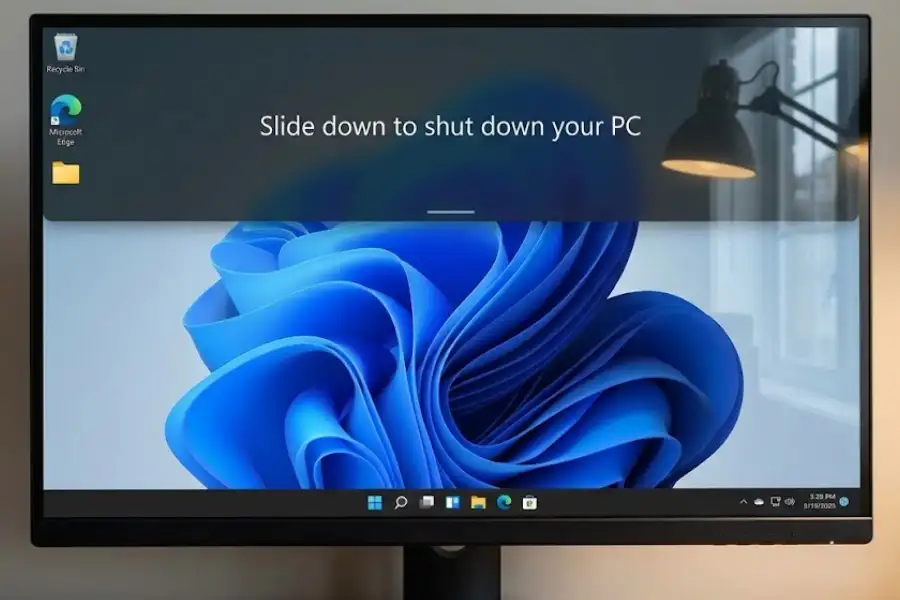
When you activate it, here is what you see:
- A dark, half-transparent panel drops from the top of your screen
- The screen shows the text: “Slide down to shut down your PC”
- You drag the panel to the bottom using your mouse or finger
- Your PC shuts down
The file that runs this feature is called SlideToShutDown.exe. Microsoft stores it in the System32 folder at C:\Windows\System32\SlideToShutDown.exe. This file has been part of Windows since version 8.1, released in October 2013.
Why Did Microsoft Create Slide to Shutdown?
Microsoft designed Slide to Shutdown for tablets and touchscreen laptops. Back in 2013, Windows 8 was pushing hard into the tablet market. Swiping to shut down felt more natural on a touchscreen than clicking through menus.
Even though most people use a mouse today, the feature still works perfectly. You just drag with your mouse instead of your finger. The animation is smooth, and it only takes one quick motion to shut down.
How Do I Enable Slide to Shutdown in Windows 11?
You do not need to enable it. Slide to Shutdown is already installed on every Windows 11 computer. The feature is ready to use right now. You just need to know how to run it.
There are three ways to use Slide to Shutdown:
- Run it from the Run dialog box (fastest for one-time use)
- Create a desktop shortcut (best for daily use)
- Set up a keyboard shortcut (fastest overall)
I will walk you through each method step by step.
Method 1: How to Run Slide to Shutdown from the Run Box
This is the fastest way to try it right now. No setup needed. Just follow these steps:
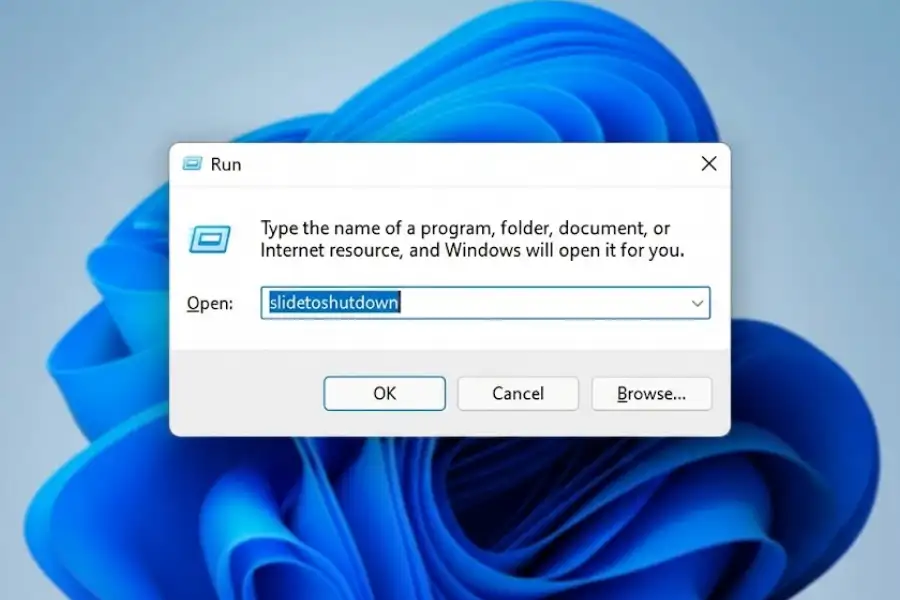
- Press Windows key + R on your keyboard (this opens the Run dialog)
- Type:
slidetoshutdown - Press Enter
- The slide panel appears at the top of your screen
- Drag it down with your mouse to shut down your PC
To cancel: Press the Esc key, or wait about 30 seconds. The panel will close on its own without shutting down.
This method is perfect when you just want to try the feature once. But if you plan to use it regularly, a shortcut is better.
Method 2: How to Create a Slide to Shutdown Desktop Shortcut
A desktop shortcut lets you use Slide to Shutdown with one double-click. Here is how to create one:
Step-by-Step Instructions:
- Right-click on any empty space on your Windows 11 desktop
- Click New, then click Shortcut
- In the location field, type:
%windir%\System32\SlideToShutDown.exe - Click Next
- Name the shortcut (for example: “Slide to Shutdown”)
- Click Finish
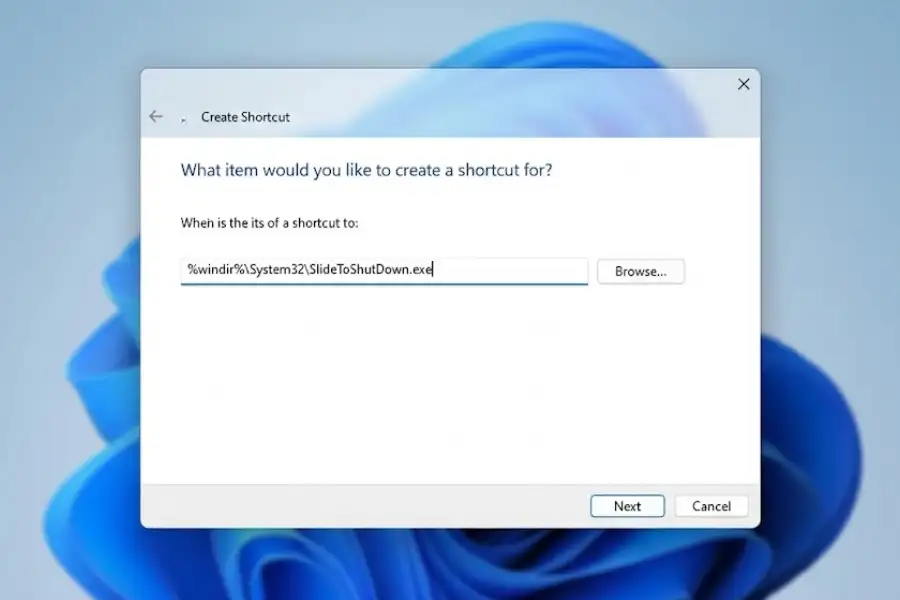
You now have a shortcut on your desktop. Double-click it anytime, and the slide panel will appear.
How to Change the Shortcut Icon
The default icon looks like a blank file. Here is how to make it look like a power button:
- Right-click the shortcut you just created
- Click Properties
- Click the Change Icon button
- Browse to:
C:\Windows\System32\shell32.dll - Pick the red power button icon (or any icon you like)
- Click OK, then click Apply
How to Pin the Shortcut to Your Taskbar
Want even faster access? Pin it to your taskbar:
- Right-click the Slide to Shutdown shortcut
- Click Show more options (Windows 11 shows a smaller menu first)
- Click Pin to taskbar
Now the shortcut sits in your taskbar. One click opens the slide panel.
Method 3: How to Set Up a Keyboard Shortcut for Slide to Shutdown
A keyboard shortcut is the fastest option. You press a key combination, and the slide panel appears instantly. No clicking needed.
Step-by-Step Instructions:
- First, create a desktop shortcut using Method 2 above
- Right-click the shortcut and click Properties
- Find the field labeled Shortcut key
- Click inside that field and press your chosen keys (example: Ctrl + Alt + S)
- Click Apply, then click OK
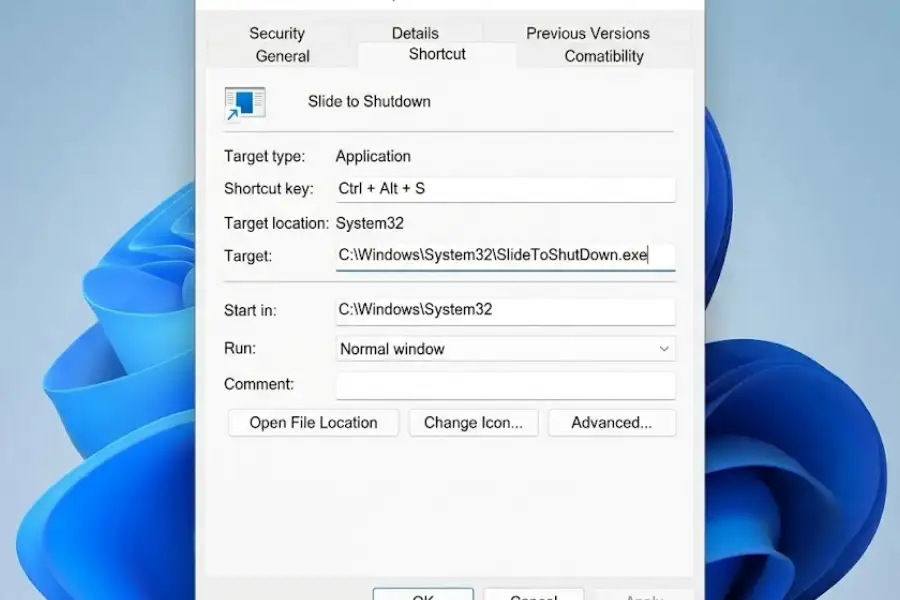
Now press your key combination anytime, and Slide to Shutdown will activate.
Important: The desktop shortcut must stay on your desktop. If you delete the shortcut file, the keyboard combination will stop working.
Which Method Should I Use?
Here is a quick comparison to help you decide:
| Method | Setup Time | Speed | Best For |
|---|---|---|---|
| Run Command | None | Medium | Trying it once |
| Desktop Shortcut | 1 minute | Fast | Daily use with mouse |
| Keyboard Shortcut | 2 minutes | Fastest | People who prefer keyboard |
I personally use the keyboard shortcut method. I press Ctrl + Alt + S, drag the panel, and my PC is off in under two seconds.
Is Slide to Shutdown the Same as Normal Shutdown?
Yes, it performs the exact same shutdown process. Slide to Shutdown does not do anything different under the hood. It closes your apps, saves your work, and powers off your PC, just like clicking Shut Down in the Start menu.
The only difference is how you trigger it. Instead of clicking through menus, you drag a panel. Both methods use the same Windows shutdown command.
If you have Fast Startup enabled (which is on by default in Windows 11), Slide to Shutdown will use the hybrid shutdown process, same as a normal shutdown.
Does Slide to Shutdown Work on Windows 10?
Yes. Slide to Shutdown works on Windows 10, Windows 8.1, and Windows 11. The steps are identical. Microsoft has kept this feature across all recent Windows versions.
Can I Use Slide to Shutdown Without a Touchscreen?
Yes, absolutely. Even though Microsoft designed this feature for tablets, it works perfectly with a mouse. You click and drag the panel down instead of swiping with your finger. The experience is the same.
What If Slide to Shutdown Is Not Working?
If the slide panel does not appear when you run the command, try these fixes:
Fix 1: Repair Corrupted System Files
The SlideToShutDown.exe file might be damaged. Run the System File Checker to repair it:
- Press the Windows key and type cmd
- Right-click Command Prompt and select Run as administrator
- Type this command and press Enter:
sfc /scannow - Wait for the scan to complete (usually 5 to 15 minutes)
- Restart your PC and try Slide to Shutdown again
Fix 2: Check If the File Exists
Open File Explorer and go to: C:\Windows\System32\
Look for a file named SlideToShutDown.exe. If the file is missing, run Windows Update to restore system files, or use the DISM tool:
DISM /Online /Cleanup-Image /RestoreHealth
Fix 3: Update Your Display Drivers
Some users have reported that outdated graphics drivers cause Slide to Shutdown to fail. Check for driver updates in Device Manager or through Windows Update.
Can I Use Slide to Shutdown to Restart My PC?
No. Slide to Shutdown only powers off your computer. There is no restart option. If you want to restart, use the normal Start menu method or press Alt + F4 on the desktop and select Restart.
Is Slide to Shutdown Safe?
Yes, completely safe. SlideToShutDown.exe is a legitimate Windows system file signed by Microsoft. It has been part of Windows since 2013. Using it will not harm your computer or delete your files.
The shutdown process is identical to clicking Shut Down in the Start menu. Windows closes all applications properly and saves your data before powering off.
Frequently Asked Questions
What is Slide to Shutdown in Windows 11?
Slide to Shutdown is a Windows feature that shows a panel you drag down to turn off your PC. You activate it by running SlideToShutDown.exe or typing “slidetoshutdown” in the Run dialog.
How do I open Slide to Shutdown?
Press Windows + R, type slidetoshutdown, and press Enter. A panel will appear. Drag it down to shut off your PC.
Does Slide to Shutdown work with a mouse?
Yes. You can drag the panel using your mouse. A touchscreen is not required.
Where is the SlideToShutDown.exe file located?
The file is stored at C:\Windows\System32\SlideToShutDown.exe on all Windows 11, Windows 10, and Windows 8.1 computers.
Can I create a keyboard shortcut for Slide to Shutdown?
Yes. Create a desktop shortcut first, then open its Properties and set a Shortcut key like Ctrl + Alt + S.
Is Slide to Shutdown faster than normal shutdown?
The actual shutdown speed is the same. But triggering it can be faster if you use a keyboard shortcut instead of clicking through the Start menu.
How do I cancel Slide to Shutdown?
Press the Esc key. Or wait about 30 seconds, and the panel will close on its own.
Conclusion
Slide to Shutdown is a small Windows feature that most people never find. It will not change how your PC works, but it adds a nice touch to your daily routine.
Here is a quick recap of the three methods:
- Run Command: Press Windows + R, type
slidetoshutdown, press Enter - Desktop Shortcut: Create a shortcut to
%windir%\System32\SlideToShutDown.exe - Keyboard Shortcut: Assign a key combo like Ctrl + Alt + S to your shortcut
Give it a try. It takes less than a minute to set up. If you love time-saving tricks like Windows Clipboard History, you are going to use this every day.
Got questions? Drop them in the comments. I check them regularly and reply to everyone.