The Windows Clipboard Trick: How to Copy Multiple Items at Once (2026)
Can You Copy Multiple Items at Once in Windows?
Why Does Windows Only Paste the Last Thing I Copied?
By default, the Windows clipboard only holds one item at a time. When you copy something new, it replaces the old item. Most people lose important copied text this way. They don’t know that Windows has a hidden Software Egg (secret feature) designed specifically to fix this.
Microsoft added a feature called Clipboard History to fix this problem. It works on Windows 10 (version 1809 and later) and all versions of Windows 11. Once you turn it on, you will never lose copied text again.
What is Windows Clipboard History?
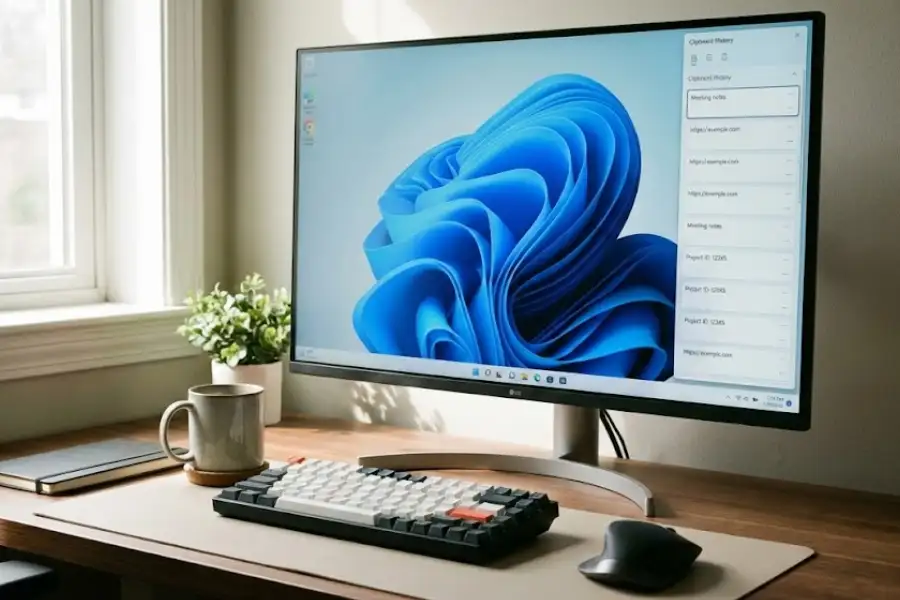
Clipboard History is a feature in Microsoft Windows that stores multiple copied items instead of just one. It keeps a list of the last 25 things you copied, including text, images, and links. You can access this list anytime by pressing Windows Key + V and choose which item to paste.
This feature was first introduced in the Windows 10 October 2018 Update (version 1809) and is also available in Windows 11. You can find more details in Microsoft’s official Windows support documentation.
Key Facts About Clipboard History
- Storage limit: Holds up to 25 items
- Supported content: Text, images, HTML, and links
- Keyboard shortcut: Windows Key + V
- Available on: Windows 10 (1809+) and Windows 11
- Data retention: Clears when you restart (unless items are pinned)
How Do I Turn On Clipboard History in Windows?
You can enable Clipboard History in two ways. Both methods take less than 30 seconds.
Method 1: Using the Keyboard Shortcut (Fastest)
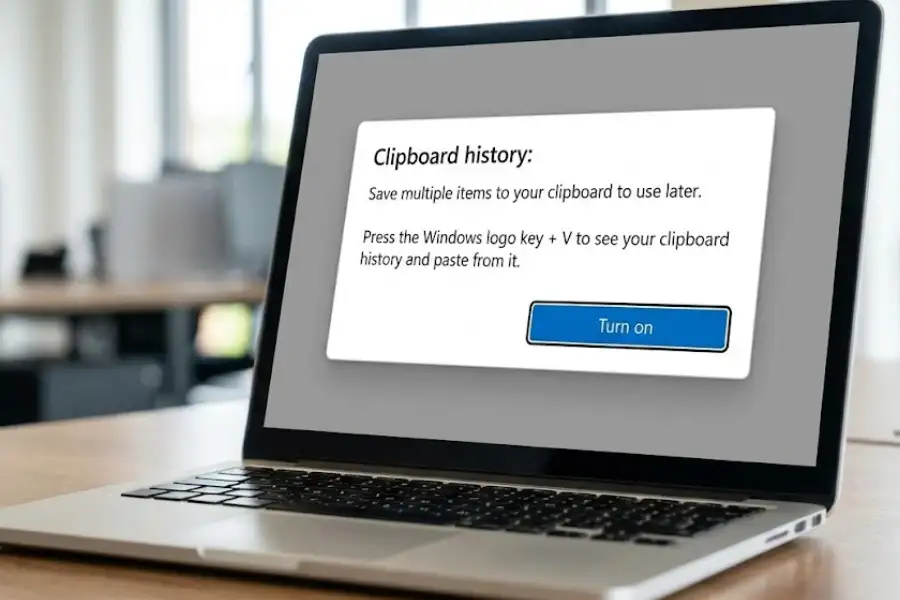
- Press Windows Key + V on your keyboard
- A popup will appear saying “Can’t show history”
- Click the “Turn on” button
That is all. Clipboard History is now active on your computer.
Method 2: Using Windows Settings
- Press Windows Key + I to open Settings
- Click System
- Click Clipboard in the left menu
- Toggle “Clipboard history” to On
Both methods give the same result. Use whichever you find easier.
How Do I Copy and Paste Multiple Items in Windows?
After turning on Clipboard History, copying and pasting multiple items is simple:
Step 1: Copy Items as Usual
Select any text, image, or link and press Ctrl + C. You can also right-click and select “Copy.” Each item you copy gets saved to your Clipboard History automatically.
Step 2: Open Clipboard History
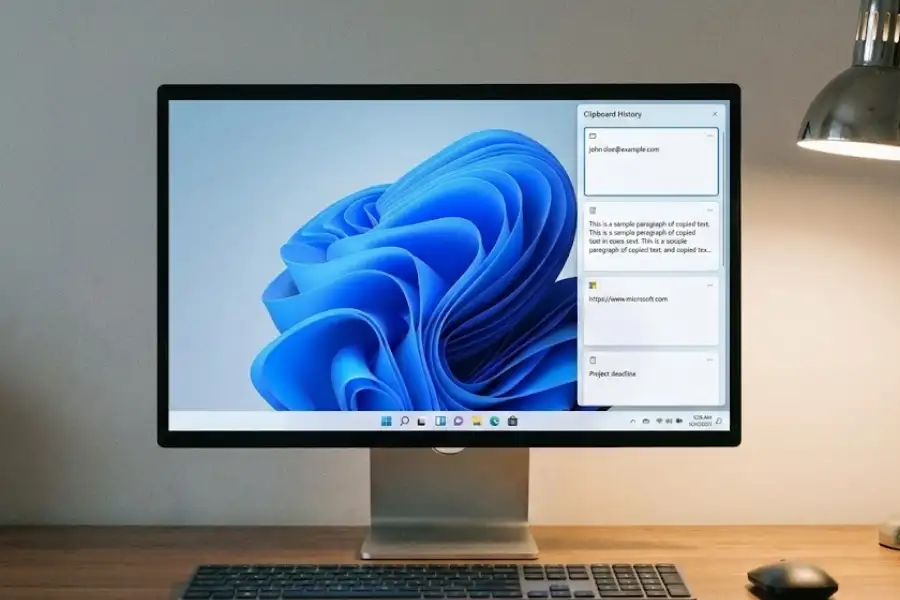
When you want to paste, press Windows Key + V instead of Ctrl + V. A small panel appears showing all your recently copied items.
Step 3: Select the Item to Paste
Click on any item in the list. That item will be pasted wherever your cursor is. The newest items appear at the top of the list.
What Are the Best Clipboard History Tips and Tricks?
These tips come from using Clipboard History daily for research, writing, and coding tasks. They will help you get more value from this feature.
Tip 1: How Do I Pin Items to Clipboard History?
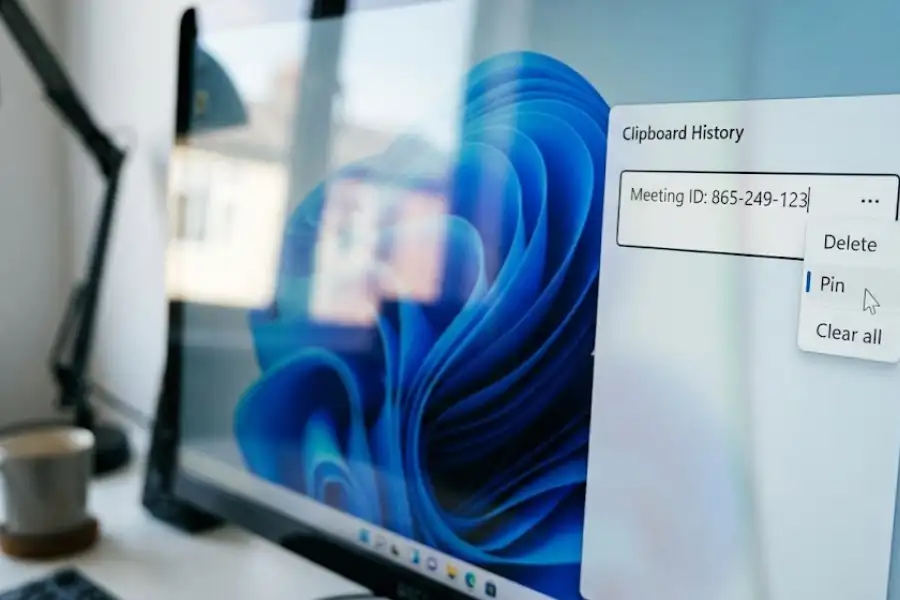
Pinned items stay in your Clipboard History even after you restart your computer. To pin an item:
- Press Windows Key + V
- Find the item you want to keep
- Click the three dots (…) next to it
- Select “Pin”
When to use this: Pin your email address, phone number, common replies, or code snippets you use often.
Tip 2: How Do I Paste Text Without Formatting?
When you copy text from websites or documents, it often includes fonts, colors, and sizes you do not want. To paste plain text without formatting:
- Press Windows Key + V to open Clipboard History
- Hold the Shift key while clicking the item you want to paste
This removes all formatting and pastes clean, plain text.
Tip 3: How Do I Sync Clipboard Across Multiple Computers?
If you use more than one Windows computer, you can sync your clipboard between them:
- Open Settings (Windows Key + I)
- Go to System then Clipboard
- Turn on “Sync across devices”
- Sign in with the same Microsoft account on all computers
After setup, text you copy on one computer appears in Clipboard History on your other computers.
Tip 4: How Do I Clear My Clipboard History?
For privacy or to remove sensitive data:
- Delete one item: Press Windows Key + V, click the three dots next to an item, and select “Delete”
- Delete all items: Press Windows Key + V and click “Clear all” at the top of the panel
Pinned items will not be deleted unless you unpin them first.
Who Should Use Windows Clipboard History?
If you enjoyed unlocking God Mode in Windows, you will love this tool too. It helps anyone who copies and pastes frequently. Based on practical use, these groups benefit the most:
| User Type | How Clipboard History Helps |
|---|---|
| Writers and Bloggers | Copy quotes, links, and research notes from multiple sources, then paste them where needed |
| Students | Gather information from several websites without switching tabs repeatedly |
| Software Developers | Store multiple code snippets and paste them into different files |
| Customer Support Staff | Keep common replies ready to paste into chat or email |
| Data Entry Workers | Copy name, address, phone, and email once, then paste each field separately |
Why is My Clipboard History Not Working?
If Clipboard History is not working on your Windows computer, try these solutions:
Problem: Nothing Happens When I Press Windows Key + V
Solution: Clipboard History might be turned off. Go to Settings, then System, then Clipboard, and make sure “Clipboard history” is toggled on.
Problem: Some Items Are Not Being Saved
Solution: Clipboard History has these limits:
- Maximum 25 items at a time
- Maximum text size of 4MB per item
- Some applications use custom clipboard formats that Windows cannot store
- Very large or complex data from Excel may not copy correctly
Problem: My Clipboard History Disappears After Restarting
Solution: This is expected behavior. Windows clears Clipboard History when you shut down or restart. To keep important items, pin them before restarting.
Problem: Clipboard History Works But Shows Old Items
Solution: Try pressing “Clear all” in the Clipboard History panel, then copy new items. If the issue continues, restart your computer.
What Are the Limitations of Windows Clipboard History?
Clipboard History is useful but has some restrictions you should know about:
- 25-item maximum: Windows only stores your last 25 copied items. Older items get removed automatically when you copy new ones.
- No file support: You cannot store copied files in Clipboard History. Files still work the traditional way (one at a time).
- Clears on restart: All items except pinned ones disappear when you turn off your computer.
- 4MB text limit: Very long text blocks will not be saved.
- No search function: You cannot search through your clipboard history. You must scroll to find items.
If these limits are a problem for you, third-party clipboard managers like Ditto (free, open-source) or ClipClip (free) offer unlimited history, search, and better organization.
Frequently Asked Questions
How do I copy multiple things at once in Windows 10?
Press Windows Key + V to open Clipboard History. If it is your first time, click “Turn on.” After that, everything you copy with Ctrl + C gets saved. Press Windows Key + V again to see all your copied items and click any one to paste it.
Does Windows 11 have a clipboard history feature?
Yes. Windows 11 includes Clipboard History. Press Windows Key + V to enable and use it. The feature works the same way as in Windows 10.
How do I paste something I copied earlier?
Press Windows Key + V to open your Clipboard History panel. You will see a list of everything you recently copied. Click on the item you want to paste.
Can I copy and paste between two Windows computers?
Yes. Enable “Sync across devices” in Settings, then System, then Clipboard. Sign in with the same Microsoft account on both computers. Text you copy on one computer will appear in Clipboard History on the other.
How do I clear my clipboard in Windows?
Press Windows Key + V to open Clipboard History. Click “Clear all” at the top to remove all items. You can also delete individual items by clicking the three dots next to them and selecting “Delete.”
Why does my clipboard only hold one item?
Clipboard History is probably not turned on. Press Windows Key + V and click “Turn on” when prompted. Once enabled, Windows will remember up to 25 copied items.
Is Windows Clipboard History safe to use?
Yes. Clipboard History stores data locally on your computer. If you enable cloud sync, copied text is encrypted and stored in your Microsoft account. For sensitive data like passwords, you can clear your clipboard history at any time.
Start Using Clipboard History Today
Windows Clipboard History is a free feature that is already on your computer. It takes 30 seconds to turn on and can save you significant time every day.
Press Windows Key + V right now. Click “Turn on.” Copy a few things and see how it works.
Once you try it, copying and pasting will never feel the same again.