Windows Reliability Monitor: What It Is and How to Use It to Fix Crashes
Your PC crashed. A program froze. Maybe you got a blue screen. And you have zero idea what caused it.
Sound familiar?
Here is something most Windows users never learn: Windows already comes with a free tool that records every crash, every error, and every failed update happening on your computer. It runs quietly in the background. You just never opened it.
It is called Reliability Monitor.
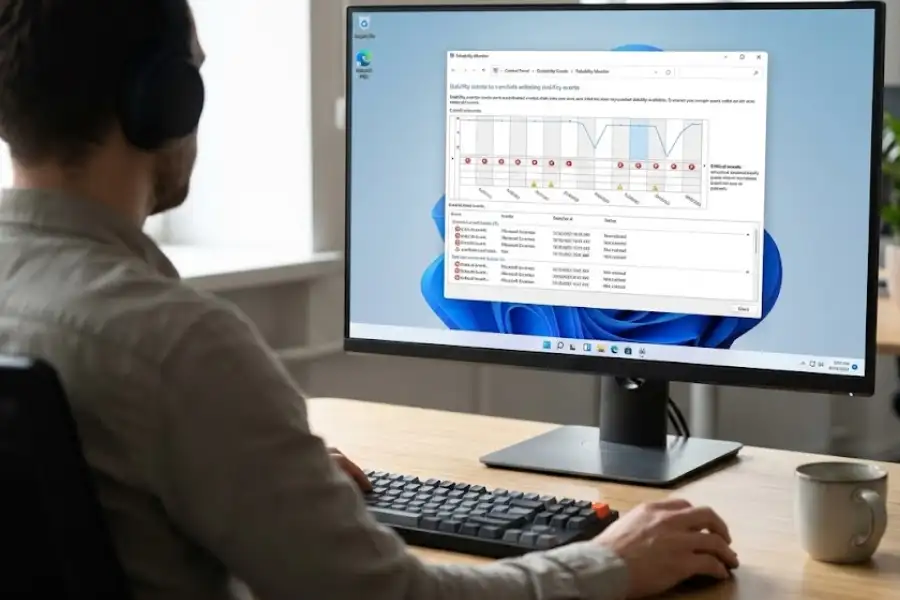
It gives your system a score from 1 to 10 and shows a visual timeline of every problem from the past month. If your PC has been acting up, this tool tells you exactly what broke and when it broke.
In this guide, I will walk you through how to open it, how to read it, and how to use it to fix crashes and errors on Windows 11 and Windows 10.
Windows Reliability Monitor is a free diagnostic tool that already comes with Windows. You do not need to download or install anything. It is already on your computer right now, whether you are using Windows 11, Windows 10, Windows 8, or even Windows 7.
So what does it do?
It watches your system in the background and records everything important that happens:
- Programs that crashed, froze, or stopped responding
- Windows operating system errors and Blue Screen of Death (BSOD) events
- Failed or successful software installations
- Windows Update successes and failures
- Driver problems (graphics cards, printers, USB devices, etc.)
- Hardware issues like disk or memory failures
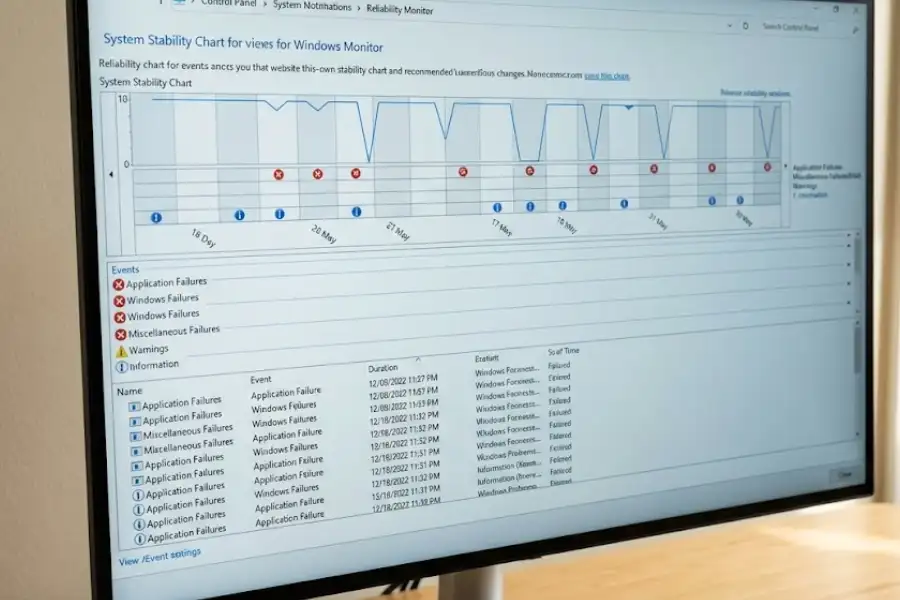
It puts all of this on a visual graph called the System Stability Chart. A blue line runs across the chart from left to right. This line is called the Stability Index, and it is scored from 1 to 10.
- A score near 10 means your PC is running well with no major errors
- A score near 1 means your system keeps crashing or hitting errors
Here is something most articles do not mention: Microsoft originally created this tool for IT administrators managing Windows Server 2008. It was so useful that they added it to every consumer version of Windows after that. But because it is not listed in the Start Menu and Windows never promotes it, most people have no idea it exists.
The entire point of Reliability Monitor is to make error tracking visual and easy. You do not need to be a computer expert. If you can read a simple line graph, you can use this tool.
How Do You Open Reliability Monitor on Windows 11 and Windows 10?
The fastest way to open Reliability Monitor is to type “reliability” in the Windows search bar and click “View reliability history.”
There are three methods. Pick whichever feels easiest.
Method 1: Search Bar (Recommended)
- Click the Start button on your taskbar (or press the Windows key)
- Type reliability
- Click “View reliability history” from the results
Done. It opens right away.
Method 2: Run Command (Quickest for Power Users)
- Press Windows Key + R together to open the Run dialog
- Type:
perfmon /rel - Press Enter
This skips all menus entirely. Two steps and you are in. And if you are a power user who loves hidden commands, you should also learn how to enable God Mode in Windows to unlock all secret settings.
Method 3: Control Panel (Works on All Windows Versions)
- Open Control Panel
- Click System and Security
- Click Security and Maintenance
- Under the Maintenance section, click “View reliability history”
This method takes more clicks, but it works on every version of Windows from Windows Vista through Windows 11.
Helpful tip: If you plan to use this tool regularly, right-click “View reliability history” in the search results and select Pin to Start or Pin to taskbar. One click to open it next time.
How Do You Read the Reliability Monitor Screen?
The Reliability Monitor screen has two parts: the stability chart on top and the event list on the bottom. Here is what each part tells you.
The Stability Chart (Top Half)
This is the graph at the top of the window. It shows how stable your PC has been over the last few weeks.
- The blue line is your Stability Index. It moves between 1 and 10.
- Each column on the chart equals one day. You can switch to a weekly view using the toggle in the top-left corner.
- When an error happens (like a program crash or a blue screen), the line drops.
- If your PC runs without issues for several days, the line climbs back up.
One thing worth knowing: the score is a weighted average. Recent crashes hurt the score more than older ones. So a crash from yesterday pulls the line down hard, but a crash from three weeks ago barely affects it anymore.
Also, days when your computer is powered off or in sleep mode do not count against your score. (Speaking of turning off your PC, check out our fun trick to Slide to Shutdown your Windows PC instead of using the boring old menu)
The Event Categories (Five Rows Below the Chart)
Right below the chart, you will see five rows. Each one tracks a different type of event:
| Category | What It Records | Example |
|---|---|---|
| Application Failures | Programs that crashed or stopped responding | Google Chrome stopped working, Adobe Photoshop crashed |
| Windows Failures | Operating system errors and blue screens | Blue Screen of Death (BSOD), unexpected shutdown |
| Miscellaneous Failures | Errors from devices or peripherals | USB device error, Bluetooth adapter failure |
| Warnings | Non-critical problems that might get worse | A driver failed to load, partial update failure |
| Information | Successful changes and installs | Windows Update installed, new app installed, driver updated |
The Event Details (Bottom Half)
Click on any day in the chart, and the bottom section fills up with everything that happened that day. Each event shows:
- The name of the program or Windows component
- The failure type (crash, hang, stopped working)
- The date and time
- An error summary with fault codes (double-click any event for the full breakdown)
What Do the Red X, Yellow !, and Blue i Icons Mean?
The red X means a serious error. The yellow ! means a warning. The blue i means a normal event. Here is the full breakdown:
| Icon | Color | What It Means | Should You Worry? |
|---|---|---|---|
| X | Red | A program crashed, Windows hit an error, or you got a blue screen | Yes, especially if the same one keeps appearing |
| ! | Yellow | A driver failed, or something went partially wrong | Watch it. If it keeps happening, look into it |
| i | Blue | An app was installed, a Windows Update went through, or a driver was updated | No. This is normal, healthy system activity |
One important thing: A single red X does not mean your PC is in trouble. Programs crash sometimes for no serious reason. You might not even notice it happen. The time to pay attention is when you see the same red X appearing on multiple days for the same program. That repeating pattern is what tells you something needs to be fixed.
How Do You Use Reliability Monitor to Fix Crashes and Errors?
Find the day your stability score dropped, click on it, read the error details, and look for repeating patterns. Here is the full process.

Step 1: Find Where the Score Dropped
Look at the blue line on the chart. Find the spot where it dips down. That dip marks the day something went wrong. Click on that day.
Step 2: Read What Happened
The list below the chart shows every event from that day. Look at the red X entries first. Was it a program crash? A Windows error? A hardware problem?
Step 3: Double-Click for the Full Error Report
Double-click any event to see detailed information. Focus on two things:
- Faulting application name tells you exactly which program caused the crash
- Faulting module name tells you which specific file or component inside that program broke
You do not need to understand every single error code. Just note the program name. You can search it online and usually find a solution within minutes.
Step 4: Look for Repeating Patterns
This is the most important step. Scroll through the last two weeks. Ask yourself:
- Is the same program crashing on multiple days?
- Did the crashes start right after a Windows Update or a new software install?
- Are you seeing blue screen events showing up regularly?
Step 5: Fix the Problem
| What You Found | What to Do About It |
|---|---|
| One app keeps crashing over and over | Update it first. If it still crashes, uninstall and reinstall it. Still crashing? Replace it with a different program. |
| Crashes started right after a Windows Update | Go to Settings > Windows Update > Update History > Uninstall updates and remove the recent one |
| Driver failures keep showing up | Open Device Manager, find the device, and update or roll back the driver |
| Random crashes from many different programs | This usually means corrupted system files. Open Command Prompt as admin and run sfc /scannow followed by DISM /Online /Cleanup-Image /RestoreHealth |
| Hardware errors (disk, memory) | Run Windows Memory Diagnostic (search it in Start) and check your hard drive health with chkdsk |
When Should You Check Reliability Monitor? (5 Common Situations)
Check Reliability Monitor any time your PC crashes, slows down after an update, or starts behaving strangely. Here are five specific situations where this tool saves you time.
1. “My PC started crashing and I do not know why”
Open Reliability Monitor and find the exact day the crashes started. Then look at the Information row for that same day. Did you install new software? Did a Windows Update come through? In most cases, the trigger is sitting right there on the timeline.
2. “One program keeps freezing or closing on its own”
Look at the Application Failures row. If the same app name shows red X marks on multiple days, that app is the root cause. Try this, in order: update the app, run it as administrator, uninstall and reinstall it. If none of that works, the app may not be compatible with your version of Windows.
3. “I got a Blue Screen of Death and I do not know what caused it”
Blue screen events appear under Windows Failures with a red X. Click on the event and check the Bug Check String field. That is the error name. Some common ones:
- KERNEL_DATA_INPAGE_ERROR usually points to a hard drive or SSD problem
- IRQL_NOT_LESS_OR_EQUAL usually points to a faulty driver
- SYSTEM_SERVICE_EXCEPTION can be caused by either software or drivers
You can look up your specific error code on Microsoft’s bug check reference page to find out what triggered it.
4. “My computer got slower after a Windows Update”
Check the Information row for recently installed updates. Then check if new errors started appearing right after that date. If they did, that update may be causing conflicts. Go to Settings > Windows Update > Update History > Uninstall updates to remove it.
5. “I want to make sure my PC is healthy before selling it”
If the stability score has been 9 or 10 for the past few weeks with no red X icons, the system is running clean. If it is full of errors, fix them before handing the computer to someone else.
What Are Some Useful Tips for Reliability Monitor?
These four tips help you get more out of Reliability Monitor, especially when the standard error details are not enough.
Tip 1: Search the “Bucket ID” When the Error Looks Generic
Sometimes the error detail screen looks vague. But if you double-click the event and find a line called “Bucket ID,” that code is usually more specific. Copy it, paste it into Google or Bing, and you will often find people who already solved the same problem.
Tip 2: Save a Copy of Your Stability History
At the bottom of the Reliability Monitor window, there is a link called “Save reliability history.” Click it to save an XML file. This is useful when:
- You need to share your crash history with a tech support team
- You want a permanent record beyond the 28-day window
- You are comparing your PC’s health before and after a major change
Tip 3: Switch Between Daily and Weekly Views
In the top-left corner of the chart, you can switch between Days and Weeks. The weekly view helps you spot long-term trends. The daily view helps you pinpoint the exact date a problem started.
Tip 4: Combine It With Event Viewer for Deeper Details
When Reliability Monitor shows a crash but you need more information, open Event Viewer (type “Event Viewer” in the Start menu). Go to Windows Logs > Application or System and look for red entries around the same date and time. Event Viewer gives you the full error breakdown that Reliability Monitor summarizes.
What Is the Difference Between Reliability Monitor, Event Viewer, and Task Manager?
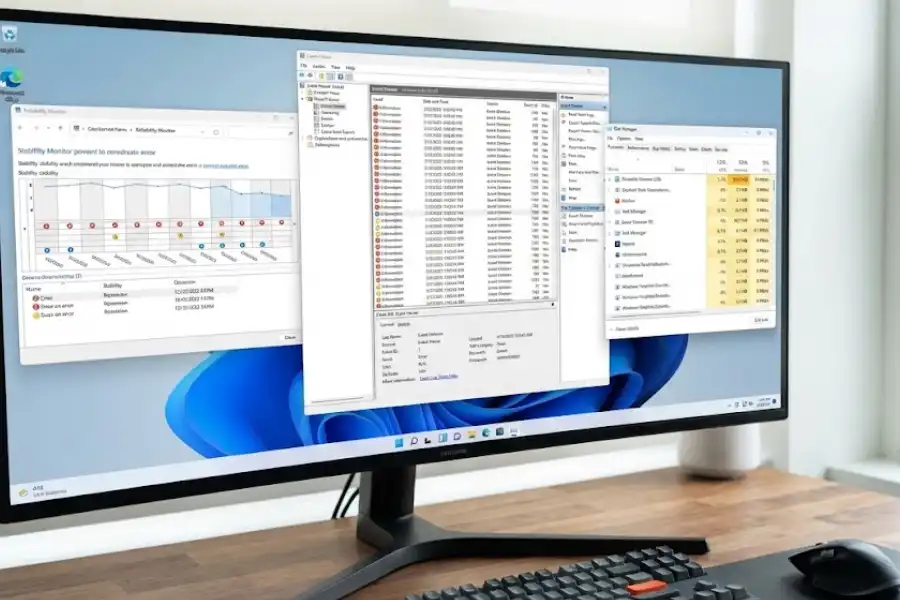
Reliability Monitor tracks stability over time. Event Viewer logs every system event in detail. Task Manager shows what your PC is doing right now. They serve completely different purposes. Here is a side-by-side comparison:
| Feature | Reliability Monitor | Event Viewer | Task Manager |
|---|---|---|---|
| What it does | Shows a timeline of crashes, errors, and installs | Logs every event on your PC with full error codes | Shows real-time CPU, RAM, and disk usage |
| Best for | Finding what crashed and what day it happened | Getting the full error code for a specific crash | Seeing which program is using too many resources right now |
| How easy is it? | Easy. Simple chart with colored icons. | Hard. Thousands of detailed log entries. | Easy. Familiar tabs and graphs. |
| Shows history? | Yes, about 28 days | Yes, usually longer | No, real-time only |
| Gives a stability score? | Yes (1 to 10) | No | No |
| Who is it for? | Everyone | Experienced users and IT professionals | Everyone |
| How to open it | Search “reliability” or run perfmon /rel | Search “Event Viewer” or run eventvwr | Press Ctrl + Shift + Esc |
My suggestion: Start with Reliability Monitor to see the big picture. If you need the full error code for a specific crash, switch to Event Viewer. Use Task Manager when your PC feels slow right now and you want to know which program is eating your resources.
What Does the Reliability Monitor Stability Score Mean?
The stability score (called the System Stability Index) is a number from 1 to 10 that tells you how reliable your PC has been recently.
- 9 to 10: Your system is stable. No major crashes or recurring errors.
- 6 to 8: Some issues have happened, but nothing too serious. Worth checking the timeline.
- 3 to 5: Something is regularly going wrong. Open the tool and look for repeating red X icons.
- 1 to 2: Your system is very unstable. Frequent crashes, blue screens, or hardware errors. Fix these as soon as possible.
The score is a weighted average, which means:
- A crash from yesterday counts more than one from two weeks ago
- If no errors happen for several days, the score slowly climbs back up
- Days when your PC is turned off or sleeping do not count against the score
A dropping score does not always mean your hardware is failing. Sometimes a single buggy app crashing in the background every day is enough to pull the score down. Check the timeline to see if one specific program is responsible.
How Do You Reset or Clear the Reliability Monitor History?
You can clear the history from within the tool, or you can do a full reset by deleting the data files. Here are all three methods.
Method 1: Clear Problem Reports Inside the Tool
- Open Reliability Monitor
- Scroll to the bottom and click “View all problem reports”
- Click “Clear all problem reports”
- Confirm by clicking “Clear all”
This removes problem reports, but the stability chart may still show old entries for a while.
Method 2: Delete the Data Files for a Full Reset
This method wipes everything clean so the chart starts from scratch:
- Open the Windows file manager
- Turn on hidden files (go to View > Show > Hidden items)
- Navigate to:
C:\ProgramData\Microsoft\RAC - Open the PublishedData folder and delete everything inside
- Open the StateData folder and delete everything inside
- Empty your Recycle Bin
- Restart your computer
After restarting, Reliability Monitor will begin collecting fresh data. It takes about 24 hours before the new chart appears.
Method 3: Use a Command Prompt Command
- Open Command Prompt as administrator (on Windows 11: right-click Start > Terminal (Admin))
- Type:
wevtutil cl Microsoft-Windows-RAC - Press Enter
- Restart your computer
This clears the event log that Reliability Monitor reads from.
Why Is Reliability Monitor Blank and How Do You Fix It?
If Reliability Monitor shows no data, the data collection service is probably not running or its files are corrupted. Here are six fixes, starting from the simplest.
Fix 1: Wait 24 Hours
If you just installed Windows or just cleared the Reliability Monitor data, it needs at least 24 hours to collect enough events. Give it a full day and then check again.
Fix 2: Check the WMIEnable Registry Key
A setting in the Windows Registry controls whether Reliability Monitor collects data. If it is turned off, the tool shows nothing.
- Press Windows Key + R, type regedit, press Enter
- Go to:
HKEY_LOCAL_MACHINE\SOFTWARE\Microsoft\Reliability Analysis\WMI - Look for a value called WMIEnable
- Make sure its value is set to 1 (if it is 0, double-click it and change it to 1)
- Close Registry Editor and restart your computer
Fix 3: Run the System File Checker (SFC)
Damaged system files can prevent Reliability Monitor from working. The System File Checker command scans and repairs them. Here is how to run it:
- Open Command Prompt as administrator
- Type:
sfc /scannow - Wait about 10 to 15 minutes for it to finish
- If it reports that it found and repaired files, restart your PC and check the tool again
Fix 4: Run DISM If SFC Did Not Help
If the System File Checker could not fix the problem, run this:
- Open Command Prompt as administrator
- Type:
DISM /Online /Cleanup-Image /RestoreHealth - Wait for it to finish (this can take a few minutes)
- Run
sfc /scannowone more time after DISM completes - Restart your PC
Fix 5: Check the RAC Agent Task in Task Scheduler
Reliability Monitor depends on a background job called the RAC agent (Reliability Analysis Component). If this job is missing or broken, data collection stops completely.
- Open Task Scheduler (search for it in the Start menu)
- Navigate to: Task Scheduler Library > Microsoft > Windows > RAC
- You should see a task called RacTask
- Right-click it and select Run
- If it is missing entirely, the task file might be corrupted. In that case, you may need to run a repair install of Windows using the Media Creation Tool from Microsoft’s website.
Fix 6: Delete the RAC Data and Start Fresh
As a last step, do a full reset by deleting the files from C:\ProgramData\Microsoft\RAC (using Method 2 from the reset section above). Then restart and wait 24 hours for new data.
Frequently Asked Questions
What is Windows Reliability Monitor?
Reliability Monitor is a free diagnostic tool that comes with every version of Windows. It records crashes, errors, software installs, driver problems, and hardware failures in the background, and displays them on a visual timeline with a stability score from 1 to 10.
How do I open Reliability Monitor in Windows 11?
Click Start, type reliability, and click “View reliability history.” Or press Windows Key + R, type perfmon /rel, and hit Enter. Both ways work on Windows 11 and Windows 10.
Does Reliability Monitor work on Windows 10?
Yes. It works on Windows 11, Windows 10, Windows 8, Windows 7, and even Windows Vista. The steps to open it and use it are mostly the same on all versions.
What is the difference between Reliability Monitor and Event Viewer?
Reliability Monitor shows a simple visual timeline with a stability score. Event Viewer gives you thousands of detailed log entries with specific error codes. Start with Reliability Monitor for a quick overview. Switch to Event Viewer only when you need the full error details for a specific crash.
What does the stability score mean?
It runs from 1 to 10. A score near 10 means your PC is running well. A score near 1 means frequent crashes or errors. The score is a weighted average, so recent problems affect it more than older ones. If no errors happen for a while, the score recovers on its own.
Why is my Reliability Monitor blank or showing no data?
The data collection might not be running. Common fixes: check the WMIEnable registry key (it should be set to 1), run sfc /scannow, run DISM, or delete the contents of C:\ProgramData\Microsoft\RAC\PublishedData and C:\ProgramData\Microsoft\RAC\StateData, then restart. It also needs 24 hours after a fresh install before data appears.
Can I clear the Reliability Monitor history?
Yes. Open the tool, scroll to the bottom, click “View all problem reports,” and click “Clear all problem reports.” For a full wipe, delete the files inside C:\ProgramData\Microsoft\RAC and restart your PC.
How far back does Reliability Monitor go?
About 28 days in the daily view. After that, older entries are removed. To keep a record longer, click “Save reliability history” at the bottom of the window. It saves your data as an XML file.
Does Reliability Monitor slow down my computer?
No. It uses very few resources. It reads from logs that Windows is already generating in the background. You will not notice any difference in speed or performance.
Should I worry about every red X?
Not every red X is a cause for concern. Programs crash occasionally, and a single one-time crash is usually harmless. Pay attention when you see the same program showing red X marks on multiple days. That pattern means there is a real issue worth fixing.
Can Reliability Monitor detect viruses?
Not directly. It does not scan for malware. But if a virus or malicious software is causing programs to crash, those crashes will appear in the timeline. If you see crashes from programs you do not recognize, or your stability score drops suddenly for no obvious reason, run a full scan with Windows Security (Windows Defender) or your antivirus software.
What is the perfmon /rel command?
It is a shortcut that opens Reliability Monitor directly from the Run dialog box (Windows Key + R). “perfmon” stands for Performance Monitor, which is a larger Windows tool. Adding “/rel” tells it to open the Reliability Monitor view instead of the full Performance Monitor.