15 WordPress Hidden Features Most Users Never Find (Even After Years of Using It)
You have been using WordPress for a while. Maybe months. Maybe years. You know how to write posts, install plugins, and find your way around the dashboard.
But here is what most WordPress users never stop to ask: are you using everything WordPress already gives you?
WordPress, the world’s most widely used content management system (CMS), powers more than 43% of all websites on the internet as of 2026. It is open-source software maintained by Automattic and a global community of developers. And much like finding a hidden software egg, it is packed with features that sit quietly inside the platform, never advertised, never highlighted, and almost never found.
This article covers 15 of those features. Every single one is already inside your WordPress installation right now. No extra plugins. No paid upgrades. No coding.
If you are a blogger, a small business owner, a freelancer managing client sites, or a developer who builds in WordPress every day, you will find something here that changes how you work.
What Is the Fastest Way to See All WordPress Settings in One Place?
The fastest way is to visit yourdomain.com/wp-admin/options.php directly in your browser. This page shows every setting WordPress stores in its database, all in one long list. There is no menu link to it anywhere in the WordPress dashboard.
WordPress stores its settings in a database table called wp_options. The options.php page pulls all of that data and displays it in a single editable screen. You will find things like your site URL, upload size limits, default post category, comment settings, and dozens of configuration values that plugins quietly store in the background.
How to access it:
- Log into your WordPress admin area
- In your browser address bar, type:
yourdomain.com/wp-admin/options.php - Press Enter
One clear warning: This page gives you direct access to your database settings. Changing the wrong value can break your site. Only edit settings you fully understand. If you are unsure what a setting does, leave it alone. For developers and experienced site owners, though, this page is extremely useful.
What Does the Screen Options Button Do in WordPress?
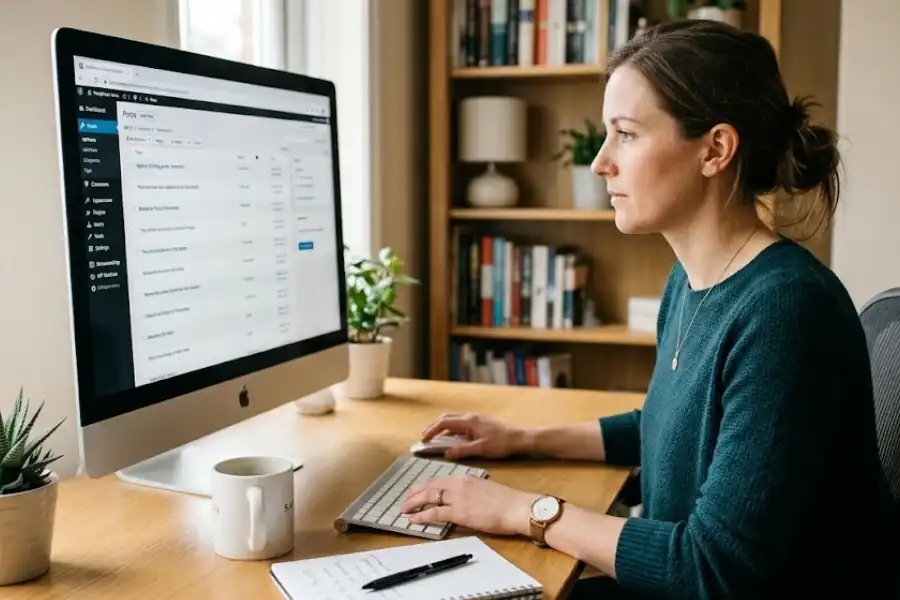
The Screen Options button, found in the top right corner of almost every page in your WordPress admin area, lets you show or hide columns, panels, and sections on that specific screen. Most users never click it. It looks like a small tab sitting quietly at the very top of the page.
This feature is part of WordPress core and has been available since version 2.7. It works on the Posts screen, Pages screen, Dashboard, Comments, and even the post editor itself.
On the Posts screen, you can add or remove columns like Author, Tags, Date, Featured Image, and Word Count. If you manage a multi-author blog, turning on the Author column alone saves a lot of scrolling and searching.
On the post editor screen, you can show panels like Excerpt, Author, Discussion, and Slug that are hidden by default. Many beginners write posts for months without ever knowing the Excerpt panel exists, then wonder why their posts show the wrong preview text in search results.
How to use it:
- Go to any page in your WordPress admin
- Look at the top right corner of the screen
- Click the tab labeled Screen Options
- Check or uncheck the boxes to control what appears on that screen
How Do You Navigate WordPress Faster Without Clicking Through Menus?
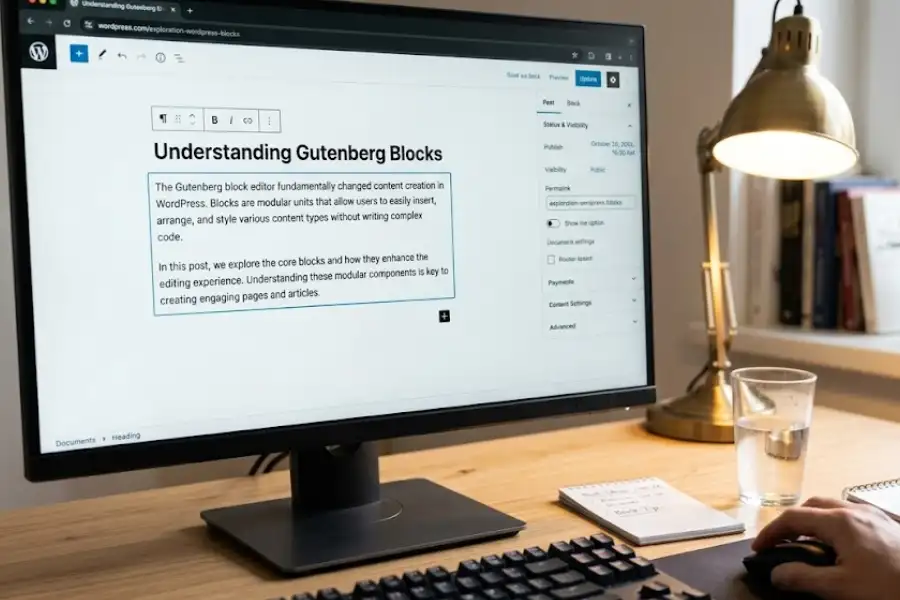
Press Ctrl+K on Windows or Cmd+K on Mac while inside the WordPress block editor. This opens the Command Palette, a search bar that lets you jump to any block, page, post, or WordPress setting instantly.
The Command Palette was introduced in WordPress 6.3, released in August 2023. It works inside the Gutenberg block editor, which is the default editor for all WordPress sites running version 5.0 and above.
Think of it like a search bar for your entire WordPress admin. Instead of clicking through five menus to find something, you just press two keys and type what you need.
Examples of what you can do with it:
- Type “image” to instantly insert an image block into your post
- Type “plugins” to jump directly to the Plugins page
- Type “settings” to go to your site settings
- Type the name of any block to insert it without scrolling through the block library
This is one of the least-talked-about features in WordPress right now. Most tutorials still show people clicking through the block inserter panel. The Command Palette makes all of that unnecessary.
Is There a Way to Write in WordPress Without All the Distractions on Screen?
Yes. WordPress has a Distraction-Free writing mode called Fullscreen Mode. It hides the sidebar, toolbar, and all settings panels, leaving only your text on a clean screen.
To turn it on, click the three-dot menu (also called the options menu) in the top right corner of the block editor. Look for Fullscreen Mode and click it. Everything disappears except your content.
To bring the editing toolbar back, just move your mouse to the top of the screen. It reappears when you hover.
This mode is especially useful if you find yourself getting distracted by sidebar settings, plugin notifications, or the block list while trying to write. WordPress becomes a clean, focused writing space. No clutter. No interruptions. Writers who manage their own WordPress sites often say this one feature changed how they approach longer articles and blog posts.
What Is Spotlight Mode in the WordPress Block Editor?
Spotlight Mode is a block editor feature that fades out every block on the page except the one you are currently editing. It helps you focus on one section of your content at a time, without the rest of the page competing for your attention.
To turn it on, go to the three-dot menu in the top right corner of the block editor and select Spotlight Mode.
Once it is active, click on any block. Everything else on the page dims. Only the block you clicked stays fully visible. Click a different block and the focus shifts there.
This is particularly helpful when you are working on long pages with many different blocks, like a landing page with a header, multiple paragraphs, images, a table, and a call-to-action section. Without Spotlight Mode, editing one small section while seeing everything else at the same time can feel overwhelming.
What Happens If Two People Edit the Same WordPress Post at the Same Time?
WordPress automatically prevents overwriting with a feature called Post Locking. When one user opens a post for editing, WordPress places a temporary lock on it. If a second user tries to open the same post, they see a warning message saying who is currently editing it.
Post Locking has been part of WordPress since version 3.6. It runs silently in the background with no setup needed. It is always active on any WordPress site where multiple users have editing access.
When the lock is active, the second user has three options:
- Wait for the first editor to finish and release the lock
- Request to take over editing (WordPress will notify the first user)
- Open a preview of the post without editing it
This matters a lot for team blogs, news sites, and client websites where editors and writers share access. Without Post Locking, two people saving the same post at the same time would mean one person’s work gets overwritten. WordPress prevents that automatically.
How Do You Stop Someone from Accidentally Moving or Deleting a Block in WordPress?
You can lock any block in the WordPress block editor to prevent it from being moved, deleted, or both. This is done through the Lock option in the block’s settings menu.
Block Locking was introduced in WordPress 5.9. It works with any block type in the Gutenberg editor, whether it is a paragraph, image, heading, group block, or custom block.
How to lock a block:
- Click on the block you want to protect
- Click the three-dot menu that appears in the block toolbar
- Select Lock
- Choose whether to prevent moving, prevent deleting, or both
- Click Apply
This is especially valuable for WordPress developers and designers who build sites for clients. You can lock the header, footer, logo block, or any key layout element so the client cannot accidentally break the design while updating their content.
Block Locking does not apply to third-party page builders like Elementor or Divi. Those tools have their own separate permission systems.
Can You Edit Images Directly Inside WordPress Without Using Another App?
Yes. WordPress has a basic image editor inside the Media Library that lets you crop, rotate, flip, and scale images without leaving your dashboard.
To use it, go to Media > Library, click on any uploaded image, and then click the Edit Image button. A simple editing panel opens with the following tools:
- Crop: Draw a selection to cut out a specific part of the image
- Rotate: Turn the image 90 degrees left or right
- Flip: Mirror the image horizontally or vertically
- Scale: Resize the image to a specific width and height in pixels
This editor is not a replacement for a full image editing program like Adobe Photoshop or GIMP. But for a quick fix, like straightening a photo that uploaded sideways or trimming extra white space from the edge of an image, it works perfectly and saves you the time of downloading, editing, and re-uploading.
How Do You Schedule a WordPress Post to Publish Automatically in the Future?
In the WordPress block editor, click the date and time shown in the Publish panel on the right side of the screen. Change it to any future date and time. When you click Publish, the post will go live automatically at that exact moment.
Scheduled publishing is one of the most useful features for anyone trying to post consistently without sitting at their desk every day. You can write three posts on Sunday and schedule them to publish Monday, Wednesday, and Friday automatically.
How to schedule a post:
- Write your post and get it ready to publish
- In the right-hand panel, find the Publish section
- Click the date and time shown next to “Publish”
- Pick the future date and time you want the post to go live
- Click the blue Schedule button
WordPress will publish the post at exactly the time you chose, even if your computer is off and you are not anywhere near a browser. This works on both posts and pages.
How Do You Share WordPress Content With Specific People Without Building a Membership Site?
WordPress has a Password Protection feature inside the post Visibility settings. It lets you put a password on any post or page. Only people who know the password can read the content.
To use it, open any post or page in the editor. In the right-hand panel under the Publish section, click the word Public next to Visibility. A small menu appears with three options: Public, Private, and Password Protected.
Select Password Protected, type in a password, and save or publish the post. Anyone who visits that URL will see a simple password prompt instead of the content.
This is a surprisingly practical feature for many situations:
- Sharing a draft article with a client for review before it goes live
- Hiding a resource page until you are ready to announce it
- Sending a bonus piece of content to email subscribers only
- Creating a simple members-only page without any plugin
No third-party tools. No monthly fees. It is already there.
What Is the Easiest Way to Embed a YouTube Video or Podcast Into a WordPress Post?
Simply paste the URL of the YouTube video, Spotify episode, or other supported media directly into your WordPress post editor. WordPress will automatically turn it into a proper embedded player.
This works because of a web standard called oEmbed. oEmbed is an open protocol that allows websites to share embeddable content using just a link. WordPress has supported oEmbed since version 2.9, released in 2009.
You do not need to copy any embed code. You do not need a plugin. Just paste the link on its own line in your post editor and press Enter. WordPress contacts the source platform, pulls the embed code automatically, and shows the media player right inside your editor.
Platforms WordPress supports through oEmbed include:
- YouTube and Vimeo
- Spotify and SoundCloud
- Twitter / X and Instagram
- Reddit and TikTok
- Flickr and many others
Most users copy embed codes because they do not know this feature exists. The answer has always been simpler.
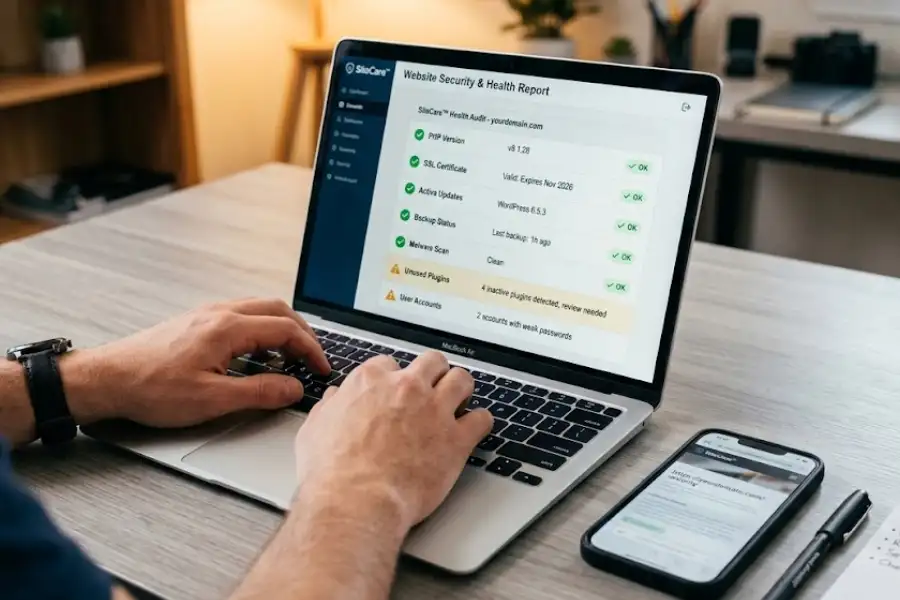
How Do You Check if Your WordPress Website Has Any Security or Performance Problems?
Go to Tools > Site Health in your WordPress dashboard. WordPress will run a full checkup on your site and show you a report with any problems it finds, sorted by priority.
The Site Health tool was added to WordPress in version 5.2, released in May 2019. It was built to help site owners spot problems before those problems cause downtime, security risks, or poor performance.
What Site Health checks:
- Your PHP version (outdated PHP is one of the most common security risks on WordPress sites)
- Your active WordPress version
- Your SSL certificate status
- Your active plugins and themes
- Your database connection and server settings
- REST API availability
- Background update settings
The report puts every issue into one of three categories: Critical (fix this now), Recommended (fix this when you can), and Good (nothing to worry about here).
Many WordPress site owners pay for third-party security audits for things the Site Health tool already covers for free. Running this check once a month takes about 30 seconds and can catch problems early.
How Do You Connect an External App to WordPress Without Sharing Your Real Password?
Use WordPress Application Passwords. This feature lets you create a separate password for each app or tool you want to connect to your WordPress site. The app uses that password. Your real login password stays private and untouched.
Application Passwords were officially added to WordPress core in version 5.6, released in December 2020. They work with the WordPress REST API and XML-RPC, which are the two main ways external apps communicate with a WordPress site.
How to create an Application Password:
- Go to Users > Your Profile in your WordPress dashboard
- Scroll to the very bottom of the page
- Find the Application Passwords section
- Type a name for the app you are connecting (for example, “Zapier” or “Mobile App”)
- Click Add New Application Password
- Copy the password shown. You will only see it once.
Use that password inside the app you are connecting. To revoke access later, go back to the same page and delete the Application Password for that app. It immediately loses access. Your real account is never touched.
This approach is used by professional WordPress developers when connecting sites to tools like Zapier, headless front ends, and custom mobile applications.
Can You Change How the WordPress Admin Dashboard Looks?
Yes. WordPress includes eight different color schemes for your admin dashboard. You can switch between them in Users > Your Profile, near the top of the page.
The available options are: Default, Blue, Coffee, Ectoplasm, Midnight, Ocean, Sunrise, and Light. Each one changes the colors of the sidebar, top bar, and button highlights throughout your admin area.
To change it, go to Users > Your Profile, find the Admin Color Scheme section near the top, and click on any color swatch. The change applies right away.
Your website visitors will never see this. It is purely for you, inside your admin area. It takes about ten seconds to change. But if you spend hours every week inside the WordPress dashboard, working in a color scheme you enjoy makes the experience noticeably better.
How Do You Keep an Important WordPress Post at the Top of Your Blog No Matter How Old It Is?
Use the Sticky Post feature in WordPress. It pins any post to the very top of your blog’s main page, above all newer posts, so visitors always see it first.
To make a post sticky, open it in the editor. In the right-hand panel under the Publish section, click the word Public next to Visibility. You will see a checkbox labeled Stick this post to the front page. Check it and save or update the post.
That post will now sit at the top of your blog permanently, no matter how many new posts you publish after it.
This is useful for:
- A welcome message or start-here guide for new readers
- A major announcement or product launch
- Your most popular or most important piece of content
- A pinned resource page you want every visitor to see
Most bloggers never find this option because it is tucked inside the Visibility menu. But it is there, it is free, and it does exactly what many people buy pinned-post plugins to accomplish.
Quick Reference: All 15 WordPress Hidden Features at a Glance
| Feature | Where to Find It | What It Does |
|---|---|---|
| Full Settings Page (options.php) | yourdomain.com/wp-admin/options.php | Shows every WordPress database setting in one place |
| Screen Options | Top right corner of any admin screen | Shows or hides columns and panels on each page |
| Command Palette | Ctrl+K / Cmd+K in block editor | Jumps to any block, post, page, or setting instantly |
| Distraction-Free Mode | Three-dot menu in block editor | Hides everything except your content while writing |
| Spotlight Mode | Three-dot menu in block editor | Dims all blocks except the one you are editing |
| Post Locking | Automatic when a post is open | Stops two users from editing the same post at once |
| Block Locking | Three-dot menu on any block | Prevents a block from being moved or deleted |
| Image Editor | Media > Library > click image > Edit Image | Crop, rotate, flip, and scale images without leaving WordPress |
| Scheduled Posts | Publish panel > click the date | Publishes a post automatically at a future date and time |
| Password-Protected Content | Visibility in Publish panel | Locks a post or page behind a password |
| oEmbed | Paste any supported URL into the editor | Auto-embeds YouTube, Spotify, TikTok, and more |
| Site Health Tool | Tools > Site Health | Checks your site for security and performance issues |
| Application Passwords | Users > Profile > scroll to bottom | Lets apps connect to WordPress without your real password |
| Admin Color Schemes | Users > Profile > near the top | Changes the color theme of your WordPress admin area |
| Sticky Posts | Visibility > Stick this post to front page | Pins a post permanently to the top of your blog |
Frequently Asked Questions
Do I need to install any plugins to use these WordPress features?
No. Every feature in this article is part of WordPress core. You do not need to install anything extra. They are already there the moment you set up a WordPress site.
Which version of WordPress do I need for these features to work?
Most features work on WordPress 5.0 and above. Specific requirements: Site Health needs version 5.2 or higher, Application Passwords need 5.6 or higher, and the Command Palette (Ctrl+K) needs 6.3 or higher. To check your version, go to Dashboard > Updates in your admin area.
Do these features work with the Classic Editor, or only with Gutenberg?
Distraction-Free Mode, Spotlight Mode, Block Locking, and the Command Palette only work in the Gutenberg block editor, which is the default in WordPress. If you use the Classic Editor plugin, those four features will not be available. Every other feature on this list works regardless of which editor you use.
Is it safe to open the options.php settings page?
Opening and reading it is safe. Editing it without knowing what you are doing is not. The options.php page gives direct access to your database settings. Changing the wrong value can stop your site from working. Look, but only change settings you are confident about.
Can I use Block Locking on pages built with Elementor or Divi?
No. Block Locking is a Gutenberg block editor feature. Elementor and Divi do not use the Gutenberg block system, so Block Locking does not apply. Those builders have their own role and permission settings.
What is the most important WordPress hidden feature for site security?
The Site Health tool at Tools > Site Health. It checks your PHP version, SSL certificate, automatic update settings, and more. Many common security problems on WordPress sites, like outdated PHP or disabled updates, show up immediately in Site Health.
Can I schedule both posts and pages in WordPress?
Yes. The scheduled publishing feature works on both posts and pages. Open any post or page in the editor, click the date in the Publish panel, pick a future date and time, and click Schedule.
Does oEmbed work with all video and podcast platforms?
oEmbed works with dozens of platforms, but not every single one on the internet. YouTube, Vimeo, Spotify, SoundCloud, Twitter/X, Instagram, Reddit, and TikTok are all supported. If a platform does not support oEmbed, pasting its URL will not create an embed. In that case, you would need to use that platform’s embed code manually.
What Should You Do Next?
WordPress gives you far more than most people realize. These 15 features have been sitting in your dashboard since the day you installed WordPress. You just needed someone to point them out.
Pick one feature and try it today. If you write a lot, turn on Fullscreen Mode right now and see how it feels. If you run a team blog, open a post on two different accounts at the same time and watch Post Locking kick in. If you have never run a Site Health check, do that today. It takes 30 seconds and it might show you something worth fixing.
WordPress is a deeply capable platform. The users who get the most out of it are not always the ones who install the most plugins. They are the ones who take the time to know what is already there.
Now you know.