15 Zoom Hidden Features You Have Never Tried (And Should Be Using Right Now)
Zoom is a video conferencing platform used by over 300 million daily meeting participants worldwide. Most people use it to join calls, share their screen, and mute themselves when the dog starts barking. That is about it. But Zoom has dozens of built-in features that go completely unnoticed, sitting quietly inside menus nobody ever opens.
This article covers 15 of the most useful Zoom hidden features that real users, teachers, remote workers, and team leads have found genuinely helpful. Each one is explained clearly, step by step, so you can try it in your very next meeting.
Quick Answer: Zoom’s most useful hidden features include Touch Up My Appearance, Focus Mode, Push-to-Talk, the Vanishing Pen, PowerPoint as Virtual Background, Side-by-Side Mode, auto-transcription, and the Zoom AI Companion. Most of these are free and work right now, no upgrades needed.
What Are Zoom Hidden Features and Why Do Most People Miss Them?
Much like a classic software egg, Zoom hidden features are tools and settings that are already built into the Zoom app but are buried inside menus, the settings panel, or the advanced options tab. They are not secret by design. They are just easy to overlook if nobody points you toward them.
Most users download Zoom, learn the basics, and never go back to explore what else is there. That leaves a lot of genuinely useful tools sitting untouched. By the end of this article, you will know exactly where to find them and how to use them.
Does Zoom Have a Built-in Appearance Filter?
Yes. Zoom has a feature called “Touch Up My Appearance” that softens your skin on camera and makes you look more polished without any makeup or extra lighting.
To turn it on, open the Zoom desktop app and click your profile picture in the top right corner. Go to Settings, then click Video. You will see a checkbox that says Touch Up My Appearance. Check it. There is also a slider so you can adjust how strong the effect is.
This filter is subtle. It is not going to make you look like a different person. But it does smooth out tired skin, reduce harsh shadows, and make you look like you actually slept. While you are there, also check the HD box right below it for a sharper, cleaner video feed. Both are free on all Zoom plans.
Can You Control Background Noise Levels in Zoom Manually?
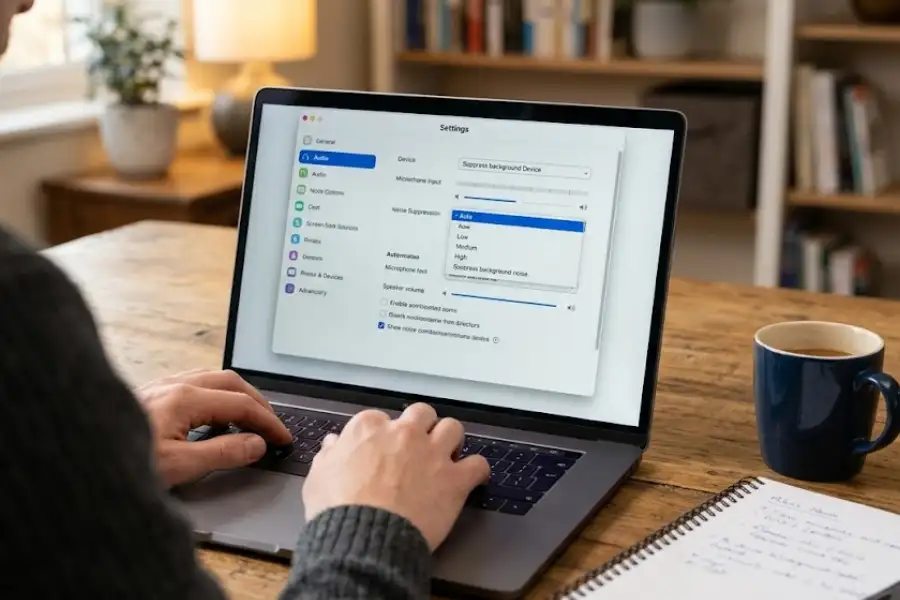
Yes. Zoom offers four separate levels of background noise suppression: Auto, Low, Medium, and High. Most people never change this setting and leave it on Auto.
Go to Settings, then Audio, and look for the Background Noise Suppression option. You will see a dropdown with all four levels.
- Auto works well for standard home or office setups.
- Low is good if you are playing background music and want it to come through slightly.
- Medium handles average coffee shop noise well.
- High is the best choice if you are in a loud environment like a shared workspace or a busy household.
Matching this setting to your actual environment makes a noticeable difference in how clear your voice sounds to everyone else on the call.
What Is Zoom Focus Mode and How Does It Work?
Zoom Focus Mode is a host-controlled feature that hides all other participants from each other. In Focus Mode, every person on the call can only see the host and their own video tile, not anyone else’s.
The host still sees everyone. But participants cannot see their coworkers, classmates, or teammates. This removes the temptation to watch what others are doing instead of paying attention to whoever is speaking.
Focus Mode is especially useful for teachers running online classes, trainers delivering workshops, and team leads presenting to a large group. To start it: during a live meeting, click the More button at the bottom of the screen and select Start Focus Mode.
This feature became available in late 2021 and has been one of the most underused tools in Zoom ever since. If you run meetings with students or large teams, it is worth trying straight away.
What Is the Vanishing Pen in Zoom?
The Vanishing Pen is an annotation tool in Zoom that lets you draw on your shared screen, with your marks automatically fading away after a couple of seconds.
Regular annotation tools leave permanent marks on your screen until you erase them manually. The Vanishing Pen solves that problem. You can point something out quickly with a drawn circle or arrow, and the mark disappears on its own. No clutter, no erasing.
To find it: share your screen, then click Annotate in the floating toolbar at the top. Hover over Spotlight and you will see a pen icon with a dashed line underneath it. That is the Vanishing Pen. It is particularly useful during live demos, product walkthroughs, or any time you need to highlight something fast without leaving a permanent mess on your slides.
Can You Use a PowerPoint Presentation as Your Zoom Background?
Yes. Zoom has a feature called “PowerPoint as Virtual Background” that places your presentation directly behind you on screen, so you appear in front of your slides like a news anchor.
This is different from just sharing your screen. With this feature, your face stays visible the whole time. Your audience sees you and your slides together, side by side on the same screen.
To use it: click Share Screen, go to the Advanced tab, and select PowerPoint as Virtual Background. Upload your file and it will load as your background. Small arrow buttons at the bottom let you move forward and back through your slides while you talk.
This feature works on the Zoom desktop app. It requires a green screen for the cleanest look, but it works without one too. For anyone who gives regular presentations on Zoom, this is one of the most impressive-looking tools available.
How Do You Customize the Zoom Waiting Room?
You can fully customize the Zoom Waiting Room by adding your logo, a custom title, and a welcome message through the Zoom web portal at zoom.us.
Most hosts leave the waiting room as the plain default Zoom screen. But your waiting room is the first thing participants see before a meeting starts, and it is a missed opportunity to make a strong impression.
Log in to your account at zoom.us, go to Settings, then Meeting, and scroll to Waiting Room Options. From there, you can add your company name, logo, a personal message, and a short description. For client calls, coaching sessions, or any professional meeting, a branded waiting room immediately sets a more serious, trustworthy tone.
Does Zoom Support Live Captions in Multiple Languages?
Yes. Zoom supports automated live captions in 35 languages. You can also change the caption font size, color, and position on your screen.
Live captions in Zoom are generated automatically using speech recognition. They appear at the bottom of your screen in real time as people speak. They are useful for people with hearing difficulties, people on slow or noisy connections, and anyone who simply follows along better when they can read what is being said.
To enable captions: click Show Captions in your meeting toolbar. To customize them, click the small arrow next to that button and select Caption Settings. You can adjust the text size and move the captions to wherever they are easiest for you to see.
The captions are reported to be accurate roughly 80% of the time under normal speaking conditions. They work best when speakers enunciate clearly and background noise is low. Even at 80% accuracy, they are far more helpful than nothing.
What Is the Difference Between Pin and Spotlight in Zoom?
Pin locks a video to your own screen only. Spotlight sets a video as the main screen for everyone in the meeting. These two features are often confused but they do very different things.
- Pin: This is a personal setting. When you pin someone, only you see them as the main video. Everyone else in the meeting sees their normal view. Use this when you personally want to focus on one speaker.
- Spotlight: This is a host-only tool. When a host spotlights someone, every participant in the meeting sees that person as the main video. Use this to direct the whole group’s attention to one speaker, such as a presenter or keynote guest.
To use either one: hover over any participant’s video tile, click the three dots that appear, and choose Pin or Spotlight from the menu. Knowing which one to use, and when, gives you much more control over how your meeting flows.
How Do You Set Up a Permanent Zoom Link That Never Changes?
You can create a recurring meeting in Zoom that uses the same link every time, or you can use your Personal Meeting ID (PMI), which never changes and is always ready to use.
If your team has a weekly standup, a regular client call, or any meeting that happens on a schedule, there is no reason to generate a new link every single time. A recurring meeting link removes the confusion of “wait, where is today’s link?” from every meeting permanently.
To set one up: when scheduling a new meeting in Zoom, check the box that says Recurring Meeting. Set your schedule and save it. The same link will work every time.
Your Personal Meeting ID is even simpler. It is a fixed ID tied to your account that you can share with anyone for quick, unscheduled calls. You will find it in your Zoom profile settings. Think of it like a permanent phone number for your Zoom room.
Can Zoom Automatically Transcribe Your Meetings?
Yes. Zoom can automatically generate a full written transcript of your meeting when you record it to the cloud. This feature is available on paid Zoom plans.
When cloud recording is on and the audio transcript option is enabled, Zoom sends you two things after the meeting ends. One email contains your video recording link. A second email contains the complete text transcript of everything that was said, labeled by speaker.
You can search the transcript by keyword, click any word to jump to that exact moment in the recording, or copy the text to use for meeting notes and follow-up emails.
To enable it: log in to the Zoom web portal, go to Settings, then Recording, and turn on both Cloud Recording and Audio Transcript. For anyone who attends long meetings or needs to keep accurate records, this one feature alone is worth the cost of a paid plan.
How Do You Hide People Who Are Not on Camera in Zoom?
In Zoom’s video settings, there is an option called “Hide Non-Video Participants” that removes grey, cameraless tiles from your gallery view and shows only people whose cameras are on.
When 10 or 20 people join a meeting without turning their cameras on, your gallery view fills with grey boxes and names. It feels disconnected and makes it harder to focus on who is actually present and engaged.
Go to Settings, then Video, and check the box labeled Hide Non-Video Participants. From that point on, only people with their cameras on will appear in your view. It makes gallery mode feel much more like a real conversation with real people in it.
What Is Push-to-Talk in Zoom and How Does It Work?
Push-to-Talk in Zoom lets you hold down the spacebar to temporarily unmute yourself. When you release the spacebar, you are automatically muted again.
This works exactly like the push-to-talk button on a walkie-talkie. You stay muted the whole time. When you want to say something, press and hold the spacebar, speak, then let go. You are back on mute without clicking anything.
For people who attend long meetings but only speak a few times, Push-to-Talk removes the awkward fumbling of clicking mute and unmute repeatedly. It also prevents the embarrassing moment of leaving yourself unmuted by accident while you talk to someone in the background.
No setup is required. As long as you are muted, holding the spacebar will unmute you. Just make sure the Zoom window is active on your screen when you do it.
What Is Side-by-Side Mode in Zoom?
Side-by-Side Mode in Zoom lets you see a shared screen and the speaker’s video at the same time, placed next to each other on your display. It is turned off by default.
Normally, when someone shares their screen in Zoom, the shared content takes up most of your screen and the speaker’s video shrinks or disappears. Side-by-Side Mode keeps both visible at once, which is much easier to follow during presentations or walkthroughs.
To enable it before a meeting: go to Settings, then Share Screen, and toggle on Side-by-Side Mode. You can also turn it on during a meeting by clicking View Options at the top of the screen while someone is sharing.
What Is Zoom AI Companion and What Can It Do?
Zoom AI Companion is an artificial intelligence assistant built into Zoom Workplace. It can automatically summarize meetings, answer questions mid-call, and generate follow-up notes, all without interrupting the flow of the meeting.
Zoom AI Companion was introduced as part of Zoom’s shift toward an AI-first platform. It is included in paid Zoom plans at no additional charge. Here is what it can do:
- Write an automatic summary of your meeting when it ends, covering key discussion points, decisions made, and action items.
- Answer participant questions mid-meeting privately, like “What did we just decide on?” without the person having to speak up and interrupt.
- Pull information from Zoom recordings, transcripts, and connected apps like Gmail, Outlook, Google Calendar, and Salesforce.
To get started: log in to the Zoom web portal, go to Settings, and look for the AI Companion section. You can also read about everything it supports directly on Zoom’s official AI Companion page. If your organization manages your Zoom account, your admin will need to enable it first. Free accounts do not have access to this feature.

Can You Still Message Someone After They Leave a Zoom Meeting?
Yes, for a short window of time after they leave, around five minutes, you can still send a chat message to a participant who has already left the meeting and they will receive it.
This is one of Zoom’s least-known tricks. Most people do not realize the meeting chat stays active briefly after someone disconnects. If you need to send a quick follow-up, ask a question you forgot to ask, or share a link you mentioned on the call, you can type it in the Zoom chat window immediately after they leave.
The window closes once the meeting chat clears or the meeting ends for everyone, so you have to move fast. But when you catch it in time, it saves you the trouble of hunting down someone’s email or messaging app just for a two-sentence follow-up.
Zoom Keyboard Shortcuts Worth Knowing
- Spacebar (hold): Push-to-talk when muted
- Alt + A (Windows) or Command + Shift + A (Mac): Toggle mute on and off
- Alt + V (Windows) or Command + Shift + V (Mac): Toggle camera on and off
- Alt + H (Windows) or Command + Shift + H (Mac): Show or hide the chat panel
- Alt + U (Windows) or Command + U (Mac): Open the participants list
- Alt + F1 (Windows) or Command + Shift + F1 (Mac): View all available Zoom keyboard shortcuts (and if your PC feels sluggish while running video calls, don’t forget to use the Chrome Task Manager shortcut to free up background memory!)
Frequently Asked Questions
Are Zoom hidden features available on the free plan?
Most of them are. Touch Up My Appearance, Focus Mode, the Vanishing Pen, PowerPoint as Virtual Background, noise suppression levels, live captions, Push-to-Talk, Side-by-Side Mode, and Waiting Room customization are all available on the free Zoom plan. Cloud recording with auto-transcription and Zoom AI Companion require a paid Zoom plan.
Where are most of Zoom’s hidden settings located?
Zoom’s settings are split across two places. The desktop app settings, accessed by clicking your profile picture then choosing Settings, controls your in-meeting experience. The Zoom web portal at zoom.us/profile/setting holds more advanced account-level options, including Waiting Room customization, cloud recording, and AI Companion settings. Always check both locations, because some features only appear in the web portal.
Do Zoom hidden features work on mobile?
Some do, but the mobile app has fewer options than the desktop app. Features like PowerPoint as Virtual Background, the Vanishing Pen, and some annotation tools are desktop-only. For access to the full range of Zoom features, the desktop app on a Windows or Mac computer is the better choice.
Can meeting participants use these features or only the host?
Most features are available to everyone in the meeting. The exceptions are host-only tools: Spotlight, Focus Mode, and Waiting Room customization can only be controlled by the host or co-host. Features like Pin, Touch Up My Appearance, Side-by-Side Mode, Push-to-Talk, and live captions are available to all participants regardless of their role.
Is Zoom AI Companion free to use?
Zoom AI Companion is included in paid Zoom plans at no extra cost. If you have a Pro, Business, or Enterprise Zoom account, you can enable it through your Zoom web portal settings. Free accounts do not have access to AI Companion as of 2025.
How accurate are Zoom’s automatic live captions?
Research and user reports suggest Zoom’s live captions are accurate around 80% of the time under normal speaking conditions. Accuracy improves when speakers talk clearly and at a steady pace, and when background noise is low. They are available in 35 languages and can be resized and repositioned on your screen through Caption Settings.
Which Zoom Feature Should You Try First?
If you are not sure where to start, go with Push-to-Talk. Press and hold the spacebar next time you are on a muted call. It takes two seconds to try and you will probably use it on every call from that point on.
After that, go into your Zoom settings and turn on Touch Up My Appearance. Then check your noise suppression level. Those three changes alone will make your next meeting noticeably better for you and for everyone listening to you.
Zoom is a far more capable tool than most people give it credit for. These features were built to make meetings easier, less stressful, and more professional. They are already there, waiting. You just have to go looking for them.