How to Add YouTube Links to a Claude Prompt? (Step-by-Step Guide)
You paste a YouTube link into Claude. You hit enter. You wait for a smart summary. Instead, you get a confused reply, or Claude admits it cannot watch the video. This happens to almost everyone the first time they try it, and it happened to me too.
Here is the short answer. Claude cannot watch a YouTube video the way you do. It reads text. So a YouTube link by itself does not give Claude much to work with. To get real, useful answers, you need to feed Claude the words from the video, not only the web address. This article shows you how to do that, step by step, with methods for both casual chat users and people who use Claude Code or the Claude API.
What Really Happens When You Paste a YouTube Link Into Claude
A YouTube page is mostly built with moving parts. Video players, comment sections, and buttons load in after the page opens. This makes it hard for any AI tool to simply “read” the page and pull out the spoken words.
When you drop a YouTube link into Claude, it may try to open the page. But the page often does not hand over the transcript in a clean, readable way. So Claude might see a title, a short description, or nothing useful at all. It cannot magically hear the audio or watch the visuals from a link alone.
This is not a flaw unique to Claude. It is true of most AI chat tools right now. The fix is simple once you understand it: give Claude text, not only a link.
Why This Matters for Your Prompts
Say you want Claude to summarize a 20-minute tutorial, pull out key quotes, or turn a podcast episode into a blog post. Claude needs the actual spoken content to do any of that well. Without it, you get vague guesses based on the video title alone, and that is not helpful.
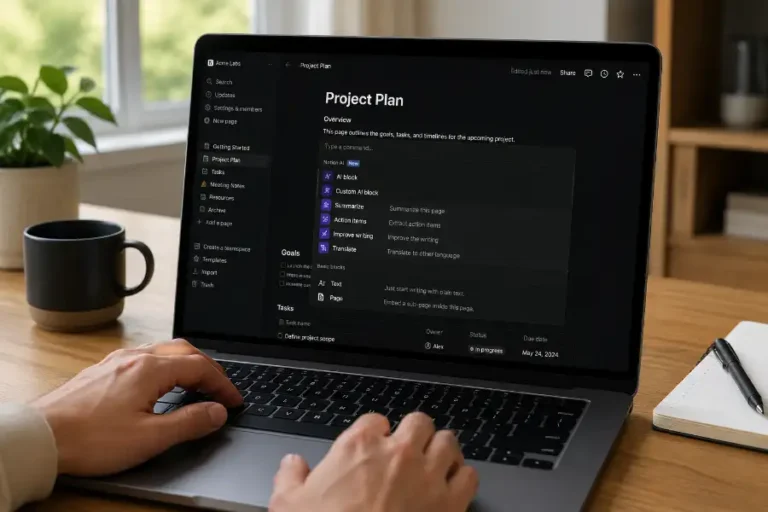
This is true of most prompt-based AI tools, not only Claude. If you like picking up small tricks like this, it’s worth also learning Notion AI hidden slash commands, since the same idea applies there too: knowing the right input to give an AI tool changes what you get back.
The good news is that fixing this takes only a few extra minutes. Once you know where to find a video’s transcript, adding a YouTube link to your Claude prompt becomes a fast, repeatable habit.
4 Ways to Add YouTube Links to Your Claude Prompt
1. Paste the Transcript Along With the Link
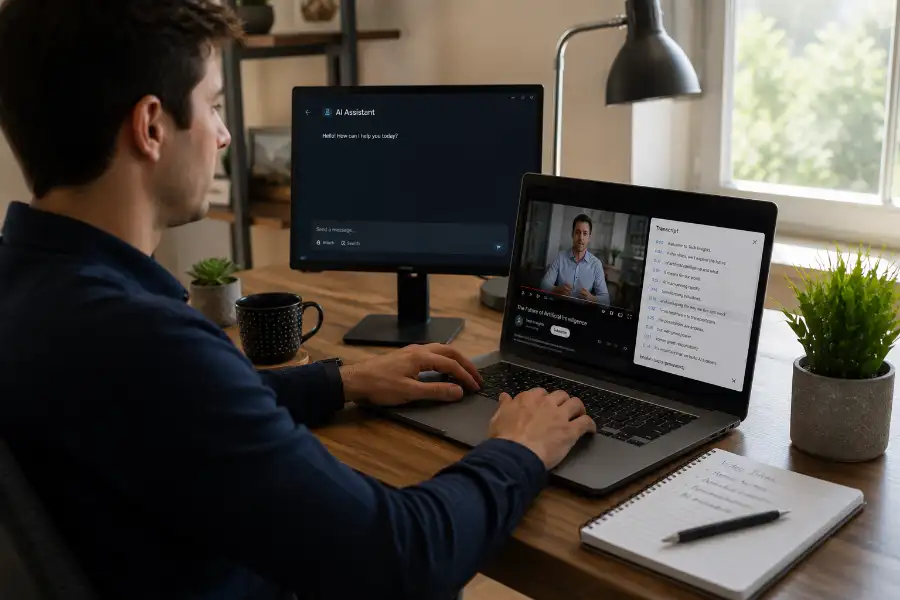
This is the simplest and most reliable method. Most YouTube videos with captions let you view a full transcript.
- Open the video on YouTube.
- Look under the video description for the option to show transcript.
- Click it. A text panel opens with the full spoken content.
- Select all the text and copy it.
- Paste it into your Claude prompt, right below the video link.
You can see how this feature works on YouTube’s own help page about viewing transcripts. Once you have the text, tell Claude what you want it to do with it, such as “Summarize this video in five bullet points” or “Turn this transcript into a short blog post.”
2. Use a Transcript Tool or Browser Extension
If a video’s transcript button is missing or grayed out, a transcript tool can help. Several free browser extensions and websites will pull the text from a YouTube link for you, even grabbing timestamps along the way. Copy the result and paste it into your Claude prompt the same way as above.
This method works well for older videos, videos with auto-captions turned off, or clips where YouTube’s transcript feature is acting up.
3. Connect a Transcript Tool if You Use Claude Code or the Claude API
If you use Claude Code, Claude Desktop, or build with the Claude API, you have another option. You can connect a transcript-fetching tool through an MCP server. Once connected, you can simply share a YouTube link in your prompt and ask Claude to fetch and summarize the transcript, without copying and pasting anything by hand.
This setup takes a bit more effort to configure the first time. But once it is running, it saves a lot of manual work if you deal with videos often, such as for research, content repurposing, or competitor analysis.
4. Ask Claude to Search for Existing Coverage of the Video
Sometimes a video has no captions and no transcript anywhere. In that case, you can ask Claude to search the web for articles, reviews, or discussion threads about the video’s topic. This will not give you the exact words spoken, but it can still help you understand the general content, especially for well-known or widely discussed videos.
Step-by-Step Example: Turning a YouTube Video Into a Claude Prompt
- Find the YouTube video you want Claude to understand.
- Open the transcript panel under the video description.
- Copy the full transcript text.
- Open a new chat with Claude.
- Paste the video link first, then paste the transcript text right after it.
- Add a clear instruction, such as “Summarize the main points” or “List the three most useful tips from this video.”
That is the whole process. Once Claude has the actual words from the video, it can summarize, analyze, quote, and answer follow-up questions almost like it watched the video itself.
Tips to Get Better Answers From Claude
- For long videos, trim the transcript down to the most relevant sections before pasting it in. Very long transcripts can eat up space in your prompt.
- Tell Claude the topic and goal of the video upfront. A short line like “This is a cooking tutorial” helps Claude focus its answer.
- Ask specific questions instead of a general “summarize this.” You will get sharper, more useful answers.
- If the transcript includes timestamps, keep them in if you want Claude to point out when something was said.
- Break very long videos into two or three prompts if the transcript is huge. This keeps Claude’s answers focused and accurate.
- While you’re on the video finding the right section to copy, a few handy YouTube keyboard shortcuts can help you jump around and skim faster.
Common Mistakes to Avoid
- Pasting only the YouTube link and expecting a full summary. This almost never works well.
- Forgetting to tell Claude what you want. A transcript alone, with no instruction, leaves Claude guessing.
- Ignoring length limits. If a transcript is extremely long, trim it or split it into smaller chunks.
- Assuming Claude can describe what is shown on screen. Without extra tools, Claude only works from text, not images or video frames.
A Quick Note on Video Understanding
Some articles online make it sound like you can just drop any YouTube link into any AI chat and get a perfect video summary. In practice, that is not quite true yet for most standard chat tools, Claude included. The method that works, every time, is pairing the link with the transcript text.
When I first tested this, I pasted a link to a 25-minute interview and asked Claude to summarize it. The reply was vague and mostly guessed at the topic from the title. The moment I added the transcript text below the link, the summary became sharp, accurate, and full of real details from the conversation. That one extra step made all the difference.
Frequently Asked Questions
Can Claude watch YouTube videos directly?
No, not on its own. Claude reads and understands text. To help Claude “understand” a video, you need to give it the transcript along with the link.
Why didn’t Claude summarize my video when I just pasted the link?
A bare link usually only gives Claude a title and maybe a short description. Without the transcript, Claude does not have the actual spoken content to summarize.
Is there a limit to how much transcript text I can paste into Claude?
Yes, every prompt has some length limit, though it is usually generous. For very long videos, such as a two-hour podcast, it helps to trim the transcript to the most important parts or split it across a couple of messages.
Does this method work on the free plan?
Yes. Copying a transcript from YouTube and pasting it into a Claude prompt works the same way on free and paid plans. The MCP server option in method three is more useful for people using Claude Code, Claude Desktop, or the API. One more thing worth checking: if a model you expect to see isn’t showing up in your account, look at your settings before assuming it’s gone (see models have been hidden due to your settings).
What if the video has no captions or transcript at all?
If YouTube’s transcript option is missing, try a third-party transcript tool that works from the audio track. If no transcript can be found anywhere, ask Claude to search the web for articles or discussions about the video instead.
Adding a YouTube link to a Claude prompt is easy once you know the trick: the link sets the context, but the transcript does the real work. Grab the text, paste it in, tell Claude what you need, and you will get answers that reflect what was said in the video, instead of a guess based on the title. For more simple, useful software guides like this one, stick around on Software Egg.