60+ Mac Keyboard Shortcuts Every User Should Know in 2026
If you use a Mac and still reach for the mouse to copy, paste, or switch apps, you are wasting time. A lot of it.
The truth is, most Mac users only know 4 or 5 shortcuts. But your Mac has hundreds built in. Learn just 20 of them and you will work twice as fast by the end of the month. I promise.
I have used a Mac every day for over 10 years. I write, edit, code, and run a small business on mine. Finding a true time-saving trick is like discovering the perfect software egg, and the shortcuts in this guide are not a random dump from Apple’s website. They are the ones I use, plus a few gems most blog posts skip.
Let’s get into it.
Why Bother Learning Mac Keyboard Shortcuts?
Every time you grab the mouse, you lose 2 to 3 seconds. That sounds tiny. But over a workday, it adds up to 30 minutes or more of wasted time. Multiply that by a year, and you are losing whole work weeks.
Shortcuts also feel good. You stop fighting your computer and start flying through tasks. Your hands stay on the keys. Your brain stays in flow.
And here is the best part: most shortcuts are easy to learn. You just need to use them a few times before they stick.
First, Know Your Modifier Keys
Before we dig in, you need to know the four most important keys on your Mac. These are called modifier keys. They sit at the bottom of your keyboard. You hold them down while pressing another key.
| Key | Symbol | What It Does |
|---|---|---|
| Command | ⌘ | The main power key. Like “Ctrl” on Windows. |
| Option | ⌥ | Adds extra power to other shortcuts. Sometimes called “Alt”. |
| Control | ⌃ | Less used, but handy for app and screen tricks. |
| Shift | ⇧ | Adds reverse or extra actions. |
The Command key (⌘) is your best friend. It does most of the heavy lifting.
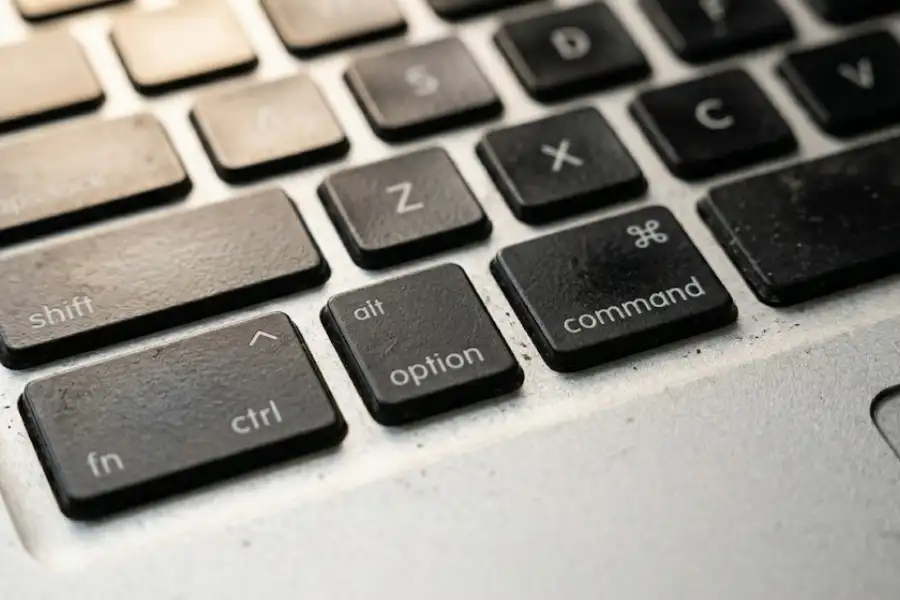
Quick tip from me: When I switched from Windows (where I used to play around with things like How to Enable God Mode in Windows 11?) to Mac years ago, I kept hitting the wrong keys. What helped was placing a small sticker on my Command key for the first week. Sounds silly, but it worked.
The Top 10 Mac Shortcuts Every User Must Know
If you only learn 10 shortcuts, make it these. They cover 80% of daily tasks.
| Shortcut | What It Does |
|---|---|
| ⌘ + C | Copy |
| ⌘ + V | Paste |
| ⌘ + X | Cut |
| ⌘ + Z | Undo |
| ⌘ + Shift + Z | Redo |
| ⌘ + S | Save |
| ⌘ + A | Select all |
| ⌘ + F | Find on the page |
| ⌘ + P | |
| ⌘ + Space | Open Spotlight Search |
Spotlight is the one I use most. Just press ⌘ + Space and start typing. You can open apps, find files, do math, check the weather, even convert currency. It is faster than clicking through Finder almost every time.
Window and App Shortcuts (Save Your Sanity)
Got 12 windows open? These shortcuts will keep you from drowning in them.
- ⌘ + Tab: Switch to your last used app. Hold ⌘ and tap Tab again to keep moving through open apps.
- ⌘ + ` (backtick): Switch between windows of the same app. Super useful when you have 3 Chrome windows or 5 Word docs open.
- ⌘ + W: Close the current window or tab.
- ⌘ + Q: Quit the app fully. (Closing a window does not always quit the app on Mac, which trips up Windows users.)
- ⌘ + M: Minimize the window to the Dock.
- ⌘ + H: Hide the current app. Cleaner than minimizing.
- ⌘ + Option + H: Hide every other app. This is a focus weapon.
- ⌘ + Option + Esc: Force Quit menu. Use this when an app freezes.
- Control + ⌘ + F: Make the current app go full screen.
Most people skip ⌘ + H. Try it once. You will love how clean your screen feels.
Finder Shortcuts You Should Know by Heart
Finder is where you manage your files. These shortcuts make it 10 times faster.
- ⌘ + N: Open a new Finder window.
- ⌘ + Shift + N: Make a new folder.
- ⌘ + Delete: Move the selected file to Trash.
- ⌘ + Shift + Delete: Empty the Trash.
- Space bar: Quick Look. Press space on any file to peek inside without opening the app. This is one of the best Mac features ever, and most people forget it exists.
- ⌘ + I: Get info about a file (size, type, where it lives).
- ⌘ + Shift + .: Show or hide hidden files. Very handy for power users.
- ⌘ + Shift + G: Go to a folder by typing its path.
- Return: Rename the selected file. (On Windows you press F2. On Mac, just hit Return.)
My favorite of this group: Quick Look (Space bar). I use it 50 times a day to check images, PDFs, videos, and even code files without opening anything.
Text Editing Shortcuts That Make You Look Like a Pro
If you write, code, or send emails, these will save you so much time.
- Option + Left or Right Arrow: Move the cursor one full word at a time.
- ⌘ + Left or Right Arrow: Jump to the start or end of the line.
- ⌘ + Up or Down Arrow: Jump to the very top or bottom of the document.
- Shift + any of the above: Select the text instead of just moving the cursor.
- ⌘ + B: Bold
- ⌘ + I: Italic
- ⌘ + U: Underline
- Fn + Delete: Forward delete (deletes the letter to the right). Most Mac keyboards do not have a true Delete key, so this fills the gap.
- ⌘ + Shift + V: Paste without formatting in many apps. Saves you from messy fonts when copying from the web.
The arrow key combos took me a while to learn, but once they clicked, I never looked back. Editing long docs feels like flipping through pages instead of crawling line by line.
Screenshot and Screen Recording Shortcuts
Apple includes some of the best screenshot tools right on your keyboard.
| Shortcut | What It Does |
|---|---|
| ⌘ + Shift + 3 | Capture the whole screen |
| ⌘ + Shift + 4 | Capture part of the screen (drag to select) |
| ⌘ + Shift + 4 + Space | Capture one specific window |
| ⌘ + Shift + 5 | Open the screen recording and screenshot tool |
| ⌘ + Shift + 6 | Capture the Touch Bar (if you have one) |
Pro tip: Hold the Control key with any of the screenshot shortcuts above. Your screenshot will go to your clipboard instead of saving as a file. Now you can paste it straight into Slack, an email, or a doc. Huge time saver.
If you want to dig into all the extra options like timer delays, mouse pointer capture, and changing where files save, Apple has a full breakdown on its support site.
Safari and Browser Shortcuts
These work in Safari, Chrome, Firefox, and Edge on a Mac.
- ⌘ + T: New tab
- ⌘ + W: Close tab
- ⌘ + Shift + T: Reopen the last closed tab. (Closed something by mistake? This brings it back.)
- ⌘ + L: Jump to the address bar to type a new URL or search.
- ⌘ + R: Reload the page.
- ⌘ + Shift + R: Hard reload (clears cache for that page).
- ⌘ + 1, 2, 3…: Jump to a specific tab by number.
- ⌘ + Shift + ] or [: Move to the next or previous tab.
- ⌘ + Left or Right Arrow: Go back or forward in browser history.
⌘ + L is the one I wish I had learned 5 years earlier. No more clicking the address bar with the mouse, ever.
Bonus Mac Shortcuts Most Blogs Don’t Tell You
Here is where things get fun. These are the shortcuts that make people lean over and ask, “How did you do that?”
- Fn + Q: Open a Quick Note. A small note window pops up anywhere, no need to open the Notes app first.
- Control + ⌘ + Space: Open the emoji and symbol picker. Drop emojis into any app, even ones that don’t have an emoji button.
- ⌘ + Control + D: Look up the meaning of any word. Just hover over the word with your cursor first, then hit the keys. The dictionary card pops up.
- Control + ⌘ + Q: Lock your screen instantly. Perfect when you walk away from your desk.
- Option + Shift + Volume keys: Change volume in tiny steps instead of big jumps. Same trick works for brightness with Option + Shift + Brightness keys.
- Fn + Fn (press twice): Start dictation. Talk to your Mac and it types for you.
- Fn + N: Open or close Notification Center.
- Fn + E: Open the Character Viewer (older shortcut for emoji).
- Press Command twice: Open “Type to Siri” so you can ask Siri questions by typing.
- Press and hold Option while clicking the WiFi icon: See deep WiFi info, like signal strength and channel. Great for fixing slow internet.
These are the ones I use to feel like a power user without doing any real extra work.
Switching From Windows to Mac? Read This
This part is for the folks coming over from a PC. I get it. The first month is rough.
Here is a quick map of the shortcuts that confused me the most:
| What You Did on Windows | What You Do on Mac |
|---|---|
| Ctrl + C / V / X / Z | ⌘ + C / V / X / Z |
| Alt + Tab | ⌘ + Tab |
| Alt + F4 | ⌘ + Q (quit) or ⌘ + W (close window) |
| Ctrl + Shift + Esc (Task Manager) | ⌘ + Option + Esc (Force Quit) |
| Print Screen | ⌘ + Shift + 3 |
| Windows Key + L (Lock) | Control + ⌘ + Q |
| F2 (Rename file) | Return (just press Return) |
| Delete key | Fn + Delete (forward delete) |
| Home / End keys | ⌘ + Left / ⌘ + Right Arrow |
Once you swap “Ctrl” for “Command” in your head, 90% of your old habits will work again.
How to Create Your Own Custom Mac Shortcuts
Apple lets you build your own shortcuts for almost any menu item in any app. The steps are simple.
- Open System Settings (or System Preferences on older macOS).
- Click Keyboard in the sidebar.
- Click Keyboard Shortcuts on the right.
- Pick App Shortcuts from the list.
- Click the + button.
- Choose the app, type the exact menu item name, and set your key combo.
For example, I set ⌘ + Shift + L to “Send Later” in Mail. Saves me 4 clicks every email I schedule.
Just remember: the menu name must match word for word, including capital letters and spaces. If “Save As…” has three dots, type the three dots.
If you want to go even further and build full automations (not just key combos), check out Apple’s user guide for the Shortcuts app. It is a different beast, but very powerful once you get the hang of it.
Common Problems and How to Fix Them
Sometimes shortcuts just don’t work. Here are the fixes that almost always do the trick.
Problem: My function keys don’t do what I want
On modern Macs, F1 to F12 are tied to brightness, volume, and so on. To use them as normal F-keys, hold the Fn (Globe) key first. You can also flip this default in System Settings under Keyboard.
Problem: A shortcut works in one app but not another
That is normal. Each app can override shortcuts. Check the app’s menu bar at the top of the screen. The shortcuts are listed next to each menu item.
Problem: Two shortcuts do the same thing and clash
Go to System Settings, then Keyboard, then Keyboard Shortcuts. Find the one you don’t want and uncheck it.
Problem: I forgot a shortcut I used to know
Open the app, click on a menu at the top, and look at the right side of the menu list. Mac shows you the shortcut for every item, every time. This is the easiest way to learn shortcuts naturally.
How to Remember All These Shortcuts (Without Going Crazy)
Don’t try to learn 60 at once. You will forget them by lunch. So try this instead.
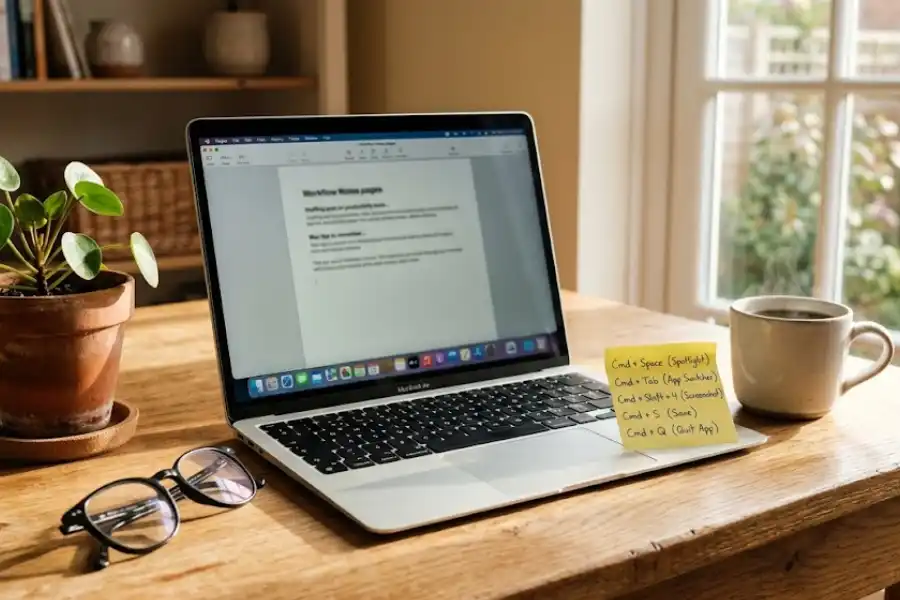
- Pick 3 shortcuts a week. Write them on a sticky note next to your screen.
- Force yourself to use them. Even when the mouse is faster at first.
- After a week, swap in 3 new ones.
- Repeat.
In 8 weeks, you will know 24 shortcuts cold. That is more than 95% of Mac users.
I learned this trick from a friend who edits video for a living. He said his speed jumped 40% in two months. I tried it and saw the same thing.
Frequently Asked Questions
What is the most useful Mac keyboard shortcut?
For most people, it is ⌘ + Space to open Spotlight. You can launch apps, find files, do math, and search the web without ever touching the mouse. It is the gateway to working faster on a Mac.
What is the Command key on a Mac?
The Command key (⌘) sits next to the Space bar on both sides. It has a small four-petal flower symbol on it. It does the same job that the Ctrl key does on a Windows PC.
How do I take a screenshot on a Mac?
Press ⌘ + Shift + 3 for the full screen. Press ⌘ + Shift + 4 to drag and pick a part of the screen. Press ⌘ + Shift + 5 for the full screenshot tool with screen recording.
How do I right-click on a Mac without a mouse?
On a trackpad, tap with two fingers. Or hold the Control key and click. You can also turn on right-click in System Settings under Trackpad.
How do I force quit an app on Mac?
Press ⌘ + Option + Esc to open the Force Quit window. Pick the app and click Force Quit. This works even when the app is fully frozen.
Can I use Windows keyboard shortcuts on a Mac?
Most of them work if you swap Ctrl for Command. So Ctrl + C becomes ⌘ + C. A few are different, like Alt + F4 (use ⌘ + Q on Mac), but the basics translate fine.
How do I lock my Mac quickly?
Press Control + ⌘ + Q. Your screen locks right away and asks for your password to get back in. Great for offices and coffee shops.
Why do some shortcuts not work in Chrome?
Chrome uses its own shortcut system, so a few Mac defaults do not work the same way. For example, ⌘ + W closes a tab in Chrome instead of a window. You can change Chrome shortcuts inside the browser settings.
How do I learn Mac shortcuts faster?
Look at the menus at the top of any app. The shortcuts are listed next to each menu option. Pick 2 or 3 you want to use, write them on a sticky note, and force yourself to use them for one week before adding more.
Are there shortcuts that work on every Mac app?
Yes. Copy (⌘ + C), Paste (⌘ + V), Save (⌘ + S), Undo (⌘ + Z), Quit (⌘ + Q), Find (⌘ + F), and Select All (⌘ + A) work in almost every Mac app ever made.
Final Thoughts
Mac keyboard shortcuts are not a fancy trick. They are a real skill that pays you back every single day. Just like developers who master linux laptop most used shortcuts, the folks I know who work the fastest on a Mac are not smarter or faster typists. They just stopped using the mouse for stuff the keyboard can handle in half a second.
Start with the Top 10 list at the top of this guide. Then add 2 or 3 new ones each week. By next month, you will look back and wonder how you ever worked without them.
If you only remember one shortcut from this whole post, make it ⌘ + Space. Spotlight will change how you use your Mac for good.
Now close this tab (⌘ + W, of course) and go try them out.