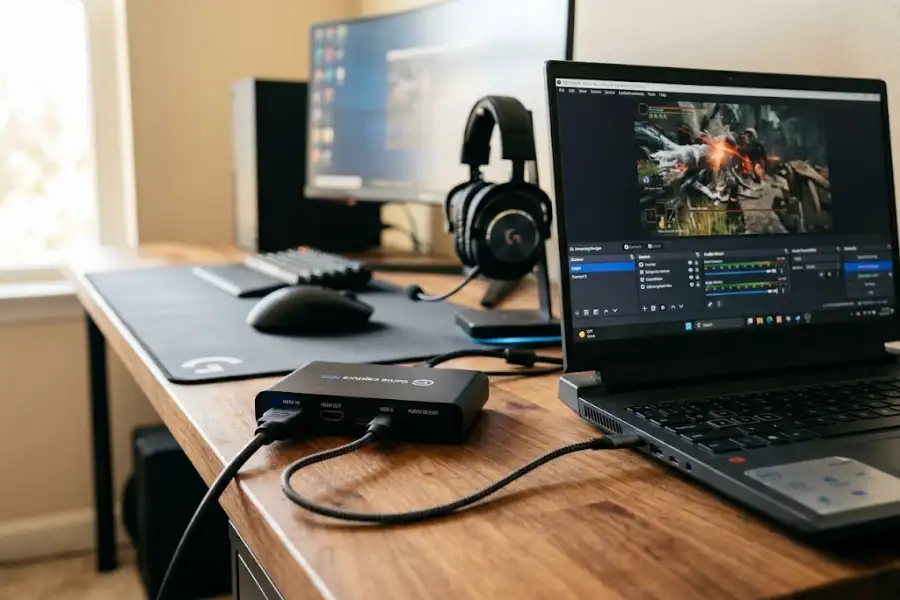
Elgato Game Capture Neo Software: Download, Setup and Fixes
You just got the Elgato Game Capture Neo. The box is open. The cables are plugged in. And now you are staring at your screen wondering: what software do I even use?
This is the part most guides skip. They spend pages on specs and hardware photos but barely touch the software. That is where most beginners get stuck. The good news? Once you know how it all works, setup takes less than ten minutes.
This article uncovers every software egg and hidden setting within the Elgato Game Capture Neo ecosystem. By the end, you will know which apps work with it, how to download and install the official software, how to set it up step by step, and how to fix the most common problems. Let us get into it.
What Software Works with the Elgato Game Capture Neo?
The Elgato Game Capture Neo does not lock you into one app. It works with several programs, and that is a big part of what makes it so beginner-friendly. Here are your main options:
- Elgato Studio (free, Windows and macOS): This is Elgato’s brand new capture app, released in July 2025. It is now the main recommended software for all Elgato capture cards, including the Neo.
- Elgato 4K Capture Utility (free, Windows only): An older app from Elgato. It still works with the Game Capture Neo on Windows, but Elgato Studio is the better choice today.
- OBS Studio (free, Windows, macOS, Linux): The most popular streaming and recording software in the world. It works with the Game Capture Neo right away, no extra setup needed.
- Streamlabs Desktop (free and paid plans, Windows and macOS): A beginner-friendly version of OBS that comes with alerts, overlays, and streaming tools already included.
- XSplit (free and paid plans): Another solid option for streaming and recording.
- Discord: Discord detects the Game Capture Neo as a video source too. Great for sharing gameplay with friends during a call.
- QuickTime (macOS only): Mac users can use Apple’s QuickTime app, which comes with every Mac, for simple, no-fuss recording.
That is a lot of choices. But do not feel overwhelmed. If you are looking for the best simple software to record game footage, start with either Elgato Studio or OBS Studio. Most creators stick with one of those two.
Elgato Studio: The Best Place to Start
Elgato launched Elgato Studio on July 2, 2025. It replaced the older 4K Capture Utility as the main app for Elgato capture cards. The idea was simple: one app, one interface, no confusion. In the past, users had to juggle multiple Elgato apps depending on what they wanted to do. Elgato Studio puts everything in one place.
Here is what Elgato Studio can do:
- Live Preview: See your gameplay inside the app with near-zero lag. You can play casually while monitoring your signal in the preview window.
- Recording: Capture high-quality footage with minimal impact on your computer’s performance.
- Snapshots: Grab a screenshot from the live preview at any time with a single click.
- Device Settings: Adjust video and audio settings all in the same window. No jumping between tabs or separate tools.
Elgato Studio is completely free to download and use. It works on Windows 10 or newer and macOS 12 or newer. One important thing to note: Elgato Studio is built for recording, not live streaming. If you want to go live on Twitch or YouTube, you will need to pair it with OBS Studio or Streamlabs Desktop. More on that below.
How to Download the Elgato Game Capture Neo Software
Downloading the official Elgato Studio software takes just a couple of minutes. Follow these steps:
- Go to elgato.com/downloads.
- Search for “Elgato Studio” in the product filter or find it in the list.
- Click the download button for your operating system (Windows or macOS).
- Run the installer file after it downloads.
- Open Elgato Studio. It will ask for camera and microphone permissions. Click Allow for both. These permissions are needed to show your video preview and capture audio from your device.
- Plug your Game Capture Neo into your computer using the included USB-C to USB-A cable. Connect it to a direct USB 3.0 port on your PC or Mac. Do not use a USB hub.
- Elgato Studio will detect your device automatically. Your gameplay should appear in the preview window right away.
That is it. You are ready to record.
How to Set Up the Hardware Before Opening Any Software
Before the Elgato Game Capture Neo software can do anything, your hardware must be connected correctly. Here is the right way to set everything up:
- Connect your console (PS5, Xbox Series X or S, Nintendo Switch, etc.) to the HDMI IN port on the Game Capture Neo.
- Connect an HDMI cable from the HDMI OUT port on the Game Capture Neo to your TV or monitor. This is the passthrough port. It lets you play your game on screen at full 4K60 HDR quality without any lag.
- Connect the Game Capture Neo to your computer using the USB-C cable included in the box. Plug the USB-C end into the Neo and the USB-A end into a USB 3.0 port on your PC or Mac.
- If you are connecting to an iPad, use a good third-party USB-C to USB-C cable or adapter. The included cable does not connect directly to iPad.
Quick Note: The Elgato Game Capture Neo does not come with an HDMI cable. You will need at least one HDMI cable to connect your console to the Neo. If you also want passthrough to your TV, you will need two HDMI cables.
Once the hardware is connected, open your software. Your gameplay signal should appear automatically.
How to Use the Elgato Game Capture Neo with OBS Studio
OBS Studio is the go-to choice for live streaming. It works with the Game Capture Neo instantly, without any extra drivers or plugins. Adding it as a video source in OBS takes just a minute:
- Download and install OBS Studio from obsproject.com.
- Open OBS Studio.
- In the Sources panel at the bottom of the screen, click the plus (+) button.
- Select Video Capture Device.
- Give your source a name (for example, “Game Capture Neo”) and click OK.
- In the device dropdown, select Elgato Game Capture Neo.
- Your gameplay feed will appear in the OBS preview window.
- Mac users will also need to add an Audio Input Capture source and select the Game Capture Neo there to capture in-game sound.
OBS picks up the Game Capture Neo instantly on both Windows and macOS. It is genuinely plug-and-play once the hardware is connected.
Common Problems with Elgato Game Capture Neo Software and How to Fix Them
Even with a beginner-friendly device, things can go wrong. Here are the most common issues people run into, along with clear fixes.
Problem 1: Black Screen or No Video in the Software
This is the most common issue by far. The number one cause is HDCP (High-bandwidth Digital Content Protection). This is a copy protection feature that comes with modern consoles. It blocks external recording by default on some systems.
To turn it off:
- On PS5: Go to Settings, then System, then turn off Enable HDCP.
- On Xbox Series X or S: Go to Settings, then General, then TV and display options. Find the HDCP setting and turn it off.
- On Nintendo Switch: HDCP is not typically an issue on Switch. If you see a black screen, try reconnecting the cables and restarting your software.
Problem 2: Flickering or Signal Issues on PS5 or Xbox
This usually happens when VRR (Variable Refresh Rate) or 120Hz mode is active on your console. The Game Capture Neo does not support those modes during capture. Turning them off fixes the problem.
- On PS5: Go to Settings, then Screen and Video, then Video Output. Set VRR to Off and set 120Hz Output to Off.
- On Xbox: Go to Settings, then General, then TV and display options. Uncheck Allow Variable Refresh Rate and lower your resolution to 1080p.
Problem 3: The Software Does Not Detect the Device
If Elgato Studio or OBS cannot find your Game Capture Neo, run through these steps in order:
- Make sure the USB cable is plugged directly into a USB 3.0 port on your computer, not a USB hub or an extension cable.
- Try a different USB port on your computer.
- Restart both your computer and the software.
- Unplug the Game Capture Neo and reconnect it.
- Reinstall Elgato Studio if the issue continues.
Problem 4: Audio Sounds Off or Out of Sync in OBS
If your audio does not sound right inside OBS, go to OBS Settings, then Audio. Make sure the sample rate is set to 48000 Hz. Then check Windows Sound Settings and confirm your Elgato device is also set to 48000 Hz. This single fix solves the majority of audio sync problems people experience.
Tips to Get Better Results from the Elgato Game Capture Neo Software
Once you are up and running, here are some tips that many beginners overlook:
- Use Elgato Studio for recording and OBS for streaming. Both apps do their job well. You do not have to choose just one. Many creators use both at the same time.
- Always play from your TV, not the software preview window. Your TV passthrough has zero lag. The preview inside your software adds a small delay. Use your TV for gameplay and the software for monitoring.
- HDR capture is only available on Windows. If you are on a Mac and want to record in HDR, that is not currently possible. The passthrough to your TV will still be 4K60 HDR, but the actual recorded file will be in standard quality on macOS.
- Control Elgato Studio with Stream Deck. If you own an Elgato Stream Deck, download the Elgato Studio plugin from the Elgato Marketplace. You can start and stop recordings with a single button press, without touching your computer.
- Choose the right recording format. In Elgato Studio, you can record in H.264, HEVC, or AV1. H.264 is the most compatible choice. HEVC and AV1 create smaller file sizes but require more processing power from your computer.
- Stick to USB 3.0. The Game Capture Neo requires the data speed of USB 3.0 to work correctly. A USB 2.0 port will cause dropped frames and connection problems.
Which Elgato Game Capture Neo Software Should You Choose?
Here is a simple breakdown to help you decide:
- If you just want to record gameplay, use Elgato Studio. It is clean, fast, and free.
- If you want to stream live on Twitch, YouTube, or TikTok, use OBS Studio. It gives you full control over your stream setup.
- If you are a beginner who wants streaming tools like alerts and overlays already included, try Streamlabs Desktop. It is built on OBS but easier to configure for streaming.
- If you are on an older Windows machine and want a familiar layout, the Elgato 4K Capture Utility still works, but Elgato Studio is the smarter long-term choice.
You can use multiple apps at once. Many creators record locally with Elgato Studio and stream simultaneously through OBS Studio. Each app handles what it does best.
Frequently Asked Questions
Is the Elgato Game Capture Neo software free?
Yes. Elgato Studio, the 4K Capture Utility, and OBS Studio are all free to download and use. There are no hidden fees. You do not pay anything extra for software after buying the Game Capture Neo.
Does the Elgato Game Capture Neo work with OBS?
Yes. OBS Studio recognizes the Game Capture Neo instantly on both Windows and macOS. Just add it as a Video Capture Device source inside OBS and you are ready to stream or record.
Why is my Elgato Game Capture Neo showing a black screen?
The most likely cause is HDCP. HDCP is a copy protection feature that blocks external recording. You need to turn it off in your console settings. On PS5, go to Settings, then System, and disable Enable HDCP. On Xbox, go to Settings, General, TV and display options, and turn off HDCP.
What is the difference between Elgato Studio and 4K Capture Utility?
Elgato Studio is the newer app, released in 2025. It works on both Windows and macOS, and it brings all settings into one clean interface. The 4K Capture Utility is an older app that only runs on Windows. For most users, Elgato Studio is the better choice going forward.
Can I use the Elgato Game Capture Neo software on a Mac?
Yes. Elgato Studio works on macOS 12 or newer. OBS Studio works on Mac as well. One important note: HDR capture is currently a Windows-only feature. On Mac, recordings will be in standard quality, but the passthrough to your TV will still display at full 4K60 HDR.
Does the Elgato Game Capture Neo record in 4K?
No, it does not. The Game Capture Neo records at a maximum of 1080p60. However, the passthrough port lets your game display at up to 4K60 HDR on your TV with absolutely no lag. Your TV picture looks full quality. Your recorded file is saved in Full HD 1080p.
Do I need to install special drivers for the Elgato Game Capture Neo?
No separate drivers are required. When you plug in the Game Capture Neo, Windows and macOS detect it automatically. The necessary drivers install alongside Elgato Studio when you set up the app. OBS also picks up the device without any extra driver installation.
Final Thoughts
Getting started with Elgato Game Capture Neo software is easier than most people expect. Start with Elgato Studio if you want a simple recording experience right away. Add OBS Studio when you are ready to go live. Turn off HDCP on your console if you see a black screen. And always plug directly into a USB 3.0 port, not a hub.
The Game Capture Neo is built for people who want results without the headache. The software matches that same spirit. Pick the app that fits what you want to do, plug in your device, and hit record.