
How to Force Mount a Drive in Linux Terminal Command? (Step-by-Step)
So your drive is not mounting in Linux. You have tried the usual commands. Nothing works. Now you are stuck, wondering how to force mount a drive in Linux terminal command without breaking anything.
Trust me, I have been there more times than I can count.
After rescuing countless stubborn drives, I can tell you this: while there is no single magic button, finding the right software egg or hidden terminal trick is all you need. But there are several reliable methods that do the job, and I am going to walk you through every single one of them right here.
By the end of this article, you will know how to mount a drive in linux, how to unmount a drive in linux? and how to fix every common error along the way. Whether you are mounting drives linux on a server, a desktop, or even on Ubuntu, this guide covers it all.
Why Is Your Drive Refusing to Mount?
Before you try to force mount a drive in Linux terminal, you need to know why it is refusing. Otherwise, you might make things worse. Mounting in linux seems simple, but there are several things that can go wrong behind the scenes.
Here are the most common reasons a drive will not mount:
- The filesystem is “dirty.” This happens a lot with NTFS drives from Windows. If Windows did not shut down cleanly, the drive gets flagged as dirty, and Linux will refuse to touch it.
- The filesystem is corrupted. Bad sectors, sudden power loss, or pulling out a USB drive without ejecting it can all cause corruption.
- Wrong filesystem type. Linux cannot auto-detect the filesystem, or you are telling it the wrong one.
- The drive is already mounted somewhere else. Linux will not let you mount the same partition in two places at the same time. You can check by looking at your linux list mounts output.
- Permission issues. You forgot to use sudo, or the mount point does not exist.
- The drive is encrypted. LUKS-encrypted drives need to be opened with your password before they can be mounted.
- The drive is unmounted but not detected. Sometimes an unmounted drive simply needs a reconnect or a different USB port.
Knowing the cause saves you time. It also protects your data from getting damaged further.
Step 1: Find Your Drive Before You Linux Mount Disk
You cannot mount what you cannot find. Before you can linux mount disk or do anything else, you need to identify the exact device name. So let us start by identifying your drive.
Open your terminal and type:
sudo lsblk -f
This command helps you linux see mounted drives, find unmounted ones, and view their filesystem types all in one place. It is the fastest way to find mounted drives linux and spot the one that is giving you trouble. You can also use it to list mounted disks linux on your system so you know what is already in use.
Quick tip: The drive name without a number (like /dev/sdb) refers to the entire disk. The one with a number (like /dev/sdb1) refers to a specific partition. You almost always want the one with the number.
If you need more details, try:
sudo blkid
This gives you the UUID, filesystem type, and label for each partition. Write down your device name. You will need it for the next steps.
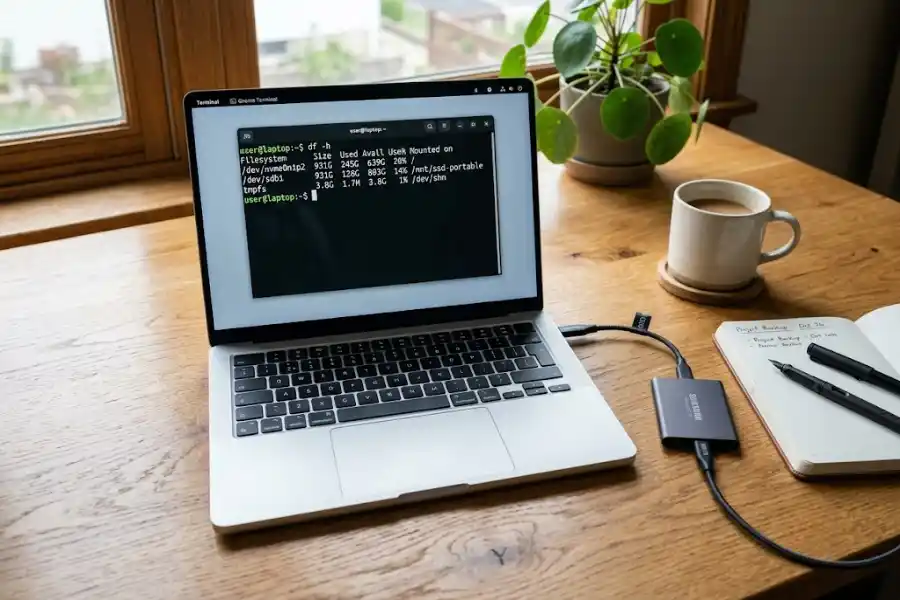
How to View Mounted Drives Linux and Check All Mounts
Before mounting anything new, it is smart to see what is already mounted. There are several ways to linux show mounts and view mounted drives linux:
- mount: Running the mount command by itself with no arguments will linux show mounted drives along with their mount options. This is the quickest way to see mounts linux and check what is active.
- cat /proc/mounts: This reads directly from the kernel and gives you the most accurate list of linux mounted drives on your system.
- findmnt: This is a newer tool that displays mounts in linux in a nice tree format. It is the cleanest way to display mounts linux and linux view mounts at a glance.
- df -h: While primarily a disk space tool, it also helps you linux check mounts and linux see mounts along with how much space is used.
If you want to linux list all mounted drives with their device names, UUIDs, and mount points, combine lsblk with the -f flag. You can also list mounts linux using findmnt –list if you prefer a flat output instead of a tree. These commands help you linux check mounted drives and linux view mount points before making any changes.
On Ubuntu, you can also use the ubuntu disk mounter (the Disks utility) for a graphical view, but the terminal commands above give you much more control.
Step 2: Understanding the Mount Point in Linux
A mount point in linux is just an empty folder where your drive’s files will show up after mounting. If you do not already have one, you need to create a mount point linux before you can mount anything.
sudo mkdir -p /mnt/mydrive
You can name it anything you want. I like to use /mnt/mydrive or /media/mydrive because they are easy to remember. The /mnt directory is the traditional mountpoint in linux for temporary mounts. The mnt directory linux has been used for this purpose since the early days of Unix.
On Ubuntu, the mnt directory in linux works the same way. Some people also use /media for removable drives. You will sometimes hear people call the mnt command in reference to this directory, but /mnt is just a folder, not a command. The actual command mount linux uses is simply mount.
If you are on Ubuntu and wondering about mnt ubuntu conventions, the system automatically creates mount points under /media/yourusername/ when you plug in USB drives through the desktop. But in the terminal, you create your own mount points in linux wherever you like.
Step 3: Try the Basic Linux Mount Command First
Before you try to force anything, always try the basic linux mount command first. The mount command in linux follows a simple pattern. Here is the standard syntax:
sudo mount /dev/sdb1 /mnt/mydrive
That is the most basic mount command for linux. You are telling the system to mount a drive at a specific location. The sudo mount prefix is needed because mounting is a privileged operation.
The mount point name is up to you. For example, some people use descriptive names like sudo mount /dev/sdb1 /mnt/remove_puppy to label the contents. It does not matter what you call the folder, as long as it exists.
If this works, great. You are done. But if it throws an error, do not panic. Read the error message carefully, because it tells you what went wrong.
Some common error messages you might see:
- “wrong fs type, bad option, bad superblock”: Linux cannot figure out the filesystem type.
- “volume is dirty”: The drive was not properly ejected or Windows did not shut down cleanly.
- “structure needs cleaning”: The filesystem has corruption.
- “already mounted or busy”: Something is using the drive or it is mounted elsewhere.
If you want to check every option the mount command supports, you can read the official manual page for the mount command or type man mount in your terminal. The mount manual is extensive and covers every flag and option available.
Now let us fix each of these problems.
How to Mount Drive Linux When NTFS Is Dirty
This is by far the most common reason people search for how to mount drive linux with a force option. You have a Windows NTFS drive, and Linux keeps saying the volume is dirty.
Here is what causes it: Windows has a feature called Fast Startup. Instead of fully shutting down, Windows puts the system into a hybrid hibernation state. This leaves the NTFS filesystem in a “dirty” state, and Linux refuses to mount it for safety reasons.
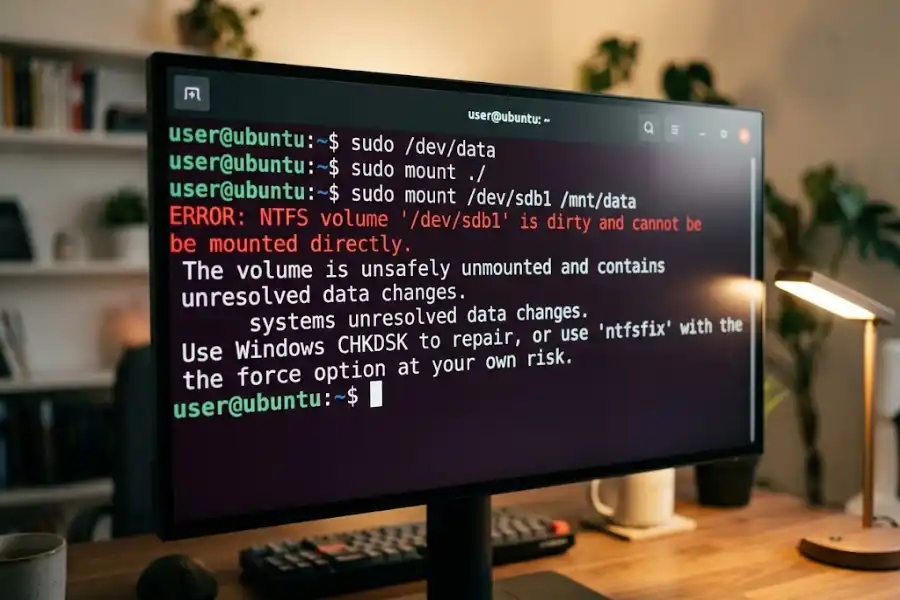
Option 1: Force Mount the NTFS Drive (Quick Fix)
If you just need to access your files right now, you can force mount the drive. This is how you mount a ntfs drive in linux when it is flagged as dirty:
sudo mount -t ntfs-3g -o force /dev/sdb1 /mnt/mydrive
This tells Linux to mount the NTFS drive even though it is flagged as dirty. It is one of the few cases where you can successfully mount ntfs drive in linux despite errors. On Ubuntu, the command works the same way. Your data should be accessible, but keep in mind this is a temporary solution.
Option 2: Clear the Dirty Flag with ntfsfix (Better Fix)
A cleaner approach is to clear the dirty bit so the drive can be mounted normally:
sudo ntfsfix -d /dev/sdb1
After running this, try mounting the drive again:
sudo mount /dev/sdb1 /mnt/mydrive
If ntfsfix is not installed, you can get it by installing the ntfs-3g package:
- Ubuntu or Debian: sudo apt install ntfs-3g
- Fedora: sudo dnf install ntfs-3g
- Arch Linux: sudo pacman -S ntfs-3g
Option 3: Disable Windows Fast Startup (Permanent Fix)
If this keeps happening every time you switch between Windows and Linux, the real fix is to turn off Fast Startup in Windows:
- Open Control Panel in Windows.
- Go to Power Options.
- Click “Choose what the power buttons do.”
- Click “Change settings that are currently unavailable.”
- Uncheck “Turn on fast startup.”
- Click Save changes.
After doing this, Windows will fully shut down every time, and your NTFS drives will mount in Linux without any issues.
Linux Mount Drive: What to Do When the Filesystem Is Corrupted
If your drive has filesystem corruption, trying to linux mount drive without fixing it first is risky. You could lose data permanently. The smart move is to repair the mounting filesystem first.
For ext4, ext3, or ext2 Filesystems
First, make sure the drive is not mounted. You need to unmount it before running any repairs:
sudo umount /dev/sdb1
Then run a filesystem check:
sudo fsck -y /dev/sdb1
The -y flag automatically says “yes” to all repair questions. This saves you from hitting Y over and over again.
Once the repair finishes, try mounting again:
sudo mount /dev/sdb1 /mnt/mydrive
For XFS Filesystems
XFS uses a different repair tool:
sudo xfs_repair /dev/sdb1
If it refuses to run, you might need to clear the log first:
sudo xfs_repair -L /dev/sdb1
Warning: The -L flag destroys the log, which means you may lose recent changes that had not been written to the drive yet. Use it only as a last resort.
Mount in Read-Only Mode for Data Recovery
If the drive is badly corrupted and you just want to grab your files before they are gone forever, mount it in read-only mode:
sudo mount -o ro /dev/sdb1 /mnt/mydrive
This lets you read the files without writing anything to the drive. It is the safest way to recover data from a damaged filesystem in linux.
Linux Command Mount: How to Fix “Wrong Filesystem Type” Errors
Sometimes the linux command mount fails because Linux cannot automatically detect the filesystem on your drive. When this happens, you need to tell it the filesystem type manually using the -t flag. This is the key to knowing linux how to mount drives with different file systems.
First, check the filesystem type:
sudo lsblk -f
Then use the mount command linux recognizes for your filesystem:
- NTFS: sudo mount -t ntfs-3g /dev/sdb1 /mnt/mydrive
- FAT32: sudo mount -t vfat /dev/sdb1 /mnt/mydrive
- exFAT: sudo mount -t exfat /dev/sdb1 /mnt/mydrive
- ext4: sudo mount -t ext4 /dev/sdb1 /mnt/mydrive
If your system does not support a particular filesystem, you may need to install the right driver. For example, exFAT support on older Ubuntu versions needs:
sudo apt install exfat-fuse exfat-utils
Understanding how to mount file system in linux correctly is the difference between a drive that works and one that throws errors. The linux filesystem mount process relies on having the right drivers installed for each filesystem type.
How to Mount a Hard Drive or External Hard Drive in Linux
When you plug in a second hard drive or an external USB hard drive, Linux does not always mount it automatically, especially on headless servers where you might be logging in remotely using putty software commands. Here is how to mount hard drive linux style from the terminal.
First, identify the drive:
sudo lsblk
Find your hard disk in the list. A new internal hard drive is usually /dev/sdb or /dev/sdc. An external hard drive connected through USB might show up as /dev/sdd or similar.
Create a mount point and mount it:
sudo mkdir -p /mnt/harddrive
sudo mount /dev/sdb1 /mnt/harddrive
This process works the same whether you want to mount hard drive in linux on any distro, mount hard disk ubuntu, or mount external hard drive linux. If you are on Ubuntu and trying to mount hard drive ubuntu, the command is identical. The linux mount hard drive process does not change between distributions.
If the hard disk is brand new and unformatted, you will need to create a filesystem on it first before mounting. Use mkfs.ext4 /dev/sdb1 to format it as ext4, then mount it normally. For mounting hard disk in linux that already has data, never format it; just mount it.
To mount hard disk on Ubuntu specifically, you can also use the graphical Disks utility, but the terminal gives you more control, especially when mounting hdd in linux on a headless server.
How to Mount a USB Flash Drive or Pendrive in Linux
Wondering how to mount flash drive in linux? It works just like mounting any other drive. When you plug in a USB flash drive, Linux usually detects it automatically on desktop environments. But on servers or minimal installations, you will need to mount it manually.
First, plug in the USB drive and identify it:
sudo lsblk
Your flash drive will usually appear as /dev/sdb1 or /dev/sdc1. Then mount it:
sudo mkdir -p /mnt/usb
sudo mount /dev/sdb1 /mnt/usb
This is the standard linux usb drive mount process. If you want to know how to mount a flash drive in linux with a specific filesystem, add the -t flag. Most USB drives use FAT32 or exFAT:
sudo mount -t vfat /dev/sdb1 /mnt/usb
If you are asking how to mount pendrive in linux, it is the exact same process. A pendrive is just another name for a USB flash drive, and the commands are identical.
How to Mount a Network Drive in Linux
Need to mount a network drive linux can access from a remote server? The process is slightly different depending on whether you are using NFS or CIFS (Windows shares).
Mount NFS Network Share
To mount a network drive on linux using NFS:
sudo mount -t nfs server_ip:/shared/folder /mnt/network
Make sure you have the NFS client installed. On Ubuntu: sudo apt install nfs-common.
Mount Windows/CIFS Network Share
To mount a network drive in linux from a Windows server or NAS:
sudo mount -t cifs //server_ip/sharename /mnt/network -o username=youruser
You will be asked for the password. Install the CIFS utilities first if needed: sudo apt install cifs-utils.
Whether you want to mount a network drive linux can use permanently or just for one session, these are the commands that handle mounting a network drive in linux. For Ubuntu users who want to mount a network drive in ubuntu, the process is the same.
How to Mount a Partition in Linux
Sometimes you do not want to mount an entire disk, just a single partition. To mount partition linux recognizes, you need to target the specific partition number.
List all partitions:
sudo fdisk -l
Then mount a partition in linux by specifying the correct device:
sudo mount /dev/sda3 /mnt/mypartition
The linux mount partition process is straightforward. Just make sure you are targeting a partition (like /dev/sda3) and not the whole disk (like /dev/sda). You can mount a partition linux formatted with any supported filesystem using the -t flag if auto-detection fails.
If the partition is part of an LVM setup, you may need to activate the volume group first with sudo vgchange -ay before mounting a partition in linux from that group. The linux partition mount process for LVM is a bit more involved but follows the same basic pattern.
How to Unmount a Busy Drive and Remount It
Before we go further, let us quickly cover what unmount means. When you unmount a drive, you are telling Linux to safely disconnect the filesystem from the directory tree. This is also called unmounting in linux. The unmount meaning is simple: it is the opposite of mount. You are detaching a mounted drive so it can be safely removed or repaired.
If the drive says it is “busy” and will not unmount, something is using it. Before you can mount a linux drives again, you need to find out what process is holding onto the current mount.
Run this command:
sudo lsof +f — /mnt/mydrive
This shows you every process that has files open on that drive. Close those programs, or if you need to, kill the process:
sudo kill -9 [PID]
Replace [PID] with the actual process ID number from the lsof output.
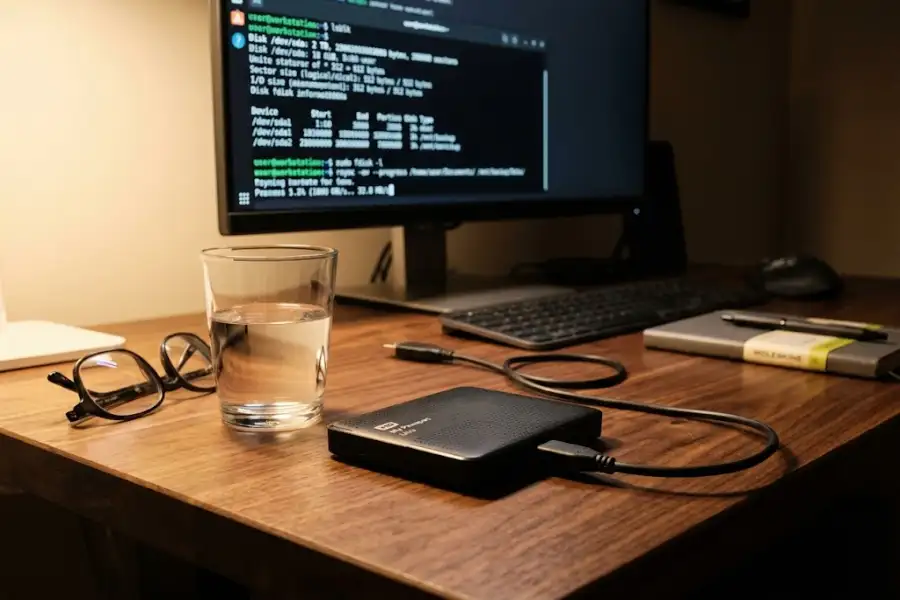
Linux Unmount Drive: The Lazy Method
If the drive is still busy and you cannot figure out which process is using it, you can linux unmount drive using the lazy method. The umount command in linux supports several flags for different situations:
sudo umount -l /mnt/mydrive
This detaches the filesystem immediately but waits until all running operations finish before fully cleaning up. It is safer than a force unmount. The umount command (note: not “unmount”, which is a common mistake for beginners) is what you always use to unmount linux drives. If you ever get an “unmount command not found” error, it is because you typed “unmount” instead of “umount.”
Unmount Disk Linux by Force (Use with Caution)
For network drives like NFS or CIFS shares that have become unreachable, you can unmount disk linux by force using the linux umount force option:
sudo umount -f /mnt/mydrive
This is the force unmount linux method. The umount force flag should only be used for network filesystems. Using force umount on local drives can corrupt your data. Whether you call it linux force umount or umount force linux, the command is the same and the risks are the same.
On Ubuntu, the unmount command linux uses is identical. If you need to unmount drive ubuntu or unmount drive in ubuntu, the commands above work the same way. To unmount in ubuntu, just use sudo umount /mnt/mydrive for a clean unmount, or add the -l flag if the drive is busy.
If you want to unmount a drive linux from any distro, the umount command linux is universal. It works the same on Ubuntu, Fedora, Arch, and every other distribution.
How to Linux Mount an Encrypted LUKS
If your drive is encrypted with LUKS (which is common in many Linux installations), a standard linux mount will not work. The process has an extra step. You need to decrypt the partition first.
Step 1: Identify the Encrypted Drive
sudo lsblk -f
Look for a partition that shows crypto_LUKS in the filesystem column.
Step 2: Open the Encrypted Partition
sudo cryptsetup luksOpen /dev/sdb1 my_decrypted_drive
It will ask for your passphrase. After entering it, the decrypted partition appears at /dev/mapper/my_decrypted_drive.
Step 3: Mount the Decrypted Partition
sudo mount /dev/mapper/my_decrypted_drive /mnt/mydrive
When you are done, always close the partition back up:
sudo umount /mnt/mydrive
sudo cryptsetup luksClose my_decrypted_drive
Mount Linux ISO, IMG, and CD-ROM Drives
You can also mount linux ISO image files as if they were physical drives. This is handy when you want to browse the contents of a Linux installer or any disc image without burning it.
How to Mount ISO Linux
To mount an iso linux file as a virtual drive:
sudo mount -o loop /path/to/image.iso /mnt/mydrive
The -o loop option creates a virtual device that treats the ISO file as a real drive. This is how to mount an iso in linux without any extra tools.
Mount IMG File Linux
The process to mount img linux files is similar. If you have a raw disk image or a linux mount img file:
sudo mount -o loop /path/to/image.img /mnt/mydrive
The linux img mount process is identical to ISO mounting. Both use the loop device. The linux mount image command works the same for both formats.
Linux Mount CDROM
To mount linux cdrom or a DVD drive:
sudo mount /dev/cdrom /mnt/cdrom
Or on some systems:
sudo mount /dev/sr0 /mnt/cdrom
The linux cdrom mount process depends on your hardware, but /dev/sr0 is the most common device name for CD and DVD drives. You can also mount cd drive in linux the same way, simply by using the correct device path. On Ubuntu, you can mount disc ubuntu drives through the desktop automatically, but the terminal command gives you more control.
How to Remount a Drive in Linux
Sometimes Linux mounts a drive in read-only mode because it detects errors. If you need to write to it, you can use mount remount to switch it to read-write mode:
sudo mount -o remount,rw /mnt/mydrive
This mount remount rw command tells the kernel to remount the already-mounted filesystem with new options without unmounting it first. The linux remount process is useful when a drive gets stuck in read-only mode due to errors.
If this fails, the filesystem probably has errors that need fixing. Run fsck first (as described earlier), and then try the remount in linux again. You can also remount drive to change other options, like switching from sync to async mode. Sometimes a simple remount mount command fixes permission issues too.
How to Auto Mount Drive Linux at Boot (fstab Setup)
If you are tired of manually mounting a drive every time you restart your computer, you can auto mount drive linux by editing the /etc/fstab file. The Ubuntu community guide for fstab provides details on how this file is structured. This configuration makes the linux automount drive feature kick in every time the system boots.
Step 1: Back Up Your fstab File
This is critical. A broken fstab file can prevent your system from booting.
sudo cp /etc/fstab /etc/fstab.bak
Step 2: Find the UUID of Your Drive
sudo blkid /dev/sdb1
Copy the UUID value. It looks something like UUID=”a1b2c3d4-5678-90ef-ghij-klmnopqrstuv”.
Step 3: Edit the fstab File
sudo nano /etc/fstab
Add a new line at the bottom:
UUID=a1b2c3d4-5678-90ef-ghij-klmnopqrstuv /mnt/mydrive ext4 defaults 0 2
Replace the UUID with yours, and change ext4 to whatever filesystem your drive uses (ntfs-3g, vfat, exfat, xfs, etc.). This is how to mount drives in linux permanently.
Step 4: Test Before Rebooting
sudo mount -a
If this command runs without errors, your configuration is correct. The drive will now mount automatically every time your system starts. This works on every distribution, whether you are mounting drives in ubuntu, Fedora, or Arch. On Ubuntu specifically, this is how you ubuntu mount drive permanently for things like extra storage or media drives.
Ubuntu-Specific Mount Tips
While the core commands are the same across all Linux distributions, there are a few things specific to Ubuntu that are worth mentioning.
If you want to ubuntu mount disk from the terminal, the commands are what we covered above. Ubuntu mount works the same as any other distro. However, Ubuntu also comes with the Disks graphical tool (also called the ubuntu disk mounter) that lets you mount and manage drives without the terminal.
For ubuntu terminal mount drive operations, you use sudo mount just like on any other system. To mount drive in ubuntu permanently, edit /etc/fstab. To mount drive ubuntu for a single session, use the normal mount command.
On Ubuntu Server, if you need to mount hard drive ubuntu or mount hdd ubuntu from a fresh install, remember that the server edition does not auto-mount anything. You need to handle all mounting ubuntu operations through the terminal.
For mounting drives in ubuntu desktop, drives usually appear in the file manager sidebar. Clicking on them runs the mount command behind the scenes. Just like memorizing linux laptop most used shortcuts, knowing these specific terminal commands is essential for troubleshooting when the graphical tools fail.
How to Mount Google Drive in Linux
Want to mount google drive in linux so you can access your cloud files from the terminal? While Google does not offer an official Linux client, you can use a tool called google-drive-ocamlfuse or the rclone command line tool to mount Google Drive as a local folder.
Using rclone:
- Install rclone: sudo apt install rclone
- Configure it: rclone config
- Mount it: rclone mount remote: /mnt/gdrive –daemon
This gives you a local folder where all your Google Drive files appear, just like a regular mounted drive.
Quick Troubleshooting Checklist
When you need to force mount a drive in Linux terminal command and nothing seems to work, run through this checklist:
- Identify the drive: Run sudo lsblk -f to confirm the device name and filesystem.
- Check the error logs: Run sudo dmesg | tail -n 30 to see what the kernel says about the failure.
- Try specifying the filesystem: Use sudo mount -t [type] /dev/sdb1 /mnt/mydrive.
- Fix dirty NTFS drives: Use sudo ntfsfix -d /dev/sdb1 to clear the dirty flag.
- Repair corrupted filesystems: Run sudo fsck -y /dev/sdb1 (ext4) or sudo xfs_repair /dev/sdb1 (XFS).
- Kill blocking processes: Use sudo lsof +f — /mnt/mydrive to find them.
- Mount read-only for recovery: Use sudo mount -o ro /dev/sdb1 /mnt/mydrive.
- Check linux show mounted disks: Run findmnt to see what is already mounted.
- Check physical connections: Try a different USB port or cable. Sometimes the simplest fix is the right one.
Common Mistakes to Avoid
Over the years, I have seen people make the same mistakes when trying to force mount a drive in Linux terminal. Here are the big ones:
- Running fsck on a mounted disk. This can destroy your filesystem. Always unmount first. Use the linux unmount command before any repair.
- Using force unmount on local drives. The -f flag is designed for network filesystems, not local ones. Use -l (lazy) instead.
- Mounting the whole disk instead of a partition. Use /dev/sdb1 (with the number), not /dev/sdb (without it). This is mounting a disk versus mounting a partition, and the difference matters.
- Ignoring the error message. Linux error messages are very helpful. Read them before searching for a fix.
- Not backing up data before repair. If the drive is physically failing, running repair tools can make things worse. Copy your data first if possible.
- Typing “unmount” instead of “umount.” The correct linux command unmount is spelled umount, with no “n” in the middle. Typing the wrong spelling gives you an “unmount command not found” error.
Frequently Asked Questions
Does the linux mount command have a force flag?
Not quite. The linux mount command does not have a universal –force flag like some other tools do. The -o force option only works with certain filesystem drivers, like ntfs-3g. For other filesystems, you need to fix the underlying problem (dirty flag, corruption, wrong type) before mounting.
Can force mounting a drive cause data loss?
Yes, it can. If the filesystem is corrupted, forcing a mount can cause further damage. That is why it is always better to repair the filesystem first with tools like fsck or ntfsfix. Only force mount when you understand the risks.
Why does my NTFS drive keep showing as dirty in Linux?
Almost every time, it is because of Windows Fast Startup. This feature puts Windows into a hybrid sleep instead of a full shutdown, leaving the NTFS filesystem in a dirty state. Disable Fast Startup in Windows to fix this permanently.
What is the difference between umount -l and umount -f?
The -l (lazy) flag detaches the filesystem immediately but waits for ongoing operations to finish. The -f (force) flag is meant for unreachable network drives. For local drives, always prefer -l over -f to avoid data corruption.
How do I mount a drive permanently in Linux?
Add an entry to your /etc/fstab file using the drive’s UUID. This makes the drive mount automatically every time your system boots. Always test with sudo mount -a before rebooting to avoid boot failures.
Can I mount an NTFS drive with full read and write access in Linux?
Yes. Use the ntfs-3g driver, which provides full read and write support for NTFS drives in Linux. Mount it with: sudo mount -t ntfs-3g /dev/sdb1 /mnt/mydrive.
What does unmount mean?
Unmount means to safely detach a mounted drive from the Linux filesystem tree. When you unmount a drive in linux, you are telling the operating system to finish all pending write operations and disconnect the drive so it can be safely removed. The opposite of a mounted drive is an unmounted one.
How do I linux mount external hard drive?
Connect the drive, run sudo lsblk to find its device name, create a mount point with sudo mkdir -p /mnt/external, and then run sudo mount /dev/sdb1 /mnt/external. This works for any linux mount external hard drive scenario, whether the drive is USB, eSATA, or Thunderbolt.
How do I ubuntu how to mount drive from terminal?
On Ubuntu, open a terminal and use sudo mount /dev/sdb1 /mnt/mydrive. If you want to ubuntu mount a network drive, use the CIFS or NFS mount commands described earlier. Ubuntu mount disk operations are identical to other Linux distributions.
How do I see all mount points linux?
Run findmnt to see all mount points linux in a tree view. You can also use cat /proc/mounts to list mounted devices linux, or mount by itself to linux show mounted drives. These commands let you linux list mounted volumes and check what is currently active on your system.
What is the linux mount linux file system process?
The mount linux file system process involves three steps: identify the device with lsblk, create a mount point directory, and run the sudo mount command. Linux supports mounting filesystem types including ext4, NTFS, FAT32, exFAT, XFS, Btrfs, and many more.
Conclusion
Learning how to force mount a drive in Linux terminal command is not about memorizing one magic command. It is about understanding why the drive is refusing to mount and then applying the right fix.
Whether you are dealing with a dirty NTFS drive from Windows, a corrupted filesystem, an encrypted partition, a busy mount point, or you are trying to mount a drive in linux for the first time, this guide has given you every tool and command you need.
We covered everything from the basic mount command in linux to mounting drives linux across different scenarios, including hard drives, flash drives, network shares, ISO files, IMG files, CD-ROMs, and even Google Drive. We also covered how to unmount in linux, how to linux see mounted drives, and how to create mount point linux for any drive type.
My advice? Bookmark this page. The next time a mounting drive gives you trouble, come back and follow the troubleshooting checklist. It will save you hours of frustration.
Now go mount that stubborn drive.