How to Set Up a Keyboard Shortcut Phrase on Mac (Step-by-Step)
Type three letters. Watch your full email address, home address, or favorite go-to line pop out instantly. That is the whole trick. Once you set up a keyboard shortcut phrase on your Mac, you will wonder why you spent years typing the same sentences over and over by hand.
This article covers the exact steps, shows you real examples, and fixes the problems people run into most. By the end, you will have your first shortcut phrase working in under two minutes.
Quick Note: “Keyboard Shortcut” and “Shortcut Phrase” Are Two Different Things
Before you start, here is something most articles skip, and it trips a lot of people up.
On a Mac, a keyboard shortcut usually means a key combo like Command+C for copy. A shortcut phrase is different. It is a short bit of text, like “omw”, that automatically expands into a full phrase, like “On my way!” Apple calls this feature Text Replacement.
If you searched for “keyboard shortcut phrase on Mac,” you almost certainly want Text Replacement, not a key combo. So that is what this article is about. If it turns out you actually came here looking for key combos instead, our rundown of Mac keyboard shortcuts has the full list.
How to Set Up a Keyboard Shortcut Phrase on Mac (Step by Step)
These steps work on macOS Ventura and every version after it, including the current macOS Tahoe.
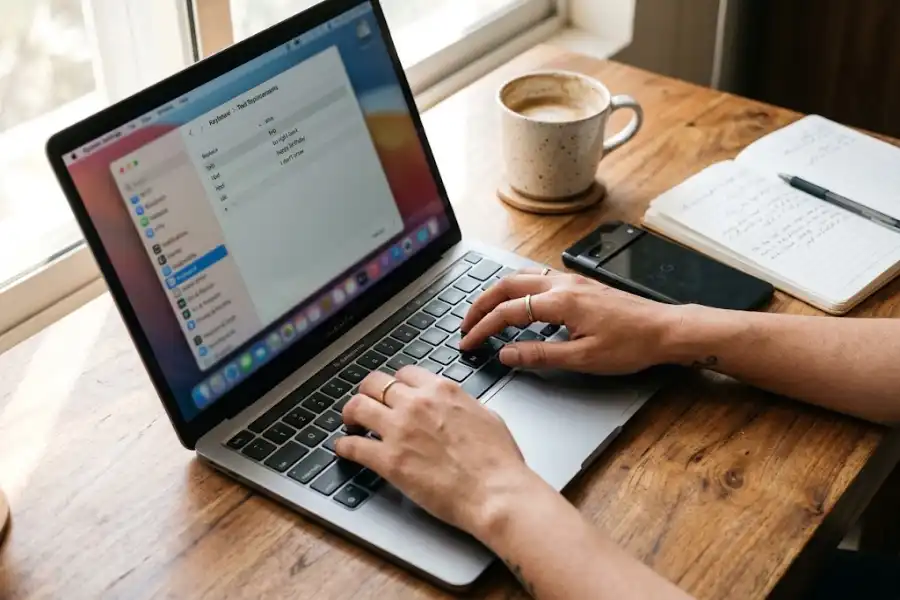
- Click the Apple menu in the top-left corner of your screen, then choose System Settings.
- Scroll down the sidebar and click Keyboard.
- On the right side, find Text Input and click Text Replacements.
- Click the small plus (+) button at the bottom of the list.
- In the Replace field, type the short trigger you want to use, like “brb”.
- In the With field, type the full phrase you want it to turn into, like “Be right back, just grabbing coffee.”
- Press Return or click anywhere outside the box to save it.
That’s it. Your new shortcut phrase is live right away. You do not need to restart your Mac or any app.
Short on time? Press Command+Space to open Spotlight, type “text replacements,” and hit Return. It jumps you straight to the same settings screen without any menu clicking.
How to Use Your New Shortcut Phrase
Open any app where you normally type, such as Mail, Messages, Notes, or a Word document. Type your shortcut, then press the Space bar, Return, or a punctuation mark right after it. Your short trigger will instantly expand into the full phrase you saved.
If you change your mind halfway through, a small “x” appears near the expanded text for a moment. Click it and your Mac will keep the shortcut text instead of replacing it.
Real Examples People Use Every Day
Not sure what to set up first? Here are shortcut phrases that genuinely save time:
- “eml” expands to your full email address
- “addr” expands to your home or office mailing address
- “sig” expands to your full email sign-off, like your name, title, and phone number
- “mtg” expands to “I’m in a meeting right now, I’ll call you back shortly.”
- “thx” expands to “Thank you so much, I really appreciate it!”
Apple builds one in by default: type “omw” in any app and it turns into “On my way!” It is a small preview of how useful this feature becomes once you build out your own list.
Tips for Picking a Shortcut That Holds Up
A few small choices make text replacement far more reliable:
- Avoid real words. If you set “an” to expand into something, your Mac will replace it every single time you type the word “an.” Use made-up combos instead, like “xan” or “an1”.
- Keep it short but not too short. Two or three characters is usually the sweet spot.
- Stay consistent. Many people start every shortcut with the same symbol, like a semicolon (“;eml”, “;addr”, “;sig”). This makes accidental replacements almost impossible.
- Test it right after saving. Open Notes, type the shortcut, and confirm it expands the way you expect.
How to Sync Your Shortcuts to iPhone and iPad
If your Mac and your iPhone or iPad use the same Apple ID, your shortcut phrases should sync automatically through iCloud. To make sure syncing is turned on, go to System Settings > Apple ID > iCloud and confirm Keyboard or Text Replacements is switched on. Do the same check under Settings > [Your Name] > iCloud on your iPhone.
Once synced, any shortcut you build on your Mac works the moment you pick up your phone, and vice versa.
How to Edit, Delete, or Back Up Your Shortcuts
Go back to System Settings > Keyboard > Text Replacements any time you want to make changes.
- To edit one: click on the shortcut or the phrase and type the new version.
- To delete one: click the shortcut to select it, then click the minus (-) button.
- To back up your whole list: select all your shortcuts in the list (Command+A), then drag them onto your desktop. This creates a file you can save or move to another Mac.
Common Problems and How to Fix Them
Text replacement usually works without any trouble, but here is what to check if something feels off.
The shortcut is not expanding at all
Make sure you pressed Space, Return, or a punctuation key right after typing it. Text replacement only triggers after one of those keys.
It works in some apps but not others
A small number of apps, especially some password fields and certain third-party apps, block text replacement on purpose for security reasons. This is normal and not a setting you can turn back on.
It is not syncing to my iPhone
Double check that both devices are signed into the exact same Apple ID and that iCloud syncing for Text Replacements is switched on for both.
It keeps replacing a word I did not mean to replace
Go back into your Text Replacements list and change the trigger to something less common, ideally a combo you would never type by accident.
Nothing on my keyboard seems to respond correctly
If shortcuts fail everywhere and typing feels off across every app you open, the problem might be your keyboard itself rather than a software setting. Our fix for some keys on keyboard not working walks through the checks worth trying first.
Frequently Asked Questions
Is a shortcut phrase the same as a keyboard shortcut?
No. A keyboard shortcut is a key combo, like Command+S or Command Alt Delete for Mac to force quit a stuck app. A shortcut phrase is a typed trigger that expands into longer text. Apple’s official name for this feature is Text Replacement.
Does text replacement work in every app?
It works in almost every app that uses the standard Mac keyboard, including Mail, Messages, Notes, Safari, and most word processors. A few specialty apps may block it.
Can I use text replacement for symbols too?
Yes. Many people set up shortcuts for symbols they use often, like accented letters, arrows, or special characters that are hard to type otherwise.
Will my shortcuts disappear if I update macOS?
No. Text Replacement settings are saved with your user account and carry over through software updates.
How many shortcut phrases can I create?
There is no official limit. Many longtime Mac users keep a list of twenty, thirty, or more without any issue.
A shortcut phrase takes ten seconds to set up and can save you minutes every single day. Multiply that across a year, and it is one of the simplest time-saving habits on the entire Mac.
Once you build your first shortcut phrase, you will likely find yourself adding new ones every week. Start with your email address and one common reply you send often, then expand your list from there. And if small tricks like this one are your thing, our list of iPhone hidden features has plenty more worth trying.