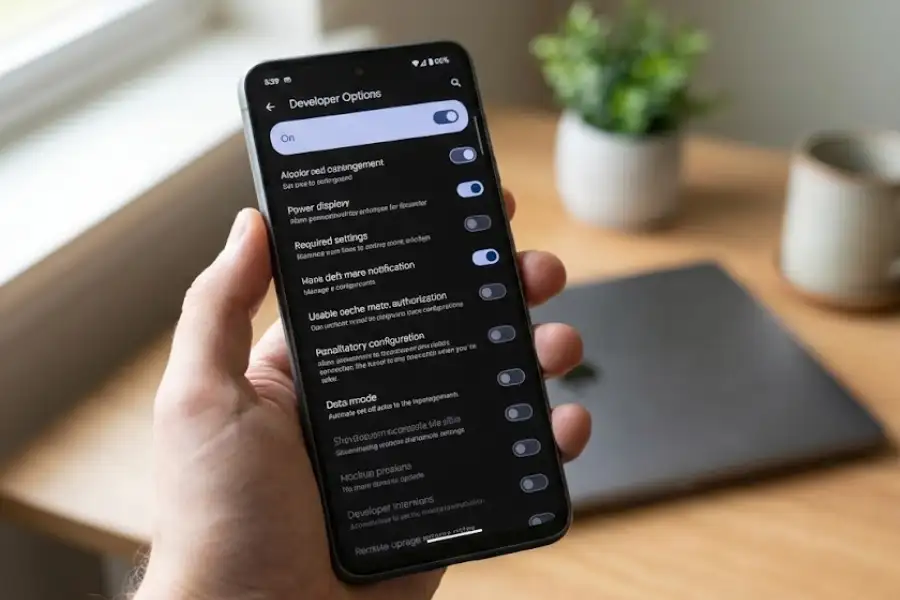
What is Developer Option in Android Phone? How to Enable & Use It
Developer Options is a hidden settings menu inside every Android phone. It gives you access to special features that are normally invisible. Google hides this menu because it was made for app developers, as noted in the official Android documentation. But anyone can use it.
I’ve been using Android phones for over 10 years. And I’ve used Developer Options on every phone I’ve owned. In this guide, I’ll explain what it is, what it does, and how to use it safely. Everything is in simple words that anyone can understand.
What Does Developer Options Do?
Developer Options lets you change how your Android phone works behind the scenes. You can speed up animations, connect your phone to a computer for testing, limit background apps, and much more.
Here are the main things you can do with Developer Options:
- Make your phone feel faster by changing animation speeds
- Connect your phone to a computer using USB Debugging
- Control how many apps run in the background
- Set what happens when you plug in a USB cable
- Keep your screen on while charging
- Fake your GPS location for testing apps
Most people never need these features. But if you want more control over your phone, Developer Options is worth knowing about.
How Do I Enable Developer Options on Android?
To enable Developer Options, go to Settings, tap About Phone, and tap Build Number 7 times. That’s it. The secret menu will appear in your Settings.
Here are the full steps:
- Open the Settings app on your Android phone
- Scroll down and tap About Phone (on some phones, look under System first)
- Find Build Number (on Samsung, tap Software Information first)
- Tap Build Number 7 times quickly
- Enter your PIN or password if asked
- You’ll see a message: “You are now a developer!”
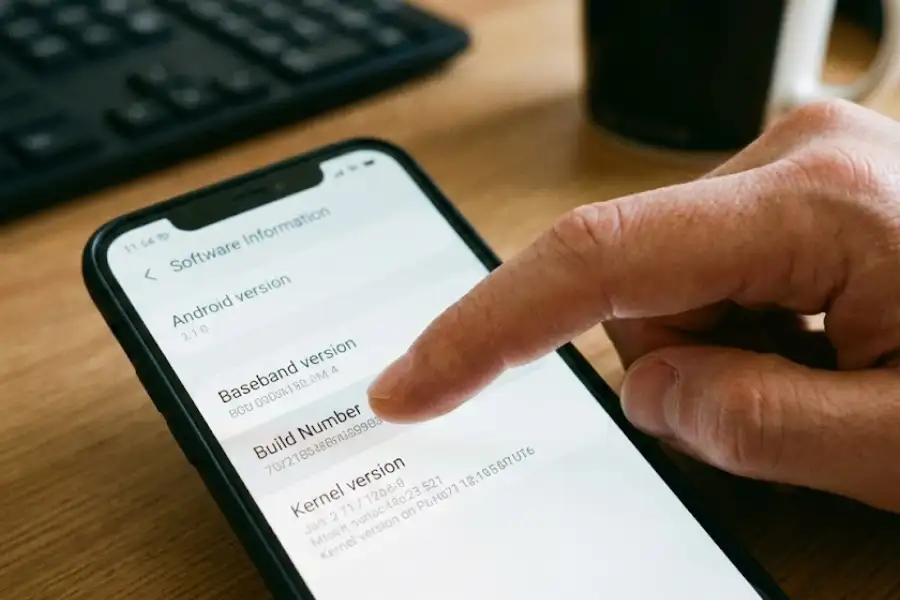
After this, go back to Settings. You’ll find Developer Options in the menu. On most phones, it’s under Settings then System then Developer Options. On Samsung phones, it’s at the bottom of the main Settings list.
Is Developer Options Safe to Use?
Yes, enabling Developer Options is completely safe. Just turning it on doesn’t harm your phone. The menu itself is harmless.
But here’s what matters: changing settings without understanding them can cause problems. Some settings can make apps crash, drain your battery, or make your phone act strange.
Which Developer Options Settings Are Safe?
These settings are safe for anyone to change:
- Animation scales (Window, Transition, Animator) – Makes phone feel faster
- Stay Awake – Keeps screen on while charging
- Default USB Configuration – Stops annoying pop-ups when connecting USB
- Show Refresh Rate – Shows your screen’s Hz on display
Which Developer Options Settings Are Risky?
Be careful with these settings:
- USB Debugging – Only use with computers you trust. A stranger’s computer could access your data.
- OEM Unlocking – This can void your warranty. Only for rooting or custom ROMs.
- Mock Locations – Some apps (banking, games) might ban you or stop working.
- Force GPU Rendering – Can crash some older apps.
My advice? If you don’t know what a setting does, leave it alone. That’s what I do, and I’ve never had problems.
Can Developer Options Speed Up My Phone?
Yes. Changing the animation scale settings can make your phone feel much faster. This is one of the most popular tricks among Android users.
Your phone plays small animations every time you open an app, close an app, or switch screens. These animations look smooth, but they add delay. By reducing or turning off these animations, your phone responds quicker.
How to Speed Up Your Android Phone Using Developer Options
- Open Developer Options
- Find these three settings:
- Window animation scale
- Transition animation scale
- Animator duration scale
- Change each one from 1x to 0.5x (or turn them off completely)
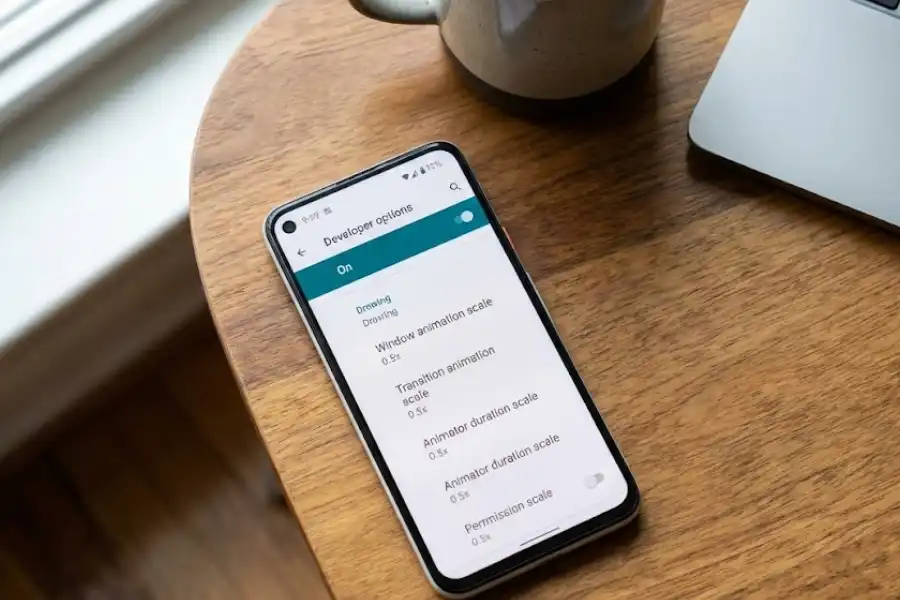
I tested this on my Samsung Galaxy and my older Pixel phone. Both felt noticeably snappier after the change. This trick works on any Android phone running Android 5.0 (Lollipop) or higher.
What is USB Debugging in Developer Options?
USB Debugging is a setting that lets your phone communicate with a computer using a USB cable. It’s used by app developers to test and debug apps. But regular users find it helpful too.
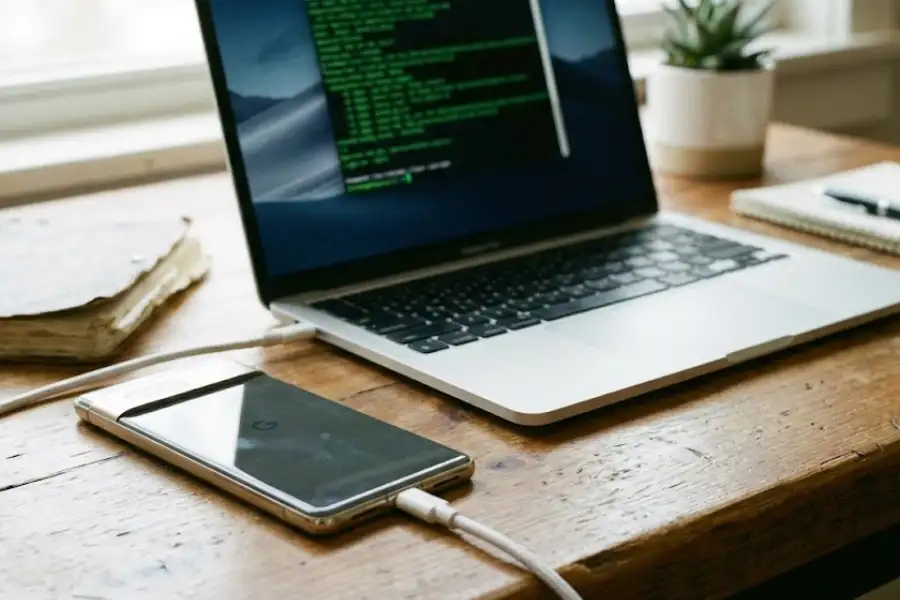
When Would I Need USB Debugging?
USB Debugging is useful when:
- Your phone screen is broken and you need to get your photos and files
- You want to install apps that aren’t on the Google Play Store
- You’re testing an app you’re building
- You want to use ADB (Android Debug Bridge) commands
Is USB Debugging Safe?
USB Debugging is safe only if you connect to computers you trust. When USB Debugging is on, any computer you connect to can access your phone’s data. So never enable it when using public charging stations or strangers’ computers.
How Do I Turn Off Developer Options?
To turn off Developer Options, open Developer Options and toggle the switch at the top to Off. The menu will become inactive.
- Go to Settings
- Tap System (if available)
- Tap Developer Options
- Toggle the switch at the top to Off
The Developer Options menu will stay visible in your Settings, but all the settings inside will be disabled. If you want to use them again, just toggle it back on.
Will Developer Options Void My Warranty?
No. Simply enabling Developer Options does not void your warranty. Samsung, Google, OnePlus, and other Android manufacturers confirm this.
However, if you use the OEM Unlocking option to root your phone or install a custom operating system, that can void your warranty. So as long as you stay away from OEM Unlocking, your warranty is safe.
Which Developer Options Settings Should I Try?
If you’re a regular user (not a developer), here are the best Developer Options settings to try:
| Setting Name | What It Does | Why It Helps |
|---|---|---|
| Animation Scale (all three) | Controls speed of screen animations | Set to 0.5x for a faster feel |
| Stay Awake | Keeps screen on while charging | Helpful for recipes, reading, or using phone as clock |
| Default USB Configuration | Sets default action when USB is plugged in | No more pop-ups asking what to do |
| Show Refresh Rate | Displays screen refresh rate | See if your phone runs at 60Hz, 90Hz, or 120Hz |
What Happens If I Mess Up a Setting?
If a Developer Options setting causes problems, you can reset everything to default. Your phone won’t be permanently broken.
- Open Developer Options
- Scroll to the bottom
- Look for “Reset to default” or similar option
- Tap it to restore all settings to their original values
If you can’t find that option, you can also turn off Developer Options entirely. All settings will go back to default when you turn it off.
Do I Need Developer Options as a Normal User?
No, you don’t need Developer Options for normal phone use. Your Android phone works perfectly without it. But knowing about it gives you options.
I recommend trying it if:
- You want your phone to feel faster
- You connect your phone to a computer often
- You like customizing how your phone behaves
- You’re curious about what’s possible
If none of that interests you, it’s totally fine to ignore Developer Options. It will stay hidden, and your phone will work exactly the same.
Summary: Developer Options Key Points
- What it is: A hidden settings menu in Android for advanced controls
- How to enable: Settings > About Phone > Tap Build Number 7 times
- Is it safe: Yes, enabling it is safe. Changing unknown settings is risky.
- Best use: Speed up animations (set all three to 0.5x)
- Avoid: OEM Unlocking unless you know exactly what you’re doing
Developer Options is like a backstage pass to your Android phone. Most people don’t need it. But for those who like to customize and tinker, it’s a helpful tool to know about.
Have fun with it!