Ctrl Win Shift B: What It Really Does (Fix Black Screen Fast)
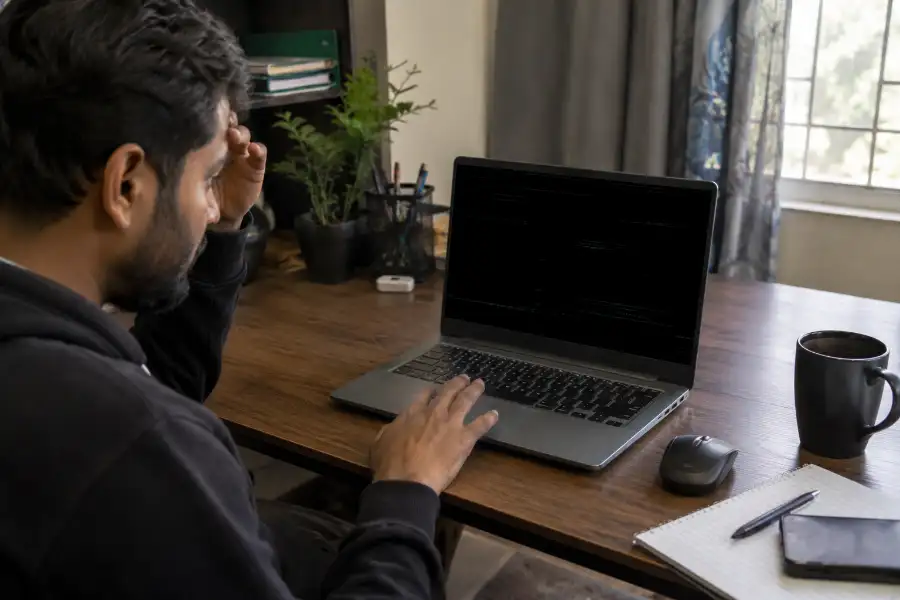
Your screen just went black. Your mouse still moves. Your fans are still spinning. But the picture on your monitor is gone. Before you panic and hold down the power button, there’s a keyboard trick worth trying first: Ctrl Win Shift B.
This four-key combo has quietly saved thousands of Windows users from unnecessary restarts. But here’s the part most articles get wrong: they’ll tell you it “resets your graphics driver.” That’s not quite true, and knowing the real story helps you use this shortcut the right way, at the right time.
Let’s clear up the confusion, walk through how to use it step by step, and cover what to do if it doesn’t fix your problem, brought to you by the team at software eggs.
What Is the Ctrl Win Shift B Shortcut?
Ctrl Win Shift B is a keyboard shortcut that already comes with Windows. You press four keys together: Ctrl, the Windows key, Shift, and B. When you do, your screen will blink black for a second, and you might hear a short beep.
That blink is a good sign. It means the shortcut worked.
Microsoft added this feature back in the Windows Vista days. It was built to help fix “black screen” bugs that came with a new graphics system called the Desktop Window Manager, or DWM for short. That’s also why some people call it the “black screen shortcut.” The letter B in the combo stands for Black screen.
The shortcut still works today on both Windows 10 and Windows 11, making it just as useful as the native slide to shutdown windows 11 shortcut when managing your system’s power and display.
How to Use Ctrl Win Shift B (Step by Step)
- Hold down the Ctrl key with one hand.
- While holding Ctrl, also hold down Shift with the same hand if you can, or use your other hand.
- Hold down the Windows key (the one with the flag logo) as well.
- With all three keys held down, tap the B key once.
- Let go of all the keys and wait a second.
You should see a quick black flash and hear a small beep sound. That’s Windows telling you the shortcut fired correctly. Give it a few seconds, and your screen should come back to normal.
What Ctrl Win Shift B Really Does (Most Articles Get This Wrong)
Here’s where a lot of confusion online comes from. Many websites, and even a lot of YouTube videos, claim this shortcut “restarts your graphics driver.” That’s a common myth, and Microsoft’s own documentation doesn’t support it.
What really happens is simpler than that. Windows throws away the current desktop image, called the surface buffer, and asks the Desktop Window Manager to rebuild the picture from scratch using your graphics hardware. Simply put, Windows redraws your screen instead of restarting the driver behind it.
Think of it like refreshing a web page instead of restarting your whole computer. You’re not replacing the engine, you’re just asking the screen to redraw what it’s supposed to show.
Sometimes, as a side effect, this process can also nudge a stuck graphics driver back into action. But that’s not the main job of the shortcut, and it’s not guaranteed to happen every time. This small difference matters because it explains why the shortcut fixes some problems but not others.
When Should You Use This Shortcut?
Ctrl Win Shift B is worth trying whenever your screen looks wrong but your computer still seems to be running underneath. Common situations include:
- Black screen with a working computer. You can hear fans running or sounds playing, but the display shows nothing.
- Frozen screen. Your mouse cursor moves, but nothing else on the screen updates.
- Flickering or glitching display. You see flashing colors, strange lines, or broken pixels.
- Game display bugs. A game freezes visually or looks broken, especially after switching between full screen and windowed mode.
- Laptop graphics switching issues. Laptops with two graphics chips, like an Intel chip and an Nvidia or AMD chip, sometimes glitch when switching between them.
If any of these sound familiar, this shortcut is worth trying before you do a full restart.
Is Ctrl Win Shift B Safe to Use?
Yes, it’s safe. This shortcut does not change any system settings, delete any files, or touch your installed programs. It’s a display refresh, not a system change. Microsoft built it specifically as a safe troubleshooting tool, so you don’t need to worry about damaging anything by pressing it.
The worst that can happen is nothing at all, meaning your screen stays the same and the shortcut simply didn’t help this time. It remains one of the safest hidden windows 11 tips and tricks available for quick troubleshooting.
What to Do If It Doesn’t Work
Sometimes this shortcut won’t fix the problem. That usually means the issue is bigger than a simple display refresh can handle. Here’s what commonly causes it to fail:
- No dedicated graphics card. On some basic systems, especially older ones running only integrated graphics, the shortcut may not respond the same way.
- Hardware problems. A faulty graphics card or a loose cable won’t be fixed by a software-level screen refresh.
- Full system freeze. If your keyboard and mouse aren’t responding at all, this shortcut can’t reach Windows to do anything.
- Outdated or broken graphics drivers. The shortcut can’t install or update drivers, so a driver-related problem needs a different fix.
- Third-party software conflicts. Some keyboard tools or remapping software can block the key combination from reaching Windows.
If Ctrl Win Shift B doesn’t fix your screen, try updating your graphics driver through Device Manager, or restart your computer normally. If the problem keeps coming back, it may point to a hardware issue worth checking with a technician.
Frequently Asked Questions
Does Ctrl Win Shift B restart my graphics driver?
Not directly. It resets the desktop’s display buffer and asks Windows to redraw the screen. A driver restart can sometimes happen as a side effect, but that isn’t what the shortcut is meant to do.
Why do I hear a beep when I press it?
The beep is normal. It’s simply Windows confirming that the shortcut was triggered successfully, even if you don’t notice any visible screen problem.
Can this shortcut damage my computer?
No. It only affects how your screen is drawn for a moment. It doesn’t change settings, delete data, or affect your hardware.
Does it work on Windows 7 or older?
The shortcut was introduced in Windows Vista, but it works most reliably on Windows 10 and Windows 11.
Why isn’t Ctrl Win Shift B working on my PC?
This can happen if your system is fully frozen, if you have a hardware problem, or if another program is blocking the key combination. Try a manual restart if the shortcut doesn’t respond.
Final Thoughts
Ctrl Win Shift B is one of those small Windows tricks that’s easy to forget until you really need it. It won’t fix every display problem, but for black screens, freezes, and flickers caused by a display hiccup rather than a hardware fault, it’s often the fastest fix you’ll find. Save yourself the full restart next time your screen glitches, and give these four keys a try first.