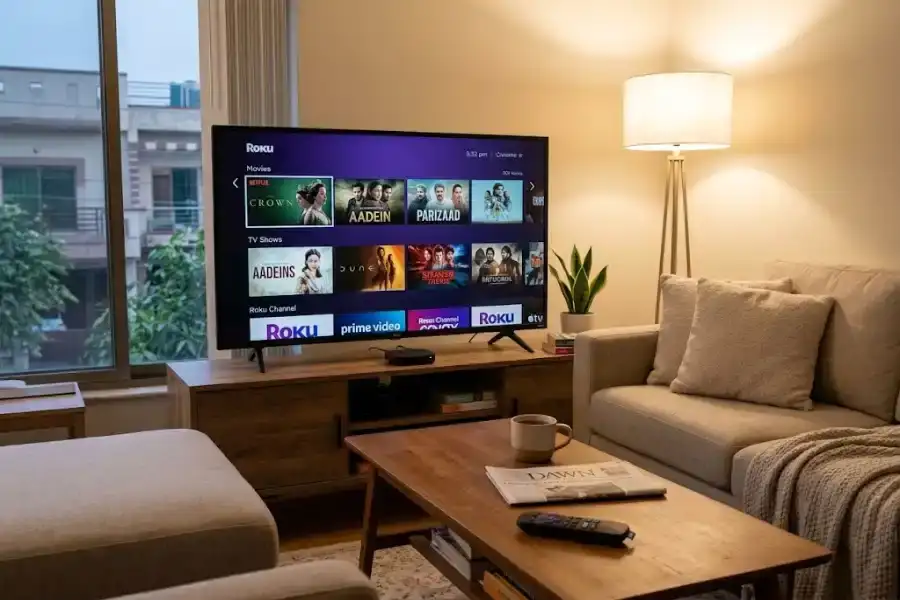
10 Hidden Roku Features You’re Probably Not Using: Easy Tips for Better Streaming
I’ve had a Roku connected to my TV for almost ten years. I thought I knew every button, setting, and menu. Then one night, my remote disappeared behind the couch. While looking for it, I came across a Roku feature I had never used before.
That small discovery made me curious. I started checking the settings and testing different features on my Roku. I was surprised by how many useful options were tucked away in menus that most people rarely open.
Some can help when your Wi-Fi connection feels slow. Others can make it easier to find a missing remote, keep guests from affecting your viewing history, or watch TV without disturbing people nearby.
A few options also depend on your Roku model and software version, so you may not see every feature on your device.
Here are ten Roku features worth checking.
1. Create One Watchlist for Different Streaming Apps
If you use several streaming services, keeping track of shows and movies can become annoying.
Netflix has its own list. Prime Video has another. Other streaming services have their own systems too.
Roku gives you a way to keep titles together through its Save List.
Search for a movie or show using the search option on your Roku home screen. When you find a title, select Add to Save List.
The title can come from a different streaming service, so you don’t have to remember which app has it.
You can find your saved titles from the What to Watch section on the Roku home screen. Depending on your device and software version, you may also see a Continue Watching row there.
That makes it easier to return to something you started earlier without opening several apps first.
2. Use Your Phone as a Roku Remote
Your phone can do much of what the physical Roku remote does.
Install the official Roku mobile app and connect it to the same network as your Roku device. You can then control the TV from your phone.
One of the most useful parts is the keyboard.
Searching with the regular remote means moving from letter to letter on the TV screen. With your phone, you can type the name of a movie, actor, or show much faster.
The mobile app can also provide voice search and other remote controls. If you use an iPhone as your everyday remote or streaming companion, you may also want to check these iPhone hidden features that can make everyday phone use more convenient.
There is another handy option for people who watch TV late at night. On supported Roku devices, Headphone Mode lets you listen through headphones connected to your phone.
That means you can watch a show without filling the room with TV sound.
3. Find a Lost Roku Remote by Sound
A Roku remote can disappear surprisingly easily. It can slide under a cushion, fall beside the sofa, or end up somewhere you would never think to look.
Some Roku remotes have a speaker that can make this much easier.
If your remote supports the feature, use the Roku mobile app and choose the remote-finding option. You can also use a supported voice command to ask Roku to find the remote.
The remote then makes a sound, giving you a clue about where it is.
This feature is especially useful when the remote is hiding somewhere nearby but isn’t visible.
Keep in mind that not every Roku remote supports the remote-finder function. If yours doesn’t have the required speaker hardware, this option won’t work.
4. Give Guests Their Own Roku Experience
Having visitors over can sometimes create a small problem. Someone watches a few shows on your Roku, and suddenly your recommendations start looking different.
Guest Mode can help with this.
When Guest Mode is available on your Roku, visitors can sign in with their own streaming accounts instead of using yours.
To turn it on:
- Press Home on the Roku remote.
- Open Settings.
- Select System.
- Choose Guest Mode.
- Select Enter Guest Mode.
- Set a PIN if prompted.
Guests can then use their own accounts while staying at your home.
When they leave and sign out, your normal Roku experience is restored.
This is a useful option if you regularly have friends or relatives staying with you.
5. Turn Your TV Into a Photo Slideshow
Your TV doesn’t have to show a blank screen when nobody is watching.
Roku offers Photo Streams, which lets you display your own pictures on a compatible Roku device or TV.
You can upload photos from a computer or phone and create a collection for your TV.
To get started, sign in to Roku’s Photo Streams service and create a stream. You can upload supported image files, including common formats such as JPG, PNG, HEIC, and WEBP.
Then open Photo Streams on your Roku and select the collection you created.
You can also select Photo Streams as your screensaver on supported devices:
- Press Home.
- Open Settings.
- Select Themes.
- Choose Screensavers.
- Select Photo Streams.
It works nicely for family pictures, travel photos, or pictures from special events. Your other everyday devices may have similar features that are easy to overlook, including some Apple Watch hidden features.
Instead of seeing the same screensaver every time the TV sits idle, you’ll have your own photos playing on the screen.
6. Check Roku’s Hidden Diagnostic Screens
This is one of the more interesting things I found while checking Roku settings. Roku isn’t the only device with settings and features that can be easy to miss. Similar examples can be found in Google Maps tips and hidden features.
Roku has several diagnostic screens that can be opened with button combinations on some devices. These screens can show information about the device, wireless connection, and other system details.
From the Roku home screen, some commonly reported button sequences include:
- Wireless information: Press Home five times, then Up, Down, Up, Down, Up.
- System information: Press Home five times, then Fast Forward, Play/Pause, Rewind, Play/Pause, Fast Forward.
- Network settings shortcut: Press Home five times, then Right, Left, Right, Left, Right.
The wireless screen can help you check connection information when you’re having streaming problems.
The system information screen can show device details that aren’t normally displayed in the regular settings menu.
Be careful with other button combinations you may find online. Some Roku diagnostic menus contain options that can change important system settings or reset the device.
If you don’t know what an option does, don’t select it.
For most people, these screens are useful mainly for checking information rather than changing anything.
7. Use Night Mode for Quieter Late-Night Viewing
Movie sound can be all over the place.
A quiet conversation may be followed by a loud action scene. If you’re watching TV late at night, those sudden changes can wake someone in another room.
On supported Roku devices, Night mode can help reduce this problem.
While a video is playing, press the Star (*) button on your remote. Look for Sound Settings, then Volume Mode, and select Night if the option is available.
Night mode reduces the difference between louder and quieter parts of a program.
Roku also offers other volume modes on some devices. Leveling can help keep volume changes from being so noticeable.
The available sound options can vary depending on your Roku device, TV, and audio setup.
8. Review Roku’s Privacy Options
Your Roku account and device can collect information related to advertising, searches, viewing activity, and other services.
If you prefer to limit some of this data collection, spend a few minutes checking the privacy settings.
Open:
Settings > Privacy
The available options depend on your Roku model and software version, but you may find settings related to advertising, microphone access, and smart TV data.
For advertising, you can turn off options related to personalized advertising and reset the advertising identifier when available.
If you use a Roku TV, look for settings related to information collected from TV inputs.
You can also review microphone permissions if your Roku or apps support voice features.
Some Roku accounts may also show a privacy choice related to sharing or selling personal information.
These settings don’t prevent you from watching your streaming apps. They mainly control certain types of data collection and personalization.
It’s worth checking them because many people never open this section after setting up their Roku.
9. Request an HDMI Extender for a Roku Streaming Stick
Some TVs have HDMI ports that are difficult to reach.
The port might sit close to the wall, inside a recessed section, or in a position where a Roku Streaming Stick doesn’t fit comfortably.
Roku has offered HDMI extender cables for compatible streaming sticks.
If your device qualifies, you can check Roku’s HDMI extender page and enter the requested device information.
The extender gives you a little more room between the Roku stick and the TV’s HDMI port.
That can make installation easier and may also help when the stick doesn’t physically fit because of the TV’s design.
If you have a Roku Streaming Stick and the HDMI port is giving you trouble, it’s worth checking whether your device qualifies for an extender.
10. Check the Subscriptions Section
Roku has been adding more account and subscription management options to its interface.
On supported devices and software versions, you may see a Subscriptions section that brings subscription-related information together.
This can make it easier to find services connected to your Roku account without opening every streaming app separately.
The layout and availability can vary by device and region, so don’t worry if you don’t see the same option on your Roku. Software updates can sometimes change what features are available, as shown by the Kindle software update features added through a newer software version.
To check whether your device has a software update available:
- Press Home.
- Open Settings.
- Select System.
- Choose System Update.
- Select Check Now.
If your Roku receives a newer software version, installing it may add new features or changes to the interface.
Frequently Asked Questions
Are these Roku features free?
Most of the features listed here are part of Roku’s software or are available with compatible Roku hardware. You don’t need a separate Roku subscription simply to use features such as the mobile remote, Guest Mode, or supported sound settings.
Some services or streaming apps may require their own paid subscriptions.
Does every Roku device have these features?
No.
Roku has released many different players, Streaming Sticks, and Roku TVs over the years. Features can differ based on the model, Roku OS version, TV manufacturer, and region.
If an option mentioned here isn’t showing on your device, check for a software update first.
Are Roku’s diagnostic screens safe?
Viewing basic diagnostic information is generally fine, but you should be careful when using hidden menus.
Some diagnostic screens contain settings that can change important system options or reset the device.
If you only want to check network or system information, avoid changing settings you don’t understand.
How can I check for a Roku software update?
Go to Settings > System > System Update and select Check Now.
Your Roku will check whether a newer software version is available.
Keeping the device updated can also give you access to interface changes and newly released features when they become available for your model.
Does changing Roku’s privacy settings stop ads?
No.
Changing privacy options can limit certain types of personalized advertising and data collection, but it doesn’t mean that every advertisement will disappear.
You may still see ads while using Roku and its streaming services.
Final Thoughts
A Roku can do a lot without making every option obvious from the main screen.
The mobile remote can save time when searching. The remote-finder feature can save you from digging through the couch. Guest Mode can keep visitors separate from your account, while Photo Streams can give an unused TV screen a personal touch.
The diagnostic screens are worth knowing about if you ever need to check your connection or system information, while Night mode can be useful when you’re watching TV after everyone else has gone to bed.
Take a few minutes to check which of these options are available on your Roku. You may find that a feature you’ve been looking for has been sitting in the settings menu all along.