Chrome Task Manager Shortcut: Open It in 2 Seconds (All Devices)
Your Chrome is acting slow. Tabs are freezing. Something is eating up your memory. And you have no idea which tab or extension is causing the problem.
Sound familiar? I have been using Google Chrome for over 10 years, and I run into this problem at least once a week. The fix is simple. Chrome has its own task manager that shows you exactly what is going on behind the scenes. And you can open it with a single keyboard shortcut in less than 2 seconds.
In this article, I will show you the exact Chrome Task Manager shortcut for Windows, Mac, and Chromebook. I will also explain how to use it to find and kill the tabs or extensions that are slowing down your browser.
What Is Chrome Task Manager?
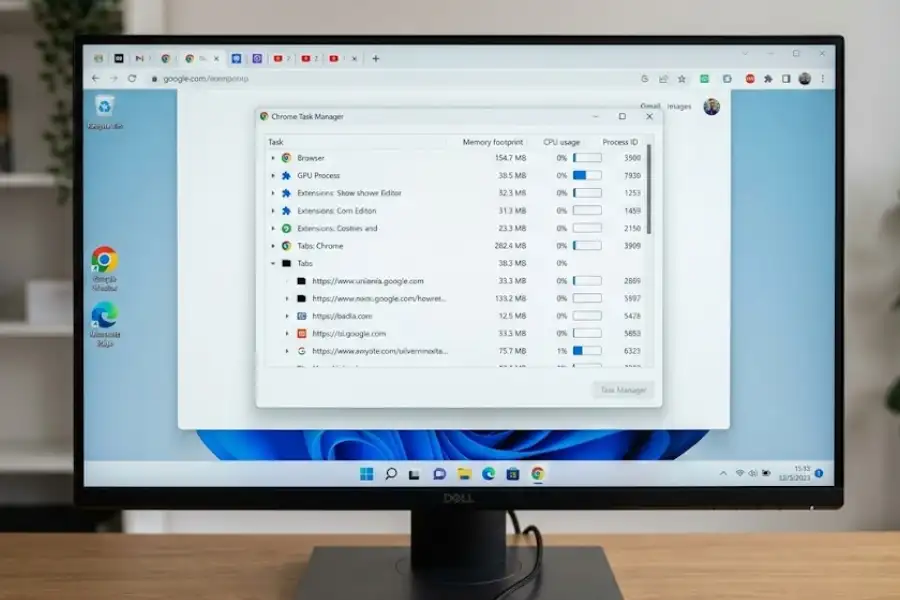
Chrome Task Manager is a tool inside Google Chrome that shows you every process running in your browser. It is similar to the Windows Task Manager or the macOS Activity Monitor, but it only focuses on Chrome.
Google Chrome uses something called a multi-process architecture. That means every tab, every extension, and every background service runs as its own separate process. Chrome Task Manager lets you see all of these processes in one place, along with how much memory (RAM), CPU, and network bandwidth each one is using.
This matters because when Chrome slows down, it is almost always one specific tab or extension causing the problem. Chrome Task Manager helps you find that exact process and shut it down without closing your entire browser.
Here is what Chrome Task Manager shows you:
- Open tabs and how much memory and CPU each one is consuming
- Extensions running in the background, even the ones you forgot about
- Chrome’s internal services like the GPU Process, Network Service, and Audio Service
- Subframes from embedded content like ads and iframes on web pages
What Is the Shortcut to Open Chrome Task Manager?
On Windows and Linux, press Shift + Esc. On Chromebook, press Search + Esc. Mac does not have a default shortcut, but you can set one up yourself (explained below).
Here is a quick reference table for every platform:
| Operating System | Chrome Task Manager Shortcut |
|---|---|
| Windows 10 / Windows 11 | Shift + Esc |
| Linux (Ubuntu, Fedora, etc.) | Shift + Esc |
| Chromebook (ChromeOS) | Search + Esc |
| Mac (macOS Sonoma, Ventura, etc.) | No default shortcut (use Window menu or create custom) |
Keep in mind: The Shift + Esc shortcut only works when Google Chrome is the active, focused window on your screen. If Chrome is minimized or behind another app, click on it first to bring it forward, then press the shortcut.

How Do I Open Chrome Task Manager on Windows?
Press Shift + Esc on your keyboard while Chrome is open. The Chrome Task Manager window will appear on top of your browser right away.
Here are the steps:
- Open Google Chrome on your Windows PC.
- Make sure Chrome is the active window (click anywhere on it).
- Press Shift + Esc on your keyboard.
That is it. The Task Manager window pops up and shows you every process Chrome is running.
If the keyboard shortcut does not work, there is another way to get there:
- Click the three-dot menu (⋮) in the top-right corner of Chrome.
- Hover over More Tools.
- Click Task Manager.
Both methods open the same Task Manager. The shortcut is just faster. I personally use Shift + Esc because it takes about one second and you do not need to dig through any menus.
How Do I Open Chrome Task Manager on Mac?
On Mac, click Window in the top menu bar, then click Task Manager. There is no default keyboard shortcut for Chrome Task Manager on macOS, but you can create your own.
Method 1: Using the Window Menu
- Open Google Chrome on your Mac.
- Click Window in the menu bar at the very top of your screen.
- Click Task Manager from the dropdown list.
This works on every version of macOS, including Sonoma, Ventura, and Monterey.
Method 2: Create Your Own Custom Keyboard Shortcut on Mac
If you want a keyboard shortcut for Chrome Task Manager on Mac, you can create one through macOS System Settings. I have set this up on my own Mac, and it saves a lot of time. Follow these steps:
- Open System Settings on your Mac (or System Preferences on older macOS versions).
- Click Keyboard, then click Keyboard Shortcuts.
- Click App Shortcuts on the left side.
- Click the + button to add a new shortcut.
- In the “Application” dropdown, select Google Chrome.
- In the “Menu Title” field, type Task Manager exactly as it appears in Chrome’s Window menu.
- Click the “Keyboard Shortcut” field and press your preferred key combination. For example, you could use Command + Shift + M, but make sure it does not conflict with any existing Chrome shortcut.
- Click Done.
From now on, pressing your custom shortcut in Chrome will open the Task Manager directly.
How Do I Open Chrome Task Manager on Chromebook?
On a Chromebook, press the Search key and Esc at the same time. This opens the ChromeOS Task Manager, which shows Chrome processes along with other system processes.
- Make sure Google Chrome is open on your Chromebook.
- Press Search + Esc together.
On newer Chromebooks made after 2022, the Search key might look like a circle icon or be labeled with a “G.” It works the same way. Just press that key along with Esc.
Good to know: On ChromeOS, this shortcut does not just show Chrome processes. It opens a system-wide Task Manager that also includes Android apps and Linux apps if you have them running. The Chrome tabs and extensions will still appear in the list, so you can manage them the same way.
How Do I Use Chrome Task Manager to Fix a Slow Browser?
Open Chrome Task Manager, sort by Memory or CPU, find the process using the most resources, and click End Process to stop it. This is the fastest way to fix a frozen or sluggish Chrome browser without restarting it.
I do this at least once a week when Chrome starts lagging. Here is the step-by-step breakdown:
Step 1: Check Which Process Is Using the Most Memory
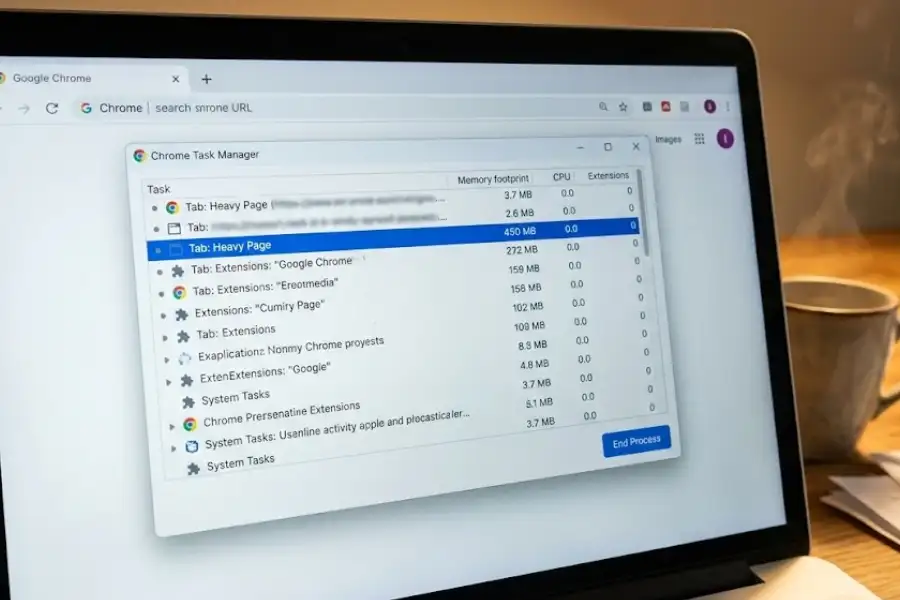
When Chrome Task Manager opens, you will see a list of every process Chrome is running. Each row shows the process name along with columns for Memory footprint, CPU usage, Network activity, and Process ID.
Click the Memory footprint column header to sort processes from highest to lowest. The tab or extension using the most RAM will jump to the top of the list.
Step 2: Identify the Problem
Look at whatever is at the top of the list. Ask yourself:
- Is it a tab you do not need right now? (Close it.)
- Is it an extension you rarely use? (Disable or remove it later.)
- Is it a “Subframe” from an embedded ad or video? (That usually means the website itself is heavy.)
In my experience, the biggest memory hogs are usually tabs with social media sites like Facebook or Twitter, heavy video streaming pages, or hidden browser games left running in the background (like if you were testing out Chrome Dino game cheats). Extensions that scan every page you visit can also slow things down.
Step 3: End the Process
Select the process by clicking on it. Then click the End Process button in the bottom right corner of the Task Manager window.
This kills that specific process only. If it was a tab, that tab will show an “Aw, Snap!” error page. The rest of your browser keeps working normally.
Tip: You can end multiple processes at once. Hold down Ctrl (or Command on Mac) while clicking to select several items, then click End Process.
How Do I Add More Columns to Chrome Task Manager?
Right-click anywhere inside the Chrome Task Manager window. A list of extra columns will pop up. Check the ones you want to see.
By default, Chrome only shows a few columns like Task, Memory footprint, CPU, and Network. But there are about 20 extra columns you can turn on for more detailed information.
Here are the most useful ones:
| Column Name | What It Tells You | When It Is Useful |
|---|---|---|
| JavaScript Memory | How much memory the JavaScript code on a page is using | Finding pages with heavy scripts |
| Image Cache | Memory used to store images for faster loading | Checking image-heavy websites |
| Script Cache | Memory used to store JavaScript files | Checking script-heavy websites |
| CSS Cache | Memory used by stylesheets | Checking style-heavy websites |
| GPU Memory | Memory used by the graphics processing unit | Tracking graphics-related usage |
| Shared Memory | Memory shared between multiple Chrome processes | Seeing the full memory picture |
| Start Time | Exactly when a process first started running | Finding processes that have been running too long |
| Network | How much internet data a process is using right now | Catching tabs or extensions using your bandwidth |
I usually keep JavaScript Memory and Network turned on along with the default columns. This gives me a good picture of what each tab is doing without making the window too cluttered.
Why Is Shift + Esc Not Working in Chrome?
Shift + Esc only works when Chrome is the active window on your screen and is not in full-screen mode. If the shortcut is not responding, one of these issues is usually the reason.
1. Chrome Is Not the Active Window
This is the most common reason. The shortcut is designed to work only when Chrome is in the foreground and focused. If you have another app on top, click on the Chrome window first, then press Shift + Esc.
2. Chrome Is in Full-Screen Mode
When Chrome is in full-screen mode (usually triggered by pressing F11 on Windows), many keyboard shortcuts stop working. Press F11 first to exit full screen, then try Shift + Esc again.
3. A Website Is Intercepting the Shortcut
Some websites use JavaScript to capture keyboard events, and this can block Chrome’s own shortcuts. Google services like Gmail and Google Docs have been known to cause this issue. Try clicking directly on the Chrome title bar (the very top bar of the window, not the page content) and then press Shift + Esc.
4. Security Software Is Blocking It
Antivirus programs and endpoint protection tools like Malwarebytes or Cisco Secure Endpoint sometimes interfere with Chrome’s keyboard shortcuts. If you recently installed or updated security software and the shortcut stopped working, try temporarily disabling it to test.
5. Fallback: Use the Chrome Menu
If none of the above fixes work, you can always open Chrome Task Manager through the menu. Click the three-dot menu (⋮) in the top right corner, then go to More Tools, then click Task Manager. This method works 100% of the time.
What Is the Difference Between Chrome Task Manager and Windows Task Manager?
Windows Task Manager monitors your entire computer. Chrome Task Manager only monitors what is happening inside Google Chrome. They are two different tools with different purposes.
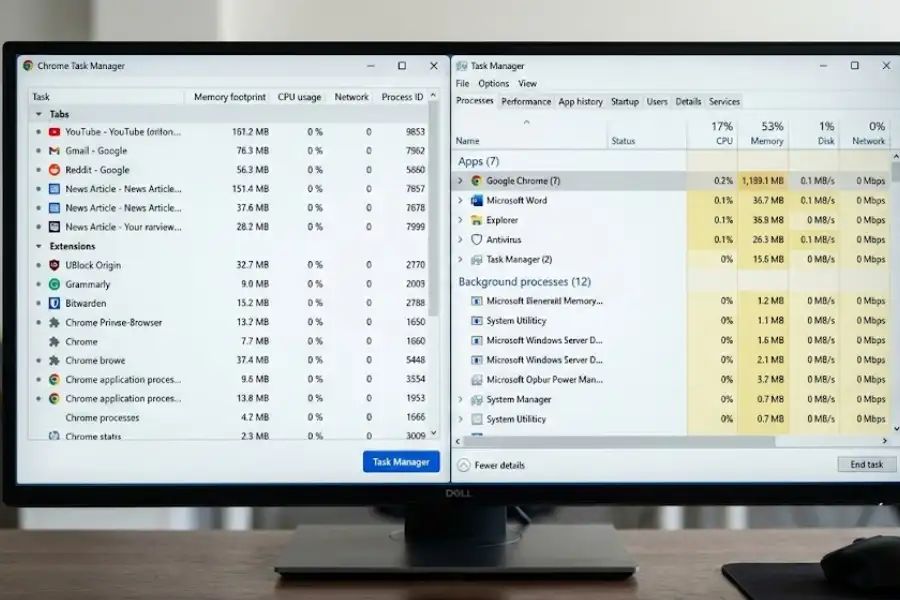
A lot of people mix these up, so here is a side-by-side comparison:
| Feature | Chrome Task Manager | Windows Task Manager |
|---|---|---|
| What it watches | Only Chrome processes (tabs, extensions, internal services) | Every program, service, and process on your PC |
| Keyboard shortcut | Shift + Esc (inside Chrome) | Ctrl + Shift + Esc |
| Level of detail for Chrome | Shows each tab and extension as a separate entry | Groups all Chrome activity into a few generic processes |
| Can end a single Chrome tab? | Yes, without closing the rest of Chrome | No, ending Chrome closes everything |
| Shows CPU, Memory, Network? | Yes, for each Chrome process individually | Yes, but for Chrome as a whole |
| Best for | Fixing slow Chrome, finding bad extensions | Fixing slow PC, managing startup programs |
When should you use which? If your entire computer feels sluggish, open Windows Task Manager (Ctrl + Shift + Esc) and check everything (or check your system’s overall crash history using the Windows Reliability Monitor). If only Chrome is slow but the rest of your computer is fine, use Chrome Task Manager (Shift + Esc) to pinpoint the exact tab or extension causing the slowdown.
Why Does Chrome Show So Many Processes in Task Manager?
Chrome shows many processes because it runs each tab, extension, and background service as a separate process. This is by design and is called multi-process architecture.
If you have ever opened Chrome Task Manager and counted 15 or even 20 processes with only 3 or 4 tabs open, you are not alone. That number looks concerning, but it is normal.
Here is why Google Chrome works this way:
- Stability. If one tab crashes, only that tab goes down. Your other tabs keep running as if nothing happened.
- Security. Each process runs in its own sandbox, which means a harmful website in one tab cannot access data from another tab.
- Performance tracking. Since each tab is a separate process, Chrome Task Manager can show you the exact memory and CPU usage per tab. This would not be possible if everything ran as one single process.
A rough estimate: if you have 4 tabs open and 3 extensions running, expect to see about 10 to 14 processes. This is because Chrome also has its own internal processes like the Browser process, GPU Process, Network Service, and Audio Service running at all times.
How Can I Keep Chrome From Slowing Down?
Close tabs you are not using, remove extensions you do not need, and check Chrome Task Manager regularly to catch problems early.
After years of using Chrome, these are the habits that make the biggest difference:
- Close unused tabs. Every open tab is a separate process using memory. If you have 20 tabs open “just in case,” your browser will suffer. Close the ones you are not using right now.
- Audit your extensions every few months. Go to
chrome://extensions/in your address bar and look at what you have installed. If you have not used an extension in the last 30 days, disable or remove it. - Keep Google Chrome updated. Google releases updates every few weeks that fix memory leaks and performance issues. Go to
chrome://settings/helpto check for the latest Chrome update. - Check Chrome Task Manager when things feel slow. Get in the habit of pressing Shift + Esc whenever Chrome starts lagging. Find the process using the most resources and end it. This takes about 5 seconds.
- Watch the GPU Process. If the GPU Process is using too much memory, go to Chrome Settings, then System, and turn off “Use hardware acceleration when available.” This forces Chrome to use your CPU instead, which can help on older machines.
Frequently Asked Questions
What is the shortcut for Chrome Task Manager on Windows?
On Windows, press Shift + Esc while Chrome is the active window. The Chrome Task Manager will open right away.
Is there a Chrome Task Manager shortcut on Mac?
Mac does not have a default keyboard shortcut for Chrome Task Manager. You can open it by clicking Window and then Task Manager from the menu bar. You can also set up a custom shortcut through System Settings, then Keyboard, then Keyboard Shortcuts, then App Shortcuts.
Why is Shift + Esc not working in Chrome?
This shortcut only works when Chrome is the active window and is not in full-screen mode. Some websites like Gmail can also block this shortcut. Try clicking on the Chrome title bar first, then press Shift + Esc again. If it still does not work, use the menu method: click the three dots menu, then More Tools, then Task Manager.
What is the difference between Chrome Task Manager and Windows Task Manager?
Windows Task Manager shows all programs running on your entire computer. Chrome Task Manager only shows what is running inside Chrome, like individual tabs, extensions, and background processes. Chrome Task Manager gives you a much more detailed view of your browser’s resource usage than Windows Task Manager can.
Can I close a tab from Chrome Task Manager?
Yes. Select the tab or process you want to close, then click the End Process button at the bottom right corner. This closes that specific tab without affecting the rest of your browser.
Why does Chrome use so much memory even with few tabs?
Chrome runs each tab, extension, and service as a separate process. So even with just 3 tabs open, Chrome might show 8 to 10 processes in the Task Manager. This design keeps your browser stable. If one tab crashes, the others keep running without any issues.
How do I add more columns to Chrome Task Manager?
Right-click anywhere inside the Chrome Task Manager window. A list of extra columns will appear, including JavaScript Memory, GPU Memory, Image Cache, and Network usage. Check the ones you want to see, and they will show up right away.
Does Chrome Task Manager work on Chromebook?
Yes, it does. On a Chromebook, press the Search key + Esc to open the Task Manager. On newer Chromebooks, the Search key might look like a circle icon or have a “G” label. The Task Manager on ChromeOS also shows Android apps and Linux apps alongside Chrome processes.