Blender Software Shortcut Keys Every 3D Artist Should Know
You open Blender. You know what you want to create. Then it starts. Click one menu. Click another. Scroll through a list. Click again. Five minutes later, you have barely done anything.
Sound familiar? Almost every beginner goes through this. Blender is one of the most powerful free 3D programs in the world, but clicking through menus all day will slow you down and drain your focus fast.
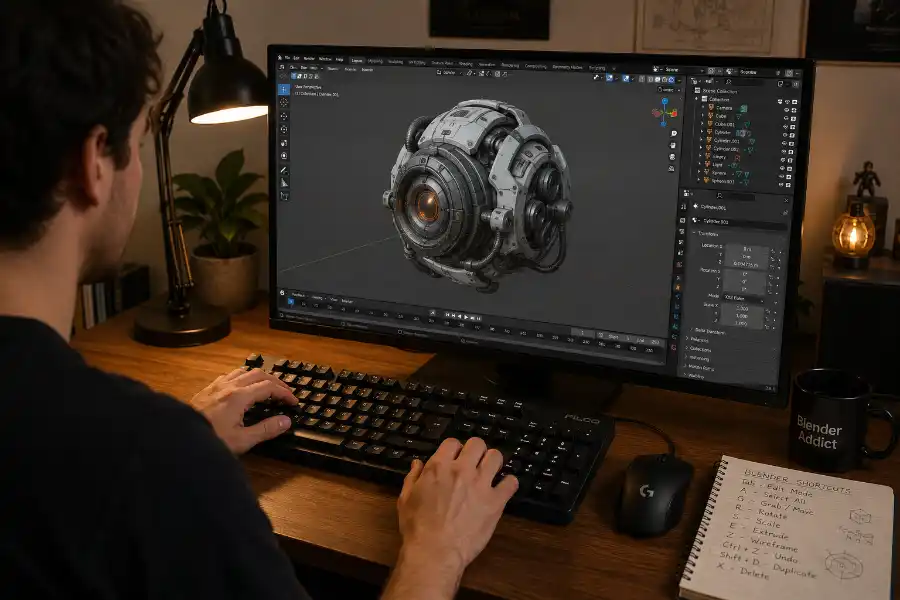
The fix is simpler than most people think. Blender was built around the keyboard, making it a goldmine for anyone hunting for a good software egg. Its shortcut keys are far more than a nice bonus. They are how the software is meant to be used. Once you learn them, the entire program feels different. Faster. Smoother. More fun.
This guide covers every major Blender shortcut key you need, organized by how you use them in real projects. It also includes tips most other guides never mention, common beginner mistakes, and a simple method to help you remember shortcuts without memorizing a giant list.
What Are Blender Shortcut Keys?
Blender shortcut keys are keyboard combinations that let you run a command directly without clicking through menus. Instead of going to Object, then Apply, then Rotation, you just press Ctrl + A. Instead of switching to Edit Mode through a dropdown at the top of the screen, you press Tab.
These are sometimes called hotkeys. In Blender, they cover nearly every action you take, from moving objects and sculpting meshes to rendering your final image and adding new shapes to the scene.
Here is the single most important thing to understand before you start learning them: Blender shortcuts are mode-sensitive. The same key can do completely different things depending on which mode you are working in.
For example, pressing G in Object Mode moves your entire object. Press G in Edit Mode and it moves a selected vertex, edge, or face instead. Pressing F in Edit Mode creates a new face. Press F in Sculpt Mode and it resizes your brush. Same key, different results.
This sounds confusing at first. But that is why skilled Blender users work so fast. Once you understand the context, it all makes perfect sense.
The 10 Most Important Blender Shortcuts to Learn First
Do not try to memorize every shortcut at once. That is a fast way to feel overwhelmed and give up. Start with these ten. They cover the bulk of what you will do every day in Blender, no matter what type of project you are working on.
- G to grab and move a selected object or element
- R to rotate
- S to scale
- Tab to switch between Object Mode and Edit Mode
- Ctrl + Z to undo
- Shift + A to add a new object to the scene
- X to delete selected objects
- Numpad 1, 3, and 7 to view from the front, right side, or top
- Numpad 0 to look through your camera
- F3 to search for any command by name
The F3 Secret: Press F3 at any time and type what you want to do. Blender will find the command and show the shortcut key right next to it. This one trick lets you learn shortcuts naturally while you work, without ever opening a separate reference guide.
General Shortcuts That Work Everywhere in Blender
These shortcuts work across almost every area of Blender, no matter which mode or editor you are currently in.
- Ctrl + S to save your file
- Ctrl + Z to undo the last action
- Ctrl + Shift + Z to redo
- Ctrl + N to open a new file
- Ctrl + O to open a saved file
- F3 to search for any command by typing its name
- F11 to open the last rendered image
- F12 to render the current scene
- Tab to toggle between Object Mode and Edit Mode
- Ctrl + Tab to open the mode pie menu and switch to any mode quickly
- A to select everything
- Alt + A to deselect everything
Viewport Navigation Shortcuts
You navigate your 3D space constantly in Blender. These shortcuts make it fast and smooth. If there is one section to practice until it feels natural, this is it.
- Middle Mouse Button + drag to rotate the viewport
- Shift + Middle Mouse Button + drag to pan the view
- Scroll Wheel to zoom in and out
- Numpad 1 to switch to front view
- Numpad 3 to switch to right side view
- Numpad 7 to switch to top view
- Numpad 5 to toggle between Perspective and Orthographic view
- Numpad 0 to enter camera view
- Numpad Period (.) to zoom in and focus on the selected object
- Numpad Slash (/) to enter Local View, which hides everything except what you selected
- Numpad 9 to flip the current view direction
- Z to open the Shading pie menu and switch between Solid, Wireframe, Material Preview, and Rendered views
- Alt + Z to toggle X-Ray mode so you can see and select through solid objects
- Tilde (~) to open the View pie menu with fast access to every viewport angle in one popup
Object Mode Shortcuts
Object Mode is where you manage the objects in your scene. You position them, duplicate them, group them, and organize them before switching to Edit Mode to change their shape.
Selecting Objects
- Left Click to select an object
- Shift + Left Click to add objects to your current selection
- A to select all objects in the scene
- Alt + A to deselect everything
- B to use Box Select and draw a rectangle around the objects you want
- C to use Circle Select and paint over objects to select them
- Ctrl + I to invert the selection
Transforming Objects
- G to move the selected object
- G + X, G + Y, or G + Z to move along one specific axis only
- R to rotate
- R + X, R + Y, or R + Z to rotate on one axis
- S to scale
- S + X, S + Y, or S + Z to scale along one axis only
Here is a tip that saves a lot of time: after pressing G, R, or S, you can type a number to move or resize by an exact amount. For example, pressing G, then Z, then typing 2 will move your object 2 units up. No guessing needed.
Managing Objects
- Shift + D to duplicate an object
- Alt + D to create a linked duplicate where changes to one copy affect all copies
- Ctrl + P to set a parent so one object follows another
- Alt + P to clear the parent relationship
- M to move an object to a different collection in the outliner
- H to hide selected objects from view
- Alt + H to reveal all hidden objects
- Ctrl + A to apply transformations like scale, rotation, or location
Edit Mode Shortcuts
Edit Mode is where the real modeling work happens. You select and reshape individual vertices, edges, and faces to build the geometry of your object.
Switching Between Vertex, Edge, and Face Mode
- 1 on the number row (not numpad) to switch to Vertex Select
- 2 to switch to Edge Select
- 3 to switch to Face Select
Selecting Geometry
- A to select all vertices, edges, or faces
- Alt + Left Click on an edge to select the full edge loop around the mesh
- Ctrl + Left Click to select the shortest path between two points
- L while hovering over a part of the mesh to select all connected geometry
- Ctrl + I to invert the selection
Modeling Tools
- E to extrude the selected geometry outward
- I to inset faces inward
- Ctrl + R to add a loop cut, then scroll the mouse wheel to add more loops before clicking
- K to use the Knife tool and cut custom lines across your mesh
- F to fill a face between selected edges or vertices
- Ctrl + B to bevel a selected edge, then scroll the mouse wheel to add more bevel segments
- Alt + M or just M to merge selected vertices together
- P to separate selected geometry into its own new object
- Ctrl + J to join two or more selected objects into one
- Shift + N to recalculate normals, which fixes inverted or dark-looking faces
- G + G to slide a selected vertex along its connected edges without changing the shape of the mesh
Sculpt Mode Shortcuts
Sculpt Mode lets you shape your mesh like digital clay. These shortcuts help you change tools and adjust your brush on the fly so you never have to stop and dig through menus.
- F to resize your brush by clicking and dragging left or right
- Shift + F to change brush strength
- Ctrl + Left Click to invert the brush so a raising brush becomes a digging brush and vice versa
- Shift + Left Click to temporarily switch to the Smooth brush
- X to toggle symmetry along the X axis
- Shift + Space to open the brush selection popup
- G to switch to the Grab brush directly
- Ctrl + Z to undo the last sculpt stroke
Animation Shortcuts
Blender is a complete animation studio built into one program. These shortcuts let you control playback, set keyframes, and move through your timeline without touching the toolbar.
- Spacebar to play or pause the animation
- I to insert a keyframe on the selected object at the current frame
- Alt + I to delete a keyframe
- Left Arrow to go back one frame
- Right Arrow to go forward one frame
- Shift + Left Arrow to jump to the very first frame
- Shift + Right Arrow to jump to the last frame
- Shift + Alt + A to toggle Auto Keying, which records your object’s position automatically as you move it through time
- P to set a preview range so playback loops through only a specific section of the timeline
Rendering Shortcuts
- F12 to render the current frame
- Ctrl + F12 to render the full animation as a sequence
- F11 to open the last rendered image without re-rendering
- Numpad 0 to view the scene through your camera
- Ctrl + Alt + Numpad 0 to snap the camera to your current viewport angle instantly
Node Editor Shortcuts
If you work with materials or compositing, you will spend time in the Node Editor building visual effects with connected nodes. These shortcuts make that process faster.
- Shift + A to add a new node
- Shift + D to duplicate an existing node
- F to connect two selected nodes with a link
- Ctrl + X to remove a connection between nodes
- M to mute a node and bypass it temporarily
- H to collapse a node and make it smaller without deleting it
Lesser-Known Blender Shortcuts Most Guides Skip
Most shortcut guides list the standard hotkeys and stop there. But there are a handful of lesser-known shortcuts that professional users rely on constantly. These are worth learning early because they solve problems beginners run into all the time.
- Ctrl + 2 in Object Mode adds a Subdivision Surface modifier at level 2 instantly. No panels, no clicks. Perfect for quick mesh smoothing.
- Ctrl + Alt + 0 snaps your camera to match the current viewport angle. If your viewport looks perfect, use this to lock the camera there in one move.
- Shift + Tab toggles snapping on and off. Snapping locks movement to a grid, vertex, or surface for precise placement.
- Alt + Z enables X-Ray mode so you can see and select through solid geometry. Most beginners struggle with selecting vertices on the back of a mesh and never know this option exists.
- G + G in Edit Mode slides a vertex or edge along the existing mesh without changing the overall shape. Very useful for exact edge positioning.
- Ctrl + Alt + Space maximizes the Blender window to full screen.
Mac vs. Windows: What Changes
Most Blender shortcuts work the same on both Mac and Windows. The main difference is that Mac users replace Ctrl with Cmd. So saving a file is Ctrl + S on Windows and Cmd + S on Mac. Undo, redo, open, and copy all follow the same rule.
A few shortcuts may behave differently depending on your Mac keyboard layout, similar to how standard mac keyboard shortcuts interact with other advanced creative software. If a shortcut is not responding, go to Edit, then Preferences, then Keymap in Blender to check and change any assignment.
What to Do If You Do Not Have a Numpad
Many navigation shortcuts in Blender use the numpad. Most laptops do not have one. Blender has a setting that fixes this.
Go to Edit, then Preferences, then Input, and turn on Emulate Numpad. This makes the regular number keys at the top of your keyboard work like numpad keys. After turning it on, pressing 1 on your keyboard works the same as Numpad 1.
The one trade-off is that your number keys will no longer switch between Vertex, Edge, and Face Select in Edit Mode. For most beginners, that is a small price to pay for full viewport navigation.
How to Get Blender Shortcuts Into Your Muscle Memory
Reading a list of shortcuts is very different from knowing them. Here is what works in practice.
- Start with just ten. Use the ten shortcuts from the beginning of this guide for one full week before adding anything new. Repetition is more powerful than reading.
- Use F3 as your bridge. Every time you want to do something but forget the shortcut, press F3, type the action, and Blender will show the key next to the result. You will absorb shortcuts naturally this way without sitting down to study them.
- Say the letter out loud. When you press G, say “grab” in your head. When you press R, say “rotate.” The word connection makes the key stick much faster.
- Catch yourself going to menus. Every time you reach for a menu when a shortcut exists, stop and use the shortcut instead. That single habit builds muscle memory faster than anything else.
- Print a cheat sheet. Pin it next to your monitor for two weeks. After that, you will barely need to look at it.
How to Customize Shortcuts in Blender
Blender lets you change any shortcut to whatever you want. If a key combination feels awkward or does not fit how your hands move naturally, you can reassign it.
Go to Edit, then Preferences, then Keymap to search for any action and change its key. You can also right-click any button anywhere in Blender and choose Assign Shortcut to set a custom key directly from that button. This is great for tools you use constantly but that do not have a default shortcut assigned.
Frequently Asked Questions
What are the most important Blender shortcut keys for beginners?
Start with G to move, R to rotate, S to scale, Tab to switch modes, Ctrl + Z to undo, Shift + A to add objects, and the numpad keys for navigation. These cover the majority of what beginners do in every session.
Are Blender shortcut keys the same in all versions?
Most core shortcuts have stayed the same since Blender 2.8. Blender 4.x changed some shortcuts for sculpting, painting, and grease pencil. If you are using Blender 4.x or newer, everything in this guide is current and accurate.
Can I use Blender without a numpad?
Yes. Go to Edit, then Preferences, then Input and turn on Emulate Numpad. This maps the regular number row on your keyboard to work like numpad keys for all viewport navigation shortcuts.
What does the F3 key do in Blender?
F3 opens the operator search bar. You can type any command or action by name and Blender will find it. It also shows the assigned shortcut next to every result, which makes it one of the best tools for learning shortcuts while you work.
How do I reset Blender shortcuts back to default?
Go to Edit, then Preferences, then Keymap. You can click the reset arrow next to any changed shortcut. To reset everything at once, click the three-dot menu at the top of the Keymap panel and choose Restore to Defaults.
Do Blender shortcuts work differently on a laptop?
Yes, but only because most laptops lack a numpad. Turn on Emulate Numpad in Preferences to fix this. Everything else works the same as a desktop keyboard.
Final Thoughts
Blender shortcut keys are far more than a faster way to click buttons. They are the actual language of the software. Blender was built around the keyboard first, and the menus second. Every shortcut you learn now is time saved on every single project you ever make.
You do not need to learn them all at once. Start small. Use F3 whenever you get stuck. Let your muscle memory build up naturally through daily practice. Within a few weeks, you will work in Blender with a speed and flow that feels completely different from where you started today.
Bookmark this page and come back whenever you are ready to add more shortcuts to your workflow.