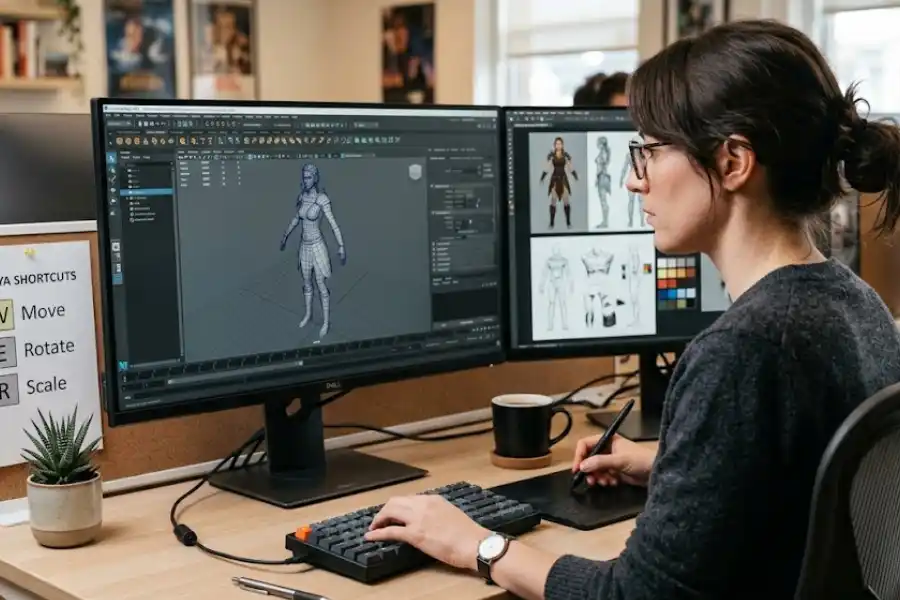
Maya Software Shortcut Keys: Complete List to Work Faster in 3D
You are working in Maya. A deadline is getting close. Every second counts. But instead of creating, you are clicking through menus just to find a basic tool. Sound familiar?
That is exactly why Maya software shortcut keys exist. Much like finding a highly valuable software egg, they remove the friction. They keep you in the zone. And they let you focus on making great work instead of fighting the software.
This article covers every important Maya shortcut you need, organized by category so you can find anything fast. Whether you are just starting out or already working on real projects, this list will speed up your workflow starting today.
Why Learning Maya Shortcut Keys Actually Matters
Professional 3D artists do not navigate menus one click at a time. They keep both hands on the keyboard and move fast. Research on creative software users shows that professionals using keyboard shortcuts can complete the same tasks up to 40 percent faster than those who rely only on mouse clicks.
Maya is one of the most powerful 3D tools in the industry. Just as you would master essential blender software shortcut keys to speed up modeling, the faster you can access Maya’s features, the more creative output you produce. Shortcuts are not just a convenience. They are a professional skill that separates beginners from working artists.
Maya Navigation Shortcut Keys
Before you can model or animate anything, you need to move around your scene. These shortcuts control your view inside the Maya viewport.
- Alt + Left Mouse Button – Orbit or tumble around the scene
- Alt + Middle Mouse Button – Pan across the viewport
- Alt + Right Mouse Button – Zoom in and out
- A – Frame all objects in the current view
- F – Frame the currently selected object
- Spacebar (tap) – Toggle between single panel and four-panel layout
- Spacebar (hold) – Open the Hotbox for fast access to all Maya menus
Most beginners never discover the Hotbox. Holding the Spacebar opens a radial menu right where your cursor sits. It gives you access to all of Maya’s main menus without moving your mouse to the top of the screen. Learning it puts you ahead of the majority of new Maya users from day one.
Transform Tool Shortcut Keys
These are the shortcuts you will press hundreds of times every single day. They switch between the tools you use to move, spin, and resize objects in your scene.
- W – Move tool (Translate)
- E – Rotate tool
- R – Scale tool
- Q – Select tool
- T – Show the special manipulator for the current tool
- Y – Switch back to the last tool you used
- G – Repeat the last action or command
- Insert – Toggle into edit pivot mode to reposition the pivot point
- D (hold) – Move the pivot point while in component mode
Memorize W, E, and R before anything else. These three keys are the foundation of your entire 3D workflow. Once they feel automatic, every other shortcut in Maya becomes easier to pick up.
Selection and Component Mode Shortcuts
Selecting the right thing fast is one of the most important skills in Maya. These shortcuts let you jump between object mode and different component types without ever touching a menu.
- F8 – Toggle between object mode and component mode
- F9 – Switch to vertex selection mode
- F10 – Switch to edge selection mode
- F11 – Switch to face selection mode
- F12 – Switch to UV selection mode
- Ctrl + A – Toggle between the Attribute Editor and the Channel Box
You switch between vertex, edge, and face mode constantly while modeling. Using F9, F10, and F11 instead of clicking toolbar buttons saves a real amount of time over a full work session. It seems like a small thing until you try it for a week straight.
Viewport Display Shortcut Keys
These shortcuts change how your objects look inside the viewport. They do not affect your final render. They just help you see your work more clearly while you build.
- 1 – Default mesh display with no smoothing
- 2 – Smooth preview with the original cage visible
- 3 – Full smooth mesh preview
- 4 – Wireframe display
- 5 – Shaded solid display
- 6 – Shaded display with textures visible
- 7 – Display using all lights in the scene
The 1, 2, and 3 keys are especially useful during modeling. You can instantly preview how your low-poly mesh will look after subdivision. This lets you check the overall shape without actually applying a smooth modifier and changing your working mesh.
Object Management and Editing Shortcuts
These shortcuts help you manage everything in your scene. From duplicating objects to hiding them to grouping them, these keys keep your workflow clean and organized.
- Ctrl + Z – Undo the last action
- Shift + Z – Redo the last undone action
- Ctrl + D – Duplicate the selected object
- Shift + D – Duplicate and apply the same transform offset as the last duplicate
- Ctrl + G – Group the selected objects
- P – Parent the selected object to another
- Shift + P – Unparent the selected object
- Ctrl + H – Hide selected objects
- Shift + H – Unhide the last hidden object
- Alt + H – Hide everything that is not currently selected
- Delete – Delete the selected object or component
- B – Toggle Soft Selection on and off
Soft Selection is one of the most underused tools for beginners. When you press B to turn it on, moving a vertex also affects nearby vertices with a smooth, gradual falloff. It is perfect for sculpting organic shapes, character bodies, and terrain without making your mesh look stiff or mechanical.
Polygon Modeling Shortcut Keys
These shortcuts give you fast access to the most common polygon editing tools. You will use these constantly during the modeling phase of any project.
- Shift + Right Click – Open the polygon marking menu for component-level tools
- Ctrl + Right Click – Open the mesh operations marking menu
- Ctrl + E – Extrude the selected faces, edges, or vertices (Maya 2020 and later)
- Ctrl + B – Bevel the selected edges or vertices
- Ctrl + Delete or Ctrl + Backspace – Delete selected edges and merge surrounding vertices cleanly
The right-click marking menus are a feature many Maya users discover years too late. Holding Shift or Ctrl while right-clicking brings up a radial menu of your most-used tools right at the cursor position. Bridge, fill hole, merge, and extrude are all one click away. No need to scroll through the top menu bar at all.
Animation Shortcut Keys in Maya
If animation is part of your work, these shortcuts will save you a massive amount of time every session. They cover keyframe setting, timeline navigation, and channel-specific keying for a cleaner workflow.
- S – Set a keyframe on all keyable attributes at once
- Shift + W – Set a keyframe on the Translate channel only
- Shift + E – Set a keyframe on the Rotate channel only
- Shift + R – Set a keyframe on the Scale channel only
- K (hold and drag) – Scrub through the timeline by dragging the mouse left or right
- Alt + , (comma) – Jump to the previous keyframe
- Alt + . (period) – Jump to the next keyframe
Using Shift + W, E, and R instead of pressing S for every keyframe is a much cleaner approach to animation. It means you only set keys on the channels that are actually changing. Your animation curves stay clean, and editing the motion later becomes much easier and less messy.
Interface and Workspace Shortcuts
These shortcuts control the Maya interface itself. They are useful when you want more screen space or need to quickly adjust your working environment.
- Ctrl + M – Toggle the main menu bar on and off
- Shift + M – Toggle the panel menu bar on and off
- Ctrl + Shift + M – Toggle all UI panels to maximize your viewport space
How to Build Muscle Memory for Maya Shortcuts
Knowing the shortcuts is not the same as actually using them without thinking. Here is how to turn this list into real, usable skill.
- Learn five shortcuts per day. Do not try to memorize everything at once. Pick five, use only those all day, and repeat for a week. By Friday you will have 35 shortcuts locked in without much effort.
- Print a cheat sheet and pin it near your monitor. Seeing the list while you work creates a reminder loop that speeds up the learning process naturally.
- Force yourself to use shortcuts during short practice sessions. Open a blank Maya scene and do simple tasks using only the keyboard. It feels slow at first. That is completely normal. The speed builds after a few sessions.
- Use the Hotkey Editor to make Maya feel like yours. Go to Windows, then Settings and Preferences, then Hotkey Editor. You can see every command, check what shortcut it uses, and change anything that does not feel comfortable for your hands. Save your custom set and load it on any machine you work on.
- Do five-minute drills every morning. Start each Maya session by spending five minutes creating, moving, rotating, and deleting objects using only shortcuts. This habit builds speed faster than any other method.
How to Customize Maya Shortcut Keys
Maya is fully customizable. You can change any shortcut to a key combination that feels right for your hands and your workflow. Here is how to do it.
Open Maya and go to Windows. Select Settings and Preferences, then click Hotkey Editor. A panel will open where you can search for any command by name, see what it is currently mapped to, and assign a new key. You can also save your custom profile as a named hotkey set. Load it on any workstation to keep your personal shortcuts wherever you go. This is a real advantage in studios where multiple artists share the same computers.
Frequently Asked Questions
What are the most important Maya shortcuts for beginners?
Start with W (Move), E (Rotate), R (Scale), Q (Select), and F (Frame selected). These five cover the most common actions in Maya. Once they feel natural, add the display keys (1 through 7) and the component mode switches (F8, F9, F10, F11). Build from there one week at a time.
Are Maya shortcuts the same across all versions?
Most core shortcuts stay consistent across versions. Some newer shortcuts, like Ctrl + E for Extrude, were introduced in Maya 2020. If a shortcut does not work in your version, open the Hotkey Editor to check what is currently assigned to that action in your specific build.
Can I use Maya shortcuts on a laptop without a numpad?
Yes. Open the Hotkey Editor and reassign any numpad shortcuts to key combinations that work on your laptop keyboard. You can also rely heavily on the Hotbox by holding the Spacebar, which gives you access to most tools without needing a full-sized keyboard at all.
What exactly is the Maya Hotbox?
The Hotbox appears when you hold the Spacebar. It is a radial menu that shows all of Maya’s main menus right at your cursor position. You get instant access to every menu without moving your mouse to the top of the screen. It is one of the fastest ways to stay in your flow without any interruption.
How long does it take to get comfortable with Maya shortcuts?
Most professional artists rely on about 20 to 30 shortcuts in their daily work. With regular daily practice, you can get comfortable with those core shortcuts in two to four weeks. After that, you add more gradually as your work expands into new areas like rigging, dynamics, or rendering.
Can I share my custom Maya shortcuts with other people on my team?
Yes. Once you save a custom hotkey set in the Hotkey Editor, you can share that file with other Maya users. They load it into their own Maya and instantly get your exact shortcut layout. This is a great way for teams to keep a consistent workflow across multiple artists working on the same project.
Final Thoughts
Maya software shortcut keys are not just about going faster. They change how you think and create. When you stop searching through menus for tools, your brain shifts from managing the software to making actual art. That mental shift is where real creative growth happens.
Start with the basics from this guide. Pick your first ten shortcuts and practice them today. Come back to this page whenever you are ready to add more. Within a few weeks, you will feel a clear difference in how naturally and confidently you move through Maya.
Bookmark this page and share it with anyone learning Maya. Let the shortcuts handle the repetitive work so you can keep your focus on the creative work that actually matters.