Kindle Software Update 5.18.5 Features: Full Guide, Supported Devices, and How to Install
Amazon just released Kindle software update 5.18.5, and it brings some of the most useful changes Kindle users have seen in years. This is not a quiet bug fix update. It adds real features that you will notice every single day when you pick up your Kindle to read, much like finding a useful software egg inside your device.
In this guide, you will find a clear rundown of every new feature, step-by-step instructions to use them, which Kindle models get the update, how to install it today instead of waiting months, and a few important things to know before you get started.
What Is New in Kindle Update 5.18.5?
Released in August 2025, version 5.18.5 is the seventh Kindle update Amazon pushed out that year. This update officially delivers four new features to all supported devices. Some Kindle owners started seeing these features with earlier updates like 5.18.3 and 5.18.4, but 5.18.5 is the version that makes them available to everyone.
Here is the short list of what is new:
- Assistive Reader: Text-to-speech with real-time word highlighting
- New Text Spacing Options: Full control over paragraph, word, and character spacing
- Larger Interface Text: Bigger font for menus and settings screens
- Lock Screen Rotation: Keep your screen in portrait or landscape mode (Kindle Scribe only)
Now let us look at each one in detail.
Feature 1: Assistive Reader
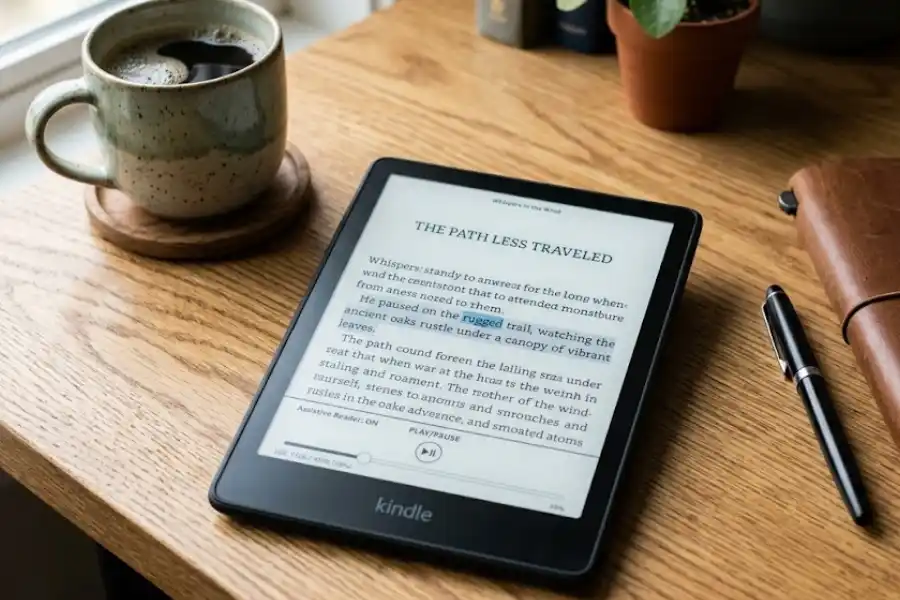
This is the biggest feature in the update, and it is a genuinely useful addition for many readers. The Assistive Reader lets your Kindle read your book out loud to you. As it reads, each word gets underlined on the screen so you can follow along at the same time.
Think of it like a read-along audiobook built right into your Kindle. No extra app, no extra purchase. It is just there when you need it.
Who Is This For?
The Assistive Reader is great for a lot of different people. If you have dyslexia, it can make reading much easier. If you want to listen while your eyes rest, it gives you that option. If you are learning a new language, hearing the words spoken while you see them on screen helps you learn faster. And if you simply want to read faster, the highlighting feature helps your eyes stay on track.
How to Turn On the Assistive Reader
- Open a book on your Kindle.
- Tap the middle of the screen to bring up the reading menu.
- Tap the Aa button to open your reading settings.
- Tap More at the top of the menu.
- Toggle Assistive Reader on.
- Tap outside the menu to go back to your book.
- Tap the screen again to see the player bar at the bottom.
- Press Play and the Kindle will start reading aloud.
Once you turn it on, it stays on until you switch it off again. You do not need to re-enable it every time you open the book.
How to Start from a Specific Word
You do not have to start from the top of the page. Press and hold any word on the page. A small menu will pop up. Tap Play and the Assistive Reader will start from that word. This is useful when you fall behind or need to replay a sentence you missed.
Speed Controls
You can control how fast or slow the Kindle reads. The speed goes from 0.5x (half the normal pace) all the way up to 3.5x (very fast). You can adjust it in steps of 0.1x, so the control is very precise. There is also a rewind button that jumps back 30 seconds if you miss something.
Important for Kindle Paperwhite users: The Paperwhite does not have its own speaker. You must connect Bluetooth headphones or earbuds to use the Assistive Reader. The Kindle Scribe has a speaker built in, so headphones are optional on that device.
Which Books Work with Assistive Reader?
The Assistive Reader only works with books that have Enhanced Typesetting. Most books bought from the Amazon Kindle Store support this. To check before you buy, look for “Enhanced Typesetting: Enabled” on the book’s product page.
It does not work with sideloaded books, which are books you add to your Kindle yourself from outside the Amazon store. It also may not work with some older personal documents you sent to your Kindle in the past.
The Assistive Reader supports books in five languages: English, Spanish, French, German, and Italian.
Feature 2: New Text Spacing Options
Before this update, Kindle gave you just three line spacing choices. That was it. Many readers found the text too cramped, but had no real way to fix it. That changes with update 5.18.5.
Now you can control four different types of spacing. Each one has five levels to choose from, so you have a lot of room to find what feels best for your eyes.
The Four Spacing Types
- Line Spacing: The space between each row of text on the page
- Paragraph Spacing: The gap between one paragraph and the next
- Word Spacing: How far apart each word sits from the ones beside it
- Character Spacing: The space between individual letters inside a word
How to Access the New Spacing Settings
- Open any book on your Kindle.
- Tap the screen and then tap the Aa button.
- Go to the Font tab at the top of the menu.
- Scroll down until you see the Spacing section.
- Adjust any of the four spacing controls to your liking.
One thing that trips people up: the spacing settings are in the Font tab, not the Layout tab. Amazon moved them there, which is a little confusing at first. If you are looking in the wrong place, that is why you cannot find them.
These options are especially helpful for readers with dyslexia, vision problems, or eye strain. Even small changes like wider word spacing and a bit more line height can make a book much easier to read for longer stretches.
Feature 3: Larger Interface Text
This feature makes the text in your Kindle’s menus and settings bigger. It does not change the text inside your books. Instead, it makes the labels, headings, buttons, and navigation options across the whole Kindle interface easier to see and read.
If you have ever squinted to read tiny settings text on your Kindle, this is for you.
How to Turn On Larger Interface Text
- Go to your Kindle’s Settings menu.
- Tap Screen and Brightness.
- Find Larger Interface Text and toggle it on.
You can also find this setting by going to Settings, then Accessibility, then Display and Text Size.
Right now, Amazon added only one larger size option. Some users find it quite large, almost comically so. But if you have trouble reading small text on your device, it makes a real difference. More size options may come in a future update.
Feature 4: Lock Screen Rotation (Kindle Scribe Only)
This feature is exclusive to the Kindle Scribe. If you use your Scribe in different positions, you know how annoying it is when the screen rotates on its own at the wrong moment. This update gives you a way to lock it.
You can lock the screen in either portrait or landscape mode. Once locked, moving or tilting the device will not change the orientation.
How to Lock Screen Rotation on Kindle Scribe
- Swipe down from the top of your Scribe’s screen to open the Quick Settings panel.
- Look for the Auto-Rotate or Screen Rotation toggle.
- Tap it to lock the screen in whatever orientation it is currently in.
This is a small feature on paper, but Scribe users who work at a desk or read in bed will feel the difference immediately.
The New Reading Page View
There is one more change worth mentioning, even though Amazon did not include it in the official release notes. When you tap the screen while reading to bring up the menu, the page now shrinks slightly to show you the full page. You also get a peek at the edges of the previous and next pages on either side.
This makes the reading experience look and feel more like the Kindle app on your phone or tablet. It is a visual update, not a functional one, but many readers find it much cleaner than the old layout where menu bars just covered the text.
Which Kindle Devices Get Update 5.18.5?
This update is available for the following devices:
- Kindle (11th generation)
- Kindle (12th generation)
- Kindle Paperwhite (11th generation)
- Kindle Paperwhite (12th generation)
- Kindle Colorsoft
- Kindle Scribe (2022 release)
- Kindle Scribe (2024 release)
If you have a 10th generation Kindle, this update is not available for your device. Amazon has been skipping the 10th gen for all the new feature updates this year, even though the company promised software support through 2026. Many users are rightfully upset about this, especially since the 10th gen is not that old.
How to Install Kindle Update 5.18.5
There are two ways to get this update. You can wait, or you can do it right now.
Option 1: Wait for the Automatic Update
Your Kindle will download and install the update on its own when it is connected to Wi-Fi and left on charge. This process can take anywhere from a few weeks to a few months after the update is released. If you are in no hurry, just plug it in at night and let it do its thing.
Option 2: Install It Manually Today
- On a computer, go to Amazon’s Kindle E-Reader Software Updates page.
- Find your exact Kindle model in the list.
- Download the update file for your device. It ends in .bin.
- Connect your Kindle to the computer with the USB cable that came with it.
- Drag the .bin file directly onto the Kindle drive that appears. Do not put it inside any folder.
- Safely eject the Kindle from your computer.
- On your Kindle, go to Settings, then Device Options, then Update Your Kindle.
- The device will restart and install the update.
Make absolutely sure you download the update file for your specific model. Installing the wrong file can cause problems. If your Kindle model is not listed, it may not be supported by this update.
Things to Know Before You Update
A few details that most articles skip over:
- Even after updating, some features may not appear right away. Amazon rolls out certain features remotely over a period of days. If you update and do not see a new option, give it a few days.
- The Assistive Reader will not appear on every book. If a book does not have Enhanced Typesetting, the toggle will not show up in the More menu.
- Some older Send-to-Kindle documents may not show the new spacing settings. Recently uploaded files in newer formats are more likely to support them.
- The Larger Interface Text only has one bigger size option right now. It is quite large, so check if it works for you before you commit to it.
- The Lock Screen Rotation is only on the Kindle Scribe. Other Kindle models do not have this feature in this update.
Frequently Asked Questions
Does the Kindle 5.18.5 update work on the 10th gen Kindle?
No. This update is only for 11th and 12th gen Kindles, the Kindle Scribe, and the Kindle Colorsoft. Amazon has not released the new features for the 10th gen model, and has not announced plans to do so.
Do I need headphones to use the Assistive Reader on the Kindle Paperwhite?
Yes. The Kindle Paperwhite does not have a speaker. You must connect Bluetooth headphones or earbuds first. The Kindle Scribe has its own speaker, so you do not need headphones on that device.
Does the Assistive Reader work on books I sideloaded myself?
No. It only works with books from the Amazon Kindle Store that have Enhanced Typesetting enabled. Books you added yourself from outside Amazon are not supported.
Where are the new spacing settings? I cannot find them.
Open a book, tap the screen, and tap the Aa button. Go to the Font tab, not the Layout tab. Scroll down and you will see the Spacing section with all four options. Amazon placed them in the Font tab, which is not where most people would look first.
How fast can the Assistive Reader read?
You can set it from 0.5x (very slow) all the way to 3.5x (very fast). You can adjust the speed in steps of 0.1x. There is also a button to rewind 30 seconds if you want to hear something again.
Does the Assistive Reader support languages other than English?
Yes. It supports English, Spanish, French, German, and Italian. The book you are reading must be in one of those languages for the feature to work.
Will my Kindle update automatically or do I need to do it manually?
Kindles update automatically over Wi-Fi, but it can take weeks or even months. If you want the update now, follow the manual update steps in this guide. It takes about five minutes and is completely free.
I updated but I still do not see the new features. What is wrong?
This is normal. Amazon sometimes activates features remotely over several days after an update rolls out. Give it a few days. If the features still do not appear after a week, try restarting your Kindle and connecting to Wi-Fi again.
Final Thoughts
Kindle software update 5.18.5 is one of the better updates Amazon has released in a long time. The Assistive Reader brings read-aloud capability back to Kindle in a way that genuinely works. The text spacing controls finally give readers real power over how their books look. And the larger interface text makes the device friendlier for people with vision difficulties.
If your Kindle supports this update, do not wait for it to roll out on its own. Taking manual control of your device is always a smart move, similar to learning what is Developer Option in Android Phone for advanced settings. Use the manual update steps above and you will have all four features on your device within minutes. It is a free upgrade, and every one of these features is worth having.