Some Keys on Keyboard Not Working? Here’s the Real Fix
You’re typing something important. Maybe it’s an email to your boss or a school assignment due in an hour. Then it happens. You press a key and nothing shows up on the screen. Or worse, three or four keys just refuse to work at all.
This is one of the most annoying computer problems out there, mostly because it feels random. Your keyboard worked fine yesterday. Today, half the alphabet seems to be on strike.
Here’s the good news. Some keys on a keyboard not working is almost never a mystery once you know what to check. In most cases, you don’t need a new keyboard at all. You need about ten minutes and the right order of steps.
This article walks you through exactly that, starting with a quick test that tells you if the problem is software or hardware, so you don’t waste time fixing the wrong thing.
Start With This 60-Second Test
Before you touch a screwdriver or download anything, do this one test. It will save you a lot of time.
Open your on-screen keyboard. On Windows, press the Windows key, type “on-screen keyboard,” and open it. On a Mac, go to System Settings, then Accessibility, then Keyboard, and turn on Accessibility Keyboard.
Now press the keys that aren’t working on your real keyboard, and watch the on-screen version.
- If the on-screen key lights up even though your physical key did nothing, the problem is very likely hardware. Something is physically wrong with that key.
- If neither version responds, or if strange characters appear instead, the issue is more likely software or a settings problem.
This one test splits almost every keyboard problem into two clear paths. Keep your result in mind as you read on.
Why Do Only Some Keys Stop Working?
When a whole keyboard dies, the cause is usually simple, like a dead battery or a loose cable. But when only some keys stop working, the reasons are more specific. Here are the most common ones.
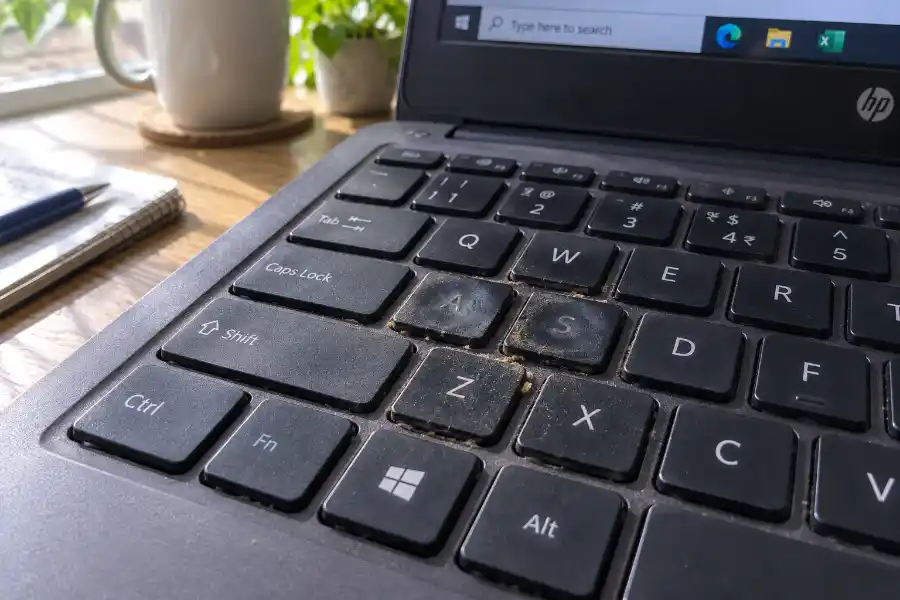
- Crumbs and dust. This is the number one cause. Food, hair, and dust fall between the keys over time and block the tiny switch underneath from making contact.
- A liquid spill. Even a small splash of coffee or water can dry into a sticky film that stops certain keys from registering, sometimes days after the spill happened.
- Wrong keyboard language or layout. If your system switched to a different language layout, some keys can print the wrong character or seem to do nothing.
- Num Lock or F-Lock is on. If number pad keys move your cursor instead of typing numbers, Num Lock is probably off. If function keys aren’t working, F-Lock might be the cause.
- A stuck modifier key. Sticky Keys or Filter Keys, two Windows accessibility features (covered in our windows 11 tips and tricks roundup), can make keys feel unresponsive or repeat oddly if they get turned on by accident.
- An app is grabbing the key. Games and some software take over certain keys while running, even in the background. This is a common but often overlooked cause.
- Outdated or corrupted drivers. Your keyboard driver is the translator between the hardware and your computer. When it breaks, keys can behave strangely.
- Overheating. This one surprises people. If your laptop runs very hot, especially during gaming or heavy use, some keys can stop responding until the system cools down.
- Physical or ribbon cable damage. Laptop keyboards connect to the motherboard through a thin ribbon cable. A drop, a bend, or normal wear can damage this cable and knock out a whole section of keys at once.
- A worn-out membrane. Under every laptop keyboard is a rubber membrane layer. After years of typing, this layer can wear thin under the keys you use most, which is often the home row.
If liquid caused the problem, turn the device off right away and unplug it or remove the battery if you can. Don’t keep typing on it to “test” the keys. This can push the liquid further inside and turn a fixable problem into a costly one.
How to Fix Software and Settings Problems
If your on-screen keyboard test pointed to software, work through these steps in order. Most people find their fix in the first three.
- Check your language and keyboard layout. On Windows, go to Settings, then Time and Language, then Language and Region. Make sure only the layout you actually use is listed and set as default.
- Turn off Sticky Keys and Filter Keys. Go to Settings, then Accessibility, then Keyboard, and switch both off. These features are useful for some people, but they can also cause exactly the kind of odd, unresponsive behavior you’re dealing with.
- Press Num Lock and F-Lock. It sounds too simple, but this fixes more “broken” keyboards than you’d expect, especially on external keyboards and number pads.
- Close any recently opened apps or games. If the problem started right after you opened a specific program, close it and test your keys again. A quick Task Manager keyboard shortcut makes this easy to do without digging through your taskbar. If that fixes it, look for a settings option inside that app related to key bindings or remapping.
- Update your keyboard driver. Open Device Manager, find your keyboard under “Keyboards,” right-click it, and choose Update Driver. If that doesn’t help, try uninstalling it completely and restarting your computer. Windows will reinstall a fresh driver automatically.
- Run the keyboard troubleshooter that comes with Windows. Search “Find and fix keyboard problems” in the Windows search bar and let it scan for you.
- Test in Safe Mode. Restart your computer into Safe Mode, which loads only the essentials. If your keys work fine here, something you installed is the real culprit.
If you’ve gone through all seven steps and the same keys are still silent, your problem is very likely hardware, not software.
What the Pattern of Broken Keys Is Telling You
Here’s something most guides skip, but it actually matters a lot. The pattern of which keys stopped working is a real clue.
- One random key here and there: Usually debris or a small amount of liquid under that specific key. This is the easiest problem to fix yourself.
- A whole row, like the number row or the home row: This often points to a damaged ribbon cable or a break in the circuit that connects that row. Cleaning rarely fixes this.
- A block or corner of keys, like the top-left section: This pattern is a classic sign of liquid damage tracing a path through the keyboard’s internal wiring.
- Keys that come back after being pressed hard or repeatedly: This suggests a worn connection that still makes contact sometimes, which usually means the keyboard is on its way out.
Knowing which pattern you have helps you decide whether cleaning is worth trying, or whether you should skip straight to testing with an external keyboard.
Cleaning Your Keyboard the Right Way
If debris is the likely cause, here’s how to clean it safely without making things worse.
- Turn off and unplug the keyboard, or shut down your laptop completely.
- Turn it upside down and gently shake it or tap the back. You’ll be surprised what falls out.
- Use a can of compressed air and spray between the keys at an angle, not straight down, so debris flies out instead of further in.
- For a spill, lightly dampen a cloth or cotton swab with water or rubbing alcohol and clean carefully around the affected keys. Let everything dry fully, ideally overnight, before turning the device back on.
- If a single key is still stuck, you can carefully pop off just that keycap to clean underneath it. Search for your exact keyboard model before doing this, since some laptop keys are more fragile than others.
Is It the Keyboard or the Computer? Test With an External Keyboard
This step will tell you almost everything you need to know, and it takes two minutes.
Plug a USB or Bluetooth keyboard into your computer and try typing the same keys that weren’t working before.
- If the external keyboard works perfectly, your built-in laptop keyboard is the problem, not your computer.
- If the same keys still don’t work on the external keyboard too, the issue is inside your operating system or settings, not the hardware.
This single test can save you from paying for a repair you don’t actually need.
Using a Mac? A Few Quick Differences
Most of the causes above apply to Mac keyboards too, especially debris, spills, and worn connections. A few things work a little differently.
- Check System Settings, then Keyboard, to make sure no custom key shortcuts are overriding the keys you need. It also helps to know the default mac keyboard shortcuts, so you can spot right away if one has been changed.
- Try resetting the keyboard’s Bluetooth connection if you’re using a wireless Magic Keyboard, since a weak pairing can look exactly like broken keys.
- On MacBooks with older butterfly-style keyboards, sticking keys were a widely known hardware issue. If your MacBook is from around 2016 to 2019, this is worth checking with Apple support, since some models had extended repair coverage for it.
Repair or Replace? How to Decide
Once you’ve confirmed it’s a hardware issue, the next question is whether it’s worth fixing.
- External keyboard: These are cheap to replace, usually less than a dinner out. Unless it’s brand new or a special mechanical keyboard, replacing it is almost always the easier choice.
- Laptop keyboard, minor damage: If it’s just a few keys and the laptop is otherwise in good shape, a keyboard replacement is often reasonable. Parts are inexpensive, though labor can add up if you’re not doing it yourself.
- Laptop keyboard, liquid damage spreading further: If more keys keep failing over time, or other parts like the trackpad start acting up too, get a professional opinion before it affects the motherboard.
- Older laptop with a worn keyboard: If your laptop is already several years old, it may be worth weighing the repair cost against simply upgrading.
How to Stop This From Happening Again
A little prevention goes a long way with keyboards.
- Keep drinks and food a safe distance from your keyboard, not just to the side of it.
- Wipe your keyboard down weekly with a dry microfiber cloth.
- Use compressed air once a month if you eat near your computer often.
- Consider a thin silicone keyboard cover if spills are a recurring risk in your home or office.
- Give your laptop proper airflow, especially during gaming or video editing, to avoid heat-related key issues.
Frequently Asked Questions
Why do only some keys on my keyboard stop working instead of all of them?
Keyboards are divided into separate circuits by row or section. Because of this, damage, debris, or a bad connection often affects one small area instead of the entire keyboard at once.
Can a software update cause certain keys to stop working?
Yes. A driver update, a system update, or even a new app can change keyboard settings or take over specific keys. This is why testing in Safe Mode is such a useful step.
Why do my keys work sometimes but not other times?
This on-and-off behavior usually points to a loose connection, either a worn ribbon cable inside a laptop or a weak Bluetooth pairing on a wireless keyboard.
Will removing and cleaning under a keycap void my warranty?
On most standard keyboards, no. But on ultra-thin laptops with fragile key mechanisms, it can. Check your manufacturer’s guidance first if your device is still under warranty.
Is it normal for laptop keyboards to wear out over time?
Yes. The rubber membrane under the keys naturally wears down after years of use, especially under the letters you type most. This is a normal part of a laptop’s life, not a sign you did something wrong.
Final Thoughts
Some keys on a keyboard not working feels like a bigger problem than it usually is. Most of the time, the fix is a quick clean, a settings toggle, or a driver update, not a trip to the repair shop. Start with the on-screen keyboard test, work through the software fixes, and pay attention to the pattern of which keys are affected. That combination will point you to the real cause almost every time, and get you back to typing normally again.
If you enjoy quick, no-nonsense fixes like this one, Software Egg has plenty more guides worth a look.