Windows 11 Tips and Tricks: 25 Hacks for a Faster PC in 2026
You use Windows 11 every day. But you might be using only half of what it can do.
Most people stick to the basics. They open apps, browse the web, and shut down. They never touch the cool stuff hiding under the surface.
That changes today.
This article gives you 25 simple Windows 11 tips and tricks. Some save you minutes. Some save you hours. A few will make you wonder how you lived without them.
Each tip is short. Each one works on the latest 2026 builds. And you do not need to be a tech expert to try any of them.
Let us jump right in.
Why These Windows 11 Tips Are Worth Your Time
Windows 11 is built to feel fast and clean. But Microsoft hides a lot of its best tools inside menus you rarely open. You will not find them unless you go looking.
I have tested every tip in this guide on my own PC. Some I use every single day. Others come from the fresh 2026 updates that most blogs have not even covered yet.
Pick three tips to start with. Use them for a week. They will turn into muscle memory before you know it.
Make Your Desktop Work for You
1. Move the Start Button Back to the Left
Do not like the centered Start button? Move it back home.
Right-click the taskbar. Click Taskbar settings. Open Taskbar behaviors. Change Taskbar alignment to Left.
That is it. The classic look is back.
2. Pin the Apps You Use Most
Stop digging through menus to find your daily apps.
Right-click any app icon. Pick Pin to Start or Pin to taskbar. Now they are always one click away.
3. Group Apps Into Folders on the Start Menu
Drag one app icon on top of another. A folder pops up, just like on your phone.
This is great for keeping work apps in one spot and games in another.
4. Try Multiple Virtual Desktops
Mix work and play on the same PC? Build two desktops.
Press Win + Tab. Click New desktop. Now you have one for work and one for fun.
Switch between them with Win + Ctrl + Left Arrow or Win + Ctrl + Right Arrow.
Snap Layouts: The Window Magic You Need
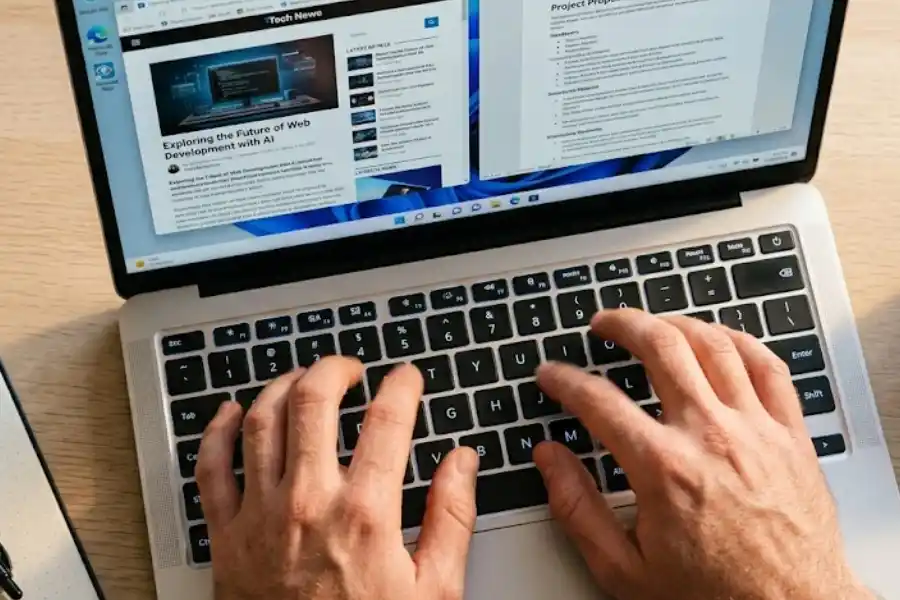
5. Snap Two Windows Side by Side
Working on two things at once? Snap them in place.
Drag a window to the left or right edge of the screen. It will fill that half. Pick another window to fill the other side.
6. Use Snap Layouts for More Options
Hover your mouse over the maximize button on any window. A grid of layouts pops up.
Pick one. Windows arranges your apps for you. No more dragging and resizing.
7. Save Snap Groups for Later
Got a perfect set of apps snapped together? Windows 11 remembers it.
Hover over an app icon in the taskbar. You will see your saved group. Click it to bring all the apps back at once.
Keyboard Shortcuts That Save Real Time
8. Take a Smart Screenshot
Press Win + Shift + S.
The screen dims. Drag a box around what you want. The image goes to your clipboard, ready to paste.
This is way faster than the old Print Screen key.
9. Open the Emoji and Symbol Panel
Press Win + . (the Windows key plus a period).
An emoji, GIF, and symbol picker pops up. It works in any app where you can type, even Word and Outlook.
10. Check Your Clipboard History
Most people copy one thing at a time. But Windows can remember the last 25 items.
Press Win + V. Turn on Clipboard History the first time (this is the core feature behind the famous Windows Clipboard Trick). Now you can paste anything you copied earlier today.
11. Paste Without Weird Formatting
Copy text from a website and it often pastes with strange fonts and colors.
Use Ctrl + Shift + V instead of plain Ctrl + V. It pastes only the words. No mess.
12. Lock Your Screen in One Second
Need to step away from your desk? Press Win + L.
Your PC locks right away. This is great in shared offices, libraries, and homes.
13. Open Task Manager Directly
Skip the Ctrl + Alt + Del menu. Press Ctrl + Shift + Esc instead.
Task Manager opens straight away. You can close frozen apps in seconds.
Make Your PC Run Faster
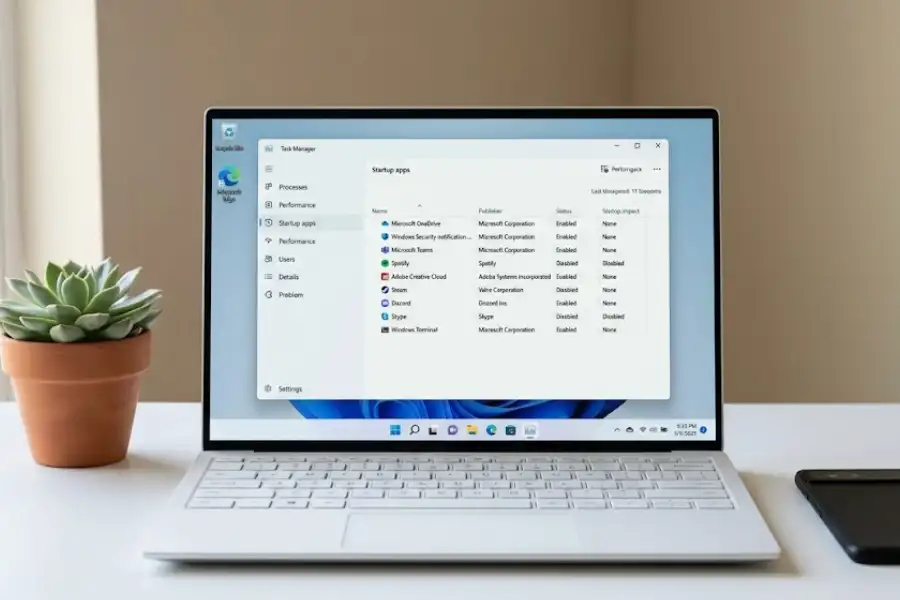
14. Turn Off Startup Apps
Many apps load every time you boot your PC. Most do not need to.
Open Task Manager. Click the Startup apps tab. Right-click any app you do not need at boot. Click Disable.
Your start time will drop.
15. Use Efficiency Mode for Heavy Apps
Some apps eat your battery and slow your PC. Efficiency Mode tells them to chill.
Open Task Manager. Right-click a busy app. Click Efficiency mode. Done.
16. Switch to Best Performance Power Mode
Go to Settings, then System, then Power & battery.
Set the Power mode to Best performance. Your PC will feel snappier right away.
Heads up: this uses a bit more battery on laptops.
17. Free Up Disk Space With Disk Cleanup
A full drive slows your PC down a lot.
Type Disk Cleanup in the search bar. Open it. Pick your C: drive. Delete temp files and old updates.
You can clear 5 to 10 GB in minutes.
18. Turn Off Animation Effects
Smooth fades and slides look nice. But they slow older PCs.
Go to Settings, then Accessibility, then Visual effects. Turn off Animation effects.
The whole system feels faster the second you do this.
Privacy and Comfort Tips
19. Stop Personalized Ads
Windows shows ads based on what you do. You can shut that off.
Go to Settings, then Privacy & security, then General. Turn off Let apps show me personalized ads.
20. Use Night Light for Tired Eyes
Working late? Night Light cuts blue light from your screen.
Go to Settings, then System, then Display. Turn on Night light.
Set a schedule from sunset to sunrise. Your eyes will thank you.
21. Turn On Live Captions for Any Video
This one is a hidden gem.
Press Win + Ctrl + L. Windows starts adding live captions to any video, call, or audio playing on your PC. It even works without internet.
It is great for noisy rooms, hard-of-hearing users, and language learners.
New for 2026: Tips Most Blogs Have Not Caught Up On
This is where this guide goes past the rest. Microsoft pushed big updates in early 2026. Here are the ones worth trying right now.
22. Test Your Internet Speed From the Wi-Fi Panel
No more visiting speed test sites.
Click your Wi-Fi icon in the taskbar. Tap Test Internet Speed. Bing runs a quick test in seconds.
This new button rolled out in early 2026.
23. Try Xbox Mode for Better Gaming
Microsoft launched Xbox Mode in the May 2026 update.
It turns your PC into a console-like setup when you plug in a controller. Less clutter on screen. More focus on the game.
Look in Settings, then Gaming, if you have the May 2026 update.
24. Use Point in Time Restore
The old System Restore tool just got a fresh, modern look.
Search for Point in Time Restore in the Start menu. You can roll your PC back to a working state if something breaks.
It is far easier to use than the old version.
25. Watch AI Agents Right From Your Taskbar
If you use Microsoft 365 Copilot, this one is cool.
When an AI agent runs a task, you can see its progress right from the taskbar. Hover over the icon. You will see live updates.
No need to keep the app open.
Bonus: Try PowerToys for Power Users
PowerToys is a free Microsoft tool. Much like learning how to enable God Mode in Windows 11, it unlocks advanced controls and adds extra features that should be in Windows already.
Get it from the Microsoft Store or grab the latest build from the official PowerToys project page. The best tools inside are:
- FancyZones for custom window layouts.
- Color Picker to grab any color from your screen.
- PowerToys Run as a quick app launcher.
- Always on Top to pin a window above all others.
- Image Resizer to shrink photos with one right-click.
Start with one or two. Add more when you feel ready.
How to Make These Tips Stick
Do not try every tip in one day. Your brain will drop half of them by lunch.
Pick three that match what you do most:
- If you write a lot, learn the clipboard and paste shortcuts.
- If you juggle apps, get the hang of Snap Layouts and virtual desktops.
- If your PC feels slow, focus on the speed-up tips.
Use them daily for a week. Then come back and pick three more.
The goal is not to learn every shortcut. It is to stop reaching for the mouse when your keyboard would be faster.
Frequently Asked Questions
Are these Windows 11 tips safe to try?
Yes. Every tip in this guide uses features that come with Windows itself. Nothing here touches core system files or risks your PC. PowerToys is also made by Microsoft, so it is safe too.
What is the most useful Windows 11 shortcut?
For most people, it is Win + Shift + S. It grabs a screenshot of any part of your screen in two seconds. Once you try it, you will use it every day.
How do I make Windows 11 faster without spending money?
Three free fixes work best. Turn off startup apps in Task Manager. Run Disk Cleanup. Switch your power mode to Best performance. These three steps can wake up a slow PC right away.
Will the 2026 features work on my PC?
Most 2026 updates roll out through Windows Update. Open Settings, then Windows Update, and tap Check for updates. If your PC is on Windows 11 version 24H2 or 25H2, you will get the new features as they launch.
Is PowerToys safe to install?
Yes. PowerToys is built by Microsoft and free on the Microsoft Store. It is open source, well tested, and used by millions of people.
Can I undo any of these tips later?
Yes. Every change in this guide can be reversed. Just go back to the same setting and switch it off. Nothing is locked in.
Final Thoughts
Windows 11 has more to offer than most people ever see, filled with hidden menus and the occasional software egg. The small tweaks really add up. They save time. They cut stress. They make your PC feel like yours.
Start with three tips today. Try a new one each week. In a month, you will use Windows like a pro.
And the best part? You will not need to spend a single dollar to get there.