13 Hidden Features OnePlus 10 Pro Owners Often Miss
You paid for a flagship phone. But are you using all of it?
Most people open the same five apps and never look inside the settings. That is a shame, because the OnePlus 10 Pro hides a lot of useful tools. Some sit inside the camera. Some sit inside Settings. A few only showed up in later software updates.
This article covers 13 hidden features OnePlus 10 Pro users can try today. I picked them using reviews from Digital Trends, NextPit and MobileSyrup, plus the official OxygenOS update notes. Menu names can shift a little by region and software version. If you cannot find one, type its name into the Settings search bar.
The best hidden features OnePlus 10 Pro offers are not hard to use. They are just easy to miss.
A Quick Look at the Phone
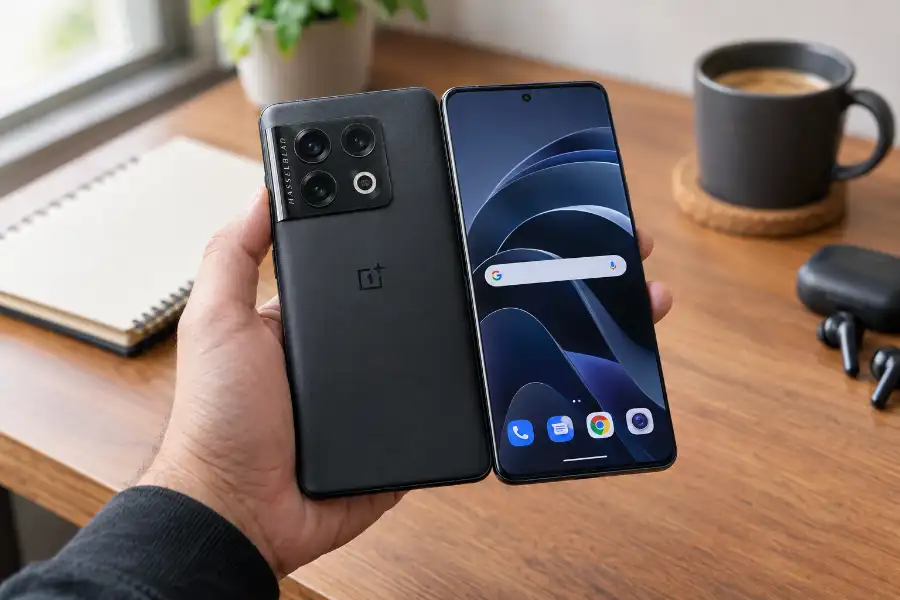
The OnePlus 10 Pro has a 6.7-inch 1440p AMOLED screen and a Snapdragon 8 Gen 1 chip. It has a 5,000mAh battery with 80W wired and 50W wireless charging. The camera set includes a 48MP main lens, a 50MP ultra-wide lens and an 8MP lens with 3x zoom. TÜV, a testing group, certified the phone to run smoothly for up to 36 months. Many of the tricks below build on these parts.
Camera: Hidden Features OnePlus 10 Pro Owners Should Try First
1. 150-Degree Fisheye Mode
The ultra-wide camera sees a full 150 degrees. That is wider than most phones. Digital Trends called this view one of the most interesting new features on the phone.
Open the camera, switch to the ultra-wide lens and look for the fisheye option. Try it on tall buildings, small rooms and group photos. Keep your fingers away from the edges, because the lens sees a lot.
2. XPan Mode
XPan gives you a wide, movie-style frame, like old film cameras. Fans loved it on the OnePlus 9 series. When early reports said it was missing, many people felt let down. Then reviewer Marques Brownlee showed it running on a 10 Pro, and MobileSyrup shared the news.
Open the camera and tap More. Look for XPan there. It works best on streets, skylines and open fields.
3. Pro Mode With Hasselblad RAW
Switch the camera to Pro mode. You get manual control of ISO, shutter speed and focus. You can also save RAW files, which keep more detail and give you more room when editing later.
The phone also uses Hasselblad Natural Color Optimization 2.0. This aims to give photos more natural colors.
4. 10-Bit Color Photos
Most phones record 8-bit color. The OnePlus 10 Pro can shoot 10-bit color, which holds far more shades. Skies and skin tones look smoother, with less banding. This is one of the hidden features OnePlus 10 Pro buyers rarely hear about.
OnePlus said it was only the second phone to offer this, after the Oppo Find X3. Look in the camera settings for a 10-bit option.
There is one catch. These HEIF files may not open in every app or on every computer. At launch, OnePlus said only a few devices could open them. Keep a normal copy for sharing.
Display and Updates: Hidden Features OnePlus 10 Pro Gained Over Time
5. A Screen That Drops to 1Hz
The screen uses LTPO 2.0. It can change its refresh rate anywhere from 1Hz to 120Hz. A still page uses very little power. A fast scroll gets the full smooth feel.
NextPit pointed out that most phones only drop down to 10Hz. Open Settings, then Display and Brightness, and check your refresh rate. Leaving it on automatic lets the phone choose for you.
6. Fingerprint Unlock Without Waking the Screen
The OxygenOS 14.0.0.600 update added a quiet unlock option. You rest your finger on the sensor, and the phone unlocks without lighting up the screen first. This is one of the best hidden features OnePlus 10 Pro got in 2024. It helps at night and in meetings.
The update note first rolled out in India. Your region may get it at a different time, so check Settings and System Updates.
7. Hold Volume Down for the Torch
With the screen off, press and hold the volume down button. The torch turns on. It is great for finding keys in a dark bag. This came in the same update, so the same regional note applies.
8. Partial Screenshot in the Smart Sidebar
The same update added a Partial Screenshot option to the Smart Sidebar. It lets you grab just the part of the screen you need. You skip the extra cropping step.
If you do not see the sidebar, look for it under Special Features in Settings and turn it on.
9. App-Specific Volume
You can now set the volume for each app on its own. Keep your music low and your maps loud. Keep a video app quiet and a game loud. You stop reaching for the volume buttons all day.
Privacy and Daily Life: Hidden Features OnePlus 10 Pro Makes Easy
10. Private Safe and App Lock
OnePlus has kept a lockbox inside its file manager for years. Digital Trends notes that it now has a name: Private Safe. Store private photos and papers there.
For apps, look for App Lock in your privacy settings. NextPit says you can lock apps with your phone password. Older software builds may also show a Hidden Space. To check, swipe up to open the app drawer, then swipe right.
Android also has a quiet safety tool that restarts a locked phone on its own. You can read more about the Android automatic reboot security feature if you want one more layer of protection.
11. Work-Life Balance 2.0
This tool switches notification profiles for you. It can change them by time, by place or by Wi-Fi network. Work apps can go quiet when you get home. Social apps can stay silent while you are at the office. Set it once and forget it.
Play and Search: Hidden Features OnePlus 10 Pro Packs for Fun
12. Game Tool Box 2.0
Digital Trends lists Tool Box 2.0 as a set of tools you can use while you play. Open any game and look for the Game Tool Box panel. It keeps useful controls close, so you do not have to leave the game.
If you want a quick break between matches, try the Android hidden game tucked inside the system.
13. OnePlus Scout
If you use a Mac, think of Scout as Spotlight for your phone. It is a small search box that finds apps and files fast. Press and hold on the home screen to open the home screen settings, then turn it on. After that, you can find almost anything in a few taps.
How to Find These Features Fast
Open Settings and use the search bar. Type a word such as fingerprint, volume or screenshot. Many hidden features OnePlus 10 Pro owners want are only one search away.
Also check your software version. Some tips above came with later updates. If a menu is missing, update the phone first.
Android also keeps one menu that most people never open. If you are curious, see what the Developer Option in an Android phone does.
Frequently Asked Questions
Does the OnePlus 10 Pro really have hidden features?
Yes. The hidden features OnePlus 10 Pro includes range from camera modes to privacy tools. Many are not on by default. You need to switch them on once.
How do I hide apps on the OnePlus 10 Pro?
Use App Lock to protect apps with a password. Use Private Safe to hide files. Older builds may also have Hidden Space in the app drawer.
Is the OnePlus 10 Pro still getting new features?
It has received OxygenOS 14 builds, and the March 2024 update added several new tools. New features can differ by region, so check System Updates often.
Are there more hidden features OnePlus 10 Pro owners can find?
Yes. OnePlus adds small tools in almost every update. Read the update notes each time. A short line in the changelog can point to a handy new trick.
Final Thoughts
You do not need a new phone to get more from your phone. These hidden features OnePlus 10 Pro owners often skip can make it feel new again. Start with the camera tricks, then try the update features. Pick two or three today, and see which ones stick. If someone in your family uses an iPhone, share our list of iPhone hidden features with them too.