iPhone Hidden Features: 25 Settings and Tricks Apple Never Told You About
You use your iPhone every single day. You text, scroll, take photos, and check the time. But here is the truth: you are probably using less than half of what your iPhone can do.
Apple hides a lot of its best features buried inside settings menus, waiting to be discovered like a hidden software egg. No big announcements. No tutorials. Just quietly tucked-away tools waiting for someone to find them. Most people never do.
This article will change that. Whether you have had your iPhone for a week or ten years, at least a few of these features will surprise you. Some will save you time. Some will protect your privacy. And a few will make you wonder how you ever lived without them.
Let us get into it.
Productivity Tricks That Save You Time Every Day
Turn the Back of Your Phone Into a Button
This one feels like magic the first time you use it. You can double or triple-tap the back of your iPhone to trigger almost any action. Take a screenshot. Open your camera. Turn on the flashlight. Run a shortcut.
Go to Settings > Accessibility > Touch > Back Tap and set it up. It works even with a case on, as long as the case is not too thick.
Use Your Keyboard as a Trackpad
Trying to move your text cursor to fix a typo is one of the most frustrating things on a phone, especially if you are used to the precision of mac keyboard shortcuts. Here is the fix. Just press and hold the spacebar. The keyboard turns into a mini trackpad and you can slide your finger to move the cursor right where you want it.
To select text in trackpad mode, keep holding the spacebar and then tap with a second finger. Your text gets highlighted and you can copy, cut, or delete it.
Swipe Away Calculator Mistakes
Typed the wrong number in the Calculator app? Do not hit clear and start over. Just swipe left or right on the number at the top of the screen. It deletes the last digit you typed. Swipe again to delete another. Fast, simple, and almost nobody knows about it.
Drag and Drop Between Apps
This one still surprises people. You can grab a photo, a link, or a piece of text in one app and drop it into a completely different app. Hold the item with one finger, use another finger to switch apps, and then drop it where you want it. Works great between Photos and Messages, or Safari and Notes.
Create a Quick Reminder Without Opening the App
If you have an iPhone 15 Pro or newer and you are running iOS 26, you can create a reminder from anywhere without ever opening the Reminders app. Go to Settings > Action Button, set it to Controls, and choose New Reminder. When you press the button, a small panel pops up. You add the task, set a time or location, and it is saved. Done in seconds.
Camera and Photo Tricks Worth Knowing
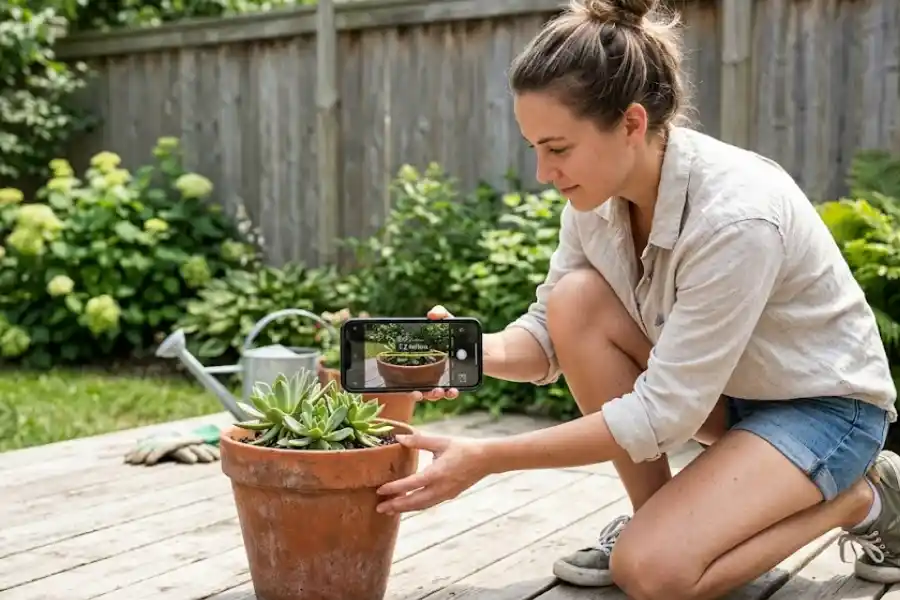
Use Volume Buttons as a Camera Shutter
The moment you open the Camera app, your volume buttons become the shutter. Press once to take a photo. Hold the button down to take a burst of shots. This is perfect for action photos or group pictures where someone always blinks at the wrong moment.
Read Text From Any Photo or Paused Video
Your iPhone can read and copy text from photos, screenshots, and even paused videos. This is called Live Text. Point your camera at a street sign, a restaurant menu, or a whiteboard and tap the text to copy it. Or open a photo in your gallery and do the same thing.
Here is the part most people miss: it also works in videos. Pause the video at the right moment and you can tap and copy any text on screen. Perfect for grabbing info from tutorial videos (especially when navigating them with your favorite youtube keyboard shortcuts), recipe clips, or recorded presentations.
Measure Things With Your Camera
Your iPhone has a measuring app that comes with iOS and uses your rear camera to measure physical objects. Swipe down from the middle of your home screen, search for Measure, and open it. Point your camera at one end of what you want to measure, tap the plus symbol, move to the other end, and tap again. The distance shows up on your screen.
Get Alerts When Your Camera Lens Is Dirty
This one is new in iOS 26. Your iPhone can now tell you when your camera lens needs cleaning. Go to Settings > Camera and turn on Lens Cleaning Hints. The camera will check for smudges and reduced clarity while you shoot and alert you when the lens needs a wipe. Small feature, but it saves a lot of blurry photos.
Control Your Camera With Your AirPods
If you have AirPods 4 or AirPods Pro 2, you can now take photos without touching your phone at all. Connect your AirPods, go to Settings > AirPods > Camera Control, and choose your preferred stem gesture. Open the camera app, frame your shot, and press the AirPod stem to take the picture. Great for selfies, group shots, or any time your phone is propped up at a distance.
Privacy and Security Features Most People Skip
Lock Your Hidden Photos Behind Face ID
The Photos app has a Hidden album, but by default anyone who borrows your phone can see it. Fix that by going to Settings > Photos and turning on Use Face ID. Now the Hidden album will only open after it scans your face. Your private photos stay private.
Screen Unknown Callers Before You Answer
iOS 26 brought a powerful call screening feature. When an unknown number calls, your iPhone can intercept it, ask the caller for their name and reason for calling, and show you the answer in real time before you decide to pick up.
Go to Settings > Phone > Call Screening and turn it on for unknown callers. No more answering spam calls by accident.
Turn Off App Tracking Once and For All
A lot of apps track your activity across other apps and websites to show you targeted ads. You can stop this. Go to Settings > Privacy & Security > Tracking and turn off Allow Apps to Request to Track. Every app that tries to track you will be blocked automatically without even asking for your permission.
Check Which Apps Are Using Your Location Right Now
Go to Settings > Privacy & Security > Location Services and scroll through the list. You will likely find apps that have location access set to “Always” when they really have no reason for it. Change them to “While Using” or “Never.” This protects your location data and saves some battery too.
Battery and Performance Tricks
Let Your iPhone Learn Your Charging Habits
There is a feature called Optimized Battery Charging. When it is turned on, your iPhone learns your daily routine and slows down charging after 80 percent. It only charges to 100 percent right before you usually wake up. This reduces wear on your battery and keeps it healthier for longer.
Go to Settings > Battery > Battery Health & Charging and make sure it is on.
Try Adaptive Power Mode on iPhone 15 Pro and Later
This is different from Low Power Mode and it is smarter. Adaptive Power uses AI to make tiny, almost invisible adjustments to performance, screen brightness, and background activity on days when your battery is working hard. You will barely notice the difference in how your phone feels, but you will notice that it lasts longer.
Go to Settings > Battery > Power Mode and toggle on Adaptive Power. This feature requires iOS 26 and an iPhone 15 Pro or newer.
Make Your Screen Darker Than Dark
If you use your phone at night, the regular brightness slider might still feel too bright even at zero. There is a hidden setting called Reduce White Point that lowers the intensity of whites on your display, making the screen much easier on your eyes.
Go to Settings > Accessibility > Display & Text Size > Reduce White Point and drag the slider to your comfort level. Even better, add it to your Accessibility Shortcut by triple-clicking the side button so you can toggle it instantly before bed.
Comfort and Wellness Features Worth Turning On
Stop Getting Carsick From Your Phone
Reading on your phone while riding in a car or bus can make some people feel sick. Apple added a feature called Vehicle Motion Cues to help. It places small animated dots on the edges of your screen that move with the vehicle. Your brain reads these dots as motion cues, which can reduce nausea significantly.
Go to Settings > Accessibility > Motion > Vehicle Motion Cues and set it to Automatic. Your phone will turn it on whenever it detects you are in a moving vehicle.
Play Calming Background Sounds While You Work
Your iPhone can play background sounds like rain, ocean waves, or white noise without any app. iOS 26 added even more options including rain on a roof, a quiet night ambience, and the low hum of a train or airplane.
Go to Settings > Accessibility > Audio & Visual > Background Sounds to find them. Or add Background Sounds to your Control Center for one-tap access anytime you need to focus or wind down.
Let Your iPhone Listen for Fire Alarms and Baby Cries
Sound Recognition is a feature most people have never heard of. Your iPhone can listen for specific sounds in the background, like a smoke alarm, a fire alarm, a dog barking, or a baby crying, and send you a notification when it detects one.
Go to Settings > Accessibility > Sound Recognition and choose which sounds you want it to listen for. It is especially useful if you wear headphones a lot or have hearing difficulties.
Cool Tricks That Will Impress Your Friends
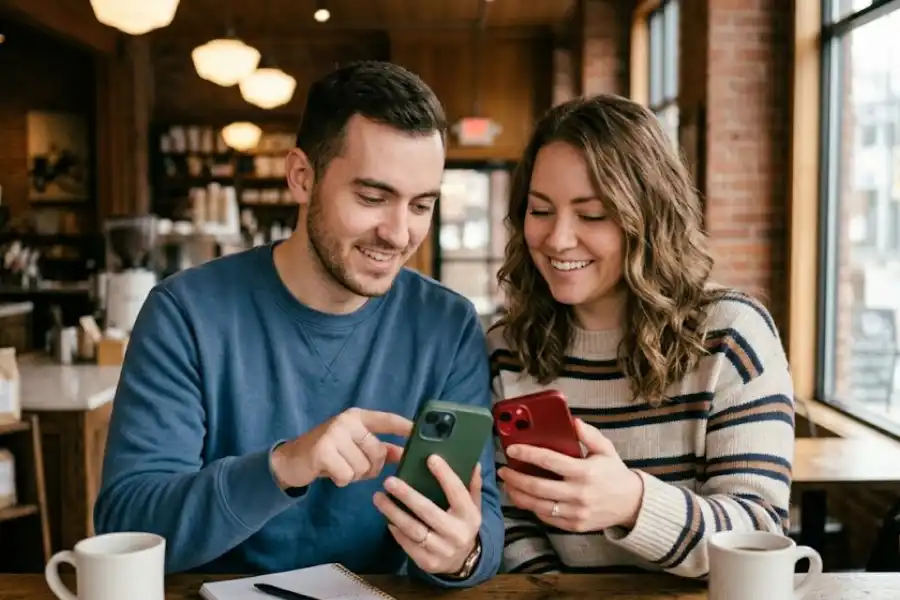
Share Contact Info by Just Holding Phones Together
NameDrop lets two iPhones exchange contact info just by bringing them close together, top to top. A bubble animation appears and you each choose what to share. You can also choose to only receive their info without sharing yours.
Bonus: this also works for sending Apple Cash. No need to open any app.
Use Your iPhone as a Flashlight With a Narrow or Wide Beam
Most people just swipe up and tap the flashlight icon. But if you press and hold the flashlight button in Control Center, a slider appears. Slide up for a wide beam that lights up a room. Slide down for a narrow, focused beam that works better for finding something in a tight space. Small trick, genuinely useful.
Set Up Focus Modes for Work, Sleep, and Personal Time
Do Not Disturb is just one of many Focus modes on your iPhone. You can create completely custom profiles for different parts of your day. Each profile can have its own set of allowed notifications, its own home screen layout, and even its own lock screen wallpaper.
Go to Settings > Focus and tap the plus icon to create a new one. Set one for work that only lets work apps through. Set one for sleep that turns everything off. It changes how peaceful your phone feels.
Use Safari Profiles to Keep Work and Personal Browsing Separate
Safari lets you create separate profiles for work, school, or personal use. Each profile has its own bookmarks, history, tab groups, and extensions. Your work tabs will never mix with your personal ones again.
In Safari, tap the tabs icon at the bottom, then tap the profile name at the top to find or create profiles.
See Voicemail Transcripts in Real Time
Live Voicemail shows you what someone is saying as they leave a voicemail. You can read it in real time like a live caption and decide right then whether you want to pick up the call or let it go to voicemail. Go to Settings > Phone > Live Voicemail and make sure it is turned on.
Frequently Asked Questions
Do I need the latest iPhone to use these features?
Most of these features work on iPhone 11 and newer running iOS 16 or later. A few, like Adaptive Power Mode and the AirPods Camera Remote, require an iPhone 15 Pro or newer with iOS 26 installed. Check your iOS version by going to Settings > General > About.
Will turning on these features drain my battery faster?
Most of them have zero impact on battery life. Sound Recognition and Vehicle Motion Cues use a small amount of processing in the background, but the difference is minimal for most users. Features like Adaptive Power and Optimized Charging are specifically built to help your battery last longer.
Do I need to jailbreak my iPhone to get these features?
No. Every single feature in this list is built into iOS by Apple. No jailbreaking, no third-party apps, and no risk to your warranty or security.
How do I find out which iOS version I am running?
Go to Settings > General > About and look for the iOS Version field. If you are not on the latest version, go to Settings > General > Software Update to update.
What is the single best hidden iPhone feature for most people?
Back Tap is probably the most useful one for everyday life because you can customize it to do almost anything and it works on any iPhone 8 or newer. But if privacy matters most to you, locking your Hidden album with Face ID and turning off app tracking are the ones to set up first.
Final Thoughts
Your iPhone is one of the most powerful pieces of technology you will ever own. But most of its best features are sitting unused inside menus you have probably never opened.
The 25 features in this list are not gimmicks. They are real tools that can make your daily life faster, safer, and a little more comfortable. You do not need to try all of them at once. Start with two or three that caught your attention and go from there.
Once you get used to them, you will wonder how you managed without them for so long.
If you found something useful in this guide, share it with someone who uses an iPhone. There is a good chance they have no idea about half of these features either.