Excel VBA SaveCopyAs Without Macros: One-Click Keyboard Shortcut
You just finished a workbook full of useful macros. Now you need to send a copy to a client, an auditor, or your boss. But the moment they open it, Excel shows a scary warning about macros. Some email systems even block the file before it arrives.
There is a simple fix. You can write one small VBA macro to solve this. It saves a clean copy of your workbook in seconds. Every macro gets stripped out. Then you can turn that macro into a keyboard shortcut. The whole job takes one keystroke instead of ten clicks. This is the kind of quick fix we like sharing on Software Egg.
In this article, you get the full VBA code. You get a keyboard shortcut that works in any workbook. You also get fixes for the most common errors.
Why You Might Need a Macro-Free Copy of Your Workbook
Macros are great for your own use. But not every reader wants them. Some readers are not even allowed to have them.
- Some companies block .xlsm files at the email server. The file never even arrives.
- Clients and auditors often feel safer with a file that has no code inside it.
- SharePoint sites and intranets often turn macros off by policy. A clean file works better there.
- A macro-free copy is smaller and simpler. It is also less likely to trigger antivirus warnings.
Keep two versions of your file. Keep one with macros for you. Keep one without macros for everyone else. This solves all of these problems at once.
Before You Start: Turn On This One Setting
Before the code works, Excel needs your OK first. It needs to let one macro touch another macro’s code. Without this setting, you will see an error. It says something like this: “Programmatic access to Visual Basic Project is not trusted.”
Here is how to turn it on:
- Open Excel and click File, then Options.
- Click Trust Center, then Trust Center Settings.
- Click Macro Settings.
- Check the box that says Trust access to the VBA project object model.
- Click OK twice.
You only need to do this once. It stays on until you change it.
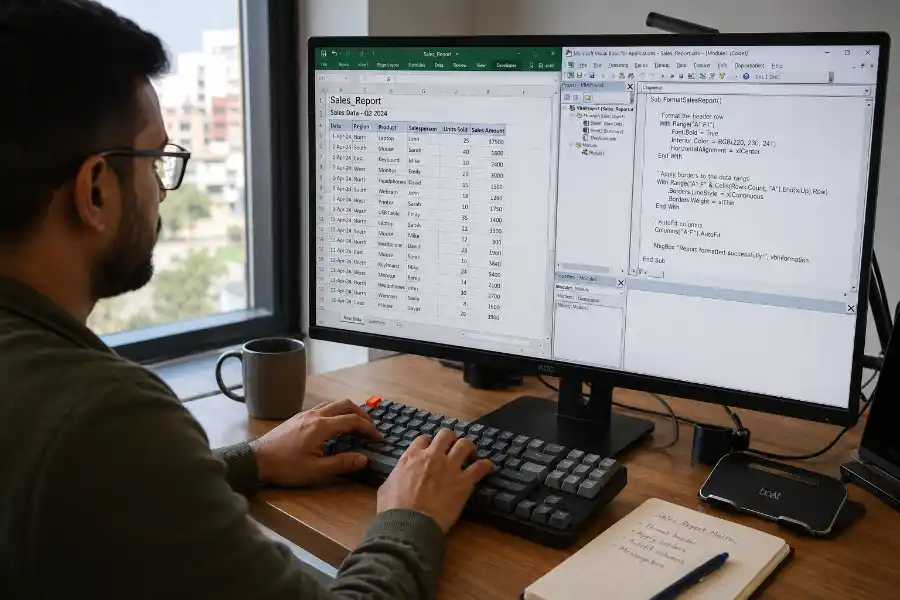
The VBA Code That Saves a Copy Without Macros
Now let’s add the code. Follow these steps:
- Open your workbook. Press Alt and F11 together. This opens the VBA editor.
- Click Insert, then Module.
- Paste the code below into the blank window.
- Press Ctrl and S to save. Then close the editor.
Here is the full code:
Sub SaveCopyWithoutMacros()
Dim wbSource As Workbook
Dim wbCopy As Workbook
Dim tempPath As String
Dim finalPath As String
Dim vbComp As Object
Set wbSource = ActiveWorkbook
tempPath = wbSource.Path & “\TempCopy_” & Format(Now, “yyyymmdd_hhmmss”) & “.xlsm”
finalPath = wbSource.Path & “” & Left(wbSource.Name, InStrRev(wbSource.Name, “.”) – 1) & “_NoMacros.xlsx”
wbSource.SaveCopyAs tempPath
Set wbCopy = Workbooks.Open(tempPath)
For Each vbComp In wbCopy.VBProject.VBComponents
Select Case vbComp.Type
Case 1, 2, 3
wbCopy.VBProject.VBComponents.Remove vbComp
Case Else
vbComp.CodeModule.DeleteLines 1, vbComp.CodeModule.CountOfLines
End Select
Next vbComp
Application.DisplayAlerts = False
wbCopy.SaveAs Filename:=finalPath, FileFormat:=xlOpenXMLWorkbook
Application.DisplayAlerts = True
wbCopy.Close SaveChanges:=False
Kill tempPath
MsgBox “Your macro-free copy is saved here:” & vbCrLf & finalPath, vbInformation, “Done”
End Sub
Save your own workbook as a macro-enabled file. This code needs a home to live in. Your original file keeps its macros. Only the new copy loses them.
What This Code Does, Step by Step
You don’t need to understand every line to use this macro. But it helps to know what’s going on.
- First, it makes a plain copy of your file. It does not touch the file you have open.
- Next, it opens that new copy in the background.
- Then, it goes through every module, class, and userform in the copy. It deletes each one.
- It also clears old code from the sheet and workbook modules.
- It saves the clean copy as a normal .xlsx file. This file type cannot hold macros at all.
- Last, it deletes the temp file. Then it shows you a message when it’s done.
An .xlsx file is not a macro format. Excel will not let any code sneak through, even by accident.
Turn the Macro Into a One-Key Keyboard Shortcut
Typing Alt and F8 every time gets old fast. You can add a real keyboard shortcut in a few short steps:
- Press Alt and F8 to open the Macro window.
- Click on SaveCopyWithoutMacros in the list.
- Click Options.
- In the Shortcut key box, type a letter, such as M.
- Click OK. Then click Cancel to close the Macro window.
Now Ctrl+M runs the macro right away. A capital letter builds a Ctrl+Shift shortcut instead. Type M and you get Ctrl+M. Type Shift+M and you get Ctrl+Shift+M.
One quick tip: pick a shortcut Excel isn’t already using. Ctrl+Shift combos are usually safer. Fewer of them are already taken.
This is a good habit to build. Once you get used to running macros with one key, it’s worth learning Excel’s other Microsoft Excel shortcuts too, along with small time-savers like the shortcut key for inserting a row in Excel. Together, they cut down a lot of mouse clicks.
Make the Shortcut Work in Every Workbook You Open
The steps above only work in the workbook where you saved the macro. Want the same shortcut everywhere? Store the macro in your Personal Macro Workbook instead.
- Go to the View tab. Click Record Macro.
- In the Store Macro In box, choose Personal Macro Workbook. Click OK.
- Click Stop Recording right away. This step makes Excel create that file.
- Press Alt and F11. Find PERSONAL.XLSB in the left panel.
- Insert a new module inside it. Paste the same code from earlier.
- Add a shortcut key the same way as before.
The Personal Macro Workbook opens every time you open Excel. Your shortcut is ready in any file, on any day. No extra setup is needed.
Common Problems and Quick Fixes
- Error 1004 about trusted access: Turn on Trust access to the VBA project object model. The steps are shown earlier in this guide.
- The file won’t open, or Excel says it already exists: Just run the macro again. Each run makes a new time stamp. Old temp files won’t block it.
- Buttons on the sheet show an error when clicked: A button linked to a removed macro will show a “cannot find macro” message. Remove those buttons from the clean copy, or turn them into plain shapes instead.
- The VBA project is locked with a password: Locked code cannot be changed by this macro. Remove the password first. Go to Tools, then VBAProject Properties, then Protection, inside the VBA editor.
Frequently Asked Questions
Does this delete the macros from my original file?
No. Your original workbook stays the same as before. Only the new copy loses its macros.
Can I use this on a Mac?
The core idea works on Mac Excel too. But file paths and some prompts look different. Test it once before you rely on it.
Will my formulas and formatting still work in the clean copy?
Yes. Formulas, formatting, charts, and data all stay the same. Only the VBA code and any linked buttons are affected.
Can I make this run on its own every time I close the file?
Yes. Call this same code from a Workbook_BeforeClose event. A clean copy saves itself each time you finish work. Still, a manual shortcut gives you more control over when it runs.
What if I don’t see the Developer tab?
Right-click any spot on the ribbon. Choose Customize the Ribbon. Check the box next to Developer in the list on the right.
Final Thoughts
A macro-free copy should not take five clicks and a prayer that nothing breaks. With this VBA code and one keyboard shortcut, you get a clean, shareable file in under a second, every time. Set it up once. You will wonder how you shared workbooks without it.
Excel keeps a lot of small surprises like this tucked away, including a genuine hidden game inside Excel most people never stumble onto.