Keyboards With Fn Key: Which Ones Have It and How It Works
You open a new laptop and look at the bottom row. There is a small key marked “Fn,” and nothing tells you what it does.
You are not alone. Many people press it by mistake, and many more never use it at all. Yet this one key controls your volume, your screen brightness, and sometimes even your F1 to F12 row.
Keyboards with Fn key are now the normal choice for laptops and small desk boards. This post shows you which ones have it, where it sits, what it does, and what to do when it stops working. Let’s get started.
What Is the Fn Key on a Keyboard?
Fn is short for “function.” It is a modifier key, just like Shift or Ctrl. On its own, it usually does nothing. You hold it down and press another key, and that second key does a different job.
Makers added it to save space. Small keyboards cannot fit a separate key for every task. So each key got two jobs, and Fn is the switch between them. That is why keyboards with Fn key are often thin, light, and easy to carry.
One thing can trip you up. The Fn key does not work the same way on every brand. Fn plus F5 may dim the screen on one laptop and mute the mic on another. Always check the small icons printed on your own keys.
Which Keyboards With Fn Key Are Most Common?
Most keyboards sold today for laptops and compact setups carry this key. Here are the main types.
Laptop Keyboards
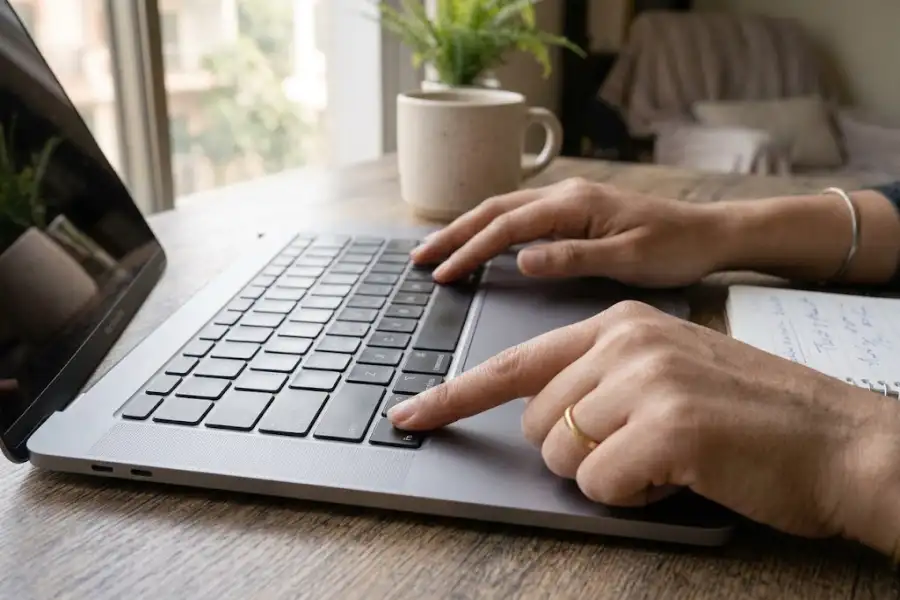
Nearly every Windows laptop from Dell, HP, Lenovo, ASUS, and Acer has an Fn key. MacBooks have one too. On newer Macs, it often shows a small globe icon.
Compact Mechanical Keyboards
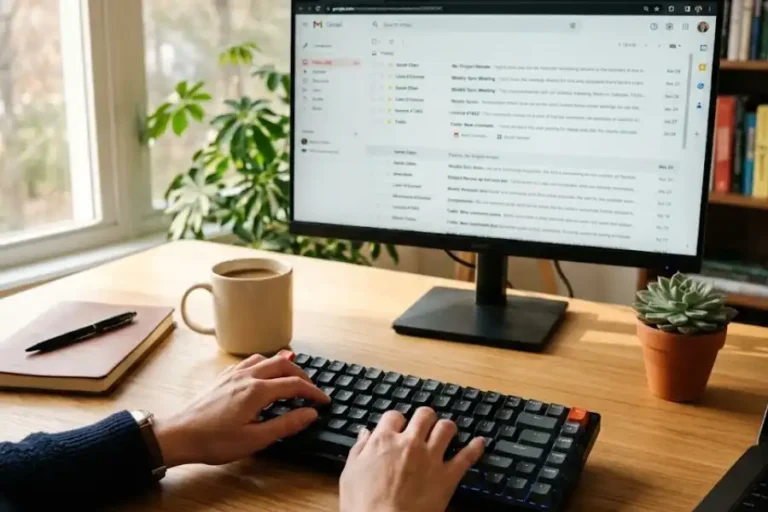
Boards in the 60%, 65%, and 75% sizes drop many keys to save room. The F row, arrow keys, and Home or End keys move behind Fn. Keyboards with Fn key in this group let you type all day and still keep a small desk footprint.
Wireless and Travel Keyboards
Slim Bluetooth keyboards made for tablets and phones also use Fn. It often controls media keys, volume, and device switching.
Gaming Keyboards
Many gaming boards use Fn for lighting modes, profile changes, and macro controls. Some also lock the Windows key with an Fn shortcut, so you do not tap it by mistake in the middle of a match.
Full-Size Desktop Keyboards
Standard full-size keyboards often skip Fn, because they have room for every key. Some multimedia models add an F-Lock key that does a similar job.
Where Is the Fn Key Located?
On most laptops, it sits in the bottom row on the left side. Dell, HP, and Samsung usually place it between the left Ctrl key and the Windows key. Lenovo ThinkPads do it differently. Fn sits in the far left corner, and Ctrl comes next.
On compact keyboards, the position changes by model. Many put Fn on the right side of the space bar, near the arrow keys. Keyboards with Fn key in the 60% size may also have it beside the right Alt or Ctrl key. On a MacBook, look at the bottom left corner.
Here is a simple trick. Look for icons printed in a second color on your keys, often blue. Those are the jobs you get when you hold Fn.
What Does the Fn Key Do?
Keyboards with Fn key share a few common jobs, though the list depends on the model. These shortcuts show up most often:
- Raise or lower screen brightness
- Raise, lower, or mute the volume
- Play, pause, or skip a song
- Turn the keyboard backlight on or off
- Switch airplane mode or Wi-Fi on or off
- Turn the touchpad on or off
- Put the computer to sleep
- Send the screen to a second display
Brightness shortcuts change your laptop screen only. They usually do not change an external monitor.
On compact boards, Fn also brings back missing keys. Fn plus a number key often gives you F1 to F12. Fn plus the I, J, K, and L keys can work as arrows on some layouts. Check your manual for the map.
How Do You Use the Fn Key?
It takes only a few seconds once you know the steps:
- Find the Fn key on the bottom row.
- Look at the top row for small icons, such as a sun or a speaker.
- Press and hold Fn.
- Tap the key with the icon you want.
- Let go of both keys.
Some keyboards light up the Fn key when it is on. Others print “fn” in two colors and match each color to a different set of shortcuts. Keyboards with Fn key made for gamers often use this color system.
What Is Fn Lock and How Do You Turn It On?
Fn Lock flips the top row. With it off, the top row keys do their icon job, like changing volume. With it on, they act as plain F1 to F12 keys.
Which one is better depends on your work. People who use Excel, coding tools, or games often want plain F keys. People who watch videos or take calls may like the media keys more. Many keyboards with Fn key come with a lock option, so you can pick what suits you.
These are the common ways to switch it:
- Press Fn and Esc together. Many Dell and Lenovo laptops use this shortcut.
- Look for a key marked FnLk, often with a small padlock icon.
- Open the BIOS or UEFI setup. Dell calls the setting Function Key Behavior, and HP calls it Action Keys Mode.
- On a Mac, open System Settings, go to Keyboard, then Keyboard Shortcuts, then Function Keys. Turn on the option to use F1, F2, and other keys as standard function keys.
Menus change by model, so the support page for your own keyboard has the final word.
Fn Key on Mac and Chromebook
Mac: On MacBooks and Apple’s Magic Keyboard, the Fn key is in the bottom left corner. On newer models, it may show a globe icon. Pressing it can open the emoji picker or switch your input language, based on your settings. Fn plus Delete works as a forward delete. Fn plus the arrow keys gives you Home, End, Page Up, and Page Down. For more key combos, see these Mac keyboard shortcuts.
Chromebook: Most Chromebooks do not have an Fn key at all. The top row works as action keys by default. To reach F1 to F12, you press the Search key with a number key. You can find more shortcuts in our post on Chromebook keyboard shortcuts.
How to Choose the Right Keyboards With Fn Key
Before you buy, check these points:
- Match your system. Look for a Windows layout, a Mac layout, or a switch that covers both.
- Check for Fn Lock. A quick toggle saves time every day.
- Look at the Fn position. If it sits too close to the space bar, you may press it by mistake.
- Read about software. Some brands offer an app that lets you change what each Fn combo does.
- Think about size. A 75% board keeps the arrows and F keys but still saves space.
- Check the labels. Clear icons on the keys make the shortcuts easy to remember.
Good keyboards with Fn key list their shortcuts in the box or on the maker’s site. If you cannot find a shortcut list, skip that model.
What to Do When the Fn Key Is Not Working
Even the best keyboards with Fn key can act up. Try these fixes in order:
- Check Fn Lock. This is the most common cause. Toggle it with Fn plus Esc or the FnLk key.
- Restart the computer. A quick restart clears small glitches.
- Check the mode switch. External keyboards often have a Windows and Mac switch. The wrong mode can mix up the top row.
- Install the hotkey app. Many laptop makers use a small app to run Fn shortcuts. Without it, brightness and volume keys may stop working after you reinstall Windows.
- Update drivers and BIOS. Use the support page for your exact model.
- Clean the keys. Dust and crumbs can block a key press. Our post on how to clean keyboard keys shows a safe way to do it.
- Test somewhere else. Try the key on another computer or on the BIOS screen. If it fails everywhere, the key or the board may be damaged.
If more than the Fn key is acting up, read our post on some keys on keyboard not working for more fixes.
Frequently Asked Questions
Do all keyboards have an Fn key?
No. Many full-size desktop keyboards and most Chromebooks skip it. Keyboards with Fn key are most common where space is tight, like laptops and compact boards.
Can I use an Fn key on a desktop PC?
Yes. Pick a compact or laptop-style external keyboard. Media keys usually work. Brightness keys may do nothing, because a desktop monitor often does not take that command from the keyboard.
Can I change what the Fn key does?
On some keyboards, yes. Many compact and gaming keyboards come with software for remapping. On most laptops, the Fn key is handled by the hardware, so you can only change the Fn Lock setting. Mac lets you change what the Fn or Globe key does in the Keyboard settings.
How do I turn off Fn Lock?
Press Fn and Esc together, or press the FnLk key. If neither works, check the BIOS or the maker’s support page.
Is the Fn key the same as the F1 to F12 keys?
No. The F keys are the row at the top. Fn is the helper key that changes what they do.
Final Thoughts
The Fn key looks small, but it controls a lot. Once you know where it sits and how Fn Lock works, your keyboard feels much easier to use. When you shop for keyboards with Fn key, check the layout, the lock option, and the shortcut list. If you already own one, a few simple checks fix most problems.