
Chrome Dino Game Cheats: Invincibility, Speed Hack & High Score (2026)
You know that little T-Rex dinosaur that shows up when your internet goes out in Google Chrome? That is the Chrome Dino Game, and yes, you can cheat in it.
With a few simple commands typed into Chrome’s developer console, you can make the dinosaur walk through every cactus without dying, run at any speed you want, jump way higher than normal, or even set your score to 99,999 right away. No downloads. No extensions. Nothing to install.
I have tested every single cheat listed in this article on Google Chrome version 120+ (and on Brave Browser too). Each one works as of 2026. Below, you will find the exact commands, step-by-step instructions, real gameplay tips, and some fun Easter eggs most people have never seen.
What Is the Chrome Dino Game?
The Chrome Dino Game (also called the T-Rex Runner or the Dinosaur Game) is a free endless runner game that comes pre-loaded inside the Google Chrome web browser. It was created by Google’s Chrome UX team, specifically by designers Alan Bettes, Edward Jung, and Sebastien Gabriel. Google first added it to Chrome in September 2014 with the release of Chrome version 38.
The game was designed to give users something fun to do when their internet connection drops. When Chrome cannot load a webpage, it shows a small pixelated T-Rex dinosaur on the screen. You press Spacebar, and the dinosaur starts running through a desert. Your job is to jump over cactuses and duck under flying pterodactyls. The longer you survive, the faster the game gets.
During development, the project was codenamed “Project Bolan” after Marc Bolan, the lead singer of the 1970s glam rock band T. Rex.
One more fun detail: Google designed the game so that it would take roughly 17 million years of nonstop playing to reach the maximum score. That number matches how long the real Tyrannosaurus Rex species existed on Earth before going extinct.
How Do You Open the Chrome Dino Game?
You can open the Chrome Dino Game in two ways. You do not need to turn off your Wi-Fi.
Method 1: Type the Address
- Open Google Chrome on your computer.
- Click the address bar at the top.
- Type
chrome://dinoand press Enter. - Press Spacebar to start playing.
This method works whether your internet is on or off.
Method 2: Disconnect from the Internet
- Turn off your Wi-Fi or unplug your ethernet cable.
- Open Chrome and try to visit any website.
- Chrome will show the “No Internet” error page with a small dinosaur on it.
- Press Spacebar to start the game.
How Do You Open the Developer Console in Chrome?
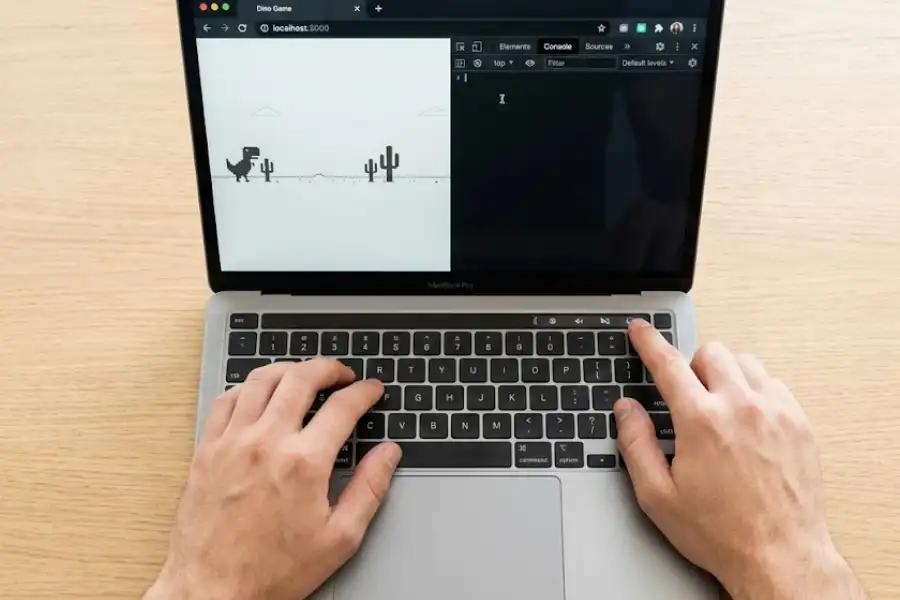
Every cheat in this article requires you to type a command into Chrome’s developer console. The developer console is a tool that comes with Google Chrome. Web developers use it to test and debug code, but anyone can open it. Here is how:
- First, open the Chrome Dino Game using one of the two methods above.
- Press Spacebar to start the game (the cheats will not work until the game is running).
- Now press F12 on your keyboard. On Windows, you can also press Ctrl + Shift + I. On Mac, press Cmd + Option + I.
- A panel will appear on the right side (or bottom) of your screen. Look for a tab labeled “Console” at the top of that panel and click it.
- You will see a blinking cursor. That is where you type or paste the cheat commands.
- After typing each command, press Enter to run it.
That is all you need. Once the Console is open, you are ready to enter any cheat from the list below.
How Do You Become Invincible in the Chrome Dino Game?
To become invincible (God Mode), you override the game’s “game over” function so the dinosaur never dies, even when it hits an obstacle. This is the most popular Chrome Dino cheat and it works on every version of Chrome.
Step-by-Step Instructions
- Open the developer console (see instructions above).
- First, save the original game-over function so you can restore it later. Paste this line and press Enter:
var original = Runner.prototype.gameOver;- Now, turn off the game-over function. Paste this line and press Enter:
Runner.prototype.gameOver = function(){};- Close the Console panel and keep playing. Your T-Rex will now pass through every cactus and pterodactyl without the game ending.
How Do You Turn Off Invincibility?
When you want to go back to normal, open the Console again and paste this command:
Runner.prototype.gameOver = original;If you forgot to save the original function in Step 2, just refresh the page. That resets the game to its normal state.
How Do You Change the Speed of the Chrome Dino Game?
You can set the dinosaur’s running speed to any number. A lower number makes it slower (easier to react), and a higher number makes it faster (harder or just silly fun).
Step-by-Step Instructions
- Open the developer console.
- Paste this command and press Enter:
Runner.instance_.setSpeed(100);- Replace
100with any speed number you prefer.
What Do Different Speed Values Do?
| Speed Value | What It Does |
|---|---|
| 1 to 3 | Very slow. Good for practice or beginners. |
| 6 | The default starting speed of the game. |
| 20 to 50 | Fast. Requires quick reflexes to survive. |
| 100 or higher | Extremely fast. Nearly impossible to play without invincibility on. |
| Negative number (e.g., -5) | The dinosaur runs backward. This is just for fun. |
How Do You Make the Dino Jump Higher?
By default, the dino’s jump is just tall enough to clear most cactuses. You can increase the jump height so the dinosaur flies high above the screen, clearing every obstacle easily.
Step-by-Step Instructions
- Open the developer console.
- Paste this command and press Enter:
Runner.instance_.tRex.setJumpVelocity(30);- The bigger the number, the higher the jump. A value of 10 is about normal. Setting it to 30 or 50 sends the dinosaur way above the visible screen for a few seconds.
One thing to watch out for: If you set the jump too high, the dino takes a long time to come back down. While it is up in the air, you cannot control when it lands. That can cause problems if two obstacles are close together.
Can You Set Your Own Score in the Chrome Dino Game?
Yes, you can manually set your score to any number up to 99,999.
Step-by-Step Instructions
- Open the developer console.
- Paste this command and press Enter (replace
99999with whatever score you want):
Runner.instance_.distanceRan = 99999 / Runner.instance_.distanceMeter.config.COEFFICIENT;- The score counter will immediately jump to the number you typed.
Important: If you hit an obstacle and die, the score resets. To keep your fake score running, use this cheat together with the invincibility cheat from above.
How Do You Make the Dino Float Above Everything?
This cheat lifts the dinosaur off the ground so it hovers above all obstacles. You do not even need to press the jump button.
Step-by-Step Instructions
- Open the developer console.
- Paste this command and press Enter:
Runner.instance_.tRex.groundYPosition = 0;The dino will now float near the top of the game screen. If you want it a bit lower, change 0 to a bigger number like 50 or 100.
Keep in mind: Even while floating, a pterodactyl at the right height can still end your game. For full protection, turn on the invincibility cheat as well.
How Do You Remove All Obstacles from the Game?
This cheat clears every cactus and pterodactyl from the screen. The dinosaur just runs through a completely empty desert with nothing in the way.
Step-by-Step Instructions
- Open the developer console.
- Paste this command and press Enter:
Runner.instance_.horizon.obstacles = [];The screen will clear out right away. New obstacles might start spawning again after a few seconds, so you may need to run this command more than once. Pairing it with the invincibility cheat gives you a worry-free run.
Quick Reference: All Chrome Dino Game Cheat Codes
Here is every cheat command in one table. Open your Console, copy the command you need, paste it in, and press Enter.
| What It Does | Console Command |
|---|---|
| Save original game-over (do this first) | var original = Runner.prototype.gameOver; |
| Turn on invincibility | Runner.prototype.gameOver = function(){}; |
| Turn off invincibility | Runner.prototype.gameOver = original; |
| Change running speed | Runner.instance_.setSpeed(100); |
| Make the dino jump higher | Runner.instance_.tRex.setJumpVelocity(30); |
| Set your score | Runner.instance_.distanceRan = 99999 / Runner.instance_.distanceMeter.config.COEFFICIENT; |
| Float above the ground | Runner.instance_.tRex.groundYPosition = 0; |
| Remove all obstacles | Runner.instance_.horizon.obstacles = []; |
You can use more than one cheat at the same time. Just enter each command one after another in the Console.
How Do You Get a High Score Without Cheating?
If you want a legit high score, these six tips will help you last longer and react faster. I have used all of these while testing the game, and each one makes a noticeable difference.

1. Keep Your Eyes Ahead of the Dino
Most players watch the dinosaur itself. That is a mistake. Instead, look a couple of inches ahead on the screen. This gives your brain more time to spot an obstacle and react before it reaches you.
2. Tap Spacebar Quickly for Short Jumps
A quick tap gives the dino a short hop. That is all you need for single cactuses. Hold Spacebar longer only when you see a group of tall cactuses that require a bigger jump.
3. Duck Under Pterodactyls Instead of Jumping Over Them
When a pterodactyl flies toward you at head height, press the Down Arrow key to duck. Trying to jump over a pterodactyl is risky because they show up at different heights and you can easily jump right into one.
4. Stay Calm Around 500 Points
At the 500-point mark, two things happen at once: pterodactyls start appearing, and the game speeds up. This is where many players panic and start pressing keys too fast. Stay steady and keep your taps controlled.
5. Press Down Arrow Mid-Jump to Land Faster
This is a trick a lot of players do not know about. If you press the Down Arrow while the dinosaur is in the air, it drops back to the ground faster. This is very helpful when two obstacles appear close together and you need to jump again immediately after landing.
6. Get Ready for the Day-Night Color Switch
Every 700 points, the game screen changes color. It goes from a light background to a dark background (or the other way around). The first time this happens, it can surprise you and break your focus. Knowing it is coming helps you stay in control.
What Easter Eggs Are in the Chrome Dino Game?
Google has added a few surprise Easter eggs to the Dino Game over the years. Most players have never seen these because they were tied to specific events.
The Birthday Hat (2018)
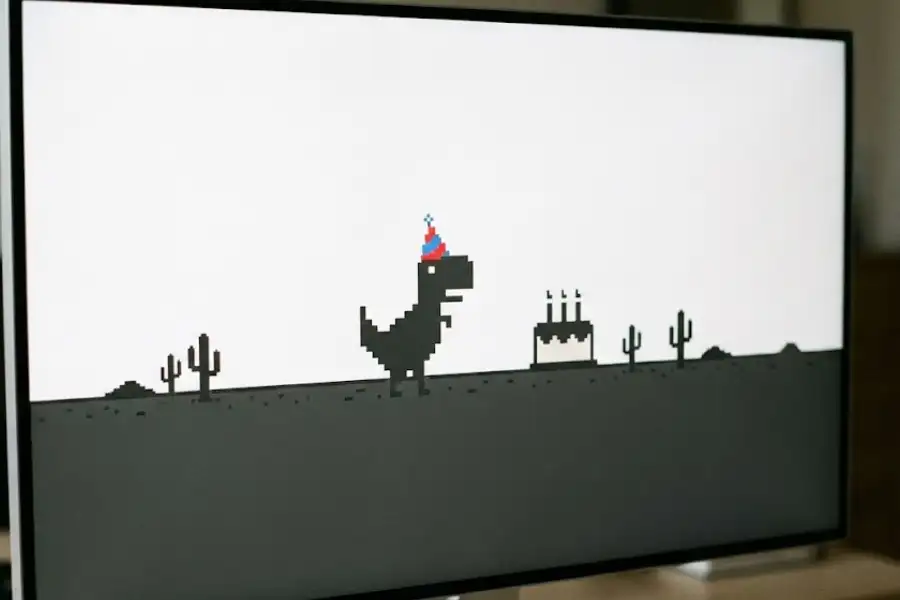
In September 2018, Google celebrated the 10th anniversary of the Chrome browser by placing a small birthday cake in the game. If the dinosaur ran through the cake, it would put on a tiny party hat for the rest of the run. This was a limited-time event, but some older cached versions of Chrome may still show it.
The Olympic Torch (2020)
In July 2020, Google added an Olympic torch to the game in honor of the Tokyo Olympics. When the dinosaur picked up the torch, the entire game theme changed. The background, obstacles, and animations switched to represent different Olympic sports like swimming, gymnastics, and surfing.
The 17-Million-Year Score Limit
The maximum score the counter can display is 99,999 (or 999,999 in some newer versions of Chrome), after which it resets to zero. Google designed the game’s speed progression so that reaching the max score would take about 17 million years of continuous play. This is a tribute to the estimated lifespan of the Tyrannosaurus Rex species on Earth.
Does the Chrome Dino Game Work on Other Browsers?
The original Chrome Dino Game is made by Google specifically for the Chrome browser. However, some other browsers based on the same Chromium engine also include it. Here is a breakdown:
| Browser | Can You Play the Dino Game? | How to Open It |
|---|---|---|
| Google Chrome | Yes | Type chrome://dino in the address bar |
| Brave Browser | Yes | Type brave://dino or chrome://dino |
| Microsoft Edge | No (Edge has a different game) | Edge has its own offline game called the Microsoft Edge Surf Easter Egg. Type edge://surf to try it. |
| Mozilla Firefox | No (not included) | You can play clones on sites like ChromeDino.com |
| Apple Safari | No (not included) | You can play clones on sites like NoInternetGame.com |
All of the console cheats in this article will also work in Brave Browser because Brave uses the same Chromium engine as Chrome. The cheats will not work in Edge’s Surf game or in any online clone versions of the Dino Game.
Do Chrome Dino Game Cheats Work on Phones?
No, these cheats do not work directly on phones or tablets. The Chrome Dino Game does run on Android and iOS when you lose your internet connection, but mobile versions of Chrome do not give you access to a developer console. If you are looking for a hidden game that actually works on your phone, you should try the Android 13 Easter Egg Bubbles instead.
There is one workaround, but it is not simple. You can connect your Android phone to a desktop computer using a USB cable and use Chrome’s remote debugging feature to access the mobile browser’s console from your computer. This is more of a developer tool and not something most casual players would want to set up.
For the vast majority of players, the Chrome Dino cheats are something you can only use on a desktop or laptop computer.
Is It Safe to Use Chrome Dino Game Cheats?
Yes, completely safe. You are not installing anything, downloading anything, or modifying any files on your computer. You are simply typing JavaScript commands into Chrome’s own developer console, which is a standard tool that ships with every copy of Google Chrome.
The commands only affect the game running in that one browser tab. The moment you refresh the page or close Chrome, everything goes back to normal.
Google will not ban you or flag your account. The Chrome Dino Game is a single-player offline game with no leaderboards, no login, and no server connection. There is nothing to report and no one tracking your score.
What Does “Runner Is Not Defined” Mean?
If you see the error message Uncaught ReferenceError: Runner is not defined in the Console, it means the game has not started yet. The Runner object is created by the game’s code and it only loads after you press Spacebar to begin playing.
How to fix it: Close the Console, press Spacebar to start the game, then reopen the Console and try your cheat command again. It will work once the game is running.
What Is the Highest Possible Score in the Chrome Dino Game?
The score counter maxes out at 99,999 in most versions of Chrome. When it hits that number, it rolls back to zero and starts counting again. Some newer builds of Chrome have extended this limit to 999,999.
There is no official world record for the Chrome Dino Game. Because the game can be so easily modified through the developer console, any claimed score above a few thousand points is hard to verify. Competitive gaming communities generally do not recognize Chrome Dino scores as legitimate records.
Frequently Asked Questions
How do you cheat in the Chrome Dino Game?
Open the game by typing chrome://dino in Chrome, press Spacebar to start, then press F12 to open the developer console. Click the Console tab and paste any cheat command. For example, Runner.prototype.gameOver = function(){}; makes you invincible.
Can you use multiple cheats at the same time?
Yes. You can enter as many cheat commands as you want in the same session. For example, you can turn on invincibility, increase the speed, and raise the jump height all at once by entering each command one after the other.
Do Chrome Dino cheats work on Chromebooks?
Yes. Chromebooks run Chrome OS, which includes the same version of Google Chrome with the same developer console. All of the cheats in this article work the same way on a Chromebook.
Can you play the Chrome Dino Game while you are online?
Yes. Type chrome://dino in the address bar and press Enter. The game will load even if your internet is working perfectly fine.
Does refreshing the page remove all cheats?
Yes. Refreshing the page reloads the game from scratch, and every cheat resets to default. You will need to re-enter your cheat commands after any page refresh.