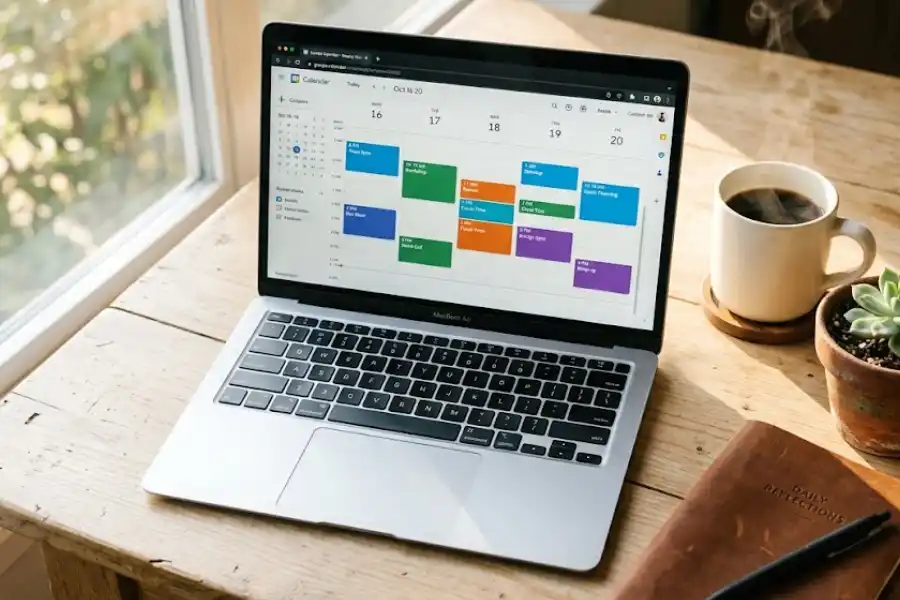
21 Google Calendar Tips and Tricks to Save Hours Every Week
Most people use Google Calendar like a basic to-do list. They add events. They check the date. That’s it.
But here’s the thing. Google Calendar is packed with little features that can save you hours every week. I’ve used this tool every single day for the last eight years, both for my work and my family life. Along the way, I’ve found tricks that changed the way I plan my days.
This article will show you 21 of the best ones. Some are simple. Some are tucked away in the settings like a perfect software egg. All of them are tested and useful. By the end, you’ll be using Google Calendar like a pro.
Let’s get into it.
First, Turn On Keyboard Shortcuts (This Is the Big One)
Before we start, do this one thing. It will make every other tip work better.
Go to Google Calendar on your computer. Click the gear icon in the top right. Pick Settings. Scroll down to the part that says Keyboard shortcuts. Turn it on. Hit Save.
Now you can press a single key to do almost anything. No more clicking around for ten seconds just to switch views. This one change saves me about 15 minutes a day.
21 Google Calendar Tips and Tricks You’ll Use Right Away
1. Type “cal.new” to Create an Event From Anywhere
This is my favorite trick of all time. Open any browser tab. Type cal.new in the address bar. Hit enter.
Boom. A new event window opens right away. You don’t even need to be on the calendar page. It works from Gmail, YouTube, or any other site, perfect if you are busy mastering Outlook keyboard shortcuts and need to add a quick meeting without switching apps. Try it once, and you’ll never go back.
2. Press “T” to Jump Back to Today
Ever scroll three months ahead and forget how to get back? Just press the letter T on your keyboard. It stands for “today.” Your calendar will jump right back to the current date.
3. Use Quick Add to Type Events Like You Talk
You don’t need to fill out a form to add an event. Press the letter Q on your keyboard. A small box pops up. Now type something like:
Lunch with Sarah at 1pm Thursday at Joe’s Pizza
Google Calendar will read that whole sentence. It will set the right time, the right day, and even add the location. It feels like magic the first time you try it.
4. Color-Code Different Parts of Your Life
Mixing work meetings with kid pickups and gym times gets messy fast. Pick one color for work, one for family, and one for personal stuff.
To do it, click on any event. Tap the colored circle. Pick a new color. Now your week becomes easy to read at a glance. You’ll see your day’s mood in just a few seconds.
5. Make Separate Calendars for Different Areas
One step beyond colors is making whole new calendars. I have one for work, one for my family, and one for workouts.
On the left side of the page, find Other calendars. Click the plus sign next to it. Pick Create new calendar. Give it a name. You can turn each calendar on or off with one click. So when you want a clean view of just work, you can hide the rest.
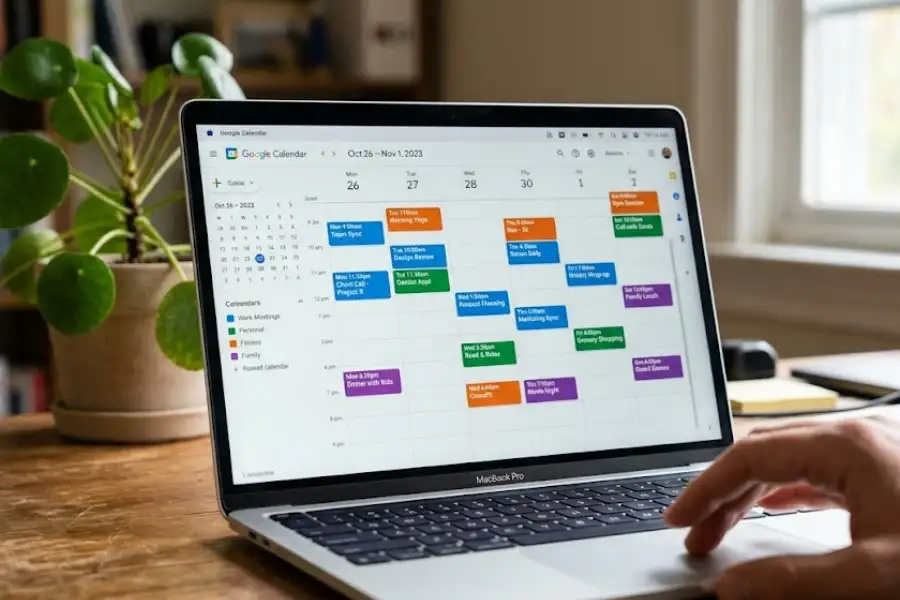
6. Schedule “Focus Time” to Protect Your Best Hours
This one is gold for anyone who has a job. Click on a time slot to make a new event. At the top, you’ll see a small option called Focus time. Pick it.
Now Google will turn on Do Not Disturb during that block. It can also turn down meeting invites that try to land in your focus window. If you want the full setup details, Google’s help page on focus time walks you through every option. Note that this feature only works on Google Workspace work or school accounts. If you don’t see it, that’s why.
7. Set Your Working Hours So Nobody Books You at 9 PM
Tired of getting meeting invites at weird times? Set your working hours.
Go to Settings. Find Working hours and location. Pick the days and times when you work. Now if a coworker tries to book you at 7 AM on a Sunday, Google will warn them. There’s even a setting to auto-decline meetings outside those hours. That’s a peaceful weekend right there.
8. Get a Daily Agenda Sent to Your Email Each Morning
Want to wake up and see your day in your inbox? Easy.
Go to Settings. On the left, click your calendar’s name. Scroll to Other notifications. Find the Daily agenda line. Switch it from None to Email.
Every morning at 5 AM, Google will send your full schedule for the day. I drink my coffee while reading mine. Best small habit I’ve built.
9. Use Out of Office to Auto-Decline Meetings on Vacation
Going on a trip? Don’t just hope your boss remembers.
Click on the day you’ll be gone. Pick Out of office. Set the dates. Now any meeting invite that lands during that time will get a polite “no thanks” with your custom message. You won’t even need to lift a finger.
10. Drag and Drop to Move Events Around
If you want to push a meeting to next Tuesday, don’t open it and edit the time. Just click it and drag it to the new spot. You can also click the bottom edge of any event and pull it down to make it longer. Quick and easy.
11. Hide Personal Events From Coworkers on a Shared Calendar
Have a doctor’s appointment but don’t want your team to see the details? Open the event. Click the visibility setting. Pick Private.
Now your boss will only see “Busy” in that slot. Your secret is safe. This is one of the most useful Google Calendar tips for anyone with a shared work calendar.
12. Attach Files Right to Your Events
Going into a meeting and need the agenda? Attach it to the event itself.
When you create or edit an event, look for the paperclip icon. Click it. Add a Google Doc, a PDF, or any file. Now everyone invited can pull up the file with one tap. No more digging through email.
13. Set Up an Appointment Booking Page
Want clients or friends to book time with you without 20 emails back and forth? Click Create. Pick Appointment schedule.
Set your hours. Pick how long each meeting should last. Google gives you a link. Share that link with anyone. They pick a slot, and it lands on your calendar right away. Free Google accounts get one booking page. Workspace plans give you more.
14. Add a World Clock for Other Time Zones
If you work with people in other countries, this saves you from math headaches.
Go to Settings. Find World clock. Turn it on. Add the cities you care about. Now you’ll see those times right on the side of your screen. No more “wait, is it Tuesday in Tokyo yet?”
15. Use Search Filters to Find Any Old Event
Trying to remember when you met that one client last spring? Click the magnifying glass at the top. Then click the small arrow to open more filter options.
You can search by keyword, who was there, the location, or the date range. Most people don’t even know this feature exists. It’s a real time saver.
16. Add Events Straight From Gmail
Got a confirmation email for a flight or a dinner? Google often pulls those events right into your calendar. But you can also do it by hand.
Open the email. Click the three dots at the top. Pick Create event. Gmail fills in the title and details for you. One click and it’s saved.
17. Pinch to Zoom on Android
Here’s a hidden one for the mobile app. Open the Google Calendar app on your Android phone. Pick day, three-day, or week view.
Now place two fingers on the screen and pinch them apart. The view zooms in and shows more detail. Pinch them together to zoom out. It’s a small thing, but it makes packed days much easier to read.
18. Set Default Reminders You Don’t Have to Re-Add
Tired of adding the same 15-minute reminder to every meeting? Go to Settings. Click your calendar’s name. Scroll to Event notifications.
Set your default. Now every new event will already have that reminder set for you. You’ll never miss a meeting because you forgot to set a ping again.
19. Make a Custom 4-Day or 5-Day View
The standard views are day, week, and month. But you can build your own. Go to Settings, then View options. Find Set custom view.
Pick anything from 2 to 7 days, or 2 to 4 weeks. I use a 4-day view because Monday to Thursday is when most of my work happens. It feels just right.
20. Check Time Insights to See Where Your Hours Go
This one is for Workspace users, and it’s eye-opening. On the left side of the calendar, look for Time Insights. Click it.
Google will show you how much time you spent in meetings this week. It also breaks it down by who you spent that time with. The first time I checked mine, I saw I had 22 hours of meetings in one week. That data pushed me to fix my schedule.
21. Use the Family Calendar (It’s Already Made for You)
If you set up a Google Family Group, Google quietly makes a shared calendar called Family. Everyone in your group can see it and add to it. Use it for soccer games, school events, or weekend plans. No setup needed. It just works.
Common Mistakes People Make With Google Calendar
Even with all these tips, I see folks slip up in the same ways. Here are the big ones to avoid.
- Putting everything on one calendar. If your dentist visit, work meeting, and gym session all sit on the same calendar, your week looks like a wall of color. Split them up.
- Skipping reminders. A calendar event with no reminder is just a wish. Always set one.
- Not blocking lunch. If you don’t put it on the calendar, someone will book over it. Trust me.
- Ignoring time zones. If you book a 10 AM call but your client lives in London, you might just miss it. Always check the time zone field when adding new events.
- Forgetting to share. If your spouse or team can’t see your calendar, you’ll keep planning over each other. Share it with the right people.
Frequently Asked Questions
Is Google Calendar free to use?
Yes. Anyone with a Google account can use it for free. Some extra tools, like booking pages with Stripe payments and Time Insights, need a paid Google Workspace plan.
Can I use Google Calendar without Gmail?
You’ll need a Google account, but it can be linked to any email. You don’t have to use Gmail every day. The calendar will still work fine.
How do I sync Google Calendar with my iPhone?
Open the Settings app on your iPhone. Pick Mail, then Accounts. Add your Google account. Make sure Calendar is turned on. Your events will show up in the iPhone’s own Calendar app. You can also just download the Google Calendar app from the App Store.
Can other people see my Google Calendar?
Only if you share it with them. By default, your calendar is private. You decide what to share and how much. You can share it as “see only free or busy” or as full event details.
What’s the difference between focus time and a regular event?
A focus time event turns on Do Not Disturb. It can also turn down meeting invites that try to land in that window. A normal event just shows up on your calendar but doesn’t block anything.
Can I get a printed copy of my Google Calendar?
Yes. Click the gear icon, then pick Print. You can choose the date range and the layout. It’s great for putting on the fridge or sticking on the wall.
How do I add a Zoom link to a Google Calendar event?
You can install the Zoom add-on from the Google Workspace Marketplace. Once it’s added, you’ll see a Zoom button when you create new events. One click and the link is added.
Final Thoughts
Google Calendar can be a basic date book. Or it can be the brain of your whole week. The choice is yours.
You don’t need to use all 21 tips today. Pick three. Try them this week. See which ones stick. The keyboard shortcuts and cal.new trick alone will save you a couple of hours over the next month.
The thing I love about Google Calendar is how small changes add up. Color-coding your life takes five minutes. Setting working hours takes two. But those small choices shape how every day feels. They give you back time. They lower stress. They help you focus on what matters.
Open Google Calendar right now. Pick one tip from this list. Try it before you close this tab. That’s how real change starts.
Your future self, the one with two extra hours in their week, will thank you.