Outlook Keyboard Shortcuts: 50+ Keys for a Faster Inbox
Quick question: How many times do you click your mouse in Outlook every day? Hundreds? Thousands?
Most of us don’t even notice. We click to open. We click to reply. We click to delete. We click to switch to the calendar. Then we do it all again the next day.
Here is the truth. Each click takes about 2 seconds. That sounds tiny. But in a busy inbox, it adds up to 30 or 45 minutes a day. That number is not made up. Research from McKinsey shows the average knowledge worker spends about 28% of the workweek on email alone.
Just like mastering microsoft excel shortcuts, these email keyboard shortcuts fix that. They turn five clicks into one quick keystroke. You stop reaching for your mouse. Your hands stay on the keyboard. And you fly through your inbox.
This article covers the most useful Outlook keyboard shortcuts for Windows, Mac, and the web version. I will not throw 200 shortcuts at you. I have used Outlook for years across three jobs and many busy inboxes. I picked only the ones that real people use every single day.
Let’s get into it.
First, Check Which Outlook You Are Using
This part matters. Outlook has more than one version. The shortcuts are slightly different in each one.
You may be using:
- New Outlook for Windows: The newer, simpler look. It has a Settings gear icon at the top right.
- Classic Outlook for Windows: The older, full app. It has the big blue File menu and a wide ribbon.
- Outlook on the Web (or Outlook.com): The version you open in a browser like Chrome or Edge.
- Outlook for Mac: The Apple version with slightly different keys.
Most shortcuts in this guide work in all of them. When a shortcut is different, I will tell you. This is the one thing most other guides skip, and it is the main reason people think a shortcut “does not work.”
The Starter Pack: 10 Outlook Shortcuts to Learn First
If you only learn 10 shortcuts, make it these. They cover about 80% of what you do in Outlook every day.
- Ctrl + N: Start a new email.
- Ctrl + R: Reply to the email you are reading.
- Ctrl + Shift + R: Reply to everyone (Reply All).
- Ctrl + F: Forward the email to someone else.
- Ctrl + Enter: Send the email you just wrote.
- Delete: Send the selected email to trash.
- Ctrl + 1: Jump to your Mail.
- Ctrl + 2: Jump to your Calendar.
- Ctrl + E: Open the search box.
- Esc: Close the open email or window.
Try just these for one week. You will feel the difference fast.
Quick tip: On a Mac, swap Ctrl for the Command key (⌘) in most cases. So Ctrl + R becomes ⌘ + R.
Email Shortcuts: Read, Reply, and Send Faster
This is where most of your time goes. These shortcuts cut that time in half.
Reading and Opening Emails
- Enter or Ctrl + O: Open the selected email in its own window.
- Spacebar: Scroll down in a long email.
- Shift + Spacebar: Scroll back up.
- Ctrl + . (period): Go to the next email.
- Ctrl + , (comma): Go to the previous email.
- Ctrl + U: Mark an email as unread.
- Ctrl + Q: Mark an email as read.
Writing and Sending Emails
- Ctrl + N: New email (when you are in the mail view).
- Ctrl + Shift + M: New email from anywhere in Outlook.
- Ctrl + R: Reply.
- Ctrl + Shift + R: Reply All.
- Ctrl + F: Forward (in Classic Outlook). In some newer versions you may need to use the Forward button or set the shortcut style to “Outlook.”
- Alt + S or Ctrl + Enter: Send the email.
- Ctrl + S: Save the draft without sending.
- Ctrl + K: Insert a hyperlink, or check the names of your recipients.
One I love is Ctrl + Shift + M. You can be looking at your calendar or contacts and still start a new email in one tap. No need to click back to mail first.
Inbox Management Shortcuts
A clean inbox feels great. These shortcuts help you sort, file, and clean fast.
- Delete: Move the email to Deleted Items.
- Shift + Delete: Delete it for good (skip the trash).
- Ctrl + D: Delete in some Outlook versions, including the web.
- Ctrl + Shift + V: Move the email to a folder.
- Insert key: Flag an email for follow-up.
- Ctrl + Shift + G: Open the flag menu and pick a date.
- Ctrl + Shift + I: Jump to your Inbox.
- Ctrl + Shift + O: Jump to the Outbox.
- Ctrl + Y: Open the Go To Folder box. Type any folder name and hit Enter.
My favorite: Ctrl + Y. If your inbox has a lot of folders, this one is gold. Press it, type the first few letters of any folder, hit Enter, and you are there in one second.
Calendar Shortcuts: Run Your Day Faster
Live in your calendar? These shortcuts will make you smile.
- Ctrl + 2: Switch to Calendar view.
- Ctrl + Shift + A: Create a new appointment.
- Ctrl + Shift + Q: Create a new meeting request.
- Ctrl + G: Jump to a specific date.
- Alt + 1: View today only.
- Alt + 2: View 2 days.
- Alt + 7: View the full work week.
- Alt + 0: View 10 days.
- Ctrl + . (period): Move to the next appointment.
- Ctrl + , (comma): Move to the previous one.
Search Shortcuts: Find Any Email Fast
Outlook search is powerful. With the right shortcut, you can find anything in seconds.
- Ctrl + E or F3: Open the search bar.
- Ctrl + Alt + A: Search across all your mailboxes.
- Esc: Clear the search and go back to your inbox.
- Ctrl + Shift + F: Open Advanced Find. You can search by sender, date, subject, and more.
Pro move: Type from: then a name in the search bar. Outlook shows every email from that person. Add hasattachments:yes and you only get the ones with files. This trick alone has saved me hours.
Formatting Shortcuts: Make Your Emails Look Sharp
These work the same way they do in Word. Easy to remember.
- Ctrl + B: Bold text.
- Ctrl + I: Italic.
- Ctrl + U: Underline (when typing in a message).
- Ctrl + L: Align left.
- Ctrl + R: Align right (only inside an open email).
- Ctrl + E: Center text (only inside an open email).
- Ctrl + Shift + L: Add a bullet list.
- Ctrl + ]: Make text bigger.
- Ctrl + [: Make text smaller.
- Ctrl + Z: Undo.
- Ctrl + Y: Redo (when typing).
Mac Outlook Shortcuts
If you use a Mac, just remember one rule. Most of the time, Ctrl becomes Command (⌘). Here are the ones to know:
- ⌘ + N: New email.
- ⌘ + R: Reply.
- ⌘ + Shift + R: Reply All.
- ⌘ + J: Forward.
- ⌘ + Return: Send.
- ⌘ + 1: Mail.
- ⌘ + 2: Calendar.
- ⌘ + Option + F: Search.
- Delete: Move email to trash.
- ⌘ + Shift + K: New task.
Similar to standard mac keyboard shortcuts, Mac Outlook also lets you build your own custom shortcuts in System Settings. This is something the Windows version does not allow. Nice perk if you are on Apple.
How to Change the Shortcut Style in Outlook
Did you know you can pick which shortcut style Outlook uses? This is one of the best hidden features, and most other guides skip it.
If you are used to Gmail or Yahoo Mail, you can keep their shortcuts inside Outlook. No need to learn a new system from scratch.
Follow these steps to change it:
- Open Outlook.
- Click the gear icon (Settings) at the top right.
- Go to General, then Accessibility.
- Under “Keyboard shortcuts,” pick the style you want. Options usually include Outlook, Outlook for Web, Gmail, and Yahoo Mail.
- Click Save.
This is huge if you are switching to Outlook from another email tool. Set it once, and your hands already know what to do.
Why Your Shortcut Might Not Be Working
If a shortcut does not work, do not panic. There are usually three reasons.
- You are in the wrong view. Some shortcuts only work in the inbox. Others only work inside an open email. For example, Ctrl + R aligns text only when you are writing an email. In your inbox, it replies.
- Your shortcut style is set to something else. Check Settings, then Accessibility. Make sure you picked the style that matches the shortcuts you are using.
- You are using a different version of Outlook. A few shortcuts work in Classic Outlook but not in New Outlook (or the other way around). When this happens, look up the same action for your version on the official Microsoft Support site.
One more silent killer: a Windows shortcut may clash with a system tool you have installed (like a screen recorder or a clipboard manager). If a shortcut acts strange, close those tools for a moment and try again.
How to Make These Shortcuts Stick
Reading a list does nothing. You have to use them. Here are three tricks that work.
1. Pick 3 Shortcuts a Week
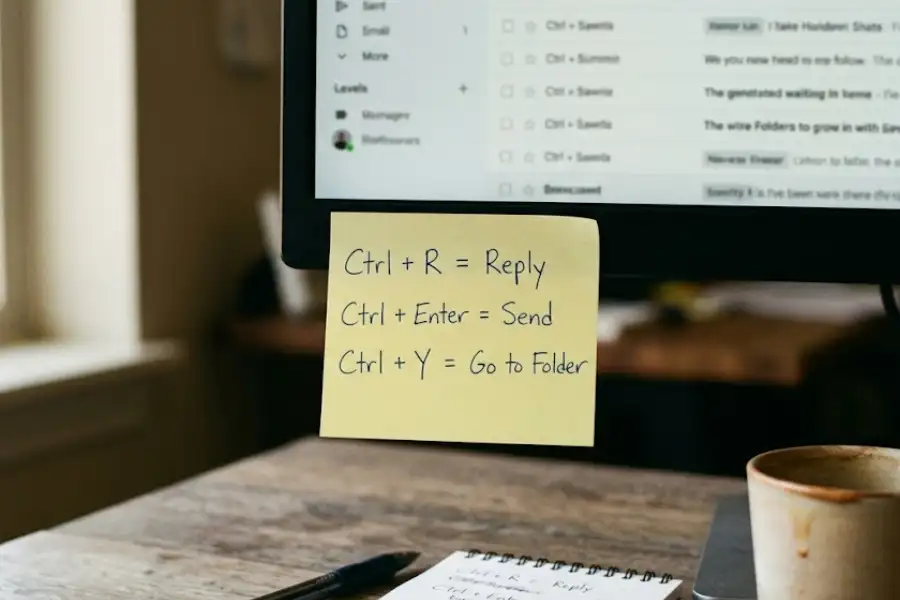
Do not try to learn all 50 at once. Your brain will reject them. Pick 3, write them on a sticky note, and put it on your monitor. Use only those for one week. Next week, swap in 3 new ones. Combine this with some solid microsoft teams tips and tricks, and in two months, you will know more shortcuts than most of your coworkers.
2. Hide Your Mouse Sometimes
Sounds silly, but it works. For 30 minutes a day, push your mouse out of reach. Force yourself to use the keyboard. Your fingers will learn the shortcuts much faster than your brain ever could. There is a side benefit too. Less mouse use is kinder to your wrists, a point the Mayo Clinic’s office ergonomics guide also makes.
3. Use the Memory Hook
Most Outlook shortcuts are first-letter clues. Ctrl + R is Reply. Ctrl + F is Forward. Ctrl + N is New. Ctrl + S is Save. Once you spot the pattern, the keys stop feeling random.
A Real 5-Minute Inbox Workflow
Let me show you how this looks in real life. Say you have 25 unread emails. With shortcuts, here is how I clear them:
- Press Ctrl + 1 to land in Mail.
- Use the arrow keys to move down the list.
- Hit Spacebar to read each open email.
- If it is junk, press Delete.
- If it needs a quick reply, press Ctrl + R, type, and hit Ctrl + Enter to send.
- If it can wait, press Insert to flag it for later.
- If it belongs in a folder, press Ctrl + Shift + V and pick the folder.
- Repeat until your inbox is empty.
I have cleared a 25-email inbox in under 6 minutes with this flow. With the mouse only? Closer to 15 minutes. That is almost an hour saved per week, and many hours saved per year.
Once you stop reaching for the mouse, your inbox stops feeling like a wall and starts feeling like a checklist.
Bonus: 5 Hidden Outlook Shortcuts Most People Miss
Finding these gems is like discovering the perfect software egg that even daily Outlook users do not know about.
- Ctrl + Shift + K: Create a new task without leaving Mail.
- Ctrl + Shift + N: Create a new note (great for quick reminders).
- Ctrl + Shift + B: Open the Address Book.
- F9: Send and Receive all messages right now.
- Ctrl + Alt + 2: Switch your calendar to a Work Week view in one tap.
Frequently Asked Questions
What is the most used Outlook keyboard shortcut?
Most heavy users press Ctrl + Enter the most. It sends the email you just wrote without making you reach for the Send button. Ctrl + R for Reply is a close second.
Do Outlook shortcuts work in the web version?
Yes, but some keys are different. Outlook on the web uses simpler keys. For example, the letter N alone opens a new message in the web version when shortcuts are turned on. Always check your shortcut style under Settings, then Accessibility.
How do I turn on keyboard shortcuts in Outlook?
Open Outlook. Click the gear icon. Go to General, then Accessibility. Under “Keyboard shortcuts,” pick a style other than “Off.” Save your choice and refresh the page if you are on the web.
Can I make my own custom shortcuts in Outlook?
Outlook for Windows does not let you build your own shortcuts directly. But you can use Quick Steps. A Quick Step bundles many actions into one click and gives you an automatic shortcut key. You can find Quick Steps on the Home tab. Outlook for Mac does allow custom shortcuts through System Settings.
Why does Ctrl + R reply instead of aligning text right?
Because you are in your inbox, not inside an open email. Ctrl + R only aligns text when your cursor is inside a text field, like when you are writing a new message.
What is the shortcut to mark all emails as read?
Press Ctrl + A to select all emails in your inbox, then press Ctrl + Q to mark them as read.
Is there a shortcut to recall an email in Outlook?
There is no single keyboard shortcut for the recall feature. But you can speed it up. Press Enter to open the sent email, then click File and pick “Resend or Recall.” Setting up a short Send delay (under Rules) is often a smarter fix.
Final Thoughts
You do not need to know 200 shortcuts. You need 10 to 15 that match the way you actually use Outlook. Start with the Starter Pack at the top of this guide. Add three more each week. In a month, you will move through your inbox like a pro.
Save this page or bookmark it. The next time you reach for your mouse, ask yourself, “Is there a shortcut for this?” Most of the time, the answer is yes.
Your inbox is waiting. Go save yourself half an hour today.