Chromebook Keyboard Shortcuts: 50+ Time-Saving Tricks
You bought a Chromebook because it was simple, fast, and easy to use. That’s great. But there’s a quiet superpower hiding right under your fingertips, and most people never tap into it.
It’s keyboard shortcuts.
Once you learn just a few, your Chromebook starts to feel twice as fast. You stop reaching for the mouse. You stop digging through menus. You just press a couple of keys and the job gets done.
This article gives you everything you need. The must-know basics, the hidden tricks, and even the shortcuts no one talks about. Whether you’re brand new to Chromebooks or you’ve been using one for years, you’ll walk away with at least five new tricks that save you time every day.
Here we go.
Why Chromebook Shortcuts Are Worth Your Time
Most people use a Chromebook the slow way. They click. They drag. They right-click. They open menus.
That works, but it adds up. Every time you reach for the mouse, you lose a second or two. Over a full day, that turns into real time. Over a year, it’s hours.
Shortcuts also reduce strain on your wrist and shoulder. The Mayo Clinic’s office ergonomics guide even recommends using keyboard shortcuts to cut down on extended mouse use. Your hands stay on the keyboard. Your flow stays unbroken. Plus, they make you look like a pro in front of friends and coworkers.
The 5 Must-Know Chromebook Shortcuts (Start Here)
If you only learn five shortcuts today, make them these. They’re the ones you’ll use over and over again.
- Ctrl + Alt + /: Opens a full list of every shortcut on your Chromebook. This is the cheat sheet that lives inside your laptop.
- Ctrl + Show Windows: Takes a full screenshot. The Show Windows key is the one with rectangles on it in the top row.
- Alt + Search: Turns Caps Lock on or off. Chromebooks don’t have a Caps Lock key, so this is your shortcut.
- Alt + Backspace: Acts like a Delete key. Chromebooks don’t have one of those either.
- Ctrl + Shift + T: Reopens the last tab you closed. A real lifesaver.
Learn these five and you’ll already be ahead of most Chromebook users.
Tab and Window Shortcuts
Most of your time on a Chromebook is spent inside Chrome. These shortcuts make moving between tabs and windows feel instant.
- Ctrl + T: Open a new tab.
- Ctrl + W: Close the current tab.
- Ctrl + N: Open a new window.
- Ctrl + Shift + N: Open a new Incognito window.
- Ctrl + Tab: Jump to the next tab.
- Ctrl + Shift + Tab: Jump to the previous tab.
- Ctrl + 1 through 8: Jump to a specific tab by number.
- Ctrl + 9: Jump to the last tab.
- Alt + [: Snap the current window to the left side of the screen.
- Alt + ]: Snap the current window to the right side.
- Alt + =: Maximize the window.
- Alt + –: Minimize the window.
- Show Windows key: See all open windows at once (Overview mode).
Pro tip: Try Alt + [ and Alt + ] when you need to compare two pages side by side. It works like magic.
Screenshot Shortcuts on Chromebook
Taking screenshots on a Chromebook is much easier than on Windows or Mac, once you know the keys.
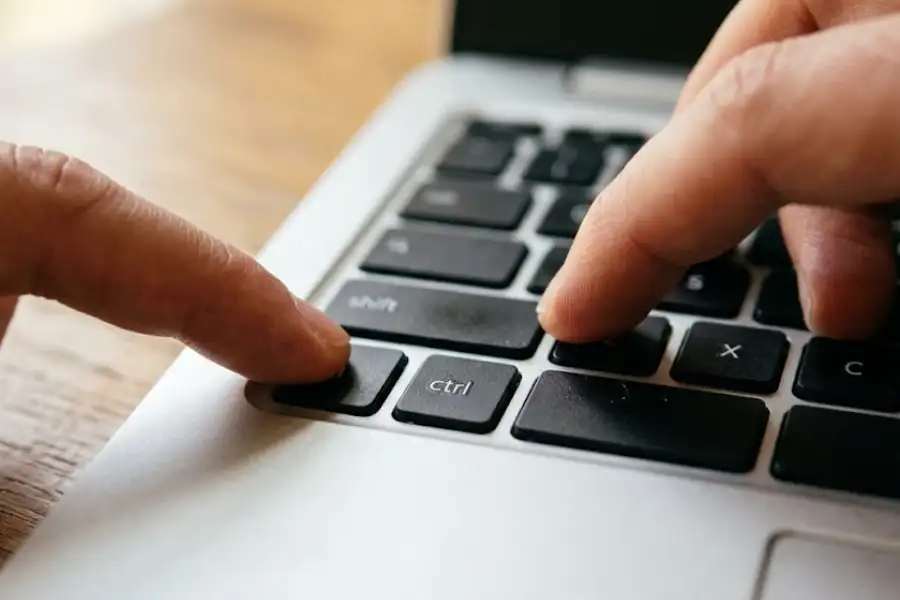
- Ctrl + Show Windows: Take a full screenshot of your screen.
- Ctrl + Shift + Show Windows: Take a partial screenshot. Click and drag to pick the area.
- Ctrl + Alt + Show Windows: Take a screenshot of just one window.
All your screenshots get saved in the Downloads folder by default. They also pop up in the clipboard, so you can paste them straight into a doc or chat.
Copy, Paste, and Text Editing Shortcuts
If you write emails, do schoolwork, or use Google Docs, these will feel like second nature in a few days.
- Ctrl + A: Select all.
- Ctrl + C: Copy.
- Ctrl + X: Cut.
- Ctrl + V: Paste.
- Ctrl + Shift + V: Paste without any formatting (super useful when pasting from a website).
- Ctrl + Z: Undo.
- Ctrl + Y: Redo.
- Ctrl + Backspace: Delete the whole word before your cursor.
- Search + Backspace: Delete the character after your cursor (forward delete).
- Ctrl + Left or Right Arrow: Jump one word at a time.
- Search + Left or Right Arrow: Jump to the start or end of the line.
- Search + Up or Down Arrow: Jump to the top or bottom of the page.
Web Browser Shortcuts Worth Knowing
These keep your hands off the mouse while browsing.
- Ctrl + D: Bookmark the current page.
- Ctrl + Shift + B: Show or hide the bookmarks bar.
- Ctrl + H: Open your browsing history.
- Ctrl + J: Open your downloads.
- Ctrl + R: Refresh the page.
- Ctrl + Shift + R: Hard refresh (ignores the cache).
- Ctrl + L: Jump to the address bar to type a new URL.
- Ctrl + F: Find a word on the current page.
- Ctrl + P: Print the page.
- Ctrl + + or Ctrl + –: Zoom in or out.
- Ctrl + 0: Reset zoom to normal.
- Ctrl + Enter: Adds “www.” and “.com” to whatever you typed in the address bar. Niche, but cool.
System and Settings Shortcuts
These let you control your Chromebook without ever opening a menu.
- Alt + Shift + S: Open Settings.
- Shift + Alt + M: Open the Files app.
- Search + Esc: Open the Task Manager (great when something freezes).
- Search + A: Open Google Assistant.
- Search + L: Lock your screen.
- Search + Alt: Another way to lock your Chromebook.
- Shift + Alt + N: View notifications.
- Ctrl + Shift + Q (twice): Sign out of your account.
- Search + C: Open the Calendar widget.
Desks: Virtual Desktop Shortcuts
Desks are one of ChromeOS’s best hidden features. They let you create separate workspaces, like one for school and one for personal stuff.
- Search + Shift + =: Create a new desk.
- Search + Shift + –: Close the current desk.
- Search + ]: Move to the next desk.
- Search + [: Move to the previous desk.
- Shift + Search + ]: Move the current window to the next desk.
- Shift + Search + [: Move the current window to the previous desk.
If you’ve never used desks, try one for work and one for fun. You’ll wonder how you lived without them.
Accessibility Shortcuts
These shortcuts help users with vision or hearing needs, but anyone can find them useful.
- Ctrl + Alt + Z: Turn the ChromeVox screen reader on or off.
- Ctrl + Search + H: Toggle high contrast mode.
- Ctrl + Search + M: Turn on the full-screen magnifier.
- Ctrl + Alt + Brightness Up: Increase keyboard backlight (on supported models).
- Ctrl + Alt + Brightness Down: Decrease keyboard backlight.
Caps Lock, Delete, and Other “Missing” Keys
This is the part that confuses almost every new user.
Chromebooks come without a Caps Lock key. They also don’t have a Delete key. And there’s no Print Screen button either. So how do you do those things?
- Caps Lock: Press Alt + Search to turn it on. Press it again to turn it off. A small icon will show in the corner of your screen when Caps Lock is active.
- Delete: Press Alt + Backspace. To delete a single character to the right of the cursor, use Search + Backspace.
- Print Screen: Use Ctrl + Show Windows for a full screenshot.
- Function Keys (F1 to F12): Hold the Search key while pressing the top row keys to use them as F1, F2, and so on.
Switching from Windows or Mac? Read This First
If you’re coming from Windows or Mac, your old habits will get you part of the way. But a few keys are different.
- The Search or Launcher key (the magnifying glass key on the left) replaces the Windows key on PCs and the Command key on Macs.
- If you use a USB Windows or Mac keyboard with your Chromebook, the Windows key or Command key will work the same as Search.
- Mac users: If you are already used to your standard mac keyboard shortcuts, simply replace Cmd with Ctrl in almost every shortcut and you’ll be fine.
- Windows users: Most of your old shortcuts still work the same. Ctrl + C, Ctrl + V, and Ctrl + Z are all here.
- The biggest change is the missing Caps Lock and Delete keys, which we covered above.
Give yourself one full week. Your fingers will adjust faster than you think.
Hidden and Fun Chromebook Shortcuts
Now for the secret menu. These shortcuts won’t change your life, but they’re fun to know.
- Ctrl + Alt + Shift + Reload: Spins your screen 360 degrees. It’s called a barrel roll. Try it once. Just once. It is a classic software egg.
- Ctrl + . (period): Shows hidden files in the Files app.
- Spacebar: Quick preview of any file in the Files app.
- Ctrl + Alt + T: Opens the Linux terminal (perfect for practicing your linux command line shortcuts if you’ve turned on the Linux development environment on your device).
- Ctrl + Click on a link: Opens it in a new tab without leaving your current page.
- Shift + Click on a link: Opens it in a new window.
How to View Every Shortcut on Your Chromebook
Don’t try to memorize this whole list. You don’t have to.
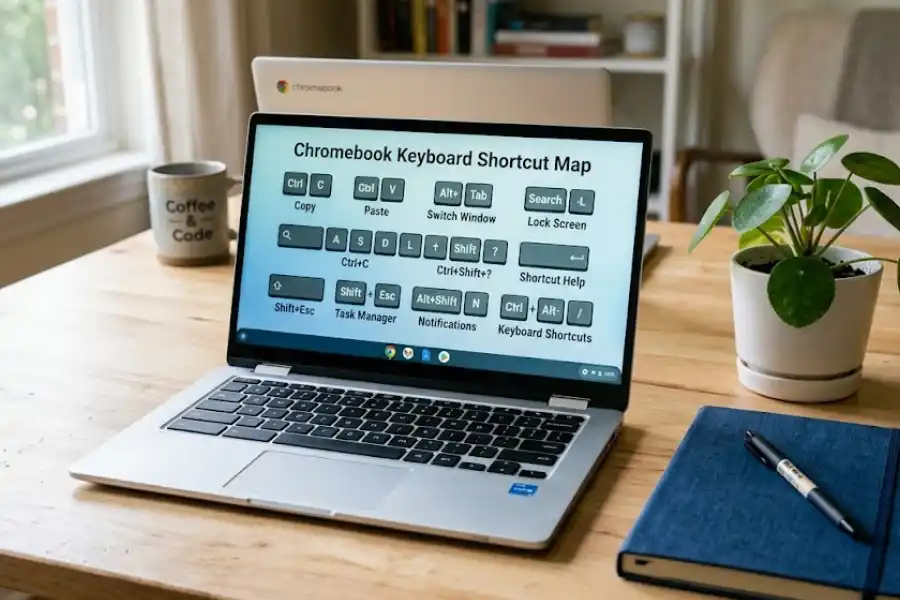
Your Chromebook already has a cheat sheet inside it. Press Ctrl + Alt + / (forward slash) and a full keyboard map opens up on screen. You can also try Ctrl + Search + S on newer Chromebooks. This shows the same map in a cleaner layout.
The best part? When you click on any modifier key like Shift or Alt, the map updates to show what shortcuts you can do with it. It’s like a video game tutorial for your keyboard.
How to Make Your Own Custom Shortcuts
Newer Chromebooks let you customize keys. Just follow these steps:
- Click the time in the bottom-right corner of your screen.
- Open Settings.
- Go to Device, then Keyboard and inputs.
- Click Customize keyboard keys.
- Pick a key (like F11 or F12) and assign it a new action.
If your Chromebook is from 2024 or later, you may also see the new Shortcuts app. It lets you build totally custom key combos for actions you do all the time.
Why Some Shortcuts Don’t Work (And How to Fix Them)
If a shortcut isn’t working, don’t panic. There’s almost always a simple reason.
- You’re using an external keyboard. The Search key on a Chromebook keyboard becomes the Windows or Command key on a USB keyboard. Try those instead.
- Your Chromebook is in tablet mode. Some shortcuts only work when the keyboard is attached and in laptop mode.
- You have an older ChromeOS version. Newer shortcuts (like Search + Shift + = for desks) only work on recent updates. Go to Settings and check for updates.
- The shortcut was changed in Settings. If you remapped a key, the original shortcut might not work anymore.
- The website is grabbing it first. Apps like Google Docs use some of the same shortcuts, so they might block the system version.
How to Memorize Chromebook Shortcuts Faster
Here’s a simple method that works for most people.
Pick three shortcuts you’d use today. Just three. Write them on a sticky note and put it on your screen. Use them for one week. Don’t worry about the rest.
The next week, pick three more. Then three more. In two months, you’ll know more shortcuts than 95 percent of Chromebook users. And you didn’t memorize a thing. You just used them.
That’s how real muscle memory builds. Slow and steady beats cramming every time.
Frequently Asked Questions
How do I find all the shortcuts on my Chromebook?
Press Ctrl + Alt + / or Ctrl + Search + S. A full map of every shortcut will pop up on your screen.
What is the Search key on a Chromebook?
The Search key (also called the Launcher key) is the one on the left side of the keyboard with a magnifying glass or circle on it. It replaces the Caps Lock key from a normal keyboard. You use it to open the app drawer and to do many shortcuts.
How do I take a screenshot on a Chromebook?
Press Ctrl + Show Windows for a full screenshot. Press Ctrl + Shift + Show Windows to grab just part of the screen. The Show Windows key is the one with rectangles on it in the top row.
How do I delete a file on a Chromebook without a Delete key?
Select the file and press Alt + Backspace. That’s the Chromebook’s version of the Delete key.
Can I change Chromebook shortcuts?
Yes, on newer models. Go to Settings, then Device, then Keyboard and inputs, then Customize keyboard keys. You can also use the new Shortcuts app on the latest ChromeOS versions.
Do these shortcuts work on all Chromebooks?
Most do. A few newer ones (like the Desks shortcuts) need a recent ChromeOS update. If a shortcut doesn’t work, update your Chromebook first.
Final Thoughts
You don’t have to learn 50 shortcuts overnight. Start with the five must-know ones at the top of this post. Use them every day for a week.
Then add a few more. Then a few more. Before long, you’ll be flying through tasks while your friends are still hunting for the right menu.
That’s the real magic of Chromebook shortcuts. They turn a simple laptop into a productivity machine. And they cost you nothing but a little bit of practice.
Go ahead and try one right now. Press Ctrl + Alt + / and meet your new best friend, the on-screen shortcut map. You’ll be glad you did.