The iPhone Calculator Has a Secret Backspace (And Most People Have No Idea)
You are in the middle of typing a big number into your iPhone calculator. Then it happens. Your finger slips. You press the wrong digit. And without thinking, you reach for the “C” button to clear everything and start all over again.
But here is the thing. You never had to do that. Your iPhone has had a hidden backspace feature (working just like a classic software egg) in the calculator for years. Apple just never made it obvious.
This article will show you how to use it, step by step. We will also cover several other hidden calculator tricks that most iPhone users have never seen. By the time you finish reading, your calculator app will feel like a completely different tool.
What Is the iPhone Calculator Hidden Backspace Trick?
If you look at the iPhone calculator, you will notice something missing. There is a “C” button to clear everything. But there is no backspace key to delete just one digit at a time. At least, that is what it looks like.
The backspace is right there. Apple just hid it behind a swipe gesture instead of a button. That single trick has saved millions of people from retyping long numbers from scratch.
Once you learn it, you will wonder how you ever used the calculator without it.
How to Use the Hidden Backspace on iPhone Calculator (Step by Step)
Follow these steps:
- Open the Calculator app on your iPhone.
- Type any number. For example, type 123456, but pretend the last digit was a mistake.
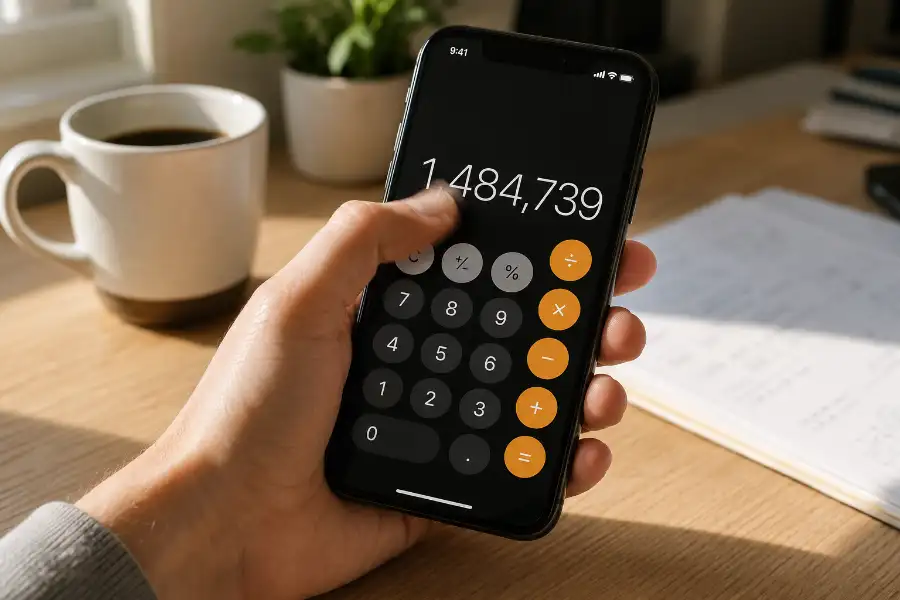
- Place your finger on the number display at the top of the screen. That is the large area where your numbers appear.
- Swipe your finger left or right across that number.
- Watch the last digit disappear, just like pressing a backspace key.
- Swipe again to delete another digit. Keep going until your number is correct.
Quick Tip: It does not matter which direction you swipe. Left and right both do the same thing. Pick whichever feels more natural to you.
That is really all there is to it. No settings to change. No special mode to activate. Just a simple swipe on the number screen.
Using iOS 18? Here Is What Changed for You
If your iPhone is running iOS 18 or later, Apple finally listened to years of user complaints. They added a real, visible backspace button directly inside the Calculator app.
You will see it in the upper left area of the calculator display. One tap deletes the last digit. No swipe needed anymore, though the swipe gesture still works too.
iOS 18 also brought several other major improvements to the Calculator app:
- A full calculation history so you can scroll through past results
- The scientific calculator is now available in portrait mode, no rotating required
- A Convert feature for unit and currency conversions inside the app
- A full expression display so you can see your entire calculation while typing
- Better copy and paste support throughout the app
If you are on iOS 17 or earlier, the swipe trick is still your go-to move and it works perfectly well.
Why Did Apple Hide the Backspace in the First Place?
Apple has always built their apps to look clean and simple. The fewer buttons on screen, the better the experience, at least that has been their philosophy for a long time.
So instead of adding a visible backspace button and cluttering the screen, Apple turned it into a gesture. The thinking was that curious users would find it on their own. The problem was that most people never did.
Here is something interesting, though. The swipe-to-delete trick was never a secret to Apple. It is right there in Apple’s own iOS User Guide. It just was never promoted loudly, which is why most people went years without knowing it existed.
After years of user feedback asking for a proper delete button, Apple finally added one in iOS 18. Better late than never.
5 More Hidden iPhone Calculator Tricks Worth Knowing
Now that you know the backspace trick, here are five more hidden features inside your iPhone calculator that are just as useful.
1. Turn Your Calculator Into a Full Scientific Calculator
Your iPhone has a powerful scientific calculator built right in. Most people never find it because you need to know just one simple step to get to it.
On iOS 17 and earlier, rotate your iPhone to landscape mode. The calculator instantly switches to a scientific view with functions like square roots, exponents, logarithms, and trigonometry.
On iOS 18, you do not even need to rotate the phone. The scientific calculator is now accessible directly from the portrait screen. Just look for the expand icon inside the app.
Make sure your screen rotation lock is turned off before trying this. You can check it by swiping into your Control Center.
2. Copy Your Answer Without Writing It Down
Need to paste a number from your calculator into a text message, email, or notes app? You do not need to memorize it or type it twice.
On iOS 17 and earlier, press and hold your finger on the number at the top of the screen. A small “Copy” option will pop up. Tap it and the number is copied.
Here is an even faster trick. Long press the Calculator app icon on your home screen or in your Control Center. You will see a “Copy Last Result” option. Tap it to grab your last answer without even opening the app.
3. Do Math Without Opening the Calculator at All
For quick calculations, you do not even need to open the Calculator app. Your iPhone has two faster options.
First, swipe down on your home screen to open Spotlight Search. Type your math problem directly into the search bar, like “45 times 13” or “what is 18 percent of 250,” and the answer appears instantly.
Second, just ask Siri. Say “Hey Siri, what is 720 divided by 9?” and Siri will give you the answer right away. This is especially helpful when your hands are busy.
4. Convert Units Right Inside the Calculator (iOS 18)
This is one of the newest and most useful additions to the Calculator app. In iOS 18, there is a Convert feature built directly into the app.
Tap the small icon at the bottom left corner of the Calculator app. Switch on the Convert mode. Now you can convert miles to kilometers, pounds to kilograms, Fahrenheit to Celsius, fluid ounces to liters, and even currencies.
This is a big deal. It means you no longer need a separate app or a browser search just to convert measurements.
5. View Your Full Calculation History (iOS 18)
Ever finished a long series of calculations and then forgot what numbers you used? iOS 18 added a calculation history feature to the Calculator app.
Look for the history icon inside the app after updating to iOS 18. Tap it and you can scroll through every calculation you have done recently. You can tap on any past result and instantly use it in a new calculation.
This is a great feature for anyone who uses the calculator for tracking expenses, splitting bills, or doing work-related math.
The Swipe Trick Is Not Working? Try These Fixes
If the swipe-to-delete trick does not seem to be working on your iPhone, here are a few things to check:
- Make sure you are swiping on the number display at the top, not on the calculator buttons below
- Try swiping a little slower and more deliberately across the screen
- If you have a thick screen protector on your phone, it may be reducing touch sensitivity
- Close the Calculator app completely and reopen it, then try again
- Make sure your iPhone software is up to date by going to Settings, then General, then Software Update
If you are on iOS 18, skip the swipe entirely and use the new dedicated backspace button instead. It is much easier.
Which iPhones and iOS Versions Support These Tricks?
The good news is that the swipe-to-delete trick works on almost every iPhone in use today. Here is a simple breakdown:
- iOS 8 through iOS 17: Use the swipe gesture on the number display to delete digits
- iOS 18 and later: Use the new dedicated backspace button (the swipe gesture still works too)
- iPadOS 18 and later: The Calculator app came to iPad for the first time with this update, and it includes the backspace button from day one
To check your iOS version, go to Settings, then General, then About and look for the iOS version number listed there.
Frequently Asked Questions
Does the iPhone calculator have a backspace button?
Yes, it does. On iOS 17 and earlier, there is no visible button, but you can swipe left or right on the number display to delete the last digit you entered. On iOS 18 and later, Apple added a proper, visible backspace button to the top left of the calculator screen.
Why does the iPhone calculator not have a delete key?
Apple originally chose to keep the calculator design minimal by replacing the backspace button with a swipe gesture. It kept the screen clean, but most users never came across the hidden trick. Apple corrected this in iOS 18 by adding a visible delete button after years of user requests.
Can I undo a completed calculation on the iPhone calculator?
You cannot undo a full calculation once you have pressed the equals button. However, you can delete digits one at a time before you hit equals by using the swipe gesture or the backspace button on iOS 18. The calculation history feature in iOS 18 also helps you review and reuse past results.
How do I access the scientific calculator on my iPhone?
On iOS 17 and earlier, simply rotate your iPhone to landscape mode and the calculator will switch to scientific view automatically. On iOS 18, you can access the scientific calculator directly in portrait mode without rotating the phone.
What is the most useful hidden iPhone calculator trick?
For most people, the swipe-to-delete backspace trick is the most surprising and immediately useful. But the ability to copy your last result by long pressing the app icon on your home screen is a very close second, especially when you need to paste a number into another app quickly.
Final Thoughts
The iPhone calculator looks simple on the surface. One screen, a bunch of buttons, nothing fancy. But as you have seen, there is a lot more going on underneath.
The hidden backspace trick alone is something millions of iPhone users still do not know about, even after owning their phone for years. And if you are on iOS 18, the new features Apple packed into the Calculator app make it feel like an almost entirely different tool.
Go ahead and try the swipe trick right now. Type a random number, swipe across the display, and watch the magic happen. Once you feel it, it will become second nature in no time.
And if you know someone who still hits “C” and starts over every time they make a typo, do them a favor and share this article with them. You will officially become their favorite person for the day.