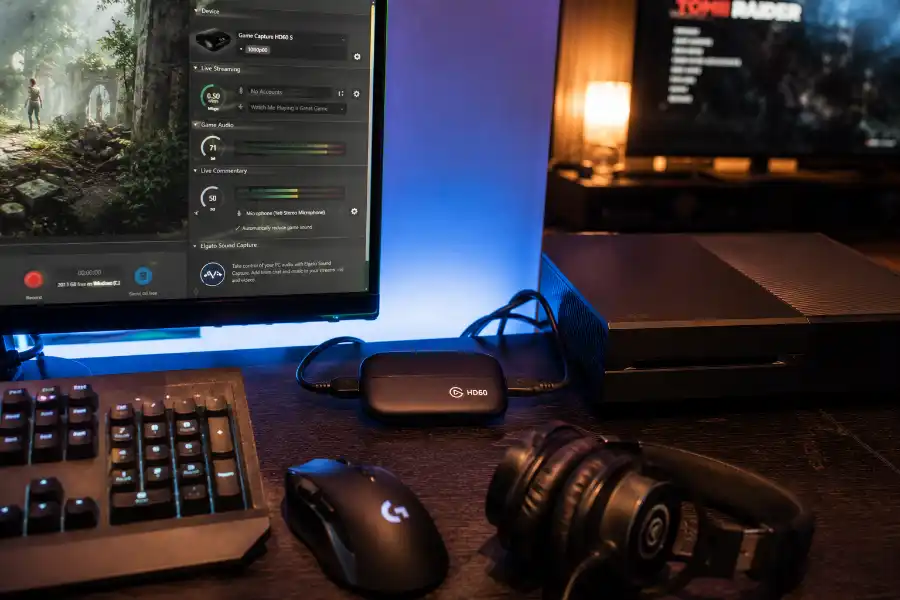
Can You Play Games Through Software Preview on Elgato HD60?
You just plugged in your Elgato HD60, looking for a hidden software egg to optimize your capture utility, and now you’re staring at that little preview window thinking one thing. Can I just play my game right here, on this screen, instead of switching to my TV or monitor? It feels like it should work. The picture is right there.
Here’s the truth: the answer depends entirely on which Elgato HD60 you own. That one detail changes everything about your experience, and most articles online never explain it clearly. We’re going to fix that today.
The Quick Answer
If you own the original, very first Elgato HD60 (the older USB 2.0 model from years ago), you cannot play through the software preview. There is a real, noticeable delay of almost a full second. Your character will move on screen long after you press the button.
If you own a newer model, like the HD60 S, HD60 S+, HD60 X, or HD60 Pro, the story is different. These cards use a feature called Instant Gameview. It cuts the delay down to somewhere between 50 and 100 milliseconds. That’s fast enough that most people can play comfortably through the software window itself.
The model name matters more than the brand name here. “Elgato HD60” is not one single product. It’s a whole family of devices, and each one handles the software preview differently.
Why Does the Software Preview Have a Delay At All?
This part is simple once you understand it. When your console sends a video signal into the capture card, the card has to process that signal before your computer can show it. It compresses the video, sends it over a USB or PCIe connection, and your software then turns it back into a picture you can see.
All of that takes time. Even a few milliseconds of processing adds up. Older hardware with slower connections, like USB 2.0, took much longer to do this job. Newer hardware does it almost instantly.
Think of it like a relay race. The older HD60 had to pass the baton through several slow runners. The newer models built a shorter, faster track.
The Original Elgato HD60: Why You Can’t Play Through It
The first-generation HD60 uses an H.264 hardware compression chip and connects over USB 2.0. According to Elgato’s own support documentation, the image in the software is delayed from live by almost a second. That’s the official word, straight from the manufacturer.
This card was designed around that limitation. It sends a separate, real-time HDMI signal straight to your TV or monitor. You play on that screen. The software window on your computer is only there for recording, not for playing.
If you try to play using only the laggy preview window on this model, you’ll feel it within seconds. Fast games like shooters or fighting games become almost impossible. Even slower games feel strange and disconnected.
Newer Models: HD60 S, HD60 S+, HD60 X, and HD60 Pro
This is where things get interesting, and where most other articles stop digging. Elgato’s newer cards introduced Instant Gameview specifically to solve the lag problem.
HD60 S and HD60 S+
According to Elgato’s own setup guide, the HD60 S preview is delayed by only 50 to 100 milliseconds. That’s a massive improvement. For most single-player games, that small delay is barely noticeable. The HD60 S+ improves on this further with better passthrough technology.
HD60 X
Reviewers who tested the HD60 X reported that the monitoring feed through Elgato’s 4K Capture Utility software was lag-free enough to play games directly inside that window, even when a 4K display was also connected through passthrough. This card was built for newer consoles and supports features like Variable Refresh Rate, which keeps motion smooth during fast action.
HD60 Pro
This one stands out the most. Because it’s an internal PCIe card instead of a USB device, it processes video even faster. One independent review noted that the difference between the slower recording mode and Instant Gameview mode was night and day, and that players could genuinely game through the software with no noticeable lag at all.
Should You Really Play Through the Software Preview?
Just because you can doesn’t always mean you should. Here’s a clear answer based on what matters most for different types of games.
- Slow-paced or story games: Totally fine. A 50 to 100 millisecond delay won’t bother you in a game like an adventure title, a puzzle game, or a farming sim.
- Competitive shooters: Risky. Even a tiny delay can throw off your aim in fast-paced online matches.
- Fighting games or rhythm games: Avoid it. These genres need frame-perfect timing, and any added delay can ruin your inputs.
- Casual streaming and content creation: Great option. Many creators use Instant Gameview specifically so they only need one screen.
For the smoothest, truest zero-lag experience, nothing beats the HDMI passthrough output going straight to a separate TV or monitor. That signal skips the entire encoding process, so there is no added delay at all. This is the setup most professional streamers use, even with the newer cards.
How to Set Up True Zero-Lag Passthrough
If you want the safest, most reliable way to play while recording, follow these steps.
- Connect your console’s HDMI cable into the HDMI In port on your Elgato HD60.
- Connect a second HDMI cable from the HDMI Out port on the capture card to your TV or monitor.
- Play your game by looking at that TV or monitor, not the computer screen.
- Open your capture software on your computer to start recording or streaming as normal.
- Check your video settings to confirm the capture software is detecting the correct frame rate and resolution.
This way, your gameplay stays perfectly responsive no matter what, while your computer quietly handles the recording in the background.
Common Problems That Make the Preview Laggier Than It Should Be
Sometimes people blame the hardware when the real issue is something fixable. Here are the most common culprits we’ve seen reported by users and confirmed in official troubleshooting guides.
- Weak USB ports: Plugging your capture card into a USB hub or a low-power port can cause stuttering. Always use a direct USB 3.x port on your motherboard.
- Outdated USB controller drivers: Old drivers from your motherboard manufacturer can slow everything down. Updating them often fixes random frame drops.
- High CPU usage: Background programs compete for processing power. Closing unnecessary apps frees things up.
- Buffering settings: Some software lets you toggle buffering on or off. Turning it off usually lowers delay but can cause more dropped frames if your system is weak.
- HDCP protection: Certain content, like streaming apps or some game menus, can block the capture card entirely with a black screen. This isn’t a lag issue, it’s a copy-protection issue, and it has nothing to do with your settings.
Dual-PC Streaming: A Completely Different Situation
If you’re using your Elgato HD60 to capture footage from one PC and stream it through a second PC, the rules change completely. You should never play your game by watching the second PC’s preview window. Always play on the monitor connected directly to your gaming PC’s graphics card.
In this setup, the capture card on the second PC exists purely to send video to your streaming software. It was never meant to be your main display, and trying to use it that way introduces delay for no reason.
Frequently Asked Questions
Does the Elgato HD60 have noticeable input lag?
It depends on the model. The original HD60 has nearly a full second of delay in its software preview. Newer models with Instant Gameview cut that down to around 50 to 100 milliseconds, which most people won’t notice during normal play.
What is Instant Gameview?
It’s Elgato’s name for the low-latency preview technology built into their newer capture cards. It allows the software window itself to show your gameplay with minimal delay, instead of relying only on a separate passthrough screen.
Can I play PS5 or Xbox Series X games through the Elgato HD60 software?
Yes, if you’re using a newer model like the HD60 X with Instant Gameview support. For the absolute best experience with fast-paced games, though, using the HDMI passthrough to your TV is still the safer choice.
Why does my preview look choppy instead of just delayed?
Choppiness is usually a different problem than delay. It often comes from a weak USB connection, an outdated driver, or your computer struggling to keep up with the video processing. Try a different USB port first.
Is the original Elgato HD60 still worth using today?
It still works fine for recording gameplay, since you play on your TV through passthrough anyway. Just don’t expect to play comfortably by watching the software preview window on that specific model.
Conclusion
So, can you play games through the software preview on an Elgato HD60? With the original model, no, not realistically. With the newer HD60 S, HD60 S+, HD60 X, and HD60 Pro, yes, thanks to Instant Gameview technology that keeps the delay under 100 milliseconds.
Still, for anything competitive or fast-moving, the HDMI passthrough remains the gold standard. If you are still getting stutters, knowing what software fixes any issue with any game on pc can help optimize your entire setup. It removes the guesswork entirely and guarantees zero lag, every single time. Know your model, know your game type, and choose the setup that fits how you play.