Android Automatic Reboot Security Feature: How It Protects You
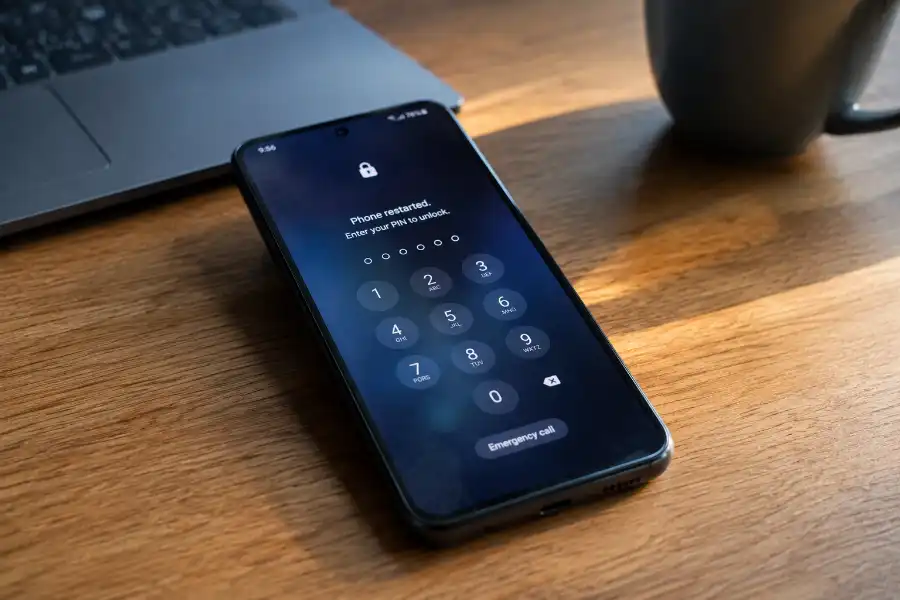
Your phone sat untouched on the nightstand for a few days. Then, out of nowhere, it restarted on its own and asked for your PIN instead of your fingerprint. It is not broken. And nobody hacked it.
You just met Android’s automatic reboot security feature. It is one of the quietest changes Google has made to Android in years, and most people have no idea it exists until it happens to them. Features tend to arrive this way lately, tucked into an update with barely a mention, the same way WhatsApp quietly rolled out its own Meta AI Hidden Features without much of an announcement either.
This article breaks down what the feature does, why Google built it, how to find it on your own phone, and whether you should leave it on.
What Is Android’s Automatic Reboot Security Feature?
In simple terms, this is a security setting that restarts your Android phone or tablet if it sits locked and untouched for 72 hours straight, that is three full days.
Once the reboot happens, your device drops into a much safer locked state. Your fingerprint and face unlock stop working. The only way back in is your PIN, password, or pattern.
Think of it like a bank vault that automatically re-locks itself every three days, even if someone already knows the outer door code. They would still need the master combination to get inside.
Google rolled this out through a Google Play services update in 2025, and it has since spread to most Android phones and tablets, including many Samsung Galaxy devices.
Why Would Google Restart Your Phone on Purpose?
It comes down to two security states that every modern Android phone uses.
The first is called Before First Unlock, or BFU. This is your phone right after it powers on, before you have typed your passcode even once. In this state, your files, photos, and messages are locked behind strong encryption. Almost nothing can read them, not even the phone itself.
The second is After First Unlock, or AFU. Once you enter your passcode the first time after a restart, your phone shifts into this mode. It stays unlocked for everyday use, even when the screen turns off, until you restart it again.
The problem with AFU is this: if someone steals your phone while it is in this state, specialized forensic tools used by thieves or attackers can sometimes pull data out of it, even without your passcode. It is rare, but it is a real risk, and it is the kind of access device-cracking tools are built around.
The automatic reboot security feature closes that window. If your stolen phone sits untouched for three days, it force-restarts itself back into the safer BFU state. Whoever has it is locked out again, no shortcuts.
How the Feature Works, Step by Step
You do not need to do anything for this to work in the background. The sequence looks like this:
- Your phone gets locked and nobody enters a passcode or uses biometrics for 72 straight hours.
- Android quietly triggers a restart, even if the phone is sitting still on a desk.
- The device boots back up in the BFU state, fully encrypted.
- Fingerprint and face unlock are disabled until you type your PIN, password, or pattern at least once.
- After that first manual unlock, everything works normally again.
The feature currently applies to phones and tablets. It does not apply to Wear OS smartwatches, Android Auto, Google TV devices, or the Play Games app on Windows.
Do Not Mix This Up With Samsung’s Own “Auto Restart” Setting
Almost every other article on this topic glosses over one detail, and it causes real confusion.
Samsung phones have long had a setting called Auto Restart, found under Device Care, then Auto Optimization. That feature reboots your phone on a schedule you pick, like once a week, mainly to clear memory and keep things running smoothly. It has nothing to do with security or the 72-hour inactivity timer.
The security-driven auto-reboot feature is a separate system, built into Android itself through Google Play services. On newer Samsung devices, it may show up labeled as Inactivity Restart instead, tied to Samsung’s own security settings rather than Device Care.
If your phone restarted and you are trying to figure out why, check both settings before assuming which one caused it.
How to Check or Manage the Feature on Your Phone
Since this feature rolls out through Play services rather than a full software update, not every phone shows an obvious on-off switch. A few places to look:
- Open Settings, then tap Security and Privacy.
- Look for a section related to device lock or inactivity restart. Wording varies by phone brand.
- On Pixel and many Android phones, you can also confirm your Google Play system update is current under Security and Privacy, then Google Play system update.
- If you use Google’s Advanced Protection Program, this feature is closely tied to those extra-strength security settings.
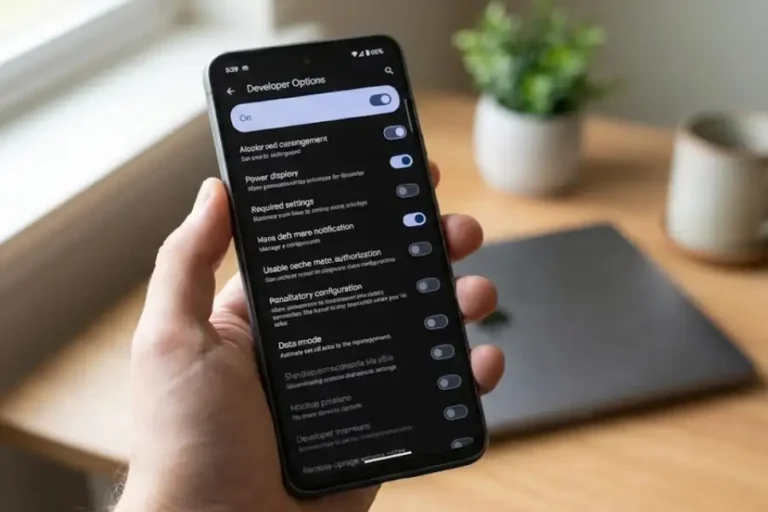
This overlaps with other settings tucked away in Android, like Developer Options, which holds plenty of tools most users never touch. Some phone makers, including Samsung, have started building their own version of this reboot toggle directly into their security menus, so the exact path will shift slightly depending on your device and software version.
Will This Get in the Way of Normal Phone Use?
Most people will never notice this feature working. But a few real situations are worth knowing about.
If you are using an old phone as a stationary security camera or a long-term hotspot in a place you rarely check, a forced reboot after three idle days could knock it offline until someone manually unlocks it again. That is one of the few genuine downsides.
Alarms, calls, and basic lock screen functions still work normally, even after a security reboot. You will just need to enter your passcode once before fingerprint or face unlock returns.
Your photos, apps, messages, and settings are never deleted or affected. The reboot only changes the phone’s lock state, not its stored data.
How Android Compares to iPhone and GrapheneOS
Android did not invent this idea. It borrowed and improved on it.
- Apple added a similar Inactivity Reboot to iPhones with iOS 18.1, using a window of about four days. It sits alongside a long list of iPhone Hidden Features that most owners never dig into.
- GrapheneOS, a privacy-hardened version of Android, has offered this for years, with a default of 18 hours that users can adjust anywhere from 10 minutes to 72 hours.
- Standard Android currently uses a fixed 72-hour window, though this may become adjustable over time as the feature matures.
Even Windows keeps a record of restarts, though for a different reason. Tools like Windows Reliability Monitor log every restart, crash, and update on a PC, but they exist for troubleshooting stability, not for locking out a thief. The GrapheneOS approach shows where Android’s own feature is likely headed: more control in the hands of users who want tighter security, especially high-risk users like journalists, activists, or business travelers.
Should You Turn It On, or Leave It Off?
For almost everyone, leaving this feature on is the right call. It runs silently, costs you nothing in daily convenience, and only matters at all if your phone is lost or stolen.
You might think twice about it only if you rely on an old phone as an always-on hotspot, security camera, or remote monitoring device that nobody physically checks for days at a time.
If you handle sensitive information, travel often, or fall into a higher-risk category, this feature is one small part of a much stronger habit: using a strong passcode instead of a swipe pattern, and turning on Google’s Advanced Protection Program if it fits your needs.
Frequently Asked Questions
Does the automatic reboot delete my photos or files?
No. The reboot only changes your phone’s lock state. Everything stored on your device stays exactly where it was.
Can I turn off the automatic reboot security feature?
On most devices, yes, it is designed to be optional rather than forced. Check Settings, then Security and Privacy, since the toggle location varies by phone brand and software version.
Will it interrupt my alarms or phone calls?
No. The reboot only happens after 72 hours of the phone being locked and completely untouched, so it will not fire while you are actively using your phone.
Does this replace Find My Device or a lock screen passcode?
No. It works alongside those tools, not instead of them. A strong passcode is still your first and most important layer of protection.
Why did my phone restart even though I use it every day?
If you use your phone daily, this feature should never trigger, since it only activates after three full days of zero passcode or biometric use. A daily reboot is more likely tied to a scheduled restart setting or a routine software update instead.
Android’s automatic reboot security feature is a small, invisible change with a big purpose. It will not stop every attack, and it is not meant to. But it closes one real gap that thieves and forensic tools have relied on for years, and it does so without asking you to lift a finger. The next time your phone restarts itself out of nowhere, you will know why, and you will know it is doing its job.