NETGEAR Plus Utility for Windows 11: How to Download, Install, and Fix It
You just bought a new PC, upgraded to Windows 11, and now your NETGEAR switch tool is nowhere to be found. Maybe you tried downloading it once already, and it either would not open or could not find your switch at all. If that sounds familiar, you are in the right place.
This article walks you through where to get the real NETGEAR Plus Utility, how to install it on Windows 11 without errors, and how to fix the most common problems people run into. No confusing tech talk. Just clear steps you can follow right now.
What Is the NETGEAR Plus Utility?
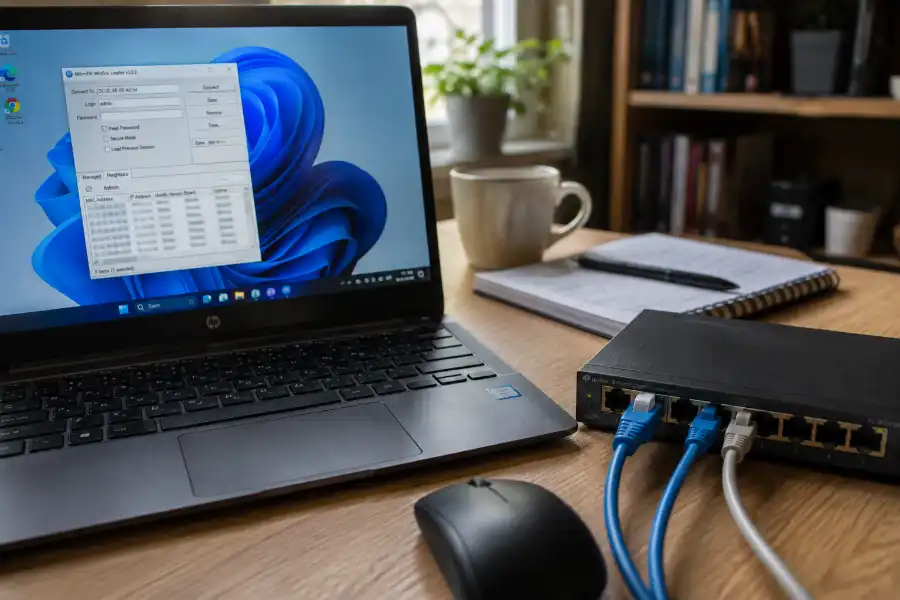
The NETGEAR Plus Utility, officially called the ProSAFE Plus Configuration Utility, is a small Windows program made by NETGEAR. It finds your NETGEAR “Smart Managed Plus” or “Easy Smart” switch on your network and lets you set it up without typing an IP address into a browser.
With this tool, you can:
- Find your switch automatically on your home or office network
- Set a fixed IP address for the switch
- Create and manage VLANs
- Set up Quality of Service (QoS) rules so important traffic gets priority
- Update the switch’s firmware
- Turn on features like loop detection and IGMP snooping
If you own a plain, unmanaged NETGEAR switch (one without an “E” in the model name, like the GS108v3 or GS116v2), this tool will not work for you. It is only built for the “Plus,” “E,” or “Smart Managed” switch models, and this mix-up is one of the most common reasons people think the utility is “broken” when it is really just the wrong device.
Will It Work on Windows 11?
Yes. NETGEAR lists Windows 11 as a supported system for the Plus Utility. But plenty of real users have reported the app failing to open, crashing right after launch, or showing a WinPcap error during setup on Windows 11 machines. This usually comes down to one thing: an older driver component inside the installer that was never fully updated for newer versions of Windows. The good news is that almost every one of these issues has a simple fix, which we will cover below (and if Windows 11 still feels unfamiliar in general, our Windows 11 tips and tricks roundup covers plenty of other quirks worth knowing).
Before You Download: A Quick Checklist
Save yourself some time by checking these things first:
- You have administrator rights on your Windows 11 PC (the installer needs this)
- Your switch model has an “E” or “Plus” in its name, such as GS108Ev3, GS305EP, or FS116E
- Your PC and your switch are connected to the same network, ideally with a cable rather than Wi-Fi during setup
- Any active VPN is turned off for now, since VPNs often block the discovery signal
How to Download the NETGEAR Plus Utility for Windows 11
Only download this tool from NETGEAR’s own website. Many third-party “free download” sites host old, outdated, or repackaged versions of this software bundled with extra junk programs you do not want. It is not worth the risk for a free utility.
Follow these steps to get it the right way:
- Go to NETGEAR’s official Plus Utility support page.
- Look for the latest version listed for Windows. As of this writing, that is version 2.7.7, and NETGEAR’s own knowledge base article was last confirmed current in July 2025. You can check the details directly on NETGEAR’s official knowledge base article.
- Click the download link and save the ZIP file somewhere easy to find, like your Downloads folder or your desktop.
- Right-click the ZIP file and choose Extract All to unzip it.
- Open the extracted folder and look for the setup file, usually named something like ProSAFEPlusUtility.exe.
Installing the Plus Utility on Windows 11
Once you have the setup file ready, follow these steps:
- Right-click the setup file and choose Run as administrator. This one step prevents a lot of install failures.
- If Windows shows a blue “Windows protected your PC” SmartScreen warning, click More info, then Run anyway. This warning appears because the file is not widely downloaded yet, not because it is unsafe when it comes from NETGEAR directly. You will see this same prompt with other smaller hardware installers too, like the Elecom Mouse Driver for Windows 11, so it is not something unique to NETGEAR.
- Choose your language and click through the setup wizard.
- If you are prompted to install Npcap or WinPcap, allow it. This small driver is what lets the utility “listen” for your switch on the network. It is only strictly needed for certain models like the FS116E, but it is safe to install either way.
- Finish the installation and restart your computer if asked.
First-Time Setup: Finding Your Switch
- Connect your NETGEAR switch to your router or network, and make sure your PC is on the same network.
- Open the NETGEAR Plus Utility from your Start menu.
- Click the Refresh button and wait a few seconds. The utility sends out a broadcast signal and waits for the switch to answer.
- Your switch should appear in the list with its name and IP address. Click it to select it.
- Log in with your switch’s admin password (the default is usually printed on a label on the switch itself, or set during your very first setup).
Fixing Common Windows 11 Problems
The Utility Won’t Open or Crashes Immediately
Uninstall the current version completely through Windows Settings, restart your PC, then reinstall using “Run as administrator.” Make sure no antivirus program is quarantining the file during install, since some security tools flag the network driver component by mistake. If it still refuses to open, check the Windows Reliability Monitor for the exact error Windows logged at the moment of the crash, since that usually points straight to the real cause.
“No Switch Exists in the Local Area Network” Error
This almost always means one of three things: your switch is not really a “Plus” or “Smart Managed” model, your PC and switch are on different networks or subnets, or a firewall is blocking the discovery broadcast. Try connecting your PC directly to the switch with an Ethernet cable to rule out Wi-Fi routing issues.
WinPcap Installation Error
Older WinPcap drivers were never officially built for Windows 11. If you see this error, let the main utility install finish anyway, since it typically still works for most switch models without it. If you specifically own an FS116E or JFS524E switch and need this driver, install Npcap separately in compatibility mode instead of the outdated WinPcap package.
Firewall or Antivirus Blocking Discovery
The Plus Utility talks to your switch using UDP ports 63321 through 63324. If your firewall or antivirus software blocks these ports, the utility will never find your switch. Create an allow rule for these ports in your security software, or temporarily turn off the firewall just long enough to confirm this is the cause.
Which NETGEAR Switches Work With This Tool?
The Plus Utility only works with NETGEAR’s “Smart Managed Plus” and “Easy Smart” switch families. This generally includes models such as:
- GS305E, GS305EP, GS305EPP
- GS308E, GS308EP, GS308EPP, GS308Ev4
- GS316EP, GS316EPP
- MS305E, MS308E
- FS116E, GS105E, GS105Ev2, and other Easy Smart Switch models
If your switch model number does not include an “E,” it is likely a basic unmanaged switch and simply will not appear in this tool, no matter how many times you reinstall it.
Frequently Asked Questions
Is the NETGEAR Plus Utility free?
Yes, it is completely free and provided directly by NETGEAR for owners of supported switch models.
Can I manage my switch without installing this utility?
On many newer Plus switch models, yes. You can often log into the switch’s own web interface using its IP address in any browser. The utility simply makes finding that IP address, and doing bulk setup, much easier.
Why does Windows 11 show a security warning when I install it?
This is normal for smaller, specialized software that is not downloaded by millions of people daily. As long as you got the file from NETGEAR’s own website, it is safe to proceed past the warning.
Does the Plus Utility work on Windows 11 in S Mode?
No. Windows 11 in S Mode only allows apps from the Microsoft Store, so you will need to switch out of S Mode first before installing any NETGEAR software.
My switch worked fine on Windows 10 but not Windows 11. What changed?
Usually nothing about your switch changed at all. The issue is almost always the network discovery driver (WinPcap or Npcap) needing a fresh, admin-level reinstall on the new operating system.
Final Thoughts
Getting the NETGEAR Plus Utility running on Windows 11 is usually a five-minute job once you download it from the right place and install it with administrator rights. If you still run into trouble after trying the fixes above, double-check your switch model first. That one detail solves more “broken” utility complaints than anything else. For more straightforward Windows and software fixes like this one, take a look around Software Egg.