Shortcut Key to Lock the Computer on Windows, Mac, and Chromebook
You are about to grab a coffee. Your screen is still open. Anyone walking by can see your emails, files, or open chats. This is the moment when a fast shortcut key to lock the computer saves you from trouble.
Locking your screen takes less than one second. You just need to know the right keys. In this article, you will find the shortcut key to lock the computer on Windows, Mac, Chromebook, and Linux. You will also get backup steps for the days when the keys do not work.
Quick answer: On Windows, press Windows key + L. On Mac, press Control + Command + Q. On Chromebook, press Search (or Launcher) + L. On most Linux desktops, press Super + L or Ctrl + Alt + L.
Shortcut Key to Lock the Computer on Windows
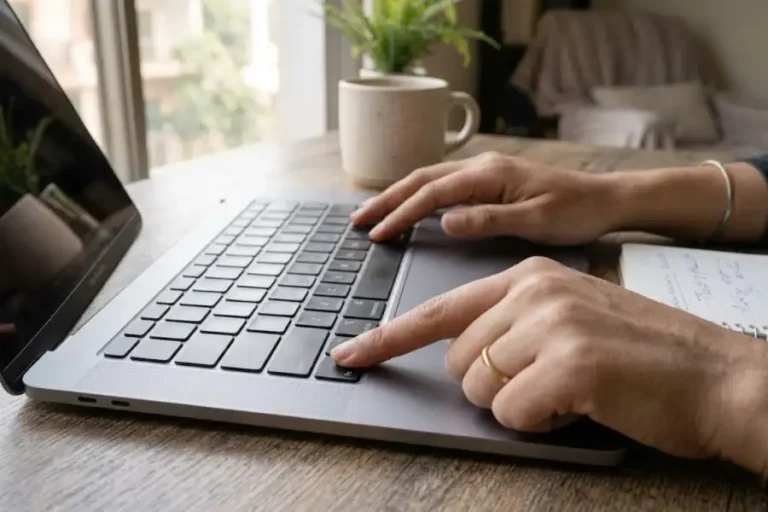
The shortcut key to lock the computer on Windows is Windows key + L. Hold the Windows key. It has the four window logo. Tap the L key at the same time. Your screen will lock right away. It will show the sign in page.
This shortcut works on Windows 7, Windows 8, Windows 10, and Windows 11. It works on desktop PCs. It also works on laptops and tablets with a keyboard.
Some keyboards do not have a Windows key. You still have options. Press Ctrl + Alt + Delete. Then click Lock from the menu. Many office keyboards use this method. It works just as well once you get used to it.
Shortcut Key to Lock the Computer on Mac
On a Mac, press Control + Command + Q at the same time. Your screen will lock right away. You will need your password or Touch ID to get back in.
Be careful with your fingers here. Command + Q alone will quit the open app. That can close your work without saving it. Press Control first. Then add Command and Q. This small order keeps your work safe.
Some MacBooks have Touch ID. You can lock the screen by tapping the Apple menu and choosing Lock Screen. This works even faster than digging through System Settings. For more handy combos, check out these Mac keyboard shortcuts.
Shortcut Key to Lock the Computer on Chromebook
Chromebooks use a slightly different shortcut. Press Search + L if your keyboard has a Search key. Press Launcher + L if your keyboard has a Launcher key. Newer Chromebook models use the Launcher key. Check your keyboard first.
Press this combo and your Chromebook will lock. It will show the login screen. You will need your Google account password or PIN to sign back in. For more time saving combos on Chrome OS, see these Chromebook keyboard shortcuts.
Shortcut Key to Lock the Computer on Linux
Many Linux desktops use Super + L. This includes Ubuntu and Fedora with GNOME. The Super key looks like a Windows logo on most keyboards. Some other desktops use Ctrl + Alt + L instead. This includes older KDE and Cinnamon setups.
Does neither shortcut work on your system? Open your Settings app. Search for screen lock. You can check or change the shortcut there.
Other Ways to Lock Your Computer Without a Keyboard Shortcut
Keyboard shortcuts are the fastest option. They are not the only ones. Here are a few backup methods for Windows users:
- Click the Start button. Click your account picture. Select Lock.
- Press Ctrl + Alt + Delete. Choose Lock from the screen that opens.
- Open the Run box with Windows key + R. Type rundll32.exe user32.dll,LockWorkStation. Press Enter.
- Right click your desktop. Choose New, then Shortcut. Paste the same command above. This builds a one click lock icon.
Set Your Computer to Lock Itself Automatically
You will not always remember to press a shortcut key to lock the computer. Life gets busy. Windows, Mac, and Chromebook all let you set a screen timeout. Your device will lock on its own after a few quiet minutes.
On Windows, go to Settings. Then open Personalization. Then open Lock screen. Then open Screen timeout settings. On Mac, go to System Settings. Then open Lock Screen. Set a short time for Turn display off. Also turn on Require password after screen saver begins. This pairs your shortcut with a safety net. For more ways to set up your screen and other system tools, check out these Windows 11 tips and tricks.
Why Locking Your Computer Matters
Locking your screen is a small habit with a big payoff. It protects your messages, work files, saved passwords, and open banking tabs. It keeps them safe from anyone who walks past your desk. This one habit matters most in shared offices, school labs, libraries, and coffee shops.
Many companies and schools ask staff to lock their screens every time they step away. There is a good reason for this rule. A locked screen takes seconds to set up. It can stop hours of cleanup work later.
What to Do If the Lock Shortcut Is Not Working
Does the shortcut key to lock the computer not work on your device? Try these steps:
- Check your keyboard driver. Open Device Manager on Windows. Look for a yellow warning icon next to your keyboard. Update or reinstall the driver if you see one.
- Test another key combo. Some office keyboards remap the Windows key. Try Ctrl + Alt + Delete, then click Lock, as a backup.
- Check for remote desktop sessions. Windows key + L can act differently inside a Remote Desktop window. Use the on screen Start menu instead. You can also close any stuck sessions with this Task Manager shortcut first.
- Restart your device. A quick restart often fixes a shortcut that stopped working after an update.
Frequently Asked Questions
What is the shortcut key to lock the computer on Windows 11?
The shortcut key to lock the computer on Windows 11 is Windows key + L. This is the same combo used on Windows 10 and Windows 7.
Does locking my computer close my open programs?
No. Locking your screen keeps every open program and file just as it was. Only signing out or restarting your device would close your open work.
Can I lock my computer without touching the mouse?
Yes. Every shortcut in this article works with the keyboard alone. This includes Windows key + L and Control + Command + Q on Mac.
Why does Command + Q not lock my Mac?
Command + Q by itself quits the open app. It does not lock your screen. Add the Control key to fix this. The full shortcut is Control + Command + Q.
Is there a shortcut key to lock the computer on a work laptop with limited settings?
In most cases, yes. Windows key + L and Control + Command + Q are built into the system. They are not separate apps. If your company blocks the Windows key, use Ctrl + Alt + Delete and select Lock instead.
Use this shortcut key to lock the computer a few times and it becomes automatic. It is much like reaching for your seatbelt in a car. A locked screen costs you one second. It can save you from problems that take much longer to fix.