Samsung Galaxy A15 5G Hidden Features Most Owners Never Notice
Your Galaxy A15 5G can do more than it shows on day one. Some of its best settings sit a few taps away, and most people never open them. The Samsung Galaxy A15 5G hidden features below can save battery, keep your data safer, and make daily tasks faster. Each one comes with clear steps. You can try most of them in about ten minutes.
Quick List of What Is Covered
- Battery savers: Protect battery, screen speed, and the 5G switch
- Screen and sound: Eye comfort shield, Dolby Atmos, and swipe gestures
- Handy tools: Screen recorder, scroll screenshots, text from photos, camera shortcut, and Quick Share
- Safety: Auto Blocker and the Privacy dashboard
- Extras: Memory card, Developer options, and a hidden Android game
Before You Start
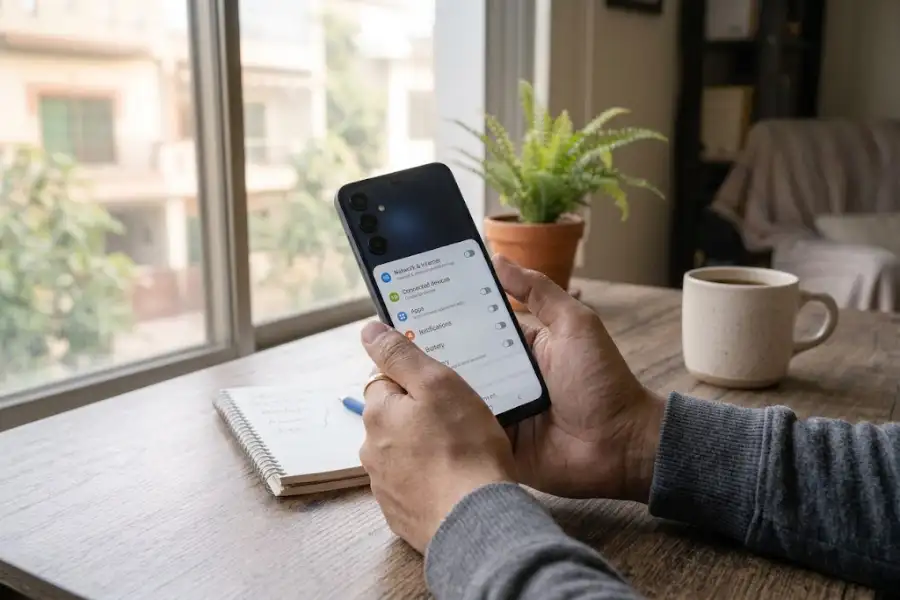
The steps here follow Samsung’s own support pages and carrier help pages for the Galaxy A15 5G. Menu names can change a little by region, carrier, and software version. If you cannot find a setting, type its name in the search bar at the top of Settings.
Update the phone first. Open Settings, tap Software update, then tap Download and install. Updates fix bugs and add features. A US carrier listing says this phone gets four years of software updates, so it is worth keeping current.
Here is a quick look at what you are working with. The phone has a 6.5-inch Super AMOLED screen, a 5,000mAh battery, and a 50MP main camera. Those parts make the tricks below worth trying.
Samsung Galaxy A15 5G Hidden Features That Save Battery
Turn On Protect Battery
This one setting helps your battery stay healthy for years. When it is on, the phone spends less time sitting at a full charge. That slows down wear.
- Open Settings.
- Tap Battery.
- Switch on Protect battery.
On some versions, Battery sits inside Battery and device care.
Switch Motion Smoothness to Standard
The screen can refresh up to 90 times each second. That looks smooth, but it uses more power. If you want longer battery life, go to Settings, tap Display, then tap Motion smoothness. Choose Standard. Keep Adaptive if you like the smoother feel when you scroll.
Use 4G When You Do Not Need 5G
A weak 5G signal can make a phone work harder. If your area has poor coverage, try switching modes. Go to Settings, tap Connections, tap Mobile networks, then tap Network mode. Pick the 4G option for a few days and see if the battery lasts longer. Switch back to 5G when you need faster downloads.
Screen and Sound Settings Worth Changing
Eye Comfort Shield
This setting makes the screen warmer and easier on your eyes at night. Go to Settings, tap Display, then tap Eye comfort shield. You can set it to turn on at sunset and off at sunrise. Many people find this helpful before bed.
Dolby Atmos Sound
Music and videos can sound fuller with this setting. Go to Settings, tap Sounds and vibration, then tap Sound quality and effects. Turn on Dolby Atmos. Try it with headphones first, since the change is easy to hear.
Swipe Gestures Instead of Buttons
The three buttons at the bottom of the screen take up space. Switch to swipe gestures and you get a little more room for apps and videos. Open Settings, tap Display, tap Navigation bar, then pick Swipe gestures.
Handy Tools Most People Never Open
Screen Recorder
You can record anything on your screen, with sound if you like. Swipe down twice from the top to open the Quick panel. Tap Screen recorder. If you do not see it, tap the edit icon and drag it into the panel.
This is great for showing a family member how to do something on their phone.
Scroll Capture for Long Screenshots
Normal screenshots cut off long pages. Scroll Capture fixes that.
- Press the Power key and Volume down key together.
- Tap the scroll icon that shows two arrows pointing down.
- Keep tapping it until you have the full page.
It works well for chats, recipes, and web pages.
Copy Text From a Photo
Did you take a picture of a sign, a receipt, or a page of notes? You can pull the words out of it. Open the photo in Gallery and tap the text icon when it appears. Select the words and copy them. Then paste them into a message or note.
Open the Camera Fast With the Side Key
Press the Side key twice and the camera opens, even when the screen is off. This saves time when a moment is about to pass. Type “Side key” in the Settings search bar if you want to change what the double press does.
For dark scenes, open the camera, tap More, and try Night mode. Samsung says this phone has camera options built for clearer night photos.
Quick Share for Fast File Transfers
Quick Share sends photos, videos, and files to nearby Galaxy devices without a cable. Open a photo, tap Share, then tap Quick Share. Pick the device that shows up, and the file moves across.
Set a Photo or Video as Your Call Background
Open the Phone app, tap the three dots, tap Settings, then tap Call background. Pick a photo or a short video. It gives your calls a personal touch.
Privacy and Safety Settings You Should Check
Turn On Auto Blocker
Samsung includes Auto Blocker on this phone to help stop risky actions. It can block apps from unknown sources and some unwanted USB commands. Open Settings, tap Security and privacy, then tap Auto Blocker. It is a good setting for anyone who shares a phone with kids or installs many apps.
Check the Privacy Dashboard
Some apps use your camera, microphone, or location more than you expect. The Privacy dashboard shows which apps used each one. Type “Privacy dashboard” into the Settings search bar to find it. If an app asks for too much, remove its permission.
Newer Android updates also add safety steps in the background. One example is Android’s automatic reboot security feature, which restarts a phone that has been left locked for a long time. Keeping your phone updated is how you get protection like this.
Storage and Power-User Extras
Add a Memory Card
The Galaxy A15 5G supports a microSD card of up to 1TB, according to Samsung’s US support page. Storage and memory change by country. US models list 4GB of RAM with 64GB or 128GB of storage. Indian models list 8GB of RAM with 128GB or 256GB. A memory card is a cheap way to save photos and videos without paying for more phone storage.
Turn On Developer Options
This menu is hidden on purpose. It holds tools for app makers, but regular users can try a few safe changes. To show it, go to Settings, tap About phone, tap Software information, then tap Build number seven times. Read the developer options page before changing anything, since a wrong switch can cause problems.
Find the Hidden Android Game
Android phones carry a small secret in the version screen. Open Settings, tap About phone, tap Software information, then tap the Android version a few times. If you want to know how it works, see this page on the hidden game on Android phones. It is a fun trick to show friends.
Save Data With Offline Maps
Fast 5G can still eat through a data plan. Download your city or trip area in advance and your maps work with little or no data. These Google Maps tips and hidden features show how to do it and what else the app can do.
What the Galaxy A15 5G Does Not Have
It helps to know the limits. Owners in Samsung’s own community forum report that Always On Display is missing on this phone, even though the screen is AMOLED. Some owners say the phone feels like an entry-level model because of this.
So if a friend says the Samsung Galaxy A15 5G hidden features list should include Always On Display, you can tell them to check the Galaxy Store and the phone’s settings first. Do not expect every feature from a pricier Galaxy phone.
Frequently Asked Questions
Does the Galaxy A15 5G have a screen recorder?
Yes. Samsung lists screen recording in its help pages for the phone. Swipe down twice, then tap Screen recorder in the Quick panel.
Can I add more storage to the Galaxy A15 5G?
Yes. The phone takes a microSD card of up to 1TB, based on Samsung’s US page.
How do I turn on 5G on the Galaxy A15 5G?
Go to Settings, tap Connections, tap Mobile networks, then tap Network mode and choose 5G. You also need a plan and a signal that support 5G.
Does the Galaxy A15 5G have Always On Display?
Many owners say it does not. Samsung community posts show people asking for it to be added.
How long will the phone get updates?
A US carrier listing says it gets four years of software updates. Check Settings, then Software update, for the latest news on your own phone.
Final Thoughts
You do not need to change all of these settings today. Start with Protect battery, Scroll Capture, and Auto Blocker. They take under two minutes each and help every day. Then try the others as you go.
The best Samsung Galaxy A15 5G hidden features are the ones that fit how you use your phone. Pick three, test them for a week, and keep what works.