Google Maps Tips and Hidden Features: 27 Tricks for 2026
Most people use Google Maps every single day. But most people only use about ten percent of what it can do. The rest stays hidden in menus, small buttons, and settings nobody ever taps.
This article covers real Google Maps tips and hidden features you can start using today, straight from the app’s own menus. Some will save you time. Some will save your phone’s battery, while a few hidden software eggs might even save you from getting lost in a brand new city. Let’s dig in.
Get There Faster Without the Guesswork
Most people just type in an address and go. But Google Maps can do a lot more than give you one single route. It can plan your whole trip for you.
- Add multiple stops. Tap the three dots in the top corner, then choose “Add stop.” You can add up to nine stops on one trip. This works great for road trips or running errands.
- Avoid tolls, highways, or ferries. Before you start driving, tap your route, then tap “Options.” You can turn off tolls, highways, or ferries with just one tap.
- Pick a fuel-efficient or EV-friendly route. Google Maps can show you the route that uses the least gas. If you drive an electric car, enter your exact EV model. Maps will plan charging stops along the way.
- Set your arrival or departure time. Tap “Options” before you start your trip. Tell Maps when you want to leave or arrive. It will predict traffic and adjust your route on its own.
Talk to Maps Like It’s a Real Person
In March 2026, Google rolled out its biggest Maps update in more than ten years. The new feature is called Ask Maps, and it runs on Google’s Gemini AI.
Instead of typing short keywords, you can now ask full questions. Something like, “My phone is almost dead, where can I charge it without walking far?” Ask Maps reads real photos, reviews, and Street View images. It gives you a real answer instead of a list of pins on a screen.
Google explains this new tool on its own product blog. The post walks through how the feature understands context. It gives better answers than a simple search bar ever could.
While this AI feature is still rolling out to more countries, you can already test other built-in surprises by exploring classic google maps easter eggs on both Android and iOS versions.
See the Road in 3D With Immersive Navigation
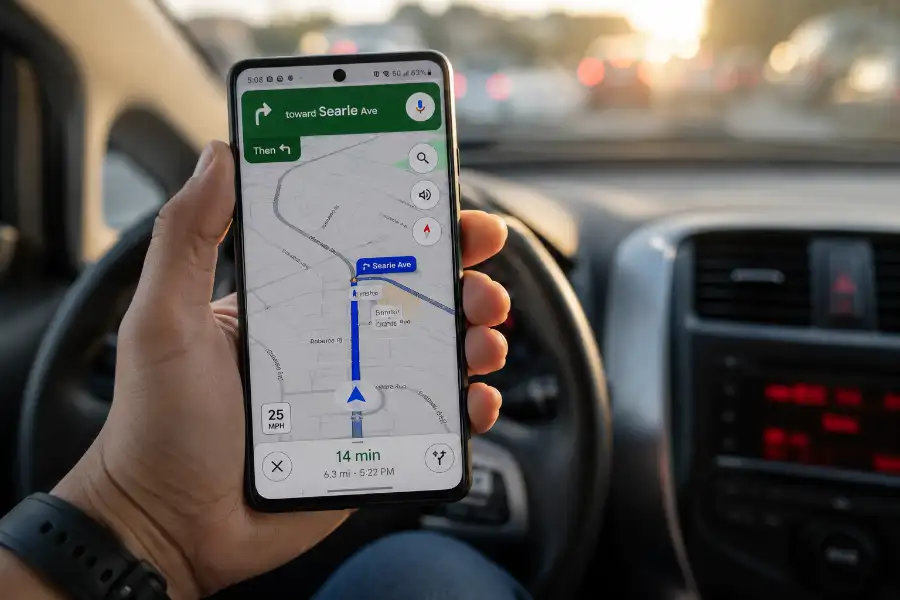
Along with Ask Maps, Google also launched a brand new driving view called Immersive Navigation. It shows buildings, lanes, overpasses, and traffic lights in real 3D, right as you drive.
The map also zooms in and out on its own. It pulls back on the highway so you can see further ahead. It zooms in on slow streets so you can see every turn clearly. Directions now mention real landmarks too, like “turn right after the gas station,” instead of just a plain street name.
This feature started rolling out in the United States in 2026. It is expanding to more phones over time, plus CarPlay and Android Auto.
Search for Places Along Your Drive
Say you’re driving and you get hungry. You don’t have to leave your route to search for food. Tap the search bar while you’re navigating, then type what you need, like “coffee” or “gas station.” Maps will only show you places close to your actual path. You won’t waste any extra time.
Fix the Small Stuff That Drives You Crazy
- Calibrate your compass. If the blue arrow points the wrong way, move your phone in a figure-eight motion a few times. This resets the compass and fixes the direction right away.
- Keep the map facing north. Tap the compass icon in the corner of your screen. This locks the map so north always points up, which helps some people read a map more easily.
- Rotate and tilt with two fingers. Place two fingers on the screen and twist to rotate the map. Swipe up with two fingers to see a bird’s-eye view of the whole area.
Know Before You Even Leave the House
- Check how busy a place is. Search for any store, restaurant, or park. Scroll down and you’ll see a chart of its busiest hours, plus how busy it is right now.
- Read AI-made place summaries. Google now uses Gemini to scan hundreds of reviews and pull out the key points, like wait times or parking, so you don’t have to scroll through them yourself.
- Find accessible places. Under a location’s details, tap “Accessibility.” You’ll see if the entrance has stairs, a ramp, or an accessible restroom.
- Turn on the speedometer. Go to Settings, then “Navigation settings,” and turn on “Speedometer.” You’ll see your current speed and the local speed limit right on the screen.
Travel Anywhere, Even Without Signal
Cell signal disappears in a lot of places: national parks, small towns, and long stretches of highway. Google Maps still works fine if you plan ahead just a little.
Search the area you need. Tap the location’s name, then the three dots, then “Download offline map.” Pick the area you want to save. You’ll be able to search addresses and get full driving directions with no internet connection at all.
Offline maps usually expire after about fifteen days unless your phone updates them automatically over Wi-Fi. It’s worth checking right before a big trip.
Keep Your Location to Yourself
- Go Incognito. Tap your profile picture, then “Turn on Incognito mode.” Your searches and location won’t be saved to your account while it’s turned on.
- Delete or pause Location History. Go to Settings, then “Personal content,” then “Location History.” You can turn it off completely or set it to auto-delete every three months.
- Share your location safely, with limits. Tap your profile picture, then “Location sharing.” Share your live location for as little as fifteen minutes, or as long as you want, and turn it off any time.
Small Tricks With a Big Payoff
- Turn on dark mode. Go to Settings, then “Theme,” then choose “Always in Dark Theme.” It’s easier on your eyes at night and can save battery on some phones.
- Save your parking spot. Tap the blue dot that shows your location, then “Save your parking.” Maps will remember right where you left your car.
- Build custom lists. Go to “Saved,” then “New list.” Name it whatever you want, like “Date Night” or “Best Tacos.” Add places to it, then share the list with friends.
- Travel back in time with Street View. Open Street View on any location, then look for the clock icon. You can see how that same street looked years ago.
- Change your vehicle icon. Tap your profile picture, then “Navigation settings,” then “Vehicle icon.” Swap the plain arrow for a small car, a truck, or another icon.
- Reduce notifications while you drive. Go to Settings, then “Notifications.” Turn off the alerts you don’t need, like traffic updates or new place suggestions.
- Use Lens right inside Maps. Tap the camera icon in the search bar, then point your phone at the street around you. Maps will label shops, restaurants, and street signs right on your camera view.
I used the offline map trick on a road trip once. There was almost no cell signal for miles. It was the only reason I found a gas station before I ran out of gas. It is one of those features you forget about until you truly need it.
Frequently Asked Questions
Does Google Maps drain my phone’s battery?
It can, especially with the screen on and GPS running. Turning on power-saving mode inside the app’s settings will dim the screen and use less battery during long trips.
Can I use Google Maps without an internet connection?
Yes. Download an offline map for the area before you go. You’ll still get turn-by-turn directions with no signal at all.
What is Ask Maps?
Ask Maps is a new AI feature powered by Gemini. It lets you type or say full questions, like where to find a quiet coffee shop with parking, instead of typing short keywords.
How do I stop Google Maps from saving my location?
Turn on Incognito mode for a single session, or go to Settings and turn off Location History for good.
Is Google Maps free to use?
Yes. Every tip and hidden feature in this guide is completely free. You just need a Google account for the ones that save across your devices, like custom lists or saved places.
Final Thoughts
Google Maps looks simple on the surface. Type an address, follow the blue line, arrive. But underneath that simple design is a tool built for almost anything. It can find a quiet trail. It can dodge a toll road. It can remember where you parked. It can even answer a full question, out loud, like a real person.
You don’t need every tip in this guide right away. Pick two or three that fit your life, like offline maps for road trips or Incognito mode for privacy. Try them out this week. Once you see how much time and stress they save, the rest will follow naturally.