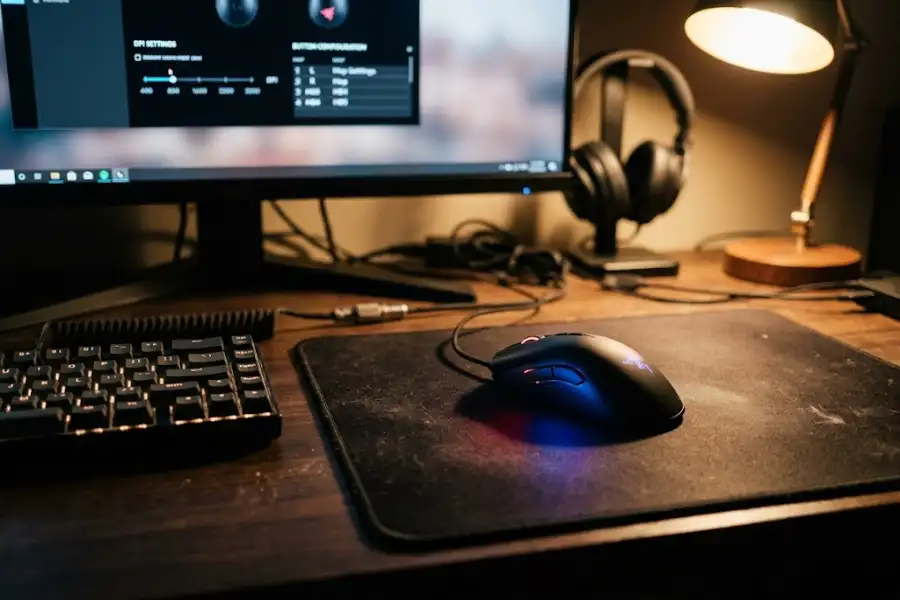
GT13 Gaming Mouse Software: Download, Setup, and Fix Guide
So you just got your hands on a GT13 gaming mouse, and now you’re stuck staring at a mouse that looks amazing but does… nothing special yet. That RGB glow is nice, but you bought this mouse for the extra buttons, the custom DPI settings, and the macro tricks. None of that works until you install the right software.
Here’s the good news: setting up the GT13 gaming mouse software takes less than ten minutes, even if you’ve never installed a mouse driver in your life. This article walks you through every step, from downloading the software to programming your first macro, and it also covers the annoying bugs that trip up a lot of new users.
What Is the GT13 Gaming Mouse, Exactly?
The GT13 is a budget-friendly gaming mouse made by Gamer Tech. It’s built for players who want extra features without paying premium prices. Some of its key specs include:
- Up to 7,200 DPI for adjustable sensitivity
- 8 programmable buttons
- RGB lighting with several effect modes
- A 1.4-meter USB cable for stable, wired connection
On paper, that’s a lot of mouse for the price. But the hardware only shows its full potential once the GT13 gaming mouse software is installed. Without it, you’re just looking at a default peripheral instead of a fully customized software egg optimized for peak performance.
How to Download the GT13 Gaming Mouse Software
Before you plug anything in, grab the software first. Follow these steps:
- Check the box or manual that came with your mouse for the official download link. Most Gamer Tech resellers list the driver on the same product page where you bought the mouse.
- If you can’t find the link, search the exact model name, “Gamer Tech GT13 driver,” rather than just “gaming mouse software.” This avoids downloading the wrong driver for a different mouse.
- Download the file to a folder you’ll remember, like your Desktop or Downloads folder.
Just as we recommended when setting up the Elecom Mouse Driver for Windows 11, a quick tip from experience is to never download mouse drivers from random third-party sites. Stick to the official reseller page or the manufacturer’s listed source. Fake driver downloads are a common way malware sneaks onto gaming PCs.
Installing the Software Step by Step
Once the file is downloaded, installation is straightforward:
- Plug your GT13 mouse into a USB port directly on your computer, not through a hub if possible.
- Locate the downloaded file and right-click it, then choose “Run as administrator.” This step matters. Skipping it is the most common reason installations fail halfway.
- Follow the on-screen prompts. The installer usually takes less than two minutes.
- Restart your computer once installation finishes, even if it doesn’t ask you to. This makes sure Windows fully recognizes the new drivers.
After restarting, open the GT13 gaming mouse software from your desktop or Start menu. If the icon isn’t there, check your system tray in the bottom-right corner of your screen.
Setting Your DPI and Sensitivity
DPI controls how fast your cursor moves when you move the mouse. Higher DPI means faster cursor movement, which matters a lot in fast-paced shooters, while lower DPI gives you more precision for detailed aiming.
Inside the software, look for the DPI tab. You’ll usually see preset stages, like 800, 1600, 3200, and up to 7,200. Most competitive gamers stick somewhere between 400 and 1600 DPI for better control, despite the mouse being capable of much higher numbers. Test a few settings in-game before locking one in. What feels right in a menu screen often feels completely different once you’re actually aiming at a moving target.
Programming the 8 Buttons
This is where the GT13 gaming mouse software really earns its keep. Follow these steps to set up your buttons:
- Open the “Button Assignment” or “Macro” tab in the software.
- Click on the button you want to change from the on-screen mouse diagram.
- Choose a function: a keyboard shortcut, a media control, a mouse click, or a custom macro.
- For macros, hit “Record,” perform the key sequence you want, then save it under a name you’ll recognize later.
- Click “Apply” and test the button immediately before moving to the next one.
A smart move here is saving multiple profiles. Most GT13 software lets you create separate profiles for different games, so your FPS setup doesn’t accidentally carry over into your MMO sessions.
Customizing RGB Lighting
The lighting tab is usually the most fun part of the setup, even if it has zero effect on performance. You can typically choose from:
- Static color (one solid color, always on)
- Breathing effect (colors fade in and out)
- Rainbow cycle (colors shift automatically)
- Reactive lighting (lights respond to clicks or movement)
Brightness and speed sliders let you fine-tune each effect. If you’re worried about battery life on a wireless setup or extra strain on a laptop’s USB port, dimming the RGB or turning it off entirely won’t affect mouse performance at all.
Common GT13 Software Problems and How to Fix Them
Even solid software runs into hiccups. Here are the issues users report most, along with fixes that get results:
Software Won’t Detect the Mouse
Unplug the mouse, wait ten seconds, then plug it into a different USB port. Avoid USB hubs, since they sometimes block the signal the software needs to identify the device.
Settings Reset After Restart
This usually means the software isn’t saving changes to onboard memory. Make sure you click “Save to Device” or a similarly labeled button, not just “Apply,” which may only apply settings temporarily.
Software Freezes or Won’t Open
Right-click the software icon, choose “Run as administrator” again, even if you did this during install. Windows updates sometimes reset app permissions.
Macros Not Working In-Game
Some games block third-party macro software as an anti-cheat measure. Check the game’s official rules before relying on complex macros in competitive matches.
Is GT13 Gaming Mouse Software Safe to Use?
Yes, as long as you download it from a trusted source. Mouse drivers need fairly deep access to your system to work properly, and that’s why downloading from unofficial or shady websites is risky. Stick to the manufacturer or authorized reseller, keep your antivirus active during installation, and you’ll be fine.
GT13 vs Other Budget Gaming Mouse Software
Compared to bigger brands like Logitech or Razer, GT13 software is simpler, with fewer bells and whistles. Much like searching for the best simple software to record game sessions, lightweight tools are often less bloated and run smoother. Many users find bulky software from major brands slow and resource-heavy. GT13’s software loads fast and uses fewer system resources, which matters if you’re gaming on a mid-range PC. What it lacks is cloud profile syncing and fine-grained surface calibration, features found in premium ecosystems. For casual and budget-conscious gamers, though, GT13 covers the essentials without the bloat.
Frequently Asked Questions
Does the GT13 mouse work without installing the software?
Yes, it will function as a basic mouse with default settings. You’ll only lose access to custom DPI stages, button programming, and RGB effects.
Is the GT13 gaming mouse software compatible with Mac?
Most versions are built for Windows only. If you’re on Mac, the mouse will still work as a plug-and-play device, but customization options will be limited or unavailable.
How do I reset the GT13 software to default settings?
Look for a “Reset to Default” button inside the settings or profile tab. This restores factory DPI stages and button mapping without needing to reinstall anything.
Can I use GT13 software with a different mouse brand?
No. Mouse software is built to communicate with specific hardware. Using it with another brand’s mouse either won’t work at all or could cause conflicts with your existing drivers.
Final Thoughts
The GT13 gaming mouse software turns a decent budget mouse into something you can truly make your own. The setup process is quick, the interface is beginner-friendly, and most problems have simple fixes once you know where to look. Take the ten minutes to set it up properly, and you’ll get a lot more value out of your GT13 than you would running it on default settings.