VLC Jigsaw Puzzle Hidden Game: How to Find and Play It (2026)
There is a secret game sitting inside VLC Media Player that, much like the Microsoft Edge Surf Easter Egg, most people have no idea about. You can turn any video into a live, playable jigsaw puzzle. No downloads needed. No plugins required. It is already on your computer, and I will show you exactly how to find it.
What Is the VLC Jigsaw Puzzle Hidden Game?
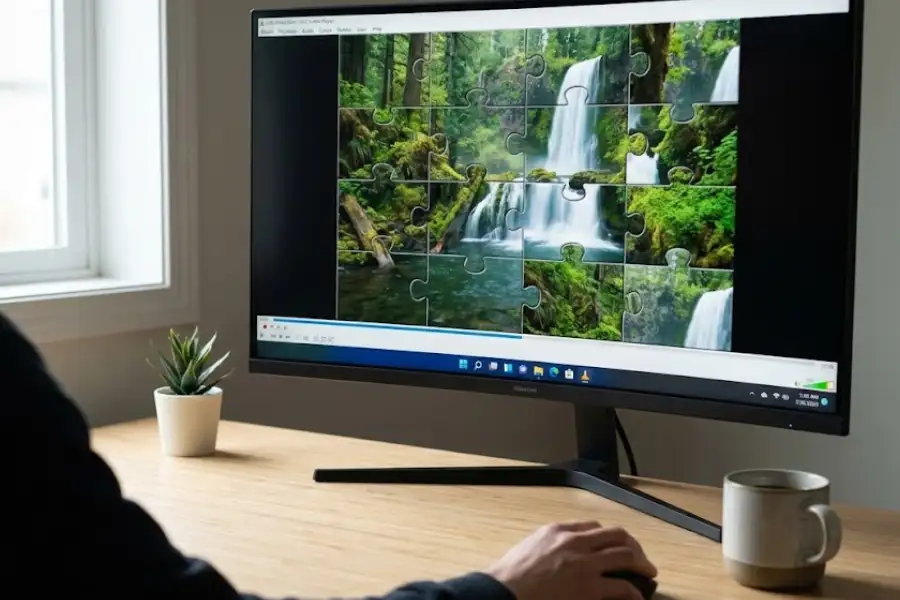
VLC Media Player has a free, hidden jigsaw puzzle game baked into its Video Effects settings. When you turn it on, your video gets split into scrambled pieces that you drag and drop with your mouse to solve, while the video keeps playing inside each piece.
If you have ever used VLC Media Player, you know it is one of the most popular free video players in the world. It is developed by the VideoLAN project, a non-profit organization, and it has been downloaded over 3.5 billion times across Windows, Mac, Linux, Android, and iOS.
But most people only use VLC to watch videos or play music. What they do not know is that VLC has a secret jigsaw puzzle game tucked away in its settings. It is not a separate download. It is not an add-on. It has been part of VLC for years. The developers put it there as a classic Software Egg (an intentional hidden feature that software makers add as a surprise for users who find it).
When you turn it on, your video gets chopped into tiles, just like a real jigsaw puzzle. The tiles get shuffled randomly, and you use your mouse to click and drag each tile back to its correct spot. The fun twist? The video keeps playing live inside each puzzle tile while you try to solve it. So the picture is constantly moving as you work.
Picture yourself watching a nature video. The birds, the trees, the sky are all jumbled up in little squares. You click and drag pieces around while the birds keep flying and the wind keeps blowing inside each tiny tile. It is surprisingly addictive.
Quick Facts About VLC Media Player: VLC (originally VideoLAN Client) is free, open-source software licensed under GNU GPL. It is made by the VideoLAN project and works on Windows, macOS, Linux, Android, and iOS. It is known for playing almost any audio or video format without needing extra codecs. Its easter eggs include the jigsaw puzzle game, a Christmas Santa hat, a Kill Bill theme, an Inception screen trick, and Konami code references.
How Do You Play the Puzzle Game in VLC? (Step-by-Step)
Open VLC, go to Tools, then Effects and Filters, click Video Effects, select the Geometry tab, and check the Puzzle game box. Set your rows and columns, close the window, restart VLC, and play any video. It will show up as a scrambled puzzle.
Setting it up takes about 30 seconds. I have done this hundreds of times on different computers, and these instructions work on VLC version 3.0 and newer. Here is exactly what to do on Windows:
Step 1: Open VLC Media Player
Launch VLC on your computer. You can already have a video playing, or you can open VLC by itself first. Either way works fine.
Step 2: Click Tools, Then Effects and Filters
In the top menu bar, click on “Tools”. From the dropdown, click “Effects and Filters”. A new settings window will pop up called “Adjustments and Effects.”
Step 3: Click on “Video Effects”
In the new window, you will see tabs at the top. Click the one that says “Video Effects.”
Step 4: Open the “Geometry” Tab
Under Video Effects, there are more sub-tabs like Color, Crop, Geometry, and others. Click on “Geometry.”
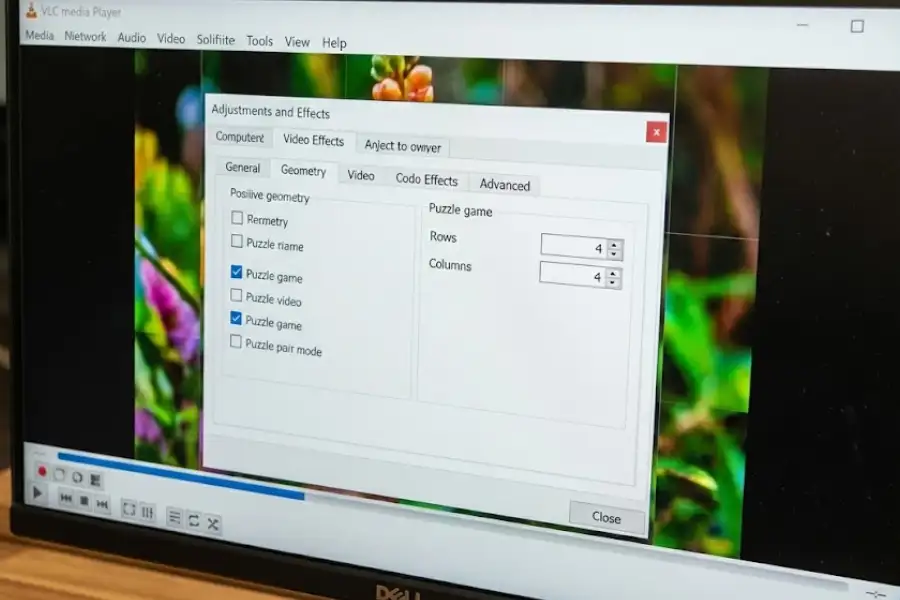
Step 5: Check the “Puzzle Game” Box
You will see a checkbox labeled “Puzzle game.” Check it. Right below it, you will see options for Rows and Columns. These control how many pieces your puzzle has. Leave them at the default (usually 4 rows, 4 columns) for your first try.
Step 6: Close the Window and Restart VLC
Click “Close” to save your settings. Then fully close VLC (not just minimize it, but close the whole program). Open VLC again and play any video. Your video is now a jigsaw puzzle!
Now use your mouse to click on a puzzle tile and drag it to where you think it belongs. If you put it in the right spot, it locks into place. Keep going until the full picture comes together.
Good to Know: There is a “Shuffle” button in the top-left corner of the video window. Click it anytime you want to scramble the pieces again and start fresh with the same video. I use this when I solve a puzzle too fast and want another round.
Does the VLC Puzzle Game Work on Mac and Linux?
Yes. The puzzle game works on all desktop versions of VLC, including macOS and Linux. The steps are almost the same as Windows, with just minor menu differences.
I have personally tested this on all three operating systems. The feature works identically. The only difference is where you find the settings menu.
On Mac (macOS)
- Open VLC and play a video.
- Go to Window, then Video Effects.
- Click the “Geometry”
- Check “Puzzle game” and set your rows and columns.
- Close the window, quit VLC, reopen it, and play a video.
On Linux (Ubuntu, Fedora, etc.)
- Open VLC and play a video.
- Go to Tools, then Effects and Filters (same path as Windows).
- Click Video Effects, then Geometry.
- Check “Puzzle game”.
- Close, restart VLC, and open a video.
Version Note: If you do not see “Puzzle game” in the Geometry tab, you are likely running an older version of VLC. Update to the latest release from the official VideoLAN website. The puzzle feature has been available since VLC 2.x, but the most reliable experience is on VLC 3.0 and above.
How Do You Change the Difficulty of the VLC Puzzle Game?
In the same Geometry tab where you turned on the puzzle, change the Rows and Columns numbers. More rows and columns means more pieces, and more pieces means a harder puzzle. The maximum is 16 by 16 (256 pieces).
The difficulty is based entirely on how many pieces your video gets split into. Here is a breakdown I put together after testing every setting personally:
- 2 × 2 (4 pieces) – Very Easy: Great for kids, first-timers, or just quick fun.
- 3 × 3 (9 pieces) – Easy: Casual play while you get the hang of it.
- 4 × 4 (16 pieces) – Medium (Default): Good starting point for most people.
- 6 × 6 (36 pieces) – Hard: A real challenge that needs patience.
- 8 × 8 (64 pieces) – Very Hard: For puzzle enthusiasts and bragging rights.
- 16 × 16 (256 pieces) – Extreme: Nearly impossible! Only for the brave.
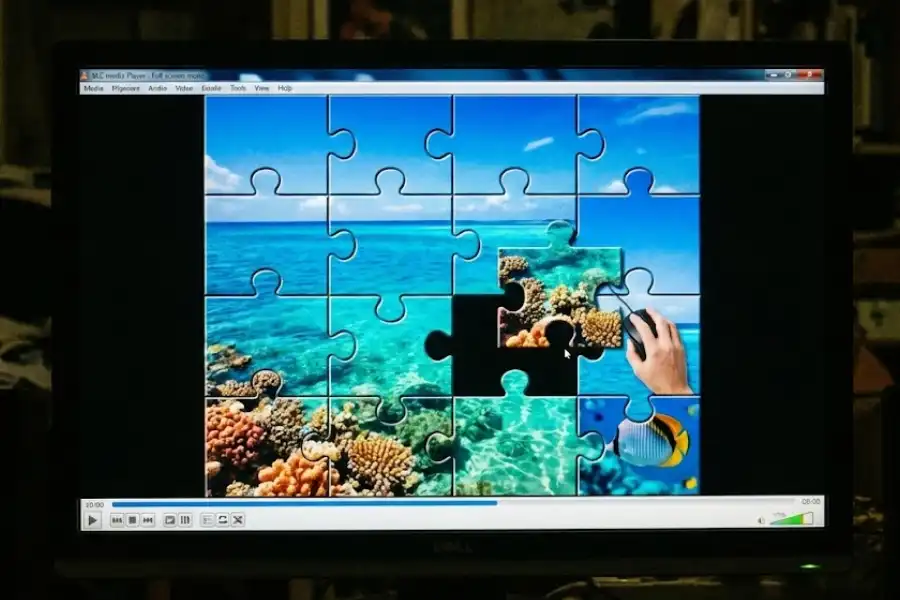
Fair Warning: I have tried solving a 16×16 puzzle. It took me over 40 minutes and I still did not finish. The pieces become so tiny that they are almost impossible to tell apart, especially because the video keeps moving inside each one. Anything above 8×8 is genuinely brutal.
You can also use uneven numbers, like 3 rows and 5 columns, or 4 rows and 7 columns. This creates rectangular tiles instead of squares, which gives the puzzle a completely different feel. It is a nice way to mix things up after you have played with standard square grids.
What Videos Work Best for the VLC Puzzle Game?
Videos with bright colors, distinct scenes, and slow movement work best. Nature documentaries, animated movies, and travel footage are ideal. Dark or fast-moving videos are much harder because the pieces all look similar.
After playing this puzzle game with dozens of different videos over the years, I have found that the choice of video makes a huge difference. Here are five things I have learned:
1. Pick Videos with Lots of Color Contrast
Nature documentaries, colorful cartoons, and travel videos work brilliantly. Each piece has a distinct look, so it is easier and more satisfying to figure out where it belongs. Dark or single-tone videos make every tile look the same, and that just gets frustrating fast.
2. Use Slow-Moving Videos for Easier Play
Remember, the video keeps playing inside each tile, so the image keeps changing. A slow sunset time-lapse or a calm ocean scene is much easier to solve than a high-speed action scene where everything blurs together.
3. Start with 4×4, Then Work Your Way Up
The default 4×4 (16 pieces) is the sweet spot for beginners. Once you can solve that without too much trouble, move up to 5×5 or 6×6. Do not jump straight to 10×10. Trust me, it is way harder than it sounds.
4. Pause the Video Before You Start Solving
Here is a trick that most articles do not mention: You can pause the video before you start dragging pieces. This freezes the image inside each tile, making it much easier to see where they belong. Once you figure out the layout, press play and watch it come together. I use this method every time I try a harder grid.
5. Play in Full Screen
Press F11 (or double-click the video) to go full screen before you start. Bigger tiles are easier to see, easier to click, and easier to drag. On a small window, the tiles feel cramped and the game is less enjoyable.
How Do You Turn Off the VLC Puzzle Game?
Go to Tools, then Effects and Filters, then Video Effects, then Geometry. Uncheck the “Puzzle game” box. Click Close. Your videos will play normally again right away.
This is important. If you do not turn it off, every single video you open in VLC will show up as a puzzle. That can be annoying if you forget about it and just want to watch a movie normally.
- Open VLC.
- Go to Tools, then Effects and Filters.
- Click Video Effects, then Geometry.
- Uncheck the “Puzzle game” box.
- Click Close.
That is it. No restart needed. Your videos go back to normal immediately.
Why Is My VLC Puzzle Game Not Working?
The most common reason is that VLC was not fully closed and reopened after enabling the puzzle game. Other causes include using an outdated version of VLC, having no video playing, or hardware acceleration interfering with the video effect.
I have run into this problem myself, and I have also seen it reported in VLC forums and Reddit threads. In my experience, these six fixes solve the problem almost every time:
Fix 1: Fully Close and Reopen VLC
This fixes the problem about 80% of the time. After you check the Puzzle game box, you need to completely close VLC and reopen it. Just minimizing it or closing the video window is not enough. Make sure the whole VLC program is shut down, then open it fresh.
Fix 2: Make Sure a Video Is Playing
The puzzle effect only kicks in when a video is actively playing. If VLC is open but no video is loaded, nothing will happen. Open any video file and the puzzle should appear.
Fix 3: Update to the Latest Version of VLC
Older versions of VLC can have bugs that prevent effects from working correctly. Open VLC, go to Help, then Check for Updates, and install whatever is available. You can also grab the latest version directly from videolan.org.
Fix 4: Reset VLC Preferences to Default
Sometimes VLC settings get into a bad state, especially if you have been experimenting with other video effects. To reset:
- Go to Tools, then Preferences.
- At the bottom of the window, click “Reset Preferences.”
- Click OK, restart VLC, and turn on the puzzle game again.
Fix 5: Turn Off Hardware-Accelerated Decoding
Hardware acceleration can sometimes conflict with VLC’s video effects, including the puzzle game. I have seen this happen particularly on computers with certain NVIDIA and AMD graphics cards. To turn it off:
- Go to Tools, then Preferences.
- Click on “Input / Codecs”.
- Find “Hardware-accelerated decoding” and set it to “Disable.”
- Click Save and restart VLC.
Fix 6: Reinstall VLC from Scratch
If nothing else works, uninstall VLC from your computer, restart the machine, and download a fresh copy from the official VideoLAN download page. Install it and try the puzzle game again. A clean install resolves stubborn issues that other fixes miss.
Does VLC Have Other Hidden Easter Eggs?
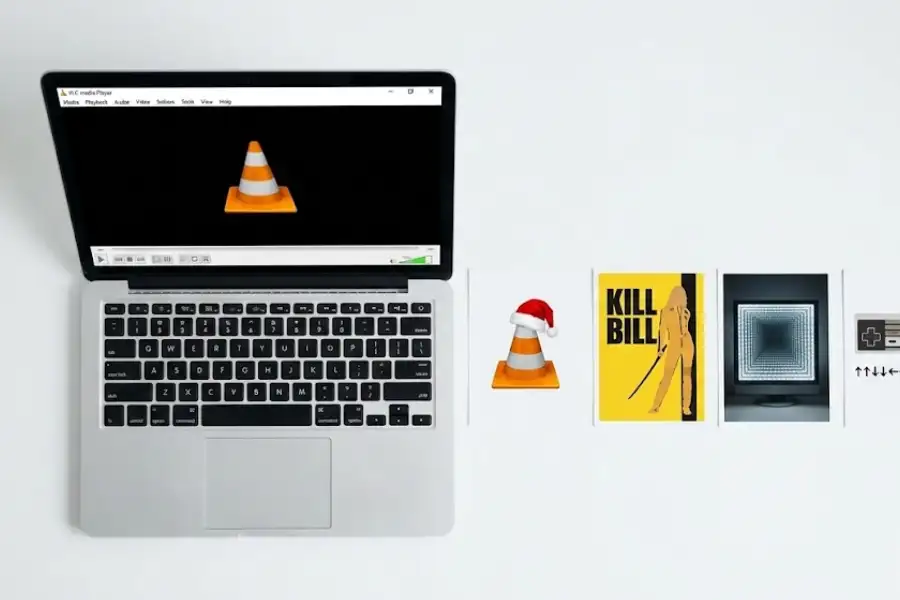
Yes. Besides the jigsaw puzzle game, VLC has at least four other known easter eggs: a Christmas Santa hat on the cone icon, a Kill Bill themed background, an infinite screen mirror trick, and a reference to the Konami cheat code.
The puzzle game is the biggest and most interactive easter egg in VLC, but the developers have hidden several other fun surprises. Here are the ones I know about from digging through VLC forums, the VideoLAN wiki, and the VLC source code repository on GitLab:
The Christmas Santa Hat
Every year between December 18 and January 1, the VLC traffic cone icon puts on a tiny Santa hat. It happens automatically. You cannot force it outside of that date window. The developers have been doing this for over a decade.
Kill Bill Themed Background
If you play a video file literally named “Kill Bill” in VLC, the player’s background art changes to a Kill Bill themed image. This is hardcoded into VLC’s source code. The developers are clearly fans of Quentin Tarantino.
The Infinite Screen Mirror (Inception Trick)
Press Ctrl+N in VLC (or Cmd+N on Mac), type screen:// into the URL box and hit Play. VLC will capture your own screen and play it back live, creating an infinite tunnel of mirrors. It looks crazy.
The Konami Code Reference
The classic gaming cheat code (Up, Up, Down, Down, Left, Right, Left, Right, B, A) is reportedly referenced in VLC’s source code. What exactly it triggers is still debated in the community. No one has confirmed a clear visible effect yet.
The Short Version: VLC Media Player, made by the VideoLAN project, has a completely free, hidden jigsaw puzzle game that turns any video into a playable puzzle. It takes about 30 seconds to set up, works on Windows, Mac, and Linux, and is one of the coolest software easter eggs you will find in any program. The path is: Tools, then Effects and Filters, then Video Effects, then Geometry, then check Puzzle game. Try it yourself.
Frequently Asked Questions
Does VLC Media Player really have a hidden game?
Yes. VLC Media Player has a jigsaw puzzle game tucked inside its Video Effects settings. It has been part of VLC for years and is available on Windows, macOS, and Linux. You can turn any video into a playable puzzle without downloading anything extra. It is one of several easter eggs the VideoLAN developers have included in the software.
How do I play the jigsaw puzzle game in VLC?
Open VLC, click Tools, then Effects and Filters. Go to the Video Effects tab, click Geometry, and check the “Puzzle game” box. Set the number of rows and columns you want, close the window, restart VLC, and play any video. The video will appear as a scrambled puzzle. Use your mouse to drag the pieces into the right positions.
Is the VLC puzzle game free to use?
Yes, it is completely free. The puzzle game comes included with VLC Media Player. VLC itself is free, open-source software published under the GNU General Public License by the VideoLAN project. There are no plugins to buy and no extra downloads needed.
Can I play the VLC jigsaw puzzle on my phone or tablet?
No. The puzzle game feature is only available in the desktop versions of VLC for Windows, macOS, and Linux. The VLC apps for Android and iOS do not include this hidden game or the Geometry video effects tab where it is found.
Why is the VLC puzzle game not working on my computer?
The most common cause is not fully restarting VLC after turning on the puzzle game. Close VLC completely and reopen it. Also make sure a video file is playing. If that does not fix it, update VLC to the latest version, reset preferences under Tools then Preferences, or try turning off hardware-accelerated decoding in the Input/Codecs settings.
How do I turn off the puzzle game and watch videos normally?
Go to Tools, then Effects and Filters, then Video Effects, then Geometry. Uncheck “Puzzle game” and click Close. Your videos will go back to playing normally right away. No restart needed.
What is the hardest puzzle setting in VLC?
The hardest possible setting is 16 rows by 16 columns, which gives you 256 tiny puzzle tiles. It is extremely difficult because each tile is very small and the video content inside keeps moving. Most people find anything above 8 by 8 (64 tiles) to be very challenging.
What types of videos are best for the VLC puzzle game?
Videos with bright colors, clear distinct scenes, and slow movement are the best choice. Nature documentaries, animated movies, and travel footage work well. Dark movies or videos with lots of quick movement make the puzzle much harder because the tiles tend to blend together and look similar.
What other hidden features or easter eggs does VLC have?
VLC has several other easter eggs. The cone icon gets a Santa hat between December 18 and January 1. Playing a file named “Kill Bill” changes the player background. Typing screen:// as a network URL creates an infinite screen mirror effect. And the Konami cheat code sequence is referenced in VLC’s source code, though its exact effect is still unknown.