How to Play Firefox Unicorn Pong: The Secret Game Hiding Inside Your Browser
You have been using Firefox for years. But did you know it has a secret game hidden inside? No ordinary game either. It is a fully playable Pong game. And the ball is a tiny, bouncing unicorn.
Most Firefox users have no idea this exists. The game is called Unicorn Pong. It is a real Easter egg built right into the browser. An Easter egg, in the tech world, is a hidden surprise that developers sneak into software just for fun.
This article will walk you through how to find it, how to play it, how to get your browser back to normal after, and a few tips to help you score higher. Let us get into it.
What Is Firefox Unicorn Pong?
Unicorn Pong is a secret mini-game tucked inside Mozilla Firefox. It works like the classic Pong arcade game from the 1970s. Except in this version, the ball is a unicorn emoji.
A small unicorn bounces around a playing area on your screen. Two paddle-shaped boxes sit on either side. You control one paddle with your keyboard. The computer controls the other. Your job is to keep the unicorn from getting past your paddle.
You get five lives. Once all five are gone, the game is over. It sounds simple. But do not let that fool you. The unicorn moves fast. The angles change without warning. You will lose lives faster than you expect on your first try.
Does Firefox Unicorn Pong Still Work in 2025?
Yes. As of 2025, Unicorn Pong is still alive and playable inside Firefox. The Easter egg has been part of Firefox since around 2015. The steps to reach it have changed a little over the years as Firefox updated its design. But the game itself is still there.
The steps in this guide are based on the current version of Firefox. They work on both Windows and Mac.
How to Find and Start Firefox Unicorn Pong (Step by Step)
Follow these steps carefully. You need to do them in order for the unicorn button to appear.
- Open Firefox on your computer. Make sure you have the latest version installed.
- Click the three horizontal lines in the top-right corner of the browser. This is called the hamburger menu.
- From the menu that opens, click on More tools.
- Then click Customize Toolbar. A new tab will open showing all your toolbar settings.
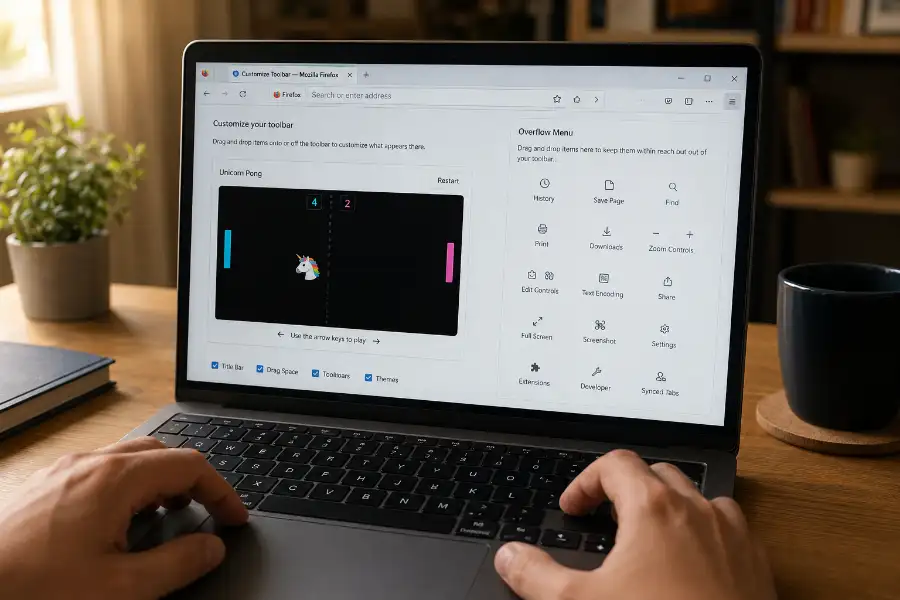
- You will see your toolbar buttons laid out across the screen. There is also a box on the right labeled the Overflow Menu.
- Drag and drop each toolbar button into the Overflow Menu. Do this one by one, slowly.
- Important: Do not move the item called Flexible Space. Leave it right where it is. Move everything else.
- Once all other items are in the Overflow Menu, look near the bottom of the screen. A small button with a unicorn emoji will appear.
- Click the unicorn button. The game will start on the left side of your screen.
That is it. You just found a hidden game that most Firefox users do not even know is there.
How to Play the Game Once It Starts
Once you click the unicorn button, a small playing area appears on the left side of the Customize tab. Here is what you need to know:
- The unicorn emoji is the ball. It bounces around the playing area just like in classic Pong.
- The Flexible Space boxes act as paddles, one on each side of the screen.
- You control the top paddle using the Left and Right arrow keys on your keyboard.
- The computer controls the bottom paddle automatically.
- If the unicorn gets past your paddle, you lose one life.
- You have five lives total. Lose all five and the game ends.
To play again after losing, just double-click the unicorn button. A new game will start right away.
How to Get Your Toolbar Back to Normal After Playing
After you finish playing, your toolbar will look different. All your buttons are in the Overflow Menu now. You need to put them back before you start using Firefox normally again. You have two options:
- Click Restore Defaults. You will find this button in the bottom-right corner of the Customize tab. This puts all your toolbar buttons back to the original Firefox layout automatically. It is the fastest option. Keep in mind, this resets everything to the factory layout. Any custom arrangement you had before will be gone.
- Drag items back by hand. If you had a custom toolbar setup that you loved, take a few minutes to drag each button back to where you had it. This takes more time but keeps your personal layout right the way you like it.
Most people use option one. It is quick and easy. But if your toolbar was set up in a very specific way, go with option two to save yourself the headache of setting it all up again.
Tips to Score Higher in Unicorn Pong
The game looks easy at first. Here are a few simple tips that will help you last longer and beat your own best score.
- Stay near the center. If your paddle starts near the middle of the screen, you have less distance to cover when the unicorn changes direction. This gives you more reaction time.
- Watch the bounce angle. The unicorn does not always bounce in the same direction. Pay attention to the angle it hits the wall or the paddle. You can often predict where it will go next.
- Move steady, not fast. When things speed up, many players start panicking and moving their paddle too quickly. They overshoot the unicorn and miss it. Calm, steady movements almost always work better than rushing.
- Play a few rounds in a row. Like any classic arcade game, your brain needs a few rounds to get used to the speed. By your third or fourth game, you will already notice a real difference in how well you track the unicorn.
Why Did Firefox Even Put a Secret Game in the Browser?
This is a fair question. Why would a serious browser company spend time hiding a Pong game inside their product?
The answer goes back to developer culture. Programmers have been hiding Easter eggs (functioning as a classic software egg) inside software since the late 1970s. It started as a way for developers to quietly sign their work without breaking company rules about credits. Over time, it grew into a tradition. A way to have fun, show a bit of personality, and leave something surprising for curious users to find.
Firefox has had unicorn Easter eggs since around 2015. The unicorn first appeared in a different hidden feature inside the browser. Later, it became the main character of Unicorn Pong. The Mozilla team clearly enjoys adding a little magic to what could otherwise be a very plain piece of software.
It is also a reminder that technology does not have to be all business. A browser can be useful and a little bit playful at the same time.
Firefox vs Chrome vs Edge: How the Hidden Browser Games Compare
Firefox is not the only browser hiding a game. This is what the three biggest browsers offer:
- Google Chrome has the Dinosaur Game (which becomes even more fun if you know the right chrome dino game cheats). It appears automatically when your internet connection goes down. You can also type chrome://dino into the Chrome address bar to play it anytime, even when you are online.
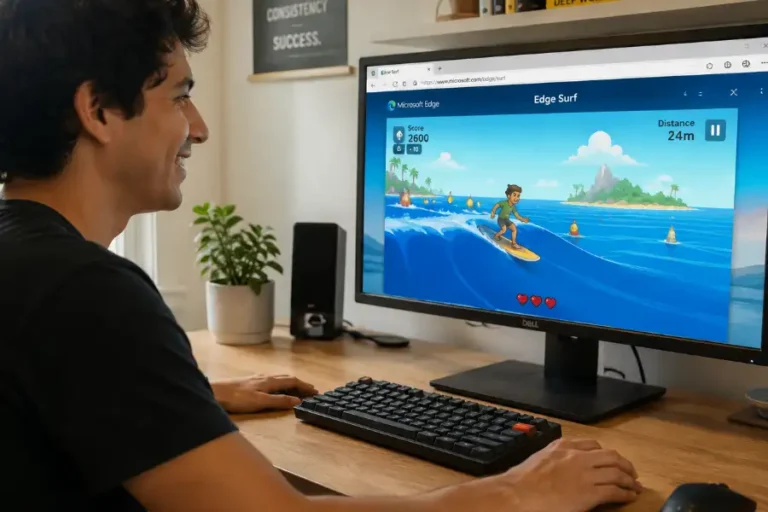
- Microsoft Edge has a Surfing game. Type edge://surf into the Edge address bar and it opens immediately. It is the most polished of the three, with different game modes and difficulty settings.
- Mozilla Firefox has Unicorn Pong. There is no shortcut address for it. You have to go through the toolbar customization steps every time you want to play. That makes it the hardest one to find, which also makes it the most satisfying when you come across it for the first time.
Each game has its own personality. Chrome’s game is tied to those annoying moments when the internet goes out. Edge’s game is the flashiest and most complete. Firefox’s game is the most hidden, the most nostalgic, and by far the most fun to share with someone who has never seen it before.
Frequently Asked Questions
Does Firefox Unicorn Pong work on mobile?
No. Unicorn Pong is only available on the desktop version of Firefox for Windows and Mac. The Firefox mobile app does not have the Customize Toolbar feature needed to trigger the Easter egg.
Will moving buttons to the Overflow Menu break my browser?
Not at all. Moving toolbar buttons is completely safe. It only changes where your buttons are displayed. Nothing gets deleted. Your bookmarks, saved passwords, history, and extensions are completely untouched. Just remember to restore your buttons when you are done playing.
What does Restore Defaults really do?
It puts your Firefox toolbar back to the default layout that comes with a fresh Firefox install. Your custom button arrangement will be removed. However, it does not touch your bookmarks, passwords, browsing history, or any other personal data. It only affects the toolbar layout.
How many lives do you get in Unicorn Pong?
You get five lives. Each time the unicorn passes your paddle without you hitting it back, you lose one life. Lose all five and the game ends.
Can I replay Unicorn Pong immediately after losing?
Yes. Once the game ends, double-click the unicorn button at the bottom of the screen. A brand new game will start right away. No need to go through the setup steps again as long as you are still on the Customize tab.
Has Mozilla removed Unicorn Pong from newer versions of Firefox?
No. As of 2025, the Easter egg is still present in current versions of Firefox. The steps to reach it have shifted slightly over the years, but the game itself has not been removed. Mozilla has kept it alive as a fun piece of Firefox history.
Do I need an internet connection to play Unicorn Pong?
No. Unicorn Pong runs entirely inside the browser. It does not need the internet at all. You can play it even when you are completely offline.
Go Find That Unicorn
There you have it. Firefox has been quietly hiding a Unicorn Pong game this whole time. Most people use the browser every single day and have absolutely no idea it is there.
Now you know. You know how to find it, how to play it, how to get your browser back to normal, and even why Firefox hid it there in the first place.
Go ahead and try it right now. See how many of your five lives you can hold on to. Then share this with a friend who thinks they know everything about Firefox. Their reaction will be worth every second. And if you are hungry for more hidden tech secrets, be sure to explore the undocumented kindle software update 5.18.5 features to upgrade your digital reading experience