Linux Laptop Most Used Shortcuts (The Only List You’ll Ever Need)
Let me guess. You just switched to Linux. Or maybe you’ve been using it for a while but still reach for the mouse way too much. Either way, you landed in the right place.
Keyboard shortcuts on a Linux laptop can turn a five-second task into a half-second task. That sounds small, right? But add all those saved seconds together over a full day, and you’ll be shocked how much time you get back.
Much like finding a hidden software egg that completely changes how you work, this article covers the shortcuts that real Linux users rely on every single day. Not some giant list of 200 shortcuts you’ll never remember. Just the ones that matter, organized by what you’re doing on your laptop at the time.
Let’s jump in.
General Desktop Shortcuts Every Linux User Should Know
These work across most Linux desktops, whether you’re running Ubuntu, Fedora, Linux Mint, or Pop!_OS. Some might behave slightly different depending on your desktop setup (GNOME, KDE, XFCE), but the big ones stay the same.
- Super key (the Windows key): This opens your app launcher or Activities view. Think of it like the Start menu on Windows. Hit it, start typing the name of any app, and press Enter. Boom, it opens. Once you get used to this, you’ll never dig through menus again.
- Alt + Tab: Flip between open windows. Hold Alt, tap Tab to cycle through them. You’ve probably used this on Windows too. Same idea here.
- Alt + F4: Closes whatever window you’re looking at. Quick and clean.
- Ctrl + Alt + L: Locks your screen right away. About to walk away from your laptop at a coffee shop? Hit this first. It takes less than a second.
- Ctrl + Alt + Delete: On some Linux setups, this opens the log-out screen or system monitor. It’s not exactly the same as Windows, but it’s still handy when something freezes up.
- Super + D: Shows your desktop by pushing all windows aside. Press it again to bring everything back.
Quick note: The “Super” key is just the key with the Windows logo on most laptops. In Linux, people call it “Super” instead.
Terminal Shortcuts That Save You Serious Time
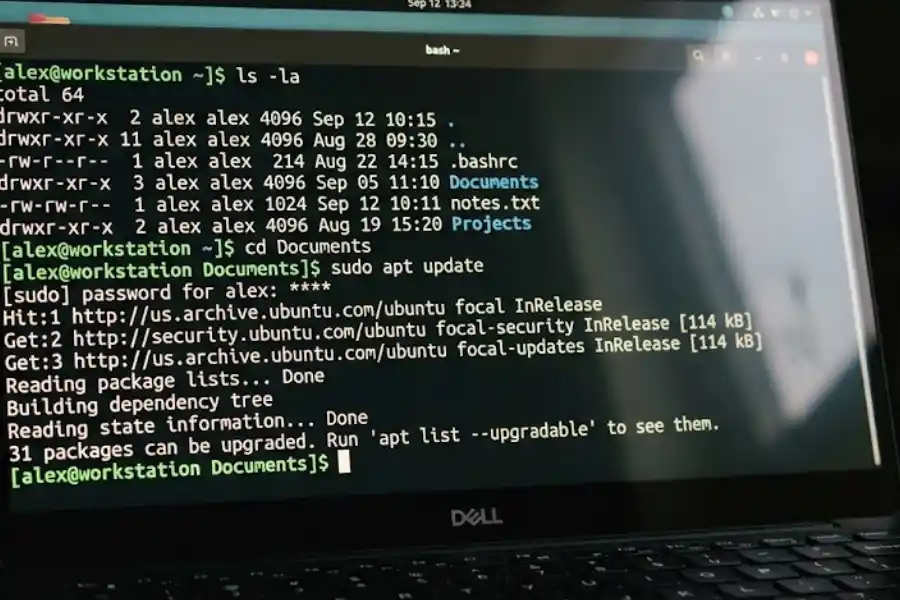
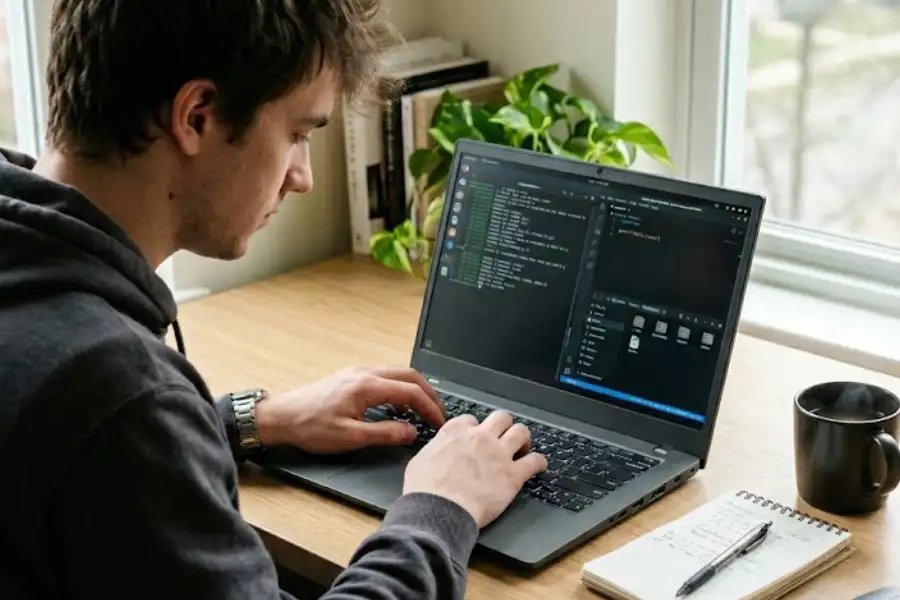
If you use the terminal even a little, these shortcuts will change how fast you work. Seriously. I wish someone had shown me these on day one.
Opening the Terminal
- Ctrl + Alt + T: Opens a brand new terminal window. This is probably the single most-used shortcut for Linux power users. Memorize it.
Moving Around the Command Line
- Ctrl + A: Jumps your cursor to the start of the line. Super useful when you type a long command and need to fix something at the beginning.
- Ctrl + E: Jumps your cursor to the end of the line. The opposite of Ctrl + A.
- Ctrl + U: Deletes everything from your cursor back to the start. Great when you mess up a command and want to start fresh without pressing Backspace twenty times.
- Ctrl + K: Deletes everything from your cursor forward to the end of the line.
- Ctrl + W: Deletes just the last word you typed. Quicker than holding Backspace.
Getting Things Done Faster
- Tab: This is the king of terminal shortcuts. It auto-completes file names, folder names, and even commands. Start typing, press Tab, and the terminal fills in the rest. If there are multiple matches, press Tab twice to see all options.
- Ctrl + R: Searches through your past commands. Press it, start typing a few letters, and it finds the last matching command you ran. Saves you from scrolling through your history or retyping long commands.
- !! (double exclamation mark): Runs the last command again. This one is a lifesaver. Forgot to add sudo before your last command? Just type sudo !! and it runs the whole thing again with sudo at the front.
- Ctrl + C: Stops a running command. If something is stuck or taking forever, this kills it.
- Ctrl + L: Clears your terminal screen. Same as typing “clear” but way faster.
- Ctrl + Z: Pauses the current process and sends it to the background. You can bring it back later by typing fg.
Copy and Paste Inside the Terminal
Here’s something that trips up almost every new Linux user. In the terminal, Ctrl + C doesn’t copy text. It stops a running command (like I just said above). So how do you copy and paste in the terminal?
- Ctrl + Shift + C: Copy selected text in the terminal.
- Ctrl + Shift + V: Paste text into the terminal.
Yeah, you just add Shift. Simple once you know, but confusing if nobody tells you. There’s also a neat trick: if you highlight any text with your mouse in the terminal, you can paste it by clicking the middle mouse button (or pressing both sides of the touchpad at once on some laptops).
Text Editing Shortcuts That Work Almost Everywhere
These are the basic ones you’ll use in browsers, text editors, document apps, email, pretty much everywhere except the terminal (where you need that extra Shift, remember?).
- Ctrl + C: Copy
- Ctrl + X: Cut
- Ctrl + V: Paste
- Ctrl + Z: Undo your last action
- Ctrl + Y: Redo (brings back what you just undid)
- Ctrl + A: Select everything
- Ctrl + F: Find text on the page or in a document
- Ctrl + S: Save your work
- Ctrl + P: Print
Nothing fancy here. But you’d be surprised how many people still right-click to copy and paste instead of using shortcuts. Once you start, you can’t go back.
Window Management: Snap, Switch, and Organize
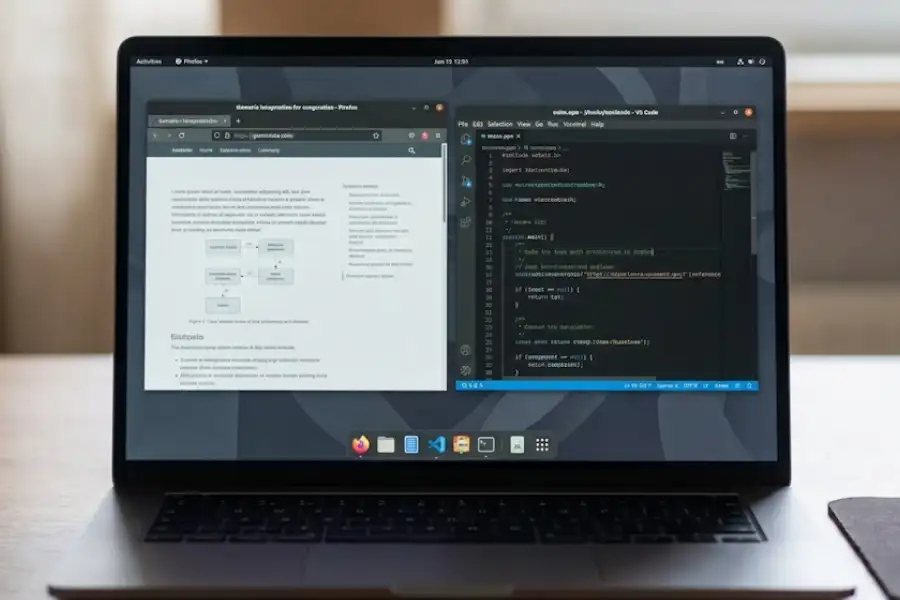
This is where your Linux laptop starts to feel really fast. Instead of dragging windows around with your mouse, just use these.
Snapping Windows to Sides
- Super + Left Arrow: Snaps the current window to the left half of your screen.
- Super + Right Arrow: Snaps it to the right half.
- Super + Up Arrow: Makes the window fullscreen.
- Super + Down Arrow: Shrinks it back to its normal size (or minimizes it, depending on your desktop).
This is great for working with two things at once. For example, snap your browser to the left to control a video tutorial with your favorite YouTube keyboard shortcuts, and keep a document on the right. No dragging, no resizing. Just two quick key presses.
Workspaces (Virtual Desktops)
Workspaces are like having multiple screens on a single display. You can spread your work across them so things don’t get cluttered.
- Ctrl + Alt + Up/Down Arrow: Switch between workspaces on many setups. Some desktops use Left/Right Arrow instead.
- Super + Page Up / Page Down: Also switches workspaces, mainly on GNOME-based systems.
- Ctrl + Alt + Shift + Arrow key: Moves the current window to a different workspace. Handy when you want to reorganize without opening extra menus.
I keep my email on one workspace, my code editor on another, and my browser on a third. It keeps everything tidy without stacking windows on top of each other.
Screenshot and Screen Recording Shortcuts
Most guides skip this section, and I have no idea why. Taking screenshots on Linux is dead simple once you know the shortcuts.
Screenshots
- Print Screen (PrtSc): Takes a screenshot of your full screen. On newer GNOME versions, this opens a small tool where you pick what to capture.
- Alt + Print Screen: Captures only the active window. Perfect when you don’t want your whole desktop in the shot.
- Shift + Print Screen: Lets you drag and select a specific area to capture.
Laptop tip: On some laptops, the Print Screen key only works if you also press the Fn key. So try Fn + PrtSc if the shortcut doesn’t work on its own.
Copying Screenshots to Clipboard
Sometimes you don’t want to save a file. You just want to paste the screenshot somewhere else, like into a chat message or a document.
- Ctrl + Print Screen: Captures the full screen and copies it to your clipboard.
- Ctrl + Alt + Print Screen: Copies just the active window to clipboard.
- Ctrl + Shift + Print Screen: Copies a selected area to clipboard.
Screen Recording
- Ctrl + Alt + Shift + R: Starts or stops a screen recording on GNOME. A small red dot appears in your top bar when recording is active. Press the same combo again to stop it.
This already comes with GNOME, so you don’t need any extra software. Most people don’t even know it exists.
File Manager Shortcuts
Whether you use Nautilus (GNOME Files), Dolphin (KDE), or Thunar (XFCE), these shortcuts make browsing your files much quicker.
- Super + E: Opens the file manager on some desktops (especially KDE). GNOME users might need to set this up manually.
- Ctrl + L: Lets you type a file path straight into the address bar. Great when you know exactly where a file is.
- Ctrl + H: Shows or hides hidden files (the ones whose names start with a dot).
- Ctrl + T: Opens a new tab inside the file manager.
- Alt + Up Arrow: Goes up one folder.
- Alt + Left Arrow: Goes back to the folder you were in before.
- Alt + Right Arrow: Goes forward again.
- F2: Renames the selected file or folder.
- Delete: Moves the selected file to the Trash.
- Shift + Delete: Permanently deletes the file. Be careful with this one because there’s no undo.
Laptop-Specific Keys and Shortcuts
Here’s a section that almost every other guide ignores. Your Linux laptop has special keys across the top row that control hardware stuff. Most of them use the Fn key in combination with a function key (F1–F12).
- Fn + Brightness keys: Turns your screen brightness up or down. The icons usually look like a sun. On most modern Linux distros, these work right away without any setup.
- Fn + Volume keys: Adjusts speaker volume or mutes the sound. Again, these usually just work.
- Fn + Airplane Mode key: Turns Wi-Fi and Bluetooth on or off. Look for a tiny airplane icon on one of the function keys.
- Fn + Touchpad toggle: Some laptops have a key to turn the touchpad on or off. Useful when you plug in an external mouse and keep accidentally brushing the touchpad while typing.
- Fn + Display key: Switches between your laptop screen and an external monitor (or mirrors them). The icon usually looks like two rectangles.
- Fn + Sleep key: Puts your laptop to sleep right away.
Good to know: If any of these Fn shortcuts don’t work, check your BIOS settings. Some laptops have an option called “Function Key Behavior” that switches whether you need to press Fn or not. You can also check your Linux settings under “Keyboard” or “Power” for related options.
Accessibility Shortcuts You Might Not Know About
Linux already includes shortcuts for people who need larger text, zoomed-in screens, or higher contrast. Even if you don’t need these all the time, they can come in handy when you’re squinting at tiny text or presenting your screen to a group.
- Super + Alt + 8: Turns the screen magnifier (zoom) on or off.
- Super + Alt + = (equals): Zooms in.
- Super + Alt + – (minus): Zooms out.
You can also turn on High Contrast mode, Large Text, and a Screen Reader from your Accessibility settings. Just press the Super key, type “Accessibility,” and press Enter.
These features work best on GNOME. KDE and XFCE have their own versions in the system settings too.
Browser Shortcuts That Work on Linux
Since you probably spend half your time in a web browser, these are worth knowing too. They work the same in Firefox, Chrome, Brave, and most other browsers on Linux.
- Ctrl + T: Opens a new tab.
- Ctrl + W: Closes the current tab.
- Ctrl + Shift + T: Reopens the last tab you closed. Accidentally closed something? This brings it right back.
- Ctrl + L: Selects the address bar so you can type a new web address (perfect for quickly searching how to do a barrel roll 2 times when you need a fun screen-spinning break).
- Ctrl + Tab: Switches to the next tab.
- Ctrl + Shift + Tab: Switches to the previous tab.
- Ctrl + D: This is great for saving your favorite tutorials, daily tools, or even fun web Easter eggs like the hidden Discord Snek 404 game.
- Ctrl + Shift + N: Opens a private/incognito window.
- F11: Goes fullscreen. Press it again to leave fullscreen.
- Ctrl + + (plus): Zooms in on the page.
- Ctrl + – (minus): Zooms out.
- Ctrl + 0: Resets zoom to normal.
How to Create Your Own Custom Shortcuts
Here’s the cool part about Linux. You’re not stuck with the default shortcuts. You can change them or create new ones yourself.
On GNOME (Ubuntu, Fedora, Pop!_OS)
- Open Settings.
- Click on Keyboard.
- Scroll down to Custom Shortcuts (or click “View and Customize Shortcuts”).
- Click the + button to add a new shortcut.
- Give it a name, type the command you want it to run, and set a key combo.
For example, I set Super + F to open Firefox and Super + N to open my note-taking app. Small thing, but it feels great when your laptop responds to exactly the keys you want.
On KDE Plasma
- Open System Settings.
- Go to Shortcuts.
- Pick any action and assign a new key combo.
KDE makes it really easy. You can assign a shortcut to almost anything, even to specific app actions.
On XFCE
- Open Settings Manager.
- Click on Keyboard.
- Go to the Application Shortcuts tab.
- Click Add and set your command and key combo.
Handy Tricks Most People Miss
These don’t fit neatly into any category, but they’re some of my favorite little things about using a Linux laptop.
- Middle-click paste: Highlight any text anywhere on your screen. Then go to a different window or text field and press your middle mouse button (or tap three fingers on many touchpads). The text gets pasted. No Ctrl + C needed. This is a Linux-only feature and it feels like magic once you try it.
- Alt + F2: Opens a quick “Run” dialog. Type any command and it runs right away without opening a full terminal.
- Ctrl + Alt + F1 through F6: Opens a virtual text-only console (called a TTY). This can save your day if your desktop ever freezes. Switch to a TTY, log in, and fix things from the command line. Press Ctrl + Alt + F7 (or F1 or F2 on some systems) to jump back to your desktop.
- xdotool or xbindkeys: If you really want to get fancy, you can install these small tools to bind almost any action to any key. That’s going beyond beginner territory, but it’s worth knowing they exist.
Shortcuts That Differ by Desktop Environment
Not every shortcut works the same on every Linux desktop. Here’s a quick breakdown so you know what to expect.
GNOME (used by Ubuntu, Fedora, Pop!_OS) has a clean, modern feel. It leans heavily on the Super key and keyboard-driven actions. Customization is a bit limited unless you use GNOME Extensions.
KDE Plasma (used by Kubuntu, KDE Neon, openSUSE) gives you the most control. Almost every shortcut can be changed. It feels a lot like Windows from the start, so if you’re switching from Windows, you’ll feel at home here.
XFCE (used by Xubuntu, Linux Mint XFCE) is lightweight and simple. It doesn’t have as many ready-made shortcuts as GNOME or KDE, but it’s easy to add your own. Great for older laptops that need something snappy and light.
If you’re not sure which desktop you’re running, press the Super key. If you see an Activities bar at the top, that’s GNOME. If you see a taskbar at the bottom that looks like Windows, that’s probably KDE. If everything looks minimal and classic, that’s likely XFCE.
How to Remember All These Shortcuts
Okay, that was a lot. But here’s the thing. You don’t need to memorize everything at once. Here’s what I’d suggest:
- Pick 5 shortcuts today. Start with the ones you’ll use the most. For most people, that’s Ctrl + Alt + T (terminal), Alt + Tab (switch windows), Super key (launch apps), Ctrl + C / Ctrl + V (copy and paste), and Super + Arrow keys (snap windows).
- Use them on purpose for a week. Every time you reach for the mouse to do one of those things, stop yourself and use the shortcut instead. It’ll feel slow at first. That’s normal.
- Add 2-3 more each week. After a month, you’ll be flying through tasks without even thinking about it.
- Print this page out (or bookmark it) and keep it nearby as a cheat sheet. No shame in peeking while you learn.
Frequently Asked Questions
Do these shortcuts work on all Linux distros?
Most of the general and terminal shortcuts work on any Linux system. But some desktop-specific ones (like window snapping or workspace switching) depend on whether you’re running GNOME, KDE, or XFCE. The differences are small, though, and I’ve pointed them out where they matter.
What if a shortcut doesn’t work on my laptop?
First, check if your laptop needs the Fn key pressed along with it. Some shortcuts also vary by distro or desktop version. You can always open your Keyboard settings and search for the action to see what key combo it’s set to.
Can I change or remove default shortcuts?
Yes! Every major Linux desktop lets you change shortcuts. I covered how to do it on GNOME, KDE, and XFCE earlier in this article. You can reassign any shortcut to whatever keys you want.
Are terminal shortcuts different from desktop shortcuts?
Yes. Terminal shortcuts only work inside the terminal app. The biggest one to remember is that Ctrl + C stops a command in the terminal, but copies text everywhere else. For copy and paste in the terminal, use Ctrl + Shift + C and Ctrl + Shift + V.
Why is the Windows key called “Super” on Linux?
It’s just a naming thing. Linux doesn’t use Windows branding, so the community calls that key “Super” instead. It does the same job. It opens your main app launcher or search.
How do I take a screenshot on a Linux laptop?
Press the Print Screen key for a full screenshot, Alt + Print Screen for just the active window, or Shift + Print Screen to select an area. If those don’t work, try adding the Fn key. I covered this in more detail in the screenshot section above.
Conclusion
Learning shortcuts feels like a chore at first. But once your fingers start doing the work without your brain even thinking about it, the speed gain is real. And on a Linux laptop, where the keyboard can control almost everything, shortcuts aren’t a luxury. They’re the fastest way to get things done, just like mastering the essential blender software shortcut keys can completely transform your 3D design workflow.
Bookmark this page, pick your first five shortcuts, and start using them today. A few weeks from now, you’ll wonder how you ever lived without them.