Linux Command Line Shortcuts: The Only Guide You Will Ever Need
Let me guess. You open the Linux terminal, type a long command, make a tiny mistake near the beginning, and then hold down the backspace key… waiting… waiting… until the whole thing is gone. Then you retype the whole command from scratch.
Sound familiar? Yeah, we have all been there.
Here is the good news. There are simple keyboard shortcuts that let you jump around, fix mistakes, and get things done way faster. Once you learn even a handful of them, you will wonder how you ever survived without them.
This article covers every shortcut worth knowing. I have grouped them into easy sections so you can start with the basics and work your way up. No fluff, no filler. Just the stuff that matters.
Why Bother Learning These Shortcuts?
Think about it this way. Just like mastering your linux laptop most used shortcuts saves you time on the desktop, every time you reach for the mouse or hold down an arrow key in the terminal, you lose a couple seconds. That does not sound like a lot. But if you spend hours in the terminal every single day, those tiny moments stack up into real time.
People who know their shortcuts fly through terminal work. They look like wizards. But they are not doing anything magical. They just memorized a few key combos and practiced until it became second nature.
The best part? You do not have to learn them all at once. Pick three or four from this guide today, use them until your fingers just do it automatically, and then come back for more.
Before We Start: A Quick Note About Shells
Most Linux systems use a shell called Bash by default. That is the program that reads what you type and runs it. Almost every shortcut in this guide works perfectly in Bash.
But some of you might be using Zsh (popular on macOS and with the Oh My Zsh framework) or Fish (known for its friendly defaults). The good news is that the big shortcuts, things like Ctrl+A, Ctrl+E, Ctrl+C, and Tab, work the same across all three.
There is one small difference worth knowing. In Bash, pressing Ctrl+U deletes everything from your cursor back to the start of the line. In Zsh, it clears the entire line no matter where your cursor is. Just a tiny difference, but it can catch you off guard if you switch between them.
If you are not sure which shell you have, type echo $SHELL in your terminal and hit Enter. It will tell you right away.
Moving Your Cursor Around (Without Arrow Keys)
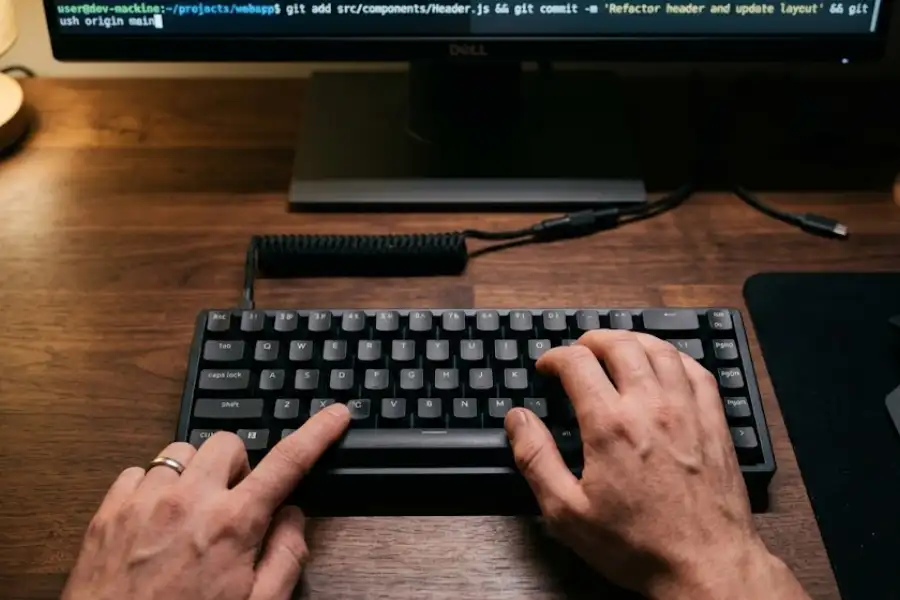
Here is where the magic starts. Stop tapping the left and right arrow keys one character at a time. These shortcuts let you jump around instantly.
- Ctrl + A: Jump to the very beginning of the line. Think of “A” as the “start” of the alphabet.
- Ctrl + E: Jump to the very end of the line. “E” for “End.” Easy to remember.
- Alt + F: Move forward one whole word. “F” for “Forward.”
- Alt + B: Move backward one whole word. “B” for “Backward.”
- Ctrl + F: Move forward one single character (same as right arrow, but keeps your hands on the home row).
- Ctrl + B: Move backward one single character (same as left arrow).
When would you use this? Picture this: you just typed a really long command with a file path, but you made a typo in the very first word. Instead of holding backspace or tapping the left arrow 40 times, you press Ctrl+A. Boom. You are right at the start. Fix the typo, press Ctrl+E to hop back to the end, and hit Enter.
That whole thing takes about one second. Without shortcuts, it takes ten.
Cutting, Deleting, and Pasting Text
The terminal has its own little clipboard system. When you “cut” text using these shortcuts, it goes into a hidden buffer. Then you can “paste” it somewhere else. This is super handy when you want to rearrange parts of a command.
- Ctrl + U: Cut everything from your cursor to the beginning of the line.
- Ctrl + K: Cut everything from your cursor to the end of the line.
- Ctrl + W: Cut the word right before your cursor. Just one word, gone.
- Alt + D: Delete the word right after your cursor.
- Ctrl + Y: Paste back whatever you just cut. (This is called “yank” in terminal language.)
- Ctrl + _: Undo the last change. Yes, the terminal has an undo button and almost nobody knows about it.
Here is a quick trick: Say you typed this long command but forgot to add sudo at the beginning. Press Ctrl+A to jump to the start, type “sudo ” (with a space after it), and press Ctrl+E to go back to the end. Done. No retyping needed.
But wait, there is an even faster way to add sudo. I will show you that trick in the history section below. Keep reading.
Working With Your Command History
Your terminal remembers every command you type. Hundreds of them. Maybe thousands. And there are some really clever ways to dig through that history without scrolling forever.
- Up Arrow: Go to the previous command. Keep pressing it to scroll back through older commands.
- Down Arrow: Go forward again after scrolling back.
- Ctrl + R: This one is a total lifesaver. It lets you search through your history by typing just a few letters. Press Ctrl+R, then start typing part of a command you ran earlier. The terminal will find the most recent match and show it to you. Press Ctrl+R again to cycle through older matches.
- Ctrl + G: Cancel out of the history search if you changed your mind.
- !! (two exclamation marks): Run your last command again, exactly as it was.
- !$: Grab the last word (usually a file name or path) from your previous command and drop it into your current one.
- Alt + .: Does the same thing as !$ but lets you see it on the line before you hit Enter. Press it again to cycle through last arguments from even older commands.
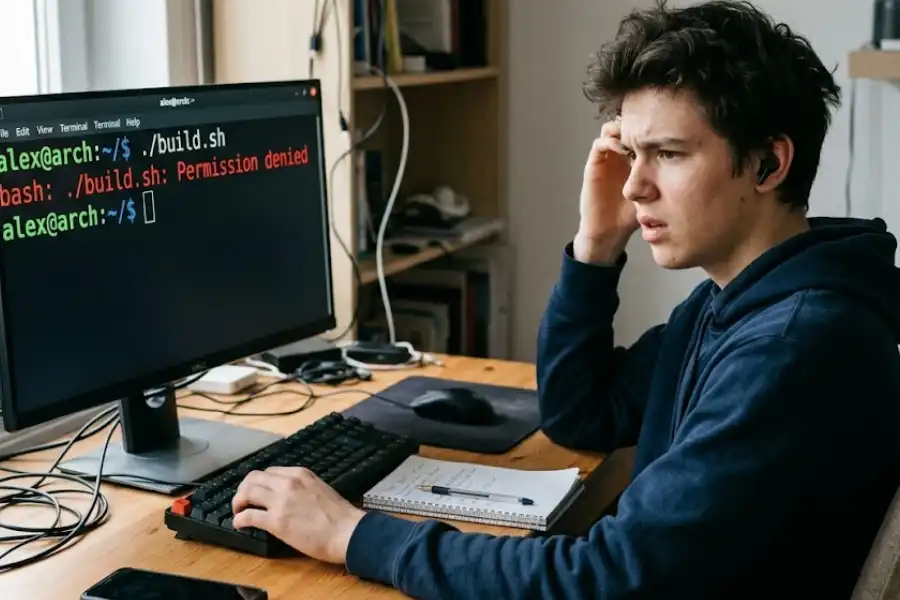
The “sudo !!” trick everyone loves: You type a command, hit Enter, and get back “Permission denied.” Annoying, right? Instead of retyping the whole thing with sudo at the front, just type sudo !! and hit Enter. It runs your last command again, but this time with admin privileges. This tiny trick probably saves Linux users millions of hours every year.
The !$ trick in action: You create a new folder with mkdir my-new-project. Now you want to go into that folder. Instead of typing the name again, just type cd !$ and it fills in “my-new-project” for you. Works every time.
Controlling What Is Running
Sometimes a command goes haywire. Maybe it is stuck in a loop. Maybe you told it to print a million lines by accident. These shortcuts help you take back control.
- Ctrl + C: Kill whatever is running right now. This is probably the very first shortcut every Linux user learns. If something is going wrong, hit Ctrl+C and it stops.
- Ctrl + Z: Pause the current program and send it to the background. It is still alive, just sleeping. Type fg to bring it back, or type bg to let it keep running in the background while you do other things.
- Ctrl + D: Close the terminal session or log out. If you are connected to a remote server through SSH, this logs you out of that connection.
- Ctrl + S: Freeze the terminal output. Everything keeps running behind the scenes, but the screen stops updating. This one trips people up all the time (more on that in the mistakes section below).
- Ctrl + Q: Unfreeze the terminal after you press Ctrl+S. If your terminal ever seems “stuck” and nothing you type shows up, try Ctrl+Q first before panicking.
A real scenario: You are editing a file with a program called nano. Suddenly you need to run a quick command, but you do not want to close nano and lose your place. Press Ctrl+Z to pause nano, run your quick command, then type fg and hit Enter. You are right back where you left off. Handy, right?
The Tab Key: Your Best Friend
If you learn only one shortcut from this whole guide, make it this one.
Press Tab while typing a command, file name, or folder path and the terminal will try to finish it for you. If there is only one match, it fills in the rest automatically. If there are several possible matches, press Tab twice and it shows you all the options.
This does three big things for you at once:
- It saves a ton of typing.
- It prevents spelling mistakes in file names.
- It confirms that the file or command exists. If Tab does not complete anything, something is probably wrong. Maybe you are in the wrong folder or misspelled the beginning.
Pro tip: Tab completion works for file names, sure, but it goes further. It also works for command names, package names (when installing software), and even options in some setups. Use it early, use it often.
Screen and Display Shortcuts
- Ctrl + L: Clear the screen. This does the same thing as typing the word “clear” and hitting Enter, but it is way faster. Your old output is not gone. You can still scroll up to see it in most terminals.
- Shift + Page Up: Scroll up through the terminal output to see things that have scrolled off screen.
- Shift + Page Down: Scroll back down.
- Ctrl + Shift + C: Copy selected text inside the terminal. Regular Ctrl+C does not copy text. It kills processes, remember?
- Ctrl + Shift + V: Paste text into the terminal.
The copy and paste shortcuts are one of the biggest “gotchas” for beginners. People come from Windows or Mac, press Ctrl+C expecting to copy something, and end up killing a running program instead. Once you know it is Ctrl+Shift+C, you will never make that mistake again.
Shortcuts Most People Never Learn
Alright, here is where it gets really fun. These are the shortcuts that separate casual users from power users. Much like a hidden software egg buried in the code, these are the secret commands that most blog posts and cheat sheets skip entirely.
- Ctrl + X, then Ctrl + E: Open your current command in a full text editor. This is amazing when you have a really long or complicated command that is painful to edit on a single line. Your default editor (usually nano or vim) pops open, you make your changes, save and exit, and the command runs automatically. This is seriously underrated.
- Ctrl + O: A hidden gem. When you are scrolling through your history, this runs the current command AND loads the next one from history into your prompt. Great when you need to re-run a sequence of commands in order.
- Alt + T: Swap the positions of the two words right before your cursor. Useful when you type things backward by accident.
- Ctrl + T: Swap the two characters before your cursor. Quick typo fix.
- Alt + U: Make the current word UPPERCASE.
- Alt + L: Make the current word lowercase.
- Alt + C: Capitalize just the first letter of the current word.
- ^old^new: A fast way to correct a typo in your last command. If you ran cat flie.txt but meant cat file.txt, just type ^flie^file and press Enter. It re-runs the last command with that one word swapped out.
Most people use the terminal for years without ever knowing about Ctrl+X followed by Ctrl+E. It is one of those shortcuts that makes you say, “Where have you been all my life?”
Shortcuts for Moving Between Directories Faster
These are not keyboard shortcuts in the traditional sense, but they are little tricks that speed up your navigation like crazy.
- cd –: Jump back to the folder you were in before. Think of it like an “undo” for directory changes. If you just moved from /home/user/projects to /etc/nginx, typing cd – takes you right back to /home/user/projects.
- pushd and popd: These work like a stack of bookmarks. Use pushd /some/folder to go there while saving your current location. When you are done, type popd and you land right back where you started. This is way more powerful than cd – because you can stack up multiple locations.
- Brace expansion: Not a shortcut, but a massive time saver. Type mkdir -p project/{src,docs,tests} and it creates three folders in one go. Or type cp config.txt{,.backup} and it makes a backup copy without retyping the file name. Once you start using brace expansion, you will use it everywhere.
Create Your Own Custom Shortcuts With Aliases
Here is something cool that most articles do not talk about enough. You can make your own shortcuts for commands you type over and over again.
They are called aliases, and they go in your ~/.bashrc file (or ~/.zshrc if you use Zsh).
Here are some popular examples:
- alias ll=’ls -la’: Now typing “ll” shows a detailed list of all files, including hidden ones.
- alias gs=’git status’: Check your git status in two keystrokes.
- alias update=’sudo apt update && sudo apt upgrade -y’: Update your system with one word.
- alias ..=’cd ..’: Go up one folder by just typing two dots.
After adding aliases to your .bashrc file, either close and reopen your terminal or type source ~/.bashrc to load them right away.
Think of aliases as shortcuts that you design yourself. If there is any command you type more than a few times a day, turn it into an alias. Your future self will thank you.
Common Mistakes That Trip Up Beginners
Even experienced users fall into these traps sometimes. Knowing about them ahead of time saves you a lot of frustration.
Mistake 1: Pressing Ctrl+C to copy text. In almost every other program, Ctrl+C means “copy.” In the terminal, it means “stop the running process right now.” If you want to copy text from the terminal, use Ctrl+Shift+C instead.
Mistake 2: Pressing Ctrl+S thinking it saves something. Out of habit, people press Ctrl+S in the terminal. Suddenly the terminal freezes. Nothing works. They think it crashed. It did not crash. Ctrl+S just pauses the display output. Press Ctrl+Q to unfreeze it. This little thing has confused beginners for decades.
Mistake 3: Copying commands from the internet without understanding them. It is tempting to grab a command from a random forum and paste it in. But some commands can delete important files or break your system. Always read through a command and understand what each part does before pressing Enter. When in doubt, check the manual by typing man followed by the command name.
Mistake 4: Copying the dollar sign from tutorials. Lots of tutorials show commands like $ sudo apt update. That dollar sign is not part of the command. It just represents the prompt. If you copy and paste the whole thing including the $, you will get a “command not found” error.
Mistake 5: Forgetting that Linux is case-sensitive. On Linux, File.txt and file.txt are two completely different files. The same goes for command options. The flag -r and -R can do very different things depending on the command. Always double-check your capitalization.
The Best Way to Remember All of This
Here is the plain truth: reading a list of shortcuts does not make them stick. You have to use them. And the best way to build muscle memory is to take it slow.
Week 1: Start with just five shortcuts: Tab, Ctrl+C, Ctrl+L, Ctrl+A, and Ctrl+E. Use them for everything. Force yourself to stop reaching for the arrow key. Within a few days, your fingers will do it without thinking.
Week 2: Add Ctrl+R (history search), Ctrl+U (cut to beginning), and Ctrl+Y (paste it back). These three together are a mini superpower.
Week 3: Bring in Ctrl+W (delete a word), Alt+F and Alt+B (jump by word), and the !! trick for sudo.
Week 4: Try out the power-user stuff. Ctrl+X followed by Ctrl+E to edit in an editor, ^old^new to fix typos, and brace expansion.
After a month of this, you will be genuinely faster in the terminal. And I do not mean a little faster. I mean significantly faster. And here is the funny part: other people will watch you work and think you are some sort of command line genius. You are not a genius. You just know your shortcuts.
Quick Reference: All the Shortcuts in One Place
Cursor Movement
- Ctrl + A: Start of line
- Ctrl + E: End of line
- Alt + F: Forward one word
- Alt + B: Back one word
- Ctrl + F: Forward one character
- Ctrl + B: Back one character
Cut and Paste
- Ctrl + U: Cut to start of line
- Ctrl + K: Cut to end of line
- Ctrl + W: Cut previous word
- Alt + D: Delete next word
- Ctrl + Y: Paste what you cut
- Ctrl + _: Undo
History
- Ctrl + R: Search history backward
- Ctrl + G: Cancel search
- !!: Repeat last command
- !$: Last argument of previous command
- Alt + .: Same as !$ but visible before running
- ^old^new: Fix typo in last command
Process Control
- Ctrl + C: Kill current process
- Ctrl + Z: Pause and send to background
- Ctrl + D: Exit shell or session
- Ctrl + S: Freeze terminal output
- Ctrl + Q: Unfreeze terminal output
Screen and Terminal
- Ctrl + L: Clear the screen
- Ctrl + Shift + C: Copy text
- Ctrl + Shift + V: Paste text
- Tab: Autocomplete
- Tab Tab: Show all options
Power User
- Ctrl + X, Ctrl + E: Edit command in text editor
- Ctrl + T: Swap two characters
- Alt + T: Swap two words
- Alt + U: Uppercase word
- Alt + L: Lowercase word
- Alt + C: Capitalize word
Frequently Asked Questions
Do these shortcuts work in all Linux terminals?
Yes, nearly all of them work in any terminal that uses the Bash shell with default Emacs-mode keybindings. That covers the vast majority of Linux setups. If you have switched your shell to Vi mode (by running set -o vi), the key combos will be different.
Will these shortcuts work on Mac?
Most of them do, yes. macOS now uses Zsh by default, but the core shortcuts like Ctrl+A, Ctrl+E, Ctrl+R, Ctrl+C, and Tab all work exactly the same. A few Alt-based shortcuts might need tweaking depending on your terminal app settings.
How long does it take to get comfortable with these shortcuts?
If you practice a small group each week, most people feel natural within three to four weeks. The key is not to learn them all at once. Pick a few, force yourself to use them, and add more as the first batch becomes automatic.
What if I press Ctrl+S by accident and my terminal freezes?
Do not worry. Your terminal is not broken. Ctrl+S pauses the screen output. Just press Ctrl+Q and everything goes back to normal. This trips up almost every beginner at least once.
Can I create my own custom keyboard shortcuts in the terminal?
For sure. You can modify your keybindings by editing the ~/.inputrc file for Bash or using the bind command. For simpler shortcuts, aliases in your ~/.bashrc file work great. You can assign any command or sequence of commands to a short, easy-to-type word.
What is the difference between Ctrl+C and Ctrl+Z?
Ctrl+C kills the process outright. It is done, finished, gone. Ctrl+Z just pauses it and sends it to the background. The process is still alive and waiting. You can bring it back by typing fg, or let it keep running behind the scenes with bg. Think of Ctrl+C as “stop forever” and Ctrl+Z as “stop for now.”
Conclusion
Learning Linux command line shortcuts is one of those small investments that pays off every single day. You do not need to memorize a hundred key combos overnight. Just start with the five or six most used ones, build them into your muscle memory, and grow from there.
The terminal is one of the most powerful tools on any computer. And once you know how to move through it quickly, it stops feeling scary and starts feeling like a superpower.
So go ahead. Open your terminal right now, try Ctrl+R, and search for that long command you typed last week. I bet you will smile when it pops up in half a second.