Gmail Keyboard Shortcuts Cheat Sheet: Clear Your Inbox 3x Faster
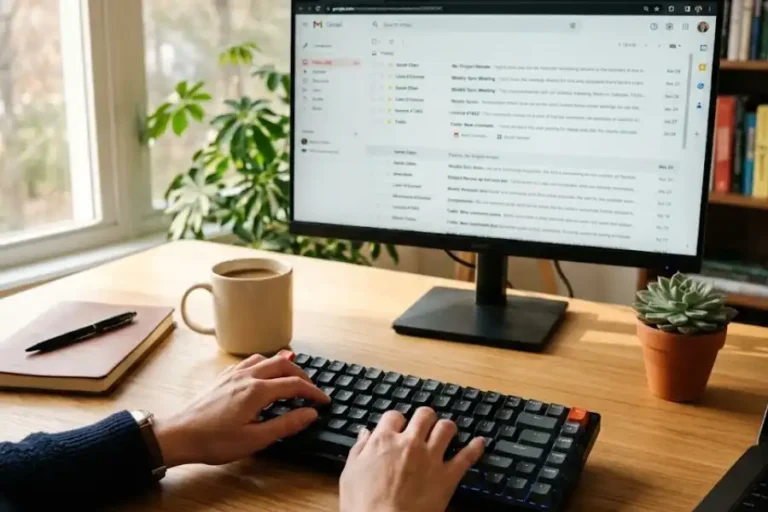
Picture this. You open Gmail. There are 87 unread emails staring at you. You sigh, grab the mouse, and start clicking. An hour later, your inbox is half-clean and your wrist hurts.
There is a faster way. And it is sitting right there inside Gmail like a perfectly hidden software egg.
Gmail keyboard shortcuts let you fly through emails without ever touching the mouse. One key to archive. One key to reply. One key to jump to your Sent folder. After using them for a few years, I can clear 50 emails in the time it used to take me to clear 15. That is not a guess. That is real.
This article gives you the full list, broken into small chunks. I have also added the steps for turning them on, the fixes when they stop working, and a smart way to remember them.
First Step: Turn On Gmail Keyboard Shortcuts
Most Gmail shortcuts are turned off by default. That is why so many people do not know they exist. The six steps below will switch them on.
- Open Gmail on a computer.
- Click the gear icon in the top right.
- Click See all settings.
- Scroll down to the section called Keyboard shortcuts.
- Pick Keyboard shortcuts on.
- Scroll to the bottom and click Save Changes.
That is it. If you have more than one Gmail account, you will need to do this for each one.
Quick tip: Press ? (Shift + slash) inside Gmail anytime to open a pop-up with the full list of shortcuts. Save that one. It is your safety net.
The 10 Gmail Shortcuts to Learn First
You do not need to learn all 90+ at once. That would just stress you out. Start with these ten. They give you the biggest time savings for the smallest effort.
- C: Start a new email
- R: Reply to an email
- A: Reply to everyone
- F: Forward an email
- E: Archive an email
- #: Delete an email
- /: Jump to the search bar
- G then I: Go to your inbox
- Ctrl + Enter (Mac: Cmd + Enter): Send the email
- ?: Open the shortcut help menu
Stick to these ten for one week. After that, the rest will feel much easier to pick up.
Compose and Send Shortcuts
These help you write and send emails faster. The good news is most of them work even if you have not turned on keyboard shortcuts yet.
- C: Start a new email
- D: Start a new email in a new tab
- Ctrl + Enter / Cmd + Enter: Send
- Ctrl + Shift + C / Cmd + Shift + C: Add a CC
- Ctrl + Shift + B / Cmd + Shift + B: Add a BCC
- Ctrl + K / Cmd + K: Add a link
- Esc: Jump back to your draft
- Shift + Esc: Jump back to the main window
- Ctrl + .: Move to the next open compose box
- Ctrl + ,: Move to the last open compose box
Text Formatting Shortcuts
These let you style your text without ever clicking a button. Many of them are the same as in Google Docs and Microsoft Word, so you may already know a few.
- Ctrl + B / Cmd + B: Bold
- Ctrl + I / Cmd + I: Italics
- Ctrl + U / Cmd + U: Underline
- Ctrl + Shift + 7: Numbered list
- Ctrl + Shift + 8: Bulleted list
- Ctrl + Shift + 9: Quote block
- Ctrl + [ and Ctrl + ]: Indent left or right
- Ctrl + Shift + L: Align left
- Ctrl + Shift + E: Align center
- Ctrl + Shift + R: Align right
- Ctrl + Shift + Plus: Bigger text
- Ctrl + Shift + Minus: Smaller text
- Ctrl + \: Wipe out all formatting
Action Shortcuts: Archive, Delete, Reply, and More
These are the real time savers. Each one replaces a click on a small button. Once they become habit, you will fly. Note: these only work if you turned on shortcuts in the steps above.
- E: Archive
- R: Reply
- Shift + R: Reply in a new window
- A: Reply to all
- Shift + A: Reply to all in a new window
- F: Forward
- Shift + F: Forward in a new window
- #: Delete
- !: Mark as spam
- S: Star (or rotate through stars)
- M: Mute a long thread
- B: Snooze
- Z: Undo your last action
- Shift + I: Mark as read
- Shift + U: Mark as unread
- Shift + T: Add to Tasks
- =: Mark as important
- –: Mark as not important
- ;: Open the whole conversation
- :: Close the whole conversation
- ] or [: Archive and jump to the next or last email
Jumping Shortcuts: Move Around Gmail Fast
These are like teleport buttons. Press G, then a second key, and you land in a new section.
- G + I: Inbox
- G + S: Starred
- G + B: Snoozed
- G + T: Sent
- G + D: Drafts
- G + A: All Mail
- G + K: Tasks
- G + L: A label of your choice
Selection Shortcuts: Handle Many Emails at Once
These let you grab a whole group of emails in one move. Great for cleaning out an inbox in a few seconds.
- X: Select the open thread
- * + A: Select every email on the page
- * + N: Unselect everything
- * + R: Select only the read emails
- * + U: Select only the unread emails
- * + S: Select only the starred emails
- * + T: Select only the unstarred emails
Once you have a group selected, hit E to archive them all or # to send them to the trash. It is wildly fast.
Navigation Shortcuts: Move Through Your Emails
These work like arrow keys, but smarter.
- J: Older email
- K: Newer email
- O or Enter: Open the selected email
- U: Go back to your list
- N: Next message in a thread
- P: Last message in a thread
- G + N: Next page
- G + P: Last page
Menu Shortcuts: Open Tools With One Tap
- ?: Open the full shortcut help menu
- /: Jump to the search bar
- Q: Search chat contacts
- .: Open the “more actions” menu
- V: Open the “move to” menu
- L: Open the “label as” menu
Mac vs Windows: What Is Different?
Much like your standard mac keyboard shortcuts, most Gmail shortcuts work the same on both systems. The main switch is between Ctrl on Windows and Cmd on Mac. So Ctrl + Enter on Windows is the same as Cmd + Enter on Mac.
There is one Mac-only treat: Cmd + ; jumps to the next misspelled word in your draft. Handy if you write fast and want to check spelling without opening a menu.
Single-letter shortcuts like R, E, and C work the same on both systems.
How to Make Your Own Shortcuts
Do not like a default key? You can change it. Follow these steps:
- Open Gmail and click the gear icon.
- Click See all settings.
- Click the Advanced tab.
- Find Custom keyboard shortcuts and click Enable.
- Click Save Changes at the bottom.
- Go back into Settings. You will see a new tab called Keyboard Shortcuts.
- Type your new key next to any action you want to change.
- Click Save Changes again.
One small rule: each key can only do one thing. So if you give “R” a new job, the old one (Reply) needs a new key.
Why Your Gmail Shortcuts Are Not Working
This part is missing from most other guides, but it is the part people search for when things break. If your shortcuts stopped working, run through this list.
- Shortcuts are off. The most common cause. Check Settings and turn them on.
- You are typing in a text field. If your cursor is in the search box or in a draft, letters become words, not commands.
- Caps Lock is on. Some shortcuts use lowercase, like r for reply. Caps Lock can mess this up.
- A browser extension is blocking it. Tools like Grammarly or ad blockers sometimes step on Gmail keys. Try turning extensions off one by one.
- Your language or keyboard layout is not supported. Some non-English layouts do not map shortcuts the same way.
- You set a custom shortcut and forgot. Open Settings, click the Keyboard Shortcuts tab, and check.
- You are on the mobile app. Gmail shortcuts only work on desktop, not on the phone app.
How to Remember Gmail Shortcuts Without Forgetting Them
Reading a list once will not make it stick. This is what worked for me, after I tested it on real coworkers.
- Pick three shortcuts a week. Not ten. Not twenty. Three. The brain locks in small batches better than big ones.
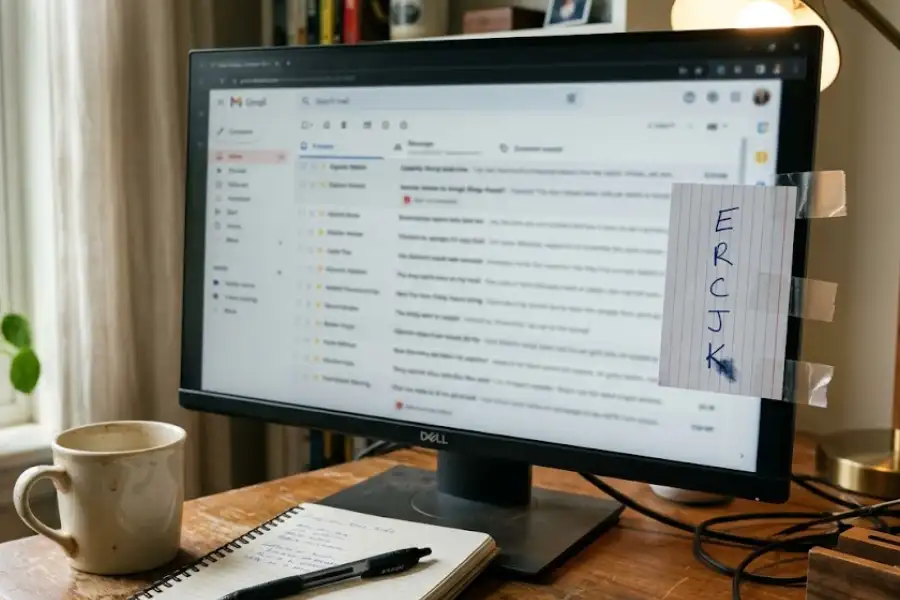
- Print the cheat sheet. Tape it next to your screen. Yes, paper. It works.
- Hide your mouse. Move it across the desk for one hour. You will be forced to use the keys.
- Press ? when stuck. The full menu pops up inside Gmail. No new tab needed.
- Use them on real emails, not test ones. The pressure of real work makes them stick.
You can also bookmark Google’s official Gmail Help page for a quick reference. Most people give up in the first three days because it feels slow at first. Push past that. By day seven, your fingers know what to do.
What I Learned After Years of Using Them
I have been using Gmail shortcuts daily since around 2019. Here is the truth no one says out loud.
The first week is annoying. You will reach for the mouse out of habit. You will press the wrong key. You might even send a half-written email by mistake (yes, that happened to me twice). The temptation to give up is strong.
But by week three, something flips. Your hands stop leaving the keyboard. You start clearing your inbox in chunks. You feel less drained at the end of the day. Email stops feeling like a chore and starts feeling like a game you are winning.
The mouse is fine for browsing. The keyboard is for finishing work.
There is also a real reason this matters beyond saving minutes. Studies on workplace habits, like one from the University of California, Irvine, show that every time you switch between tasks (like moving from keyboard to mouse), your brain pays a small focus tax. Less switching means less brain fog by 5 PM.
The shortcuts I use every single day: J, K, E, R, C, /, and Ctrl + Enter. That is it. Seven keys do about 90% of my email work. You do not need fancy tricks. You need a few good keys and a habit.
Frequently Asked Questions
Do Gmail keyboard shortcuts work on phones?
No, not in the regular Gmail app. They only work on a computer. The only way to use them on a phone or tablet is to plug in or pair an outside keyboard.
How do I see all Gmail shortcuts at once?
Open Gmail, then press ? (which is Shift + slash). A pop-up menu shows every shortcut available to you.
Why does pressing C not start a new email for me?
Most likely, shortcuts are still off. Go to Settings, scroll to “Keyboard shortcuts,” and switch them on. Then save. C should work right away.
Can I turn off Gmail shortcuts later if I do not like them?
Yes. Just go back to the same Settings spot and pick “Keyboard shortcuts off.” Save the change. Done.
Do these shortcuts work in Outlook or Yahoo Mail?
No. Each email service has its own set of shortcuts, so you will need to learn specific outlook keyboard shortcuts separately if you switch apps. The good news is some are similar, like Ctrl + Enter for sending. But most do not carry over.
Do Gmail shortcuts work in dark mode?
Yes. Dark mode and shortcuts are separate things. Both can be turned on at the same time.
Can I use Gmail shortcuts with screen readers?
Yes. Gmail shortcuts pair well with most screen readers and can make Gmail much easier to use for people with low vision or limited mouse control. The W3C accessibility guidelines actually recommend keyboard-first navigation for this very reason.
How many Gmail keyboard shortcuts are there in total?
Gmail has more than 90 shortcuts. Most people only use about ten of them daily, and that is enough.
One Last Thing Before You Go
Gmail shortcuts are one of those small upgrades that pay off forever. You spend ten minutes today, and you save five minutes a day for the rest of your life. That math is hard to beat.
Start small. Turn shortcuts on. Pick three keys. Use them tomorrow. After a week, add three more. Before the month is over, you will wonder how you ever used Gmail without them.
And the next time someone watches you clear an inbox in 90 seconds flat, you will smile a little. They will think you are a wizard. You will know it is just E, R, C, and a bit of practice.