Best Simple Software to Record Your Game: 7 Top Picks for 2026
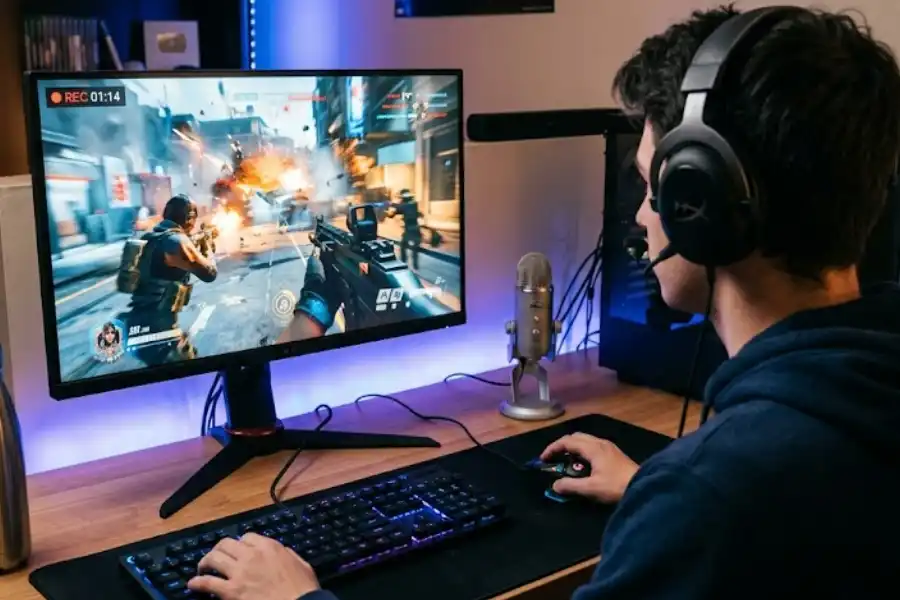
You just pulled off the most insane play of your gaming life. And you did not record it.
That stings. But it does not have to happen again.
Finding good game recording software sounds easy. But then you open one app and it has 50 settings you do not understand. You try another and it turns your game into a slideshow. You download a third and it pastes a giant watermark across your video.
Enough of that.
This article covers the seven best simple software tools to record your game in 2026. No confusing setups. No tech degree required. Just clean, smooth recordings you can use and share.
Whether you have never recorded a clip in your life or you just want something easier than what you currently use, there is a perfect option on this list for you.
What Makes Game Recording Software Truly Simple?
The word “simple” gets thrown around a lot in software reviews. Here at Software Egg, we believe a truly simple tool should feel like a hidden feature, so let us define it clearly. Simple game recording software should check every one of these boxes:
- Fast setup: You should be recording within minutes of downloading it. Not hours.
- No FPS drops: The software runs quietly in the background. Your game should feel the same while it records.
- Clear video quality: Your footage should look sharp and smooth, not blurry or choppy.
- Easy controls: A single hotkey to start and stop recording. That is all you should need.
- Free or affordable: You should not spend a fortune just to save gaming clips.
Every tool on this list meets those standards. Here is how they stack up.
The 7 Best Simple Software to Record Your Game
1. Xbox Game Bar (Best for Zero-Setup Recording on Windows)
Here is something most gamers do not know, and it is one of the best windows 11 tips and tricks. If you are on Windows 10 or Windows 11, you already have a game recorder hidden right on your PC. It is called Xbox Game Bar and it came with your operating system. You do not need to download a single thing.
Press Windows key + G while playing any game. A small overlay pops up on your screen. Hit record. That is it. You can also press Windows key + Alt + R to start and stop recording instantly without the overlay at all.
Your clips are saved automatically to your Videos folder under the Captures subfolder. Easy to find, easy to share.
Best for: Beginners who want to record a clip right now with zero downloads and zero setup.
- Completely free with no watermark
- Already installed on Windows 10 and Windows 11
- Very lightweight, rarely slows your game
- Basic recording only, no editing tools included
- Does not work with every game, especially older titles or desktop apps
Xbox Game Bar is not the most powerful tool on this list. But if you have never recorded a game before, it is the best starting point available. Zero cost, zero risk, zero setup time.
2. NVIDIA ShadowPlay (Best for Gamers With an NVIDIA Graphics Card)
If your PC has an NVIDIA graphics card, ShadowPlay is arguably the smartest recording choice you can make. It comes packed inside the free GeForce Experience app that most NVIDIA users already have installed.
What makes ShadowPlay special is how it records. Instead of using your CPU, it uses your graphics card to handle the recording work. This means your game almost never feels the difference. Most gamers lose fewer than five frames per second while ShadowPlay runs in the background.
The Instant Replay feature is a huge help for casual players. Turn it on and ShadowPlay silently saves the last 5, 10, or 20 minutes of your gameplay in a loop. The moment something amazing happens, press Alt + F10 and it saves those final minutes to your drive automatically. You never have to think about hitting record in advance.
Best for: NVIDIA GPU users who want smooth, high-quality recordings with almost no effort.
- Free to use for NVIDIA card owners
- Extremely low impact on game performance
- Instant Replay saves your best moments automatically
- Supports up to 4K recording at 60 FPS
- Only works if you have an NVIDIA GPU
If you own a GTX or RTX graphics card and are not using ShadowPlay yet, you are making your gaming life harder than it needs to be.
3. FBX Game Recorder (Best Free Option for Beginners Who Want More Features)
FBX Game Recorder is one of the most beginner-friendly free recording apps available right now. It automatically detects the game you are playing and starts recording without needing much configuration at all.
Like ShadowPlay, it has an Instant Replay feature. You set it to silently save the last few minutes of gameplay. When something great happens, one hotkey press saves the clip. It uses NVIDIA and Intel hardware acceleration to keep performance smooth during longer sessions.
What sets FBX apart is the clip editor that comes packed right into the app. You can trim your footage, add text overlays, and create quick highlight reels without ever leaving the app. For beginners, that removes the need to learn a separate video editing program entirely.
Best for: Beginners without an NVIDIA card who want a simple, free recorder that includes basic editing tools.
- Free version available with no session time limit
- Auto game detection with minimal setup required
- Comes with a clip editor for trimming and highlights
- Free version adds a small watermark to your recordings
- Paid plan removes the watermark completely
The watermark on the free plan is the main downside. If you plan to upload videos to YouTube or post them publicly, upgrading to remove it is worth considering. The paid plan is a one-time purchase, not a monthly fee.
4. Medal.tv (Best for Saving Quick Highlights and Sharing Instantly)
Medal.tv was built for one purpose: saving your best gaming moments fast and sharing them without any friction.
You play your game normally. Medal runs quietly in the background. When something great happens, you press your hotkey and it instantly saves the last 15, 30, or 60 seconds. There is no manual recording session to manage. No pressing record at the start of a game and hoping you do not forget to stop it later.
Sharing is where Medal really stands out. Every clip saves to your Medal profile automatically. You can share it to Discord, Twitter, Reddit, or TikTok with a single click. The whole experience feels like a social platform made specifically for gaming clips.
Best for: Gamers who want to save short highlights and share them instantly with friends or online communities.
- Free to use
- Almost no setup, runs automatically in the background
- Comes with social sharing to Discord, Twitter, Reddit, and more
- Not ideal for long, full-session recordings
- Cloud storage is limited on the free plan
5. Bandicam (Best for Clean, Reliable, High-Quality Recordings)
Bandicam has been around for well over a decade and it is still one of the most trusted names in game recording. Gamers stick with it for a simple reason: the video quality is consistently excellent and the file sizes stay surprisingly small.
The interface looks a little old-fashioned compared to newer apps. But Bandicam is rock solid. You open it, click record, play your game, and the footage comes out clean every single time. No crashes, no corrupted files, no surprises.
It supports recording up to 120 frames per second and works reliably with a huge range of games, including older titles that some newer software struggles to capture properly.
Best for: Gamers who want reliable, high-quality recordings and are willing to pay a one-time fee for a tool that just works.
- Excellent video quality with small, efficient file sizes
- Extremely stable, almost never crashes
- Supports up to 120 FPS recording
- Free version adds a watermark and limits sessions to 10 minutes
- Full version is a one-time purchase, not a subscription
The free version is enough to test whether you like it. If you plan to record regularly and care about clean, professional-looking footage, the paid version is genuinely worth it.
6. OBS Studio (Best Free Option When You Want Full Control)
OBS Studio is the most widely used free recording and streaming software in the world. Millions of gamers, streamers, and content creators use it every day. It is completely free, has no watermarks, and has no recording time limits whatsoever.
It is a bit more complex than the other options on this list. Plan on spending 15 to 20 minutes setting it up properly the first time. There are a few settings to configure. But once it is set up, you will likely never need to touch it again.
OBS works with NVIDIA, AMD, and Intel hardware acceleration. Whether you are recording directly or wondering can you play games through software preview on elgato hd60, OBS gives you total control over resolution, frame rate, bitrate, and audio levels. It also works on Windows, Mac, and Linux.
Best for: Gamers who want the best completely free option and do not mind a one-time setup process.
- 100% free, no watermarks, no time limits on recordings
- Works on Windows, Mac, and Linux
- Full control over every recording setting
- Also supports live streaming to Twitch, YouTube, and more
- Takes more time to configure compared to other tools on this list
- Can feel overwhelming for first-time users without a setup guide
OBS Studio is like a professional camera. It takes a small amount of learning. But once you understand it, nothing else comes close at the price of free.
7. AMD Radeon Software (Best for Gamers With an AMD Graphics Card)
Just like ShadowPlay is the go-to tool for NVIDIA users, AMD has its own recording tool already included, called Radeon Software, also known as AMD Adrenalin. If your PC runs on an AMD graphics card, this software is probably already installed on your machine.
It uses your AMD GPU to handle recording instead of burdening your CPU. Your game stays smooth and the recording happens quietly in the background. Setting up the recording feature takes only a few minutes inside the Radeon Software settings menu.
It also has an Instant Replay feature, just like ShadowPlay. You can capture the last few minutes of gameplay automatically with a hotkey press.
Best for: AMD GPU users who want a free, no-download recording tool that is already sitting on their PC.
- Completely free for AMD card owners
- No extra download needed, already part of Radeon Software
- Very low performance impact on your game
- Instant Replay feature available
- Only works on AMD graphics cards
- Fewer extra features compared to dedicated recording software
Which One Should You Pick? A Simple Decision Guide
Still unsure which tool is right for your setup? Here is a straightforward guide based on your situation:
- You want to record right now with no downloads: Use Xbox Game Bar. Press Windows + G and you are recording in under 30 seconds.
- You have an NVIDIA graphics card: Use NVIDIA ShadowPlay. It is free, smooth, and barely touches your game performance.
- You have an AMD graphics card: Use AMD Radeon Software. It is free and already on your computer.
- You want completely free with no watermarks and no time limits: Use OBS Studio. Take 20 minutes to set it up once and you are covered forever.
- You mostly want to save short clips and share them fast: Use Medal.tv. It is the easiest clip-saving tool available today.
- You want great quality and do not mind a one-time payment: Use Bandicam. It is stable, clean, and worth every dollar.
- You want auto game detection plus an editor that comes with it for free: Use FBX Game Recorder. It is the most complete free beginner package on the market.
3 Quick Tips Before You Start Recording
Before you hit record for the very first time, keep these three tips in mind. They will save you from common beginner mistakes and make your recordings look noticeably better from day one.
- Always enable hardware acceleration: Nearly every app on this list has an option to use GPU-based recording. Turn it on. It shifts the recording workload from your CPU to your graphics card, which keeps your game smooth. Look for settings labeled NVENC (NVIDIA), AMD AMF, or Intel Quick Sync inside your recorder.
- Close background apps before recording: Shut down your browser, pause any downloads, and close Discord or Spotify before you start. The less work your PC is doing, the better your recordings will look and the smoother your game will run.
- Always do a short test recording first: Record 30 to 60 seconds of gameplay before your actual session begins. Play it back and check both the video and the audio. Catching a settings problem now is far better than discovering it after a two-hour recording session that cannot be recovered.
Frequently Asked Questions
Will game recording software slow down my PC while I play?
It depends on which software you use and whether you enable hardware acceleration. Tools like NVIDIA ShadowPlay and AMD Radeon Software use your graphics card to handle recording, which barely affects your CPU or your game performance at all. OBS Studio and FBX also support hardware acceleration. As long as you turn that feature on inside the settings, most modern PCs will see little to no performance difference while recording. If your PC is older or low-end, start with Xbox Game Bar or Medal.tv since both are extremely lightweight.
What is the best free game recorder with no watermark?
OBS Studio is the best fully free recorder with zero watermarks and no recording time limits. Xbox Game Bar is also completely free with no watermark and works well for basic recordings on Windows. NVIDIA ShadowPlay and AMD Radeon Software are both free with no watermarks for users with the respective graphics cards. Medal.tv also records clips without a watermark on its free plan.
Can I record games on a low-end or older PC?
Yes. Xbox Game Bar is one of the lightest tools available and works fine on older Windows machines. Medal.tv is also designed to have a very small footprint. If you prefer OBS Studio, lower your recording resolution to 720p, enable hardware acceleration, and close all background programs before recording. That setup runs smoothly on most low-end PCs without causing lag or frame drops during gameplay.
What file format should I save my game recordings in?
MP4 is the best format for most gamers. It gives you good video quality with a manageable file size. MP4 files are easy to upload to YouTube, share through Discord, and edit in any video editing software. If you are using OBS Studio, go into the output settings and change the recording format to MP4 for the most compatible and reliable results.
Do I need a powerful gaming PC to use recording software?
Not at all. If your PC can run the game smoothly, most simple recording software can run alongside it without much extra demand. The key steps are enabling hardware acceleration, closing unnecessary background apps, and starting at a lower resolution like 1080p if you notice any slowdown. Lightweight tools like Xbox Game Bar and Medal.tv are specifically designed for everyday computers, not only high-end gaming rigs.
Conclusion
Recording your gameplay does not have to be complicated or expensive. The right software makes the whole process feel invisible. You just play your game, and the recording takes care of itself in the background.
If you are just getting started, try Xbox Game Bar first. It is already on your Windows PC and takes about 30 seconds to use. If you want something more capable, NVIDIA ShadowPlay or OBS Studio will serve you well for years without costing a single dollar.
The only mistake you can make is doing nothing. Every great gaming moment you do not capture is gone forever. Pick one tool from this list, spend five minutes setting it up today, and start saving those highlights before the next one slips away.