Chrome Flags Ash Debug Shortcuts: Enable Hidden Keyboard Commands
Your Chromebook has a hidden software egg tucked deep inside Chrome that most people never even know exists. It is called ash-debug-shortcuts, and once you turn it on, you can flip hardware switches like your touchscreen, touchpad, and WiFi with just a few keystrokes. No settings menu. No hunting through submenus. Just a shortcut and it is done.
If your touchscreen is acting up, your touchpad keeps jumping around while you type, or you just want to feel like a power user, this flag is built for you. Let’s walk through what it is, how to turn it on, and every shortcut that comes with it.
What Is chrome://flags/#ash-debug-shortcuts?
Every Chromebook runs on a system called Ash. Ash is the part of ChromeOS that controls your screen, your windows, and how everything looks and moves on your device. Think of it as the engine behind the scenes that makes your Chromebook run.
The ash-debug-shortcuts flag was built by Chrome’s own engineers so they could quickly test and troubleshoot that engine. It gives you a set of keyboard shortcuts that toggle hardware features on and off instantly. Much like using a chrome task manager shortcut to quickly check active system processes, Google built these debug shortcuts so engineers could test engine performance on the fly.
How to Turn On the Debug Shortcuts
Setting this up takes less than a minute. Here is what to do:
- Open Chrome on your Chromebook.
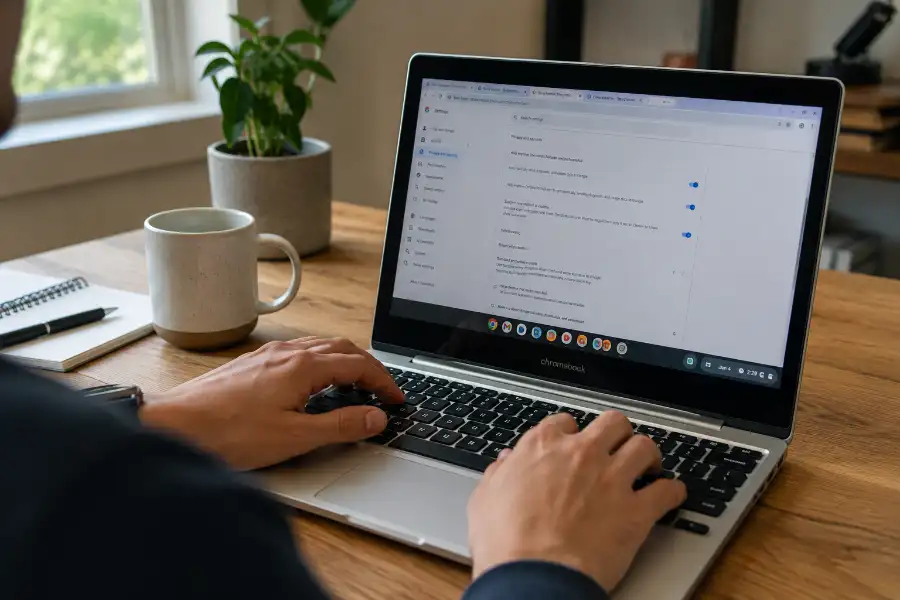
- Type chrome://flags/#ash-debug-shortcuts into the address bar and hit Enter.
- You will land directly on a highlighted option called “Debugging keyboard shortcuts.”
- Click the dropdown next to it and select Enabled.
- A blue button labeled “Relaunch” will appear at the bottom of the screen. Click it.
Your Chromebook will restart Chrome automatically. Once it comes back, every shortcut listed below will be ready to use.
Every Debug Shortcut You Can Use
Here is the full list of shortcuts this flag gives you, along with what each one does:
- Shift + Search + T: Turns your touchscreen on or off. Handy if your screen is registering random touches on its own.
- Shift + Search + P: Turns your touchpad on or off. Great if it’s too sensitive or acting glitchy while you type.
- Ctrl + Alt + Shift + N: Toggles WiFi on or off without opening the network settings panel.
- Ctrl + Alt + Shift + T: Switches between tablet mode and regular laptop (clamshell) mode.
- Ctrl + Alt + Shift + G: Shows a small on-screen graph that tracks your CPU usage in real time.
Every one of these works instantly. There is no confirmation window and no waiting. Press the keys, and the change happens right away.
Is This Flag Safe to Use?
Yes, for everyday use, this flag is safe. Google built it as an internal testing tool, but it does not delete files, mess with your accounts, or damage your hardware. The worst that can happen is you accidentally toggle something off, like your touchpad, and get briefly confused about why it stopped responding.
If that happens, don’t panic. Just press the same shortcut again to turn the feature back on.
That said, keep in mind this flag is still labeled “experimental.” Google can change, break, or remove it in future Chrome updates without warning. If a shortcut suddenly stops working after an update, that is likely why.
Common Problems People Run Into (And How to Fix Them)
A few issues show up often enough that they are worth covering here, since most guides skip them entirely.
The WiFi Toggle Notification Won’t Go Away
If a notification bubble gets stuck after toggling WiFi, clearing background glitches with a standard task manager keyboard shortcut or a quick restart usually resolves the issue. This is a known quirk with certain Chrome versions. Restarting your Chromebook usually clears it. If it keeps happening, try disabling and re-enabling the flag itself.
The Flag Page Won’t Load
If typing the flag URL gives you a blank page or an error, your device may be managed by a school or workplace. Many organizations lock down access to chrome://flags entirely on managed Chromebooks, and there is no workaround for that on your end. You would need an administrator to lift that restriction.
A Shortcut Stopped Working After an Update
Since this is an experimental flag, Google occasionally changes how it behaves between Chrome versions. If a shortcut suddenly does nothing, double check that the flag is still set to Enabled, since major updates sometimes reset flag settings back to default.
When Should You Turn It Back Off?
There is no real downside to leaving this flag enabled long term. But if you ever hand your Chromebook to a kid, a coworker, or anyone unfamiliar with these shortcuts, it is worth turning it off first. Otherwise, an accidental key combo could disable their touchpad or touchscreen, and they will have no idea why or how to fix it.
To turn it off, just repeat the same steps and switch the dropdown back to Disabled, then relaunch Chrome.
Frequently Asked Questions
Does this flag work on Windows or Mac?
It was built specifically for ChromeOS, so it lives on Chromebooks. It may technically show up in Chrome flags on Windows or Mac, but the hardware shortcuts, like touchscreen or tablet mode toggles, won’t do anything since those devices don’t run the Ash system.
Will enabling this flag slow down my Chromebook?
No. This flag does not use extra memory or processing power in the background. It simply adds a few keyboard listeners that stay dormant until you press one of the shortcuts.
I accidentally turned off my touchpad. How do I get it back?
Press Shift + Search + P again. That same shortcut toggles the touchpad both on and off, so pressing it a second time restores it.
Is this the same as Developer Mode?
No, and this is a common mix-up. Developer Mode is a much deeper system change that affects your Chromebook’s security and boot process. The ash-debug-shortcuts flag is far simpler. It only gives you a handful of keyboard shortcuts and does not touch your device’s core security settings.
Can I remove this flag permanently?
You cannot delete it from Chrome entirely, but you can always switch it back to Disabled or Default whenever you want to turn off the shortcuts.
This flag is one of those small features that makes a real difference once you know it exists. Turn it on, memorize the shortcuts you’ll use most, like the touchpad and touchscreen toggles, and you will never need to dig through settings menus for those quick fixes again.