iPhone 17 Pro Max Hidden Features: 17 Secrets Apple Skipped
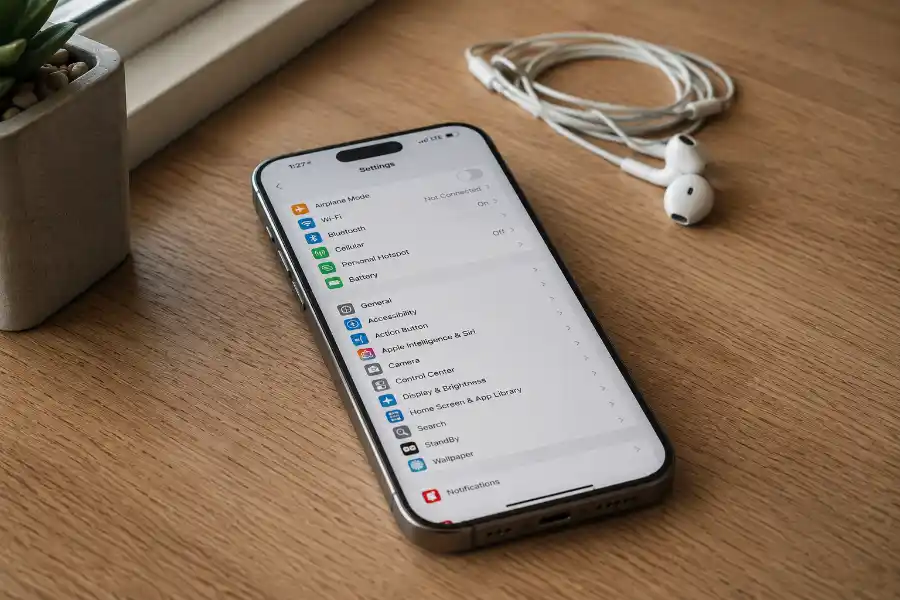
You just spent a lot of money on the iPhone 17 Pro Max. You know the big stuff already: the huge screen, the new titanium-style body, the camera that everyone is talking about. But here’s the part nobody tells you. Apple buries its best tricks way inside the Settings app, and most people never find them.
I went through every menu, tested every toggle, and dug up the iPhone 17 Pro Max hidden features that actually change how the phone feels to use, the same way I do for every device I cover here at Software Egg. Some will save your battery. Some could save your life. A few will just make your daily scroll a lot less annoying. If you’re still on an older model, our general roundup of iPhone Hidden Features is worth a look too. Let’s get into all 17, grouped so you can jump straight to what matters to you.
Camera Secrets Apple Buried in the Settings Menu
The camera is the star of this phone, but a lot of its best tools are switched off by default.
1. Turn On ProRAW and ProRes for Pro-Level Shots
By default, your iPhone shoots normal photos and videos. But go to Settings, then Camera, then Formats, and you can turn on Apple ProRAW for photos and ProRes for video. This gives you way more control when editing later, almost like a real camera file instead of a quick snapshot. If you shoot video often, you can also switch on Log mode inside the Camera app for richer color that you can adjust after filming.
2. Center Stage Rotates Itself for Group Selfies
The front camera on the iPhone 17 Pro Max is new, and it does something clever. When you turn the phone to take a group photo, the camera can automatically widen the shot and rotate to fit everyone in frame, even if you’re holding the phone straight up. You don’t have to twist your wrist to get a landscape selfie anymore.
3. Dual Capture Films Both Cameras at Once
Want to record yourself reacting to something while also filming what’s in front of you? Dual Capture lets the front and back cameras record at the same time. It’s perfect for vlogging, unboxings, or just proving you were really there.
4. Change What the Camera Control Button Does
That extra button on the side does more than open the camera. Press and hold it, and you get quick access to zoom, exposure, and depth controls. But if that feels like too much, you can turn those extra controls off in settings so the button simply opens the camera and starts shooting. Most people never realize this is adjustable.
5. The Flash Is Noticeably Brighter This Year
This one is easy to miss. Several early users have compared night shots side by side and noticed the LED flash on the iPhone 17 Pro Max throws more light than last year’s model. You probably won’t read this on a spec sheet, but it makes a real difference for quick photos in dark rooms.
Quick tip: turn on ProRAW only when you plan to edit later. It uses a lot more storage, and most everyday photos don’t need it.
Battery Tricks That Add Hours to Your Day
Battery life is one of the biggest jumps on this phone, and two settings help you get even more out of it.
6. Adaptive Power Mode Learns Your Habits
iOS 26 introduced a smarter version of battery saving called Adaptive Power Mode. Instead of just cutting power when you’re already low, it studies how you normally use your phone and quietly slows down small background tasks before you ever notice a problem. You can find it under Settings, then Battery. While you’re there, tap Battery Health to see your real charging patterns and current maximum capacity, a number most people never bother to check.
7. Fast Charging Needs the Right Adapter
Your iPhone 17 Pro Max can hit 50 percent charge in about 20 minutes, but only if you use a strong enough adapter, generally 40 watts or higher, plugged in with a USB-C cable. Using an older, weaker charger from a previous iPhone will still work fine, just much slower. If you charge wirelessly with MagSafe, you’ll want at least a 30 watt adapter to see that same fast boost.
Display Settings That Protect Your Eyes
Two screen settings are worth knowing, especially if you stare at your phone for hours a day.
8. Turn Off Screen Flicker If Your Eyes Get Tired
Tucked inside Settings, then Accessibility, then Display and Text Size, there’s a toggle called Display Pulse Smoothing. This is only available on the iPhone 17 line and iPhone Air. Some screens flicker slightly at low brightness in a way most people can’t consciously see, but it can still cause eye strain or headaches for sensitive users. Turning this setting on smooths that out. Apple notes it may very slightly affect how the screen performs at very low brightness, so only switch it on if you notice discomfort.
9. Always-On Display Now Shows Live Widgets
If you haven’t touched your lock screen settings in a while, you’re missing out. The Always-On display can show live widgets, like your next calendar event, a workout summary, or the weather, right on the dimmed screen without you unlocking the phone. Set it up in the same lock screen menu you use to change your wallpaper.
Safety Features Hidden in Plain Sight
These two features run quietly in the background, and hopefully you’ll never need them. But if you do, they matter more than any camera trick.
10. Send a Text With Zero Cell or Wi-Fi Signal
If you’re hiking, driving through a dead zone, or somewhere remote, your iPhone 17 Pro Max can still send an emergency text or share your location by connecting straight to a satellite. Point your phone toward open sky when prompted, and it’ll walk you through the process. It also works for messaging Find My contacts, in addition to emergency services.
11. Crash Detection Calls for Help Automatically
If your phone senses a severe car crash, it can automatically call emergency services and share your location, even if you’re unconscious and can’t reach your phone. It’s turned on by default, but it’s worth knowing it exists so a false alarm from a rough bike ride doesn’t confuse you.
Connection Upgrades You Can’t See
Some of the best changes in this phone are invisible, tucked inside a new chip most buyers never hear about.
12. The N1 Chip Makes AirDrop and Hotspot Faster
Apple built its own wireless chip for the iPhone 17 line called N1. It handles Wi-Fi 7, Bluetooth 6, and a smart-home standard called Thread. In real terms, this means AirDrop transfers files faster and more reliably, and your Personal Hotspot connection is more stable when you’re sharing data with a laptop. If you’re curious what the real signal numbers behind that improvement look like, you can check them yourself with iPhone Field Test Mode.
13. There’s No Physical SIM Tray Anymore
In the US, the iPhone 17 Pro Max uses eSIM only. There’s no card slot to pop open. This is genuinely convenient for switching carriers digitally, but it catches travelers off guard. If you’re heading abroad, check with your carrier about eSIM roaming plans before you land, rather than trying to buy a local SIM card at the airport like you used to.
Everyday Shortcuts That Save You Real Time
Last group, and these are the ones you’ll probably use the most once you set them up. Apple hides small conveniences like this all over iOS, the same way most people don’t realize the iPhone Calculator Has a Secret Backspace until someone points it out.
14. Back Tap Turns the Phone’s Back Into a Button
Go to Settings, then Accessibility, then Touch, then Back Tap. You can set a double or triple tap on the back of your phone to instantly open the camera, turn on the flashlight, take a screenshot, or run any Shortcut you’ve built. It sounds small until you use it once and wonder why you didn’t set it up on day one.
15. Ask ChatGPT Without Opening Any App
Under Settings, then Apple Intelligence and Siri, then Extensions, you can enable ChatGPT and use it directly through Siri, without installing a separate app or logging into an account. Just ask, and Siri hands the question off automatically when it makes sense.
16. Visual Intelligence Searches What You’re Looking At
Press and hold the Camera Control button while pointing your phone at something, a restaurant sign, a flyer, a plant, and your iPhone can identify it, translate it, or add an event to your calendar straight from the image. It’s like a search bar for the real world.
17. Game Mode Kills Lag While You Play
When Game Mode kicks in, background apps pause, notifications quiet down, and Bluetooth controller response speeds up. It turns on automatically for supported games, but you can also manage it manually in Settings if a specific title feels laggy.
Frequently Asked Questions
What is the most useful hidden feature on the iPhone 17 Pro Max?
For most people, Adaptive Power Mode and Back Tap make the biggest daily difference. One quietly extends your battery, and the other saves you dozens of small taps every day.
How do I turn on ProRAW on the iPhone 17 Pro Max?
Open Settings, tap Camera, then Formats, and switch on Apple ProRAW. You can turn it on or off anytime, so it’s safe to experiment with.
Does the iPhone 17 Pro Max still use a physical SIM card?
In the US, no. It uses eSIM only. If you travel internationally, set up eSIM roaming with your carrier ahead of time.
Why does my iPhone 17 Pro Max screen feel easier or harder on my eyes than my old phone?
Check Settings, then Accessibility, then Display and Text Size for Display Pulse Smoothing. Turning it on can reduce flicker for people who are sensitive to it.
Can the iPhone 17 Pro Max send a text with no signal at all?
Yes. It can connect directly to a satellite to send emergency messages or share your location when you have no cell or Wi-Fi signal, as long as you have a clear view of the sky.
Does Adaptive Power Mode slow down my phone?
It only adjusts small background tasks based on your habits. You likely won’t notice any difference in day-to-day speed, but you will notice your battery lasting longer.
Final Thoughts
Most people use maybe a third of what their phone can really do. These 17 hidden features on the iPhone 17 Pro Max don’t need a manual or a tech expert to set up, just a few minutes in Settings. Pick two or three that sound useful to you right now, turn them on, and the rest will start to feel natural the more you use your phone.