Keyboard Shortcut for Strikethrough in Word, Excel, Google Docs & More
You highlight a word. You want a line through it. You know there is a faster way than clicking through five menus, but you cannot remember it. That single missing shortcut can waste minutes every single day.
This article gives you the exact strikethrough keyboard shortcut for every major app: Word, Excel, PowerPoint, Google Docs, Google Sheets, Gmail, Notion, Slack, Discord, and even your phone. Just like the other efficiency hacks we uncover at Software Egg, this guide cuts straight to the chase. It also covers what to do when the shortcut just will not work, because that happens more often than people admit.
The Fast Answer
If you only need one shortcut right now, here are the most common ones:
- Google Docs and Sheets (Windows): Alt + Shift + 5
- Google Docs and Sheets (Mac): Cmd + Shift + X
- Excel (Windows and Mac): Ctrl + 5
- Word (Windows): No single default key. Use Alt, then H, then 4
- Word (Mac): Cmd + Shift + X
- Slack and Notion (Windows): Ctrl + Shift + X or Ctrl + Shift + S (Notion)
Now let us go app by app, because each one has its own small rules.
Strikethrough Shortcut in Microsoft Word
Here is something most guides will not tell you straight away: Microsoft Word does not have one dedicated strikethrough shortcut key on Windows. This surprises a lot of people, since bold, italic, and underline all have simple shortcuts (Ctrl + B, Ctrl + I, Ctrl + U). Strikethrough was left out.
Word on Windows
Select your text, then press these keys one after another, not all at once:
- Press Alt, then let go
- Press H, then let go
- Press 4
This opens the Home tab and applies strikethrough in one smooth motion. It feels strange the first time, but your fingers learn it fast.
Word on Mac
Select your text and press Cmd + Shift + X. This works instantly and toggles on and off, so pressing it again removes the strikethrough.
Strikethrough Shortcut in Excel
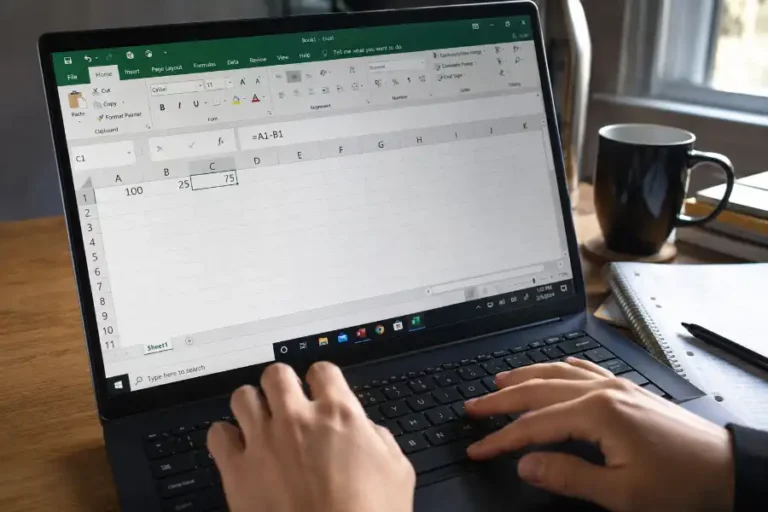
Excel is the one app where the shortcut is exactly the same on Windows and Mac. This is rare, so it is worth remembering alongside your other essential microsoft excel shortcuts.
- Select the cell or cells you want to change
- Press Ctrl + 5
Press it again on the same cell to remove the strikethrough. This shortcut works even inside Excel files opened through Microsoft Teams, though some users have reported it occasionally getting overridden by Teams’ own navigation keys. If that happens, click into the cell first before pressing the shortcut.
Strikethrough Shortcut in PowerPoint
PowerPoint does not have its own single shortcut key either. The fastest method is the same ribbon-based combination used in Word:
- Select your text
- Press Alt, then H, then 4
On Mac, PowerPoint follows the same pattern as Word: Cmd + Shift + X.
Strikethrough Shortcut in Google Docs, Sheets, and Slides
Google’s apps are the most consistent of the bunch. The same shortcut works across Docs, Sheets, and Slides.
- Windows or Chromebook: Alt + Shift + 5
- Mac: Cmd + Shift + X
In Google Sheets, this applies to whatever is selected, whether that is one cell, a full range, or just part of the text inside a single cell. One small catch: on the Google Sheets mobile app, there is no keyboard shortcut at all, even with a physical keyboard connected. You have to use the Format menu instead.
Tip: if you track to-do lists in Google Sheets, you can skip the shortcut entirely by setting up conditional formatting that automatically strikes through a task the moment you tick its checkbox.
Strikethrough Shortcut in Gmail
Open the formatting options while composing an email (click the small “A” or formatting icon), then look for the strikethrough button. Gmail also supports Ctrl + Shift + X (Windows) or Cmd + Shift + X (Mac) as a shortcut once formatting is turned on. It integrates perfectly into your daily flow if you already use standard gmail keyboard shortcuts to manage your inbox.
Strikethrough Shortcut in Notion
Notion gives you two ways to do this, and both are genuinely fast.
- Keyboard shortcut: Select your text and press Ctrl + Shift + S (Windows) or Cmd + Shift + S (Mac)
- Markdown style: Type a tilde symbol before and after your word, like this: ~word~, and Notion will convert it automatically
Strikethrough Shortcut in Slack
Slack works almost the same way as Notion:
- Keyboard shortcut: Ctrl + Shift + X (Windows) or Cmd + Shift + X (Mac)
- Typed shortcut: Wrap your word in single tildes, like ~word~, and Slack will format it for you
Remember that Slack uses a single tilde, not two. That single detail trips people up when they switch over from Discord, which uses double tildes.
Strikethrough Shortcut in Discord
Discord does not use a keyboard combination at all. Instead, you type two tildes on each side of your text:
~~your text here~~
Once you send the message, Discord automatically renders it with a line through it.
Strikethrough on iPhone, iPad, and Android
Mobile devices do not offer a true keyboard shortcut, since most people are typing with a touchscreen, not a physical keyboard.
- iPhone Notes app: Select your text, tap the “Aa” icon, then choose Strikethrough
- Pages on iPad or iPhone: Select your text, tap Format, then Strikethrough
- Android apps: Support depends on the app. Google Docs and Sheets on Android let you apply strikethrough through the Format menu, though the keyboard shortcut does not carry over from desktop
For apps that offer no strikethrough option at all, like Instagram captions or regular text messages, people often use a strikethrough text generator. These tools use special Unicode characters that draw a line through each letter, so the text looks struck through even in apps that were never built to support real formatting.
What To Do If Your Strikethrough Shortcut Is Not Working
This is the part most guides skip, and it is often the reason people end up frustrated and searching for help.
- Check what app you are actually in. If you are inside Microsoft Teams, a browser tab, or a locked document, keyboard shortcuts can behave differently than they do in the standalone desktop app.
- Make sure text is selected first. Most strikethrough shortcuts do nothing if your cursor is just sitting in empty space.
- Look for conflicting shortcuts. Some antivirus tools, screen readers, or third-party keyboard apps quietly take over key combinations like Ctrl + Shift + X.
- Try the Format Cells or Font dialog instead. In Excel, Ctrl + 1 opens Format Cells, and in Word, Ctrl + D opens the Font dialog. From there you can tick Strikethrough manually if the shortcut refuses to respond.
- Restart the app. It sounds too simple, but a stuck formatting toolbar is a common and boring cause of shortcuts failing silently.
How To Create Your Own Strikethrough Shortcut
If you use Word on Windows often, the missing dedicated shortcut gets old fast. You can fix this yourself:
- Go to File, then Options, then Customize Ribbon
- Click Customize next to Keyboard Shortcuts at the bottom
- Under Categories, choose Home Tab
- Under Commands, find Strikethrough
- Click inside the “Press new shortcut key” box and press your preferred combination, for example Ctrl + Shift + minus
- Click Assign, then Close
From that point on, your custom shortcut will work in every Word document you open on that computer.
Frequently Asked Questions
Is there one shortcut that works everywhere?
No. Cmd + Shift + X is the closest thing to a universal shortcut, since it works in Word, Excel, PowerPoint, Google Docs, Slack, and Gmail on a Mac. Windows users do not have that same consistency.
Why does Word not have a default strikethrough shortcut?
Microsoft never assigned one, likely because strikethrough is used less often than bold or italic. The Alt, H, 4 sequence exists because it mirrors the position of the Strikethrough button on the ribbon, not because it was designed as a memorable shortcut.
Can I use strikethrough shortcuts on a Chromebook?
Yes. Chromebooks generally use the same Alt + Shift + 5 shortcut as Windows for Google Docs and Sheets.
Does the strikethrough shortcut remove the text?
No. It only draws a line through the text. The original words stay exactly where they are, which is the whole point of using strikethrough instead of deleting something.
How do I remove strikethrough once it is applied?
Select the same text and press the same shortcut again. Every shortcut listed in this guide works as a toggle.
Learning one shortcut can save you seconds. Learning all of them, across every app you actually use, saves you real time every single week. Pick the two or three you need most, practice them a handful of times, and they will stick in your muscle memory faster than you expect.