Windows Restart Command: Every Method That Works in 2026
Typing one line into Windows can restart your computer faster than clicking through five menus. If you search for the windows restart command, you are probably trying to fix a frozen screen, finish an update, or set up a task that restarts a machine on its own. I have restarted more computers than I can count while working help desk jobs and fixing laptops for family members, and the good news is that the command is short and easy once you know where to type it. This article walks through every way to restart Windows using Command Prompt, PowerShell, the Run box, and the Start menu. You will also find fixes for the errors people run into most often.
What Is the Windows Restart Command?
The windows restart command is really just one word added to a bigger tool called shutdown. Windows has included this tool since the days of Windows XP, and it still works the same way on Windows 10, Windows 11, and Windows Server today. When you add /r to the shutdown command, you tell Windows to close down and start back up again instead of turning off completely. That one letter is the difference between a shutdown and a restart.
You can run this command from Command Prompt, PowerShell, or even the Run box. Each option ends up doing the same job, so pick whichever tool you already have open. The command works without an internet connection, without extra software, and without a mouse, which makes it a fast fix when your screen is stuck or your PC needs a quick reboot after an update.
How to Restart Windows Using Command Prompt
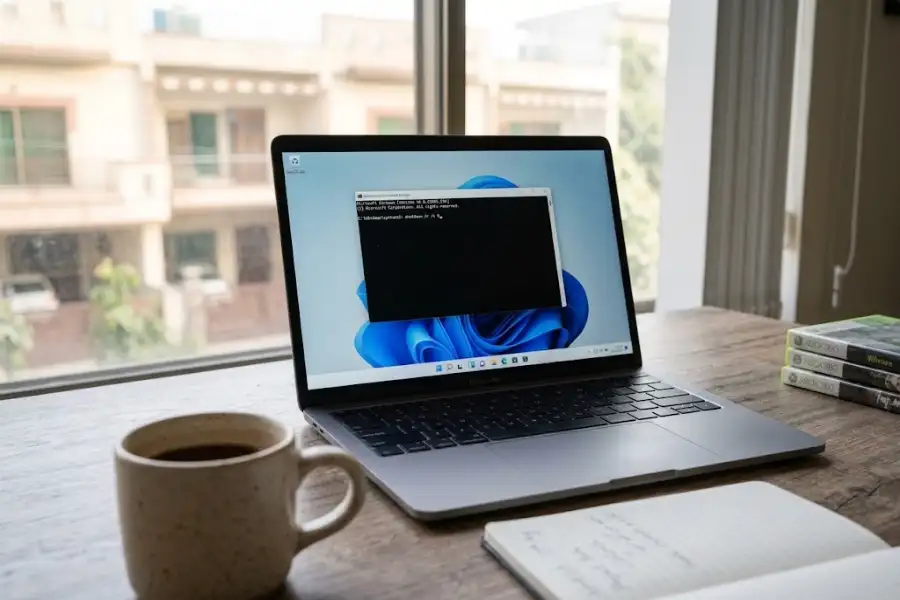
Command Prompt is the most common place people type the windows restart command, so start here if you are not sure which tool to use.
- Press the Windows key, type cmd, then right click Command Prompt and choose Run as administrator. Restarting your PC needs admin rights, so this step matters.
- Type shutdown /r and press Enter. Windows will warn you that it is about to sign you out, then restart.
- If you want more control, add extra letters after the command:
- shutdown /r /t 0 restarts the computer right away, with no waiting time.
- shutdown /r /t 60 gives you 60 seconds before the restart begins, so you can save your work first.
- shutdown /r /c “Restarting for updates” shows a short message to anyone using the computer before it restarts.
These extra letters are called parameters, and you can mix them together. For example, shutdown /r /t 30 /c “Saving files, please wait” both delays the restart and shows a note. If you type the command wrong, Command Prompt will tell you the option is not recognized, so double check your spacing and spelling.
How to Restart Windows Using PowerShell
PowerShell uses a different word for the same job. Instead of shutdown /r, type Restart-Computer and press Enter. This command restarts the local PC right away.
If a program will not close, add -Force to the end: Restart-Computer -Force. This tells Windows to shut running programs down without waiting for you to save anything, so only use it when you are sure you do not need those open files.
PowerShell also lets you restart a computer by name if you are on the same network: Restart-Computer -ComputerName “OFFICE-PC1” -Force. This is handy for small offices or home networks where one person manages a few machines.
How to Restart Windows From the Run Box
If Command Prompt feels like too many steps, the Run box gets the job done in two clicks.
- Press Windows key + R to open the Run box.
- Type shutdown /r /t 0 and press Enter, or click OK.
Your screen will go dark for a second, then Windows will restart right away. This method works even if your Start menu or taskbar has frozen, since the Run box often still responds when other parts of Windows do not.
How to Restart Windows From the Start Menu
Typing commands is not for everyone, and that is fine. Windows still lets you restart with a few clicks:
- Click the Start button.
- Click the Power icon.
- Click Restart.
If a program is frozen and blocking this menu, open Task Manager first, close the stuck app, then try the Start menu again. Windows 11 also hides a few other handy power options inside its settings menus. Our roundup of Windows 11 tips and tricks covers several of them, including shortcuts that save time on tasks you repeat every day.
How to Set a Timer or Cancel a Restart
Sometimes you do not want your PC to restart the second you press Enter. The /t parameter controls how long Windows waits.
- shutdown /r /t 300 waits five minutes (300 seconds) before restarting.
- shutdown /r /t 3600 waits one hour, which some people use to schedule an overnight restart while they finish other work.
If you change your mind after running the command, you do not have to wait it out. Open Command Prompt and type shutdown /a, then press Enter. As long as the countdown has not reached zero, this cancels the restart and Windows keeps running like normal. Once the countdown hits zero, though, the restart begins and cannot be stopped.
How to Force Restart a Frozen Computer
A frozen screen is one of the top reasons people search for a windows restart command in the first place. When your mouse will not move and nothing responds, try these steps in order:
- Wait 30 seconds. Some programs briefly stop responding while they finish a task.
- If nothing changes, open Task Manager with Ctrl + Shift + Esc and close the program marked Not Responding.
- If the whole screen is frozen, type shutdown /r /f /t 0 in Command Prompt. The /f closes every open program without asking, so save often to avoid losing work.
- If you cannot open Command Prompt at all, hold the physical power button for 10 seconds to force a hardware restart. This should only be your last option, since it skips the normal shutdown process completely.
For everyday restarts that are not emergencies, a calmer option is the slide to shutdown feature, which closes Windows down gently and gives open programs a chance to save first.
How to Restart a Remote Computer
IT staff and home network owners sometimes need to restart a computer they are not sitting in front of. The command looks like this:
shutdown /r /m \COMPUTERNAME /t 0
Replace COMPUTERNAME with the actual name of the target PC. Before this works, a few things need to be true:
- You need admin rights on the remote computer, not just your own.
- Both computers must be on the same network.
- Remote shutdown must be allowed through the firewall on the target PC.
If any of these are missing, Windows will show an access error instead of restarting the computer. Setting up remote access ahead of time saves a lot of frustration later, especially if you manage more than one machine.
Fixing Common Restart Command Problems
Even a short command can go wrong. Here are the problems people run into most and how to fix each one.
“Access is denied.” This means Command Prompt was not opened as an administrator. Close it, then right click Command Prompt again and choose Run as administrator.
“The command requires elevation.” This is the same fix as above. Restarting a computer always needs admin rights, even on your own PC.
“‘shutdown’ is not recognized.” This usually means a typo. Check that you typed shutdown correctly, with no extra spaces before the slash.
A pending restart will not cancel. The shutdown /a command only works before the countdown reaches zero. Once it hits zero, the restart cannot be stopped.
The computer restarts, then crashes again. This points to a problem somewhere else on the system, not the command itself. Windows keeps a record of crashes and unexpected restarts that can help you find the cause. Check the Windows Reliability Monitor to see exactly when the crashes happened and what caused them.
Frequently Asked Questions
What is the fastest windows restart command?
shutdown /r /t 0 is the fastest option. It skips the waiting period and restarts the computer right away.
Does the restart command save my work first?
No, it does not save anything for you. Close and save your files before running the command, or add a short /t delay so programs have time to prompt you first.
Can I restart Windows without opening Command Prompt?
Yes. The Run box, Start menu, and PowerShell all offer the same result, so use whichever one is easiest to reach at the time.
Why does my restart command say access denied?
Command Prompt or PowerShell was not opened with administrator rights. Right click the app and choose Run as administrator, then try again.
Is shutdown /r safe to use on Windows 11?
Yes. The command has worked the same way since Windows XP and is still fully supported on Windows 11 and Windows Server.
Final Thoughts
The windows restart command is one of those small tools that saves real time once you know it. Whether you type shutdown /r in Command Prompt, run Restart-Computer in PowerShell, or click through the Start menu, the result is the same: a clean restart without extra clicking around. Keep the /t and /f options in mind for the times you need more control, and remember shutdown /a if you ever need to back out of a restart you did not mean to start. Once you have used it a few times, typing the command becomes second nature.