Pro Tools Essentials Shortcuts List for Windows (2026)
If you use Pro Tools Essentials on a Windows computer, shortcuts save you real time. Every click you skip is more time for your music, your podcast, or your voice work. This Pro Tools Essentials shortcuts list is made only for Windows keys. You will not get stuck on Mac symbols.
Most shortcut lists online are made for Mac first. Windows keys get added as a side note. That mix-up leads to mistakes. Every shortcut below uses Ctrl, Alt, and Shift, the keys on your own keyboard.
What Is Pro Tools Essentials?
Pro Tools Essentials is the starter version of Avid’s Pro Tools software. It gives new users the main recording, editing, and mixing tools. It costs less than the full version. It shares the same base as the full Pro Tools app. Because of this, most shortcuts work the same way in both. A few features only live in the paid tiers. So a few shortcuts from older lists may not work in Essentials.
The First 10 Shortcuts To Learn
Start with these. They cover most of what you will do in a normal session.
- Space – Play or stop your session.
- Ctrl + S – Save your session.
- Ctrl + Z – Undo your last action.
- Ctrl + C / Ctrl + X / Ctrl + V – Copy, cut, and paste a clip.
- Ctrl + D – Duplicate the selected clip.
- Ctrl + E – Split a clip at your cursor point.
- Ctrl + F – Add a fade to the selected clip.
- F12 – Start recording.
- Ctrl + = – Switch between the Edit window and the Mix window.
- Ctrl + Alt + K – Open the Keyboard Shortcuts window.
Transport And Playback Shortcuts
These keys move your session and control playback.
- Space – Play or stop.
- Shift + Space – Play at half speed. This keeps the pitch the same, so you can catch small timing or tuning issues.
- F12 – Record.
- Ctrl + Space – Record and play at the same time.
- Ctrl + Shift + P – Turn on Quick Punch, so you can punch in and out of record without stopping playback.
- Return (main keyboard) – Go back to the start of your session.
Editing Shortcuts
These are the shortcuts you will use most while trimming and arranging audio.
- Ctrl + C – Copy the selected clip.
- Ctrl + X – Cut the selected clip.
- Ctrl + V – Paste the clip.
- Ctrl + D – Duplicate the clip right after itself.
- Ctrl + E – Cut a clip into two pieces at your edit point.
- Ctrl + F – Create a fade on the selected clip.
- Shift + Alt + 3 – Join several selected clips into one single clip.
- Ctrl + Shift + Down Arrow – Lower the clip gain in small steps.
- Ctrl + Shift + Up Arrow – Raise the clip gain in small steps.
Tool Shortcuts (Switching Between Tools)
Pro Tools Essentials uses the F-keys along the top of your keyboard to switch tools fast, without touching your mouse.
- F1 – Slip mode
- F2 – Shuffle mode
- F3 – Spot mode
- F4 – Grid mode
- F5 – Zoomer tool
- F6 – Trim tool
- F7 – Selector tool
- F8 – Grabber tool
- F9 – Scrubber tool
- F10 – Pencil tool
Tip: turn on Edit Keyboard Focus first. Once it is on, some of these tool changes work with a single letter key too, so your hand barely leaves the keyboard.
Zoom And Session Shortcuts
- Ctrl + N – Start a new session.
- Ctrl + Shift + N – Add a new track.
- Ctrl + Shift + S – Save a copy of your session under a new name.
- Ctrl + 8 – Open Beat Detective for lining up recorded drums to a tempo grid.
Mixing Shortcuts
- Alt + Click on a fader or knob – Reset it back to its default setting.
- Ctrl + drag on a fader – Move the fader in smaller, finer steps.
- Numeric keypad Enter – Add a Memory Location at your current spot.
- Comma, then a number, then Comma again (numeric keypad) – Jump straight to that Memory Location.
Recording Shortcuts
- F12 – Start or stop recording.
- Ctrl + Space – Record and play together.
- Ctrl + Shift + P – Quick Punch, for punching in without stopping the track.
- Numeric keypad Enter – Mark the spot with a Memory Location while you record, so you can find it again fast.
How To Change A Shortcut In Pro Tools Essentials
Sometimes a shortcut clashes with another key on your Windows setup. Or you just want a key that feels easier for your hand. Here is how to change one.
- Open the Setup menu at the top of the screen.
- Click Keyboard Shortcuts, or press Ctrl + Alt + K.
- Look through the list until you find the command you want to change.
- Click on that command, then press the new key combination you want to use for it.
- Save your new set as a preset, so you can load it again if you ever reinstall Pro Tools Essentials or move to a new computer.
Mistakes Beginners Make With These Shortcuts
- Copying a Mac list by mistake. Many free shortcut sheets are made for Mac first. If a shortcut uses “Cmd,” swap it for Ctrl. If it uses “Option,” swap it for Alt.
- Forgetting to turn on Keyboard Focus. Some shortcuts do nothing until this setting is on. Check it first if a key feels dead.
- Mixing up session shortcuts with track shortcuts. Ctrl + N and Ctrl + Shift + N look close. One starts a whole new session. The other just adds a track.
- Skipping the F-keys on a laptop. Some Windows laptops need you to hold Fn with the F-key. Without it, you get a volume or brightness change instead.
- Not saving a shortcut preset. If you change a shortcut and never save it, you can lose that change later. The same rule applies in other creative apps, like in the Blender keyboard shortcuts list for 3D work.
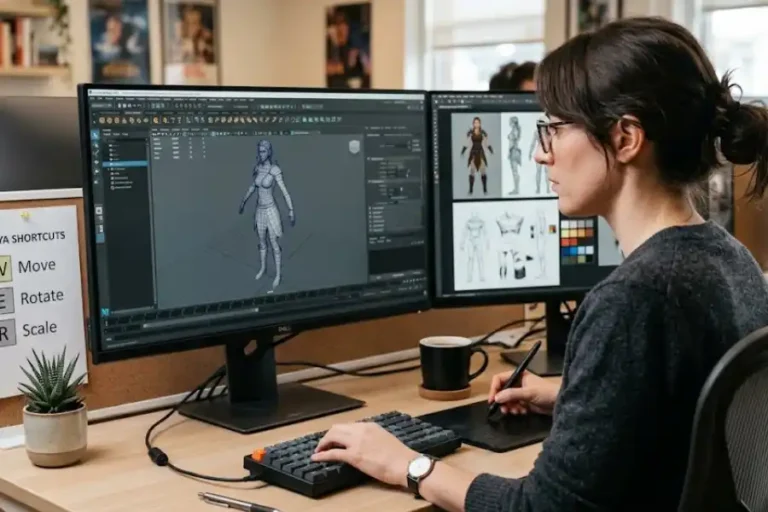
The same habits carry over to other programs too. The Maya shortcut keys list uses a close F-key pattern for switching tools. Drafting software follows a similar setup, as shown in the AutoCAD keyboard commands list. For the shortcuts your whole system leans on, like locking your screen or switching windows fast, check the Windows 11 tips and tricks list too.
Frequently Asked Questions
Does Pro Tools Essentials use the same shortcuts as full Pro Tools?
Yes, for the most part. Pro Tools Essentials shares its main command set with the paid versions. A few shortcuts tied to higher-tier features will not work, since those tools are not part of Essentials.
Why do my shortcuts not match a list I found online?
Most free lists are made for Mac keyboards first. Swap Cmd for Ctrl. Swap Option for Alt. Most of them will now line up with your Windows keyboard.
Can I use my own shortcut instead of the default one?
Yes. Open Setup > Keyboard Shortcuts, or press Ctrl + Alt + K. Pick the command. Then set your own key combination. You can save it as a preset too.
What is Keyboard Focus, and why does it matter?
Keyboard Focus is a setting that turns on single-letter shortcuts inside certain windows, like the Edit window. With it off, some shortcuts on this page will not respond.
Final Thoughts
Keep this Pro Tools Essentials shortcuts list open in another tab while you work. Start with the first ten. Add a few new ones each week. Soon your hands will stop reaching for the mouse so often. Small habits like this add up fast.