Blender Keyboard Shortcuts: Every Key You Need, by Mode
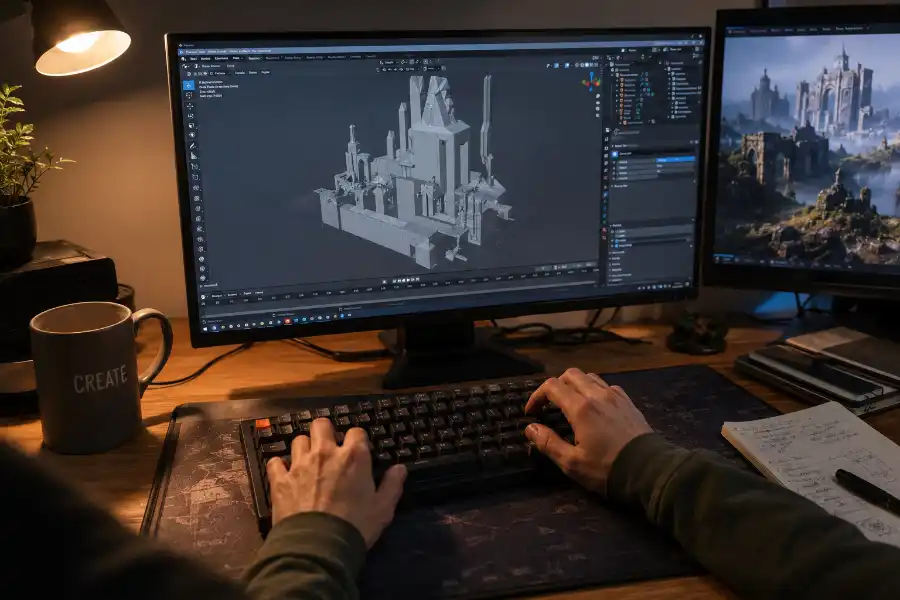
You open Blender. You know exactly what you want to build. Then you spend the next ten minutes clicking through menus just to move a cube. Sound familiar? Almost every new Blender user goes through this. The good news is that the fix is simple: Blender keyboard shortcuts.
Blender was built around the keyboard, not the mouse. Once you learn the right keyboard shortcuts, the whole program feels different. Faster. Smoother. Less frustrating. This article covers every shortcut you need, plus a few software eggs and hidden tricks most other guides skip entirely, like what to do if your laptop has no numpad, how to build your own custom shortcuts, and the most common mistakes that trip up beginners.
Let’s get your hands moving faster than your mouse ever could.
Why Blender Keyboard Shortcuts Matter So Much
In most software, shortcuts are a bonus. In Blender, they are the main way the program is meant to be used. The menus are really just a backup option.
This matters for you for a simple reason. When you rely on menus, your eyes keep jumping away from your model to hunt for buttons. When you use keyboard shortcuts instead, your eyes stay locked on your work. You start to feel the software instead of fighting it. That shift, from clicking to feeling, is the real reason people say Blender becomes “fun” once shortcuts click.
You do not need to memorize all of them today. Much like working with maya software shortcut keys, most experienced Blender users only rely on a small core set of hotkeys for their daily 3D workflow.
The 10 Blender Shortcuts to Learn First
If you only take one section from this whole guide, take this one. These ten Blender keyboard shortcuts cover the bulk of any modeling or editing session. Learn these before anything else.
- G: Grab (move) the selected object or element
- R: Rotate the selected object or element
- S: Scale the selected object or element
- Tab: Switch between Object Mode and Edit Mode
- E: Extrude, used constantly in modeling
- Ctrl + Z: Undo your last action
- Shift + A: Open the Add menu to add new objects
- Ctrl + S: Save your file
- Numpad 0: Switch to camera view
- Spacebar: Play or pause your animation timeline
Notice a pattern? G, R, and S sit right next to each other for a reason. Your left hand can reach all three without moving. That is not an accident. Blender’s default keymap was designed so your hand barely has to travel. Once you feel that, the rest of the shortcuts start to make a lot more sense.
Full Blender Keyboard Shortcuts List by Category
Now let’s look at each one in detail. Blender’s shortcuts change slightly depending on which editor and mode you are working in. Below is the complete list, organized the way you will use it: by task.
Viewport Navigation Shortcuts
- Middle Mouse Button (drag): Orbit around your scene
- Shift + Middle Mouse Button: Pan the view
- Scroll Wheel: Zoom in and out
- Numpad 1: Front view
- Numpad 3: Side view
- Numpad 7: Top view
- Ctrl + Numpad 1 / 3 / 7: Opposite views (back, other side, bottom)
- Period (.) on numpad: Zoom in and focus on the selected object
- Forward Slash (/): Toggle Local View, hiding everything except your selection
- Z: Open the shading pie menu (solid, wireframe, material preview, and so on)
Object Mode Shortcuts
- A: Select all objects
- Alt + A: Deselect everything
- Shift + D: Duplicate the selected object
- Alt + D: Create a linked duplicate (shares the same mesh data)
- X or Delete: Delete the selected object
- Ctrl + A: Apply transforms (location, rotation, or scale)
- M: Move the object to a different collection
- N: Toggle the side panel showing transform values
- Ctrl + P: Set a parent for the selected object
Edit Mode Shortcuts
- 1, 2, 3: Switch between Vertex, Edge, and Face select
- Ctrl + R: Add a loop cut
- K: Activate the Knife tool for custom cuts
- F: Fill a face between selected vertices or edges
- Alt + Z: Toggle X-ray mode so you can select through solid geometry
- G, G (press G twice): Slide a vertex or edge along the existing mesh
- L: Select everything linked to the piece under your cursor
- P: Separate the selection into its own object
Sculpt Mode Shortcuts
- F: Adjust brush size by moving your mouse
- Shift + F: Adjust brush strength
- Ctrl (hold): Invert the current brush effect
- Shift (hold): Temporarily switch to the Smooth brush
- X: Mirror your sculpting across the X axis
Animation Shortcuts
- I: Insert a keyframe for the selected property
- Alt + I: Delete a keyframe
- Spacebar: Play or pause playback
- Up Arrow / Down Arrow: Jump to the next or previous keyframe
- Ctrl + Tab: Toggle between Object Mode and Pose Mode for armatures
UV Editing Shortcuts
- U: Open the Unwrap menu
- L: Select a linked UV island
- S: Scale the selected UV shells
Node Editor Shortcuts
- Shift + A: Add a new node
- Shift + D: Duplicate the selected node
- F: Connect two selected nodes automatically
- M: Mute or unmute a node
File and Render Shortcuts
- Ctrl + S: Save your file
- Ctrl + O: Open a file
- F12: Render the current frame
- F3: Open the search menu and type any command by name
- Ctrl + Alt + Spacebar: Maximize the current window to full screen
Mac vs Windows: What Changes
Good news if you’re on a Mac. Almost every Blender keyboard shortcut works the same way. The one real difference is that Cmd usually replaces Ctrl. So saving a file is Ctrl + S on Windows and Cmd + S on Mac. Undo, redo, copy, and open all follow that same swap. A small number of shortcuts may shift depending on your specific Mac keyboard layout, so if something doesn’t respond, check Blender’s keymap settings before assuming it’s broken.
No Numpad? Here’s the Fix Almost Nobody Mentions
Many of Blender’s most useful navigation shortcuts rely on the numpad, things like Numpad 1 for front view or Numpad 0 for camera view. The problem is that most laptops don’t have a numpad at all.
Blender already has a fix for this. To turn it on:
- Go to Edit, then Preferences
- Click on the Input tab
- Turn on “Emulate Numpad”
Once this is on, the number keys along the top of your keyboard work the same way as numpad keys. Press 1 and you get front view, just like Numpad 1. The one trade-off is that your number keys will no longer switch between Vertex, Edge, and Face select in Edit Mode. For most laptop users, full navigation is worth that small change.
How to Create Your Own Custom Blender Shortcuts
Blender lets you change almost any key or click to whatever you want, more freedom than most other 3D software gives you. If a shortcut doesn’t exist yet for something you do often, you can create one yourself.
The fastest way is called the right-click trick:
- Find the menu item, button, or panel option you want a shortcut for
- Right-click on it
- Choose “Assign Shortcut” from the menu that appears
- Press the key combination you want to use
Blender saves it instantly. If you want more control, such as changing an existing shortcut or limiting it to a specific editor, go to Edit, then Preferences, then Keymap. From there you can search by name or by key and edit anything you like.
Common Blender Shortcut Mistakes Beginners Make
Learning shortcuts is one thing. Using them correctly is another. Here are the mistakes that trip up almost every new user.
- Using shortcuts in the wrong mode. Many keys do completely different things in Object Mode versus Edit Mode. If a shortcut suddenly “stops working,” check which mode you’re in first.
- Confusing X and Delete. Both delete things, but X often opens a small menu asking what exactly to delete, like the vertex, the edge, or the whole face. Delete removes it immediately. Know which one you’re pressing.
- Forgetting your cursor’s location matters. Some shortcuts, like L for select linked, apply based on where your mouse is hovering, not where you last clicked. This confuses beginners constantly.
- Not turning on Emulate Numpad on a laptop. Without it, half the navigation shortcuts in every tutorial simply won’t work for you.
- Trying to learn all 200-plus shortcuts at once. This almost always backfires. Nobody memorizes a keyboard shortcut by reading it once.
How to Memorize Blender Keyboard Shortcuts
Reading a list of shortcuts is very different from knowing them. Here is a simple plan that works.
- Week one: Use only the top 10 shortcuts from earlier in this guide. Nothing else. Let them become automatic.
- Week two: Add the Edit Mode shortcuts, since modeling is where most beginners spend their time.
- Week three: Add navigation shortcuts so you stop reaching for the mouse to rotate your view.
- Ongoing: Whenever you forget a shortcut, press F3 and type what you want to do. Blender shows you the exact shortcut right next to the result. This is faster than searching online and it teaches you as you go.
If you’re still thinking about which key to press, you’re still learning, and that’s completely normal. Once you stop thinking about it at all, it’s working.
Frequently Asked Questions
Do I need to memorize every Blender shortcut?
No. Most experienced users rely on a fairly small set of shortcuts they use daily. The rest can be found instantly with the F3 search menu whenever you need them.
Are Blender keyboard shortcuts the same for every version?
The core shortcuts covered in this guide have stayed consistent across Blender 2.8, the 3.x releases, and Blender 4.x. They carry over unchanged into newer versions as well, so what you learn now will keep working.
Why do my Blender shortcuts not work?
The most common reasons are being in the wrong mode, your mouse not hovering over the viewport, or the program freezing during a heavy render, in which case using a task manager keyboard shortcut will confirm if Blender is still responding.
What is the single most useful Blender shortcut?
F3 arguably beats them all, since it lets you search for and run any command by typing its name, even if you don’t know or remember its shortcut yet.
Can I use Blender without learning any shortcuts?
Yes, every action is available through the menus. But your workflow will be dramatically slower, and most tutorials assume you already know the basic shortcuts, which can make following along frustrating.
Final Thoughts
Blender keyboard shortcuts are not extra credit. They are the actual language the software was built around. Start with the top 10, add the numpad fix if you’re on a laptop, and lean on F3 whenever you get stuck. Give it a few weeks of real practice, and reaching for the mouse will start to feel like the slow way to do things. For the full official reference, Blender’s own documentation at blender.org is worth bookmarking alongside this guide.