iPhone Field Test Mode: How to See Your Real Signal Strength
Have you ever looked at your iPhone and seen full signal bars, but your calls still drop? Or your video buffers for no reason? Those little bars are not telling you the whole truth. They are a rough guess, not a real number. But your iPhone has a secret screen that shows the real story, acting as a highly useful software egg. It is called Field Test Mode, and almost no one knows it exists.
This article explains what Field Test Mode is, how to open it on any iPhone, and how to make sense of the strange numbers it shows you. No tech background needed. We’ll break it down in plain, simple words.
What Is Field Test Mode, Really?
Just like other powerful iPhone hidden features, Field Test Mode is a hidden tool built into every iPhone. Apple’s engineers made it to test cell signals before phones ever hit store shelves. It was never meant for regular users. But Apple left it on every phone, and anyone can open it for free.
Think of your signal bars as a blurry photo. Field Test Mode is like putting on your glasses. Instead of a fuzzy guess, you get exact numbers that show how strong and how clean your connection really is.
Is Field Test Mode Safe to Use?
Yes, it is completely safe. This is one of the biggest myths floating around online. Some people think Field Test Mode is some kind of hacking trick or a way to break into network settings. It is not. You cannot damage your phone, change your carrier settings, or break anything by opening this menu.
It is simply a readout screen, as harmless as discovering that your iPhone Calculator Has a Secret Backspace. You look at the numbers, and then you go back to your normal phone. That’s it. Apple built it this way on purpose, so curious users could peek in without any risk.
How to Open Field Test Mode on Any iPhone
The steps are the same no matter which iPhone you own, from an older iPhone 11 to the newest models running iOS 26.
- Make sure you have an active cell signal. Wi-Fi calling alone will not work for this.
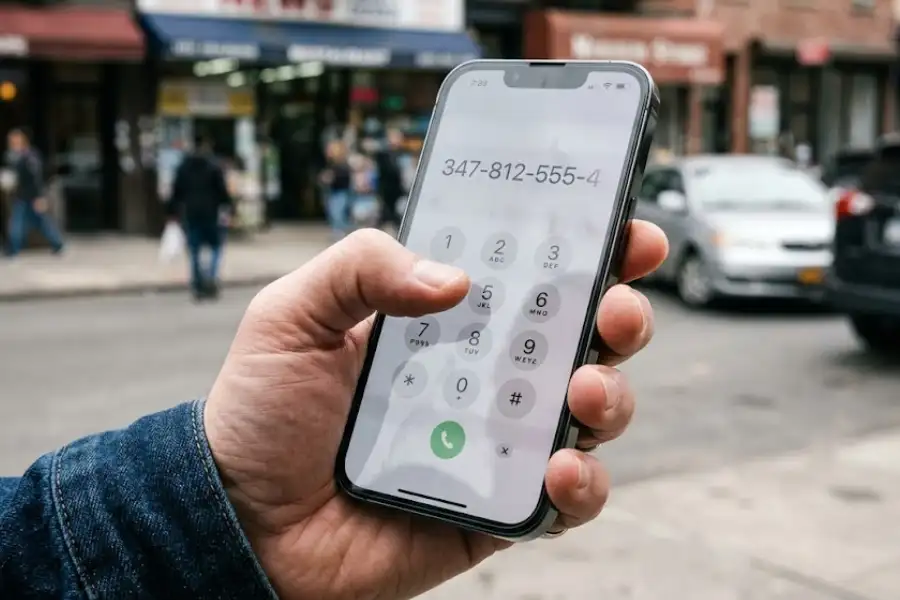
- Open your Phone app, the same one you use to make calls.
- Tap the keypad and type this code precisely: *3001#12345#*
- Press the green call button.
- Your screen will instantly switch to a dark dashboard. This is Field Test Mode.
Tip: You cannot copy or paste numbers from this screen. If you want to save a reading, take a screenshot instead.
If your iPhone shows a different layout than you expected, that is normal. Apple changes the design slightly with each major iOS update, and the current version, iOS 26, looks a bit different from older versions like iOS 18. The numbers you need are still there either way.
Making Sense of the Field Test Screen
The dashboard can look scary at first. It is full of short codes and small numbers. But you really only need to understand three of them.
RSRP: How Strong Is Your Signal?
RSRP stands for Reference Signal Received Power. In simple terms, it tells you how strong your signal is, measured in a unit called dBm. These numbers are negative, and that confuses people at first. Just remember this rule: the closer the number is to zero, the stronger your signal.
- -50 to -80: Excellent signal. You should have no problems at all.
- -80 to -100: Good, usable signal for calls and browsing.
- -100 to -110: Weak. You may notice slow data or dropped calls.
- Below -110: Very poor. Expect frequent problems.
RSRQ: How Clean Is Your Signal?
RSRQ stands for Reference Signal Received Quality. Strength is not the only thing that matters. You could have a strong signal that is full of interference, kind of like a loud radio station with static. RSRQ tells you how clean that signal really is. Numbers closer to zero are better here too, though the scale is smaller, usually ranging from about -3 to -20.
SINR: How Clear Is the Connection?
SINR (sometimes shown as SNR) stands for Signal to Interference plus Noise Ratio. This one works the opposite way from the others. A higher number is better. Anything above 5 is considered solid. If you see a negative SINR number, that means there is heavy interference nearby, often from buildings, hills, or even your own walls.
LTE vs 5G: What Changes in Field Test Mode
If your iPhone is connected to 5G, the field test screen will show a section labeled 5G NR instead of LTE. You will still see RSRP and RSRQ readings here. However, most current iPhones do not display a SINR reading for 5G connections the way they do for LTE. This is normal and not a sign of a problem.
What Can You Do With These Numbers?
Knowing your exact signal strength does more than satisfy curiosity. It has real, everyday uses.
- Choosing the best spot for a signal booster. Walk around your home with Field Test Mode open and note the RSRP in each room. The weakest room is where a booster’s outdoor antenna should aim.
- Comparing carriers before you switch. Borrow a friend’s phone on a different carrier and compare RSRP numbers at your house before committing to a new plan.
- Proving a problem to your carrier. Screenshots of consistently weak RSRP readings give customer support real evidence instead of just “my bars look low.”
- Deciding where to sit on video calls. If a call keeps freezing, check the numbers in a few different spots in the room.
Common Problems and How to Fix Them
A few issues pop up often when people try this for the first time.
- Stuck on “Waiting for Update”: Wait about 30 seconds. If it does not clear, exit the screen and dial the code again. Make sure airplane mode is off.
- No SINR number showing: This is common on certain carriers or chipsets. Try checking under a different menu tab, such as “Serving Cell Meas” or “All Metrics,” since the exact label can vary by device.
- The screen looks totally different from a tutorial you read: This almost always means you are on a different iOS version. The numbers and menu names stay similar, even if the layout changes.
How to Exit Field Test Mode
Getting out is just as easy as getting in. Simply press your Phone app icon again, or tap the back arrow at the top corner of the field test screen, and you will return to normal. Nothing was changed or saved on your device.
Frequently Asked Questions
Does Field Test Mode drain my battery?
No. It uses the same antenna your phone always uses. Simply viewing this screen does not use extra power.
Can I leave Field Test Mode open in the background?
You can switch apps, but the field test screen will close. You will need to dial the code again each time you want to check it.
Why are the signal numbers negative?
Signal strength is measured in decibel milliwatts, a unit that naturally produces negative numbers for these tiny power levels. A smaller negative number (closer to zero) simply means a stronger signal.
Does this work on every iPhone model?
Yes. Every iPhone from the iPhone 6 onward supports Field Test Mode, including the newest models on iOS 26.
Will using Field Test Mode void my warranty?
No. This is a standard Apple feature, not a jailbreak or hack. Using it has zero effect on your warranty or your device’s security.
Your iPhone’s signal bars only tell half the story. Now that you know how to read the real numbers behind them, you can finally figure out where your signal is strong, where it’s weak, and what to do about it.